> ## Documentation Index
> Fetch the complete documentation index at: https://learn.nextedy.com/llms.txt
> Use this file to discover all available pages before exploring further.
# Network and Firewall Requirements
> Verify that your network allows Nextedy PLANNINGBOARD to reach Polarion and confirm no firewall or proxy is silently blocking board data.
## Who this guide is for
Administrators and evaluators who see an infinite-loading board or a blank widget and need to rule out network-level causes before escalating to product support.
## What causes network-related loading failures
Planningboard renders as a widget inside a Polarion LiveDoc or Wiki page. The browser page loads the Polarion host directly; the widget then makes additional HTTP requests back to the same Polarion server to load Plans, work items, and capacity data. If a corporate firewall or proxy intercepts those requests — even silently — the board spinner never resolves.
 All traffic is same-origin — the browser only ever contacts the Polarion server. There is no external CDN or cloud endpoint.
1. Open your browser and navigate to your Polarion instance (e.g. `https://polarion.example.com/polarion/`).
2. Confirm the Polarion login page loads and you can authenticate.
3. Navigate to the LiveDoc or Wiki page that contains the Planningboard widget.
If Polarion itself does not load, the problem is upstream of Planningboard — fix Polarion connectivity first.
When the board is stuck loading, browser developer tools show exactly which request is failing.
1. On the page with the stuck Planningboard widget, press **F12** (Windows/Linux) or **Cmd+Option+I** (macOS) to open DevTools.
2. Click the **Network** tab.
3. Reload the page (**F5** or **Cmd+R**).
4. Watch for requests that are red (failed) or that hang indefinitely (no response status).
All traffic is same-origin — the browser only ever contacts the Polarion server. There is no external CDN or cloud endpoint.
1. Open your browser and navigate to your Polarion instance (e.g. `https://polarion.example.com/polarion/`).
2. Confirm the Polarion login page loads and you can authenticate.
3. Navigate to the LiveDoc or Wiki page that contains the Planningboard widget.
If Polarion itself does not load, the problem is upstream of Planningboard — fix Polarion connectivity first.
When the board is stuck loading, browser developer tools show exactly which request is failing.
1. On the page with the stuck Planningboard widget, press **F12** (Windows/Linux) or **Cmd+Option+I** (macOS) to open DevTools.
2. Click the **Network** tab.
3. Reload the page (**F5** or **Cmd+R**).
4. Watch for requests that are red (failed) or that hang indefinitely (no response status).
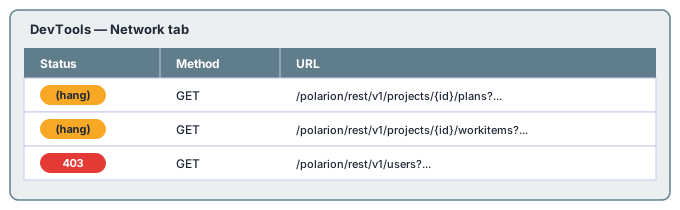 Look for requests to `/polarion/rest/` or `/polarion/ws/` paths that return 0, timeout, or 403/407.
A status of **407** means a proxy server is intercepting requests and demanding credentials. The Planningboard widget's HTTP calls do not carry proxy credentials — the browser must be configured to authenticate with the proxy, or the Polarion host must be added to the proxy bypass list.
1. In DevTools, click the **Console** tab.
2. Reload the page and look for red error messages.
Common error patterns and their causes:
| Console message | Likely cause |
| --------------------------------------------- | --------------------------------------------------- |
| `net::ERR_CONNECTION_TIMED_OUT` | Firewall is dropping packets silently |
| `net::ERR_CONNECTION_REFUSED` | Polarion port is blocked or Polarion is not running |
| `net::ERR_CERT_AUTHORITY_INVALID` | TLS certificate not trusted (corporate CA missing) |
| `Failed to fetch` / `TypeError: NetworkError` | CORS or proxy interception blocking the request |
| `401 Unauthorized` | Session expired — re-authenticate to Polarion |
Planningboard makes requests only to the Polarion server. The ports depend on your deployment:
| Protocol | Default port | When used |
| -------- | ------------ | -------------------------------- |
| HTTP | 80 or 8080 | Non-SSL Polarion deployments |
| HTTPS | 443 or 8443 | SSL-enabled Polarion deployments |
No other hosts, ports, or external services are required. If your Polarion is behind a reverse proxy, the proxy must forward the full request path (including `/polarion/rest/` and `/polarion/ws/`) without stripping headers.
Planningboard does not call any external APIs, license servers, or analytics endpoints at runtime. All requests are contained within the Polarion server. An outbound-only firewall rule to the Polarion host is sufficient.
If your organization routes browser traffic through a proxy, add the Polarion server hostname to the proxy bypass (no-proxy) list so that same-origin requests are not intercepted.
Examples by platform:
**Windows (Internet Options > LAN Settings > Exceptions):**
```text theme={null}
polarion.example.com; *.example.com
```
**macOS (System Settings > Network > Proxies > Bypass proxy settings for):**
```text theme={null}
polarion.example.com, *.example.com
```
**Environment variable (CLI / scripts):**
```text theme={null}
NO_PROXY=polarion.example.com,*.example.com
```
After updating bypass settings, close and reopen the browser entirely before retesting.
If your Polarion instance uses a certificate issued by a corporate or internal CA, the browser must trust that CA.
1. Click the padlock icon in the browser address bar on the Polarion page.
2. Verify the certificate chain shows no warnings.
3. If there is a certificate error, ask your IT team to install the corporate root CA into the browser trust store.
Some corporate proxies perform TLS inspection (SSL bump / man-in-the-middle). They replace the server certificate with a proxy-issued certificate. If the proxy's CA is not trusted by the browser, every HTTPS request from Planningboard fails with a certificate error. Ask your network team to exclude the Polarion host from TLS inspection, or ensure the inspection proxy's CA is deployed to all client machines.
If possible, test from a machine that is not behind the corporate firewall or proxy (for example, a home network or a mobile hotspot):
1. Connect to the alternative network.
2. Navigate to the Polarion Planningboard page.
3. If the board loads correctly, the problem is confirmed to be network/firewall-specific.
This test confirms the issue is environmental and not a Planningboard configuration problem.
## Common firewall rules to verify
Have your network or security team confirm the following:
| Rule | Direction | Protocol | Port | Host |
| ----------------------------- | --------- | -------- | ------------- | ----------------- |
| Allow browser to Polarion | Outbound | TCP | 443 (or 8443) | Polarion hostname |
| Allow WebSocket upgrades | Outbound | TCP | 443 | Polarion hostname |
| No TLS inspection on Polarion | — | HTTPS | — | Polarion hostname |
| Proxy bypass | — | — | — | Polarion hostname |
Polarion uses long-lived connections for some server push notifications. Ensure the firewall and any load balancer in front of Polarion allow WebSocket upgrade (`Connection: Upgrade`, `Upgrade: websocket`) on the Polarion port.
## You should now see
After resolving the network issue and reloading the page, the Planningboard widget should:
* Render the board within a few seconds (depending on the number of Plans and work items).
* Display swimlanes with cards populated from Polarion Plans.
* Show no red errors in the browser console Network tab.
If the board still does not load after confirming all network paths are open, check the [Common Errors](/planningboard/guides/troubleshooting/common-errors) guide or review [Version Updates and Checking](/planningboard/guides/troubleshooting/version-updates) to confirm the plugin is correctly installed.
## See also
* [Common Errors](/planningboard/guides/troubleshooting/common-errors)
* [License Count and Warnings](/planningboard/guides/troubleshooting/license-issues)
* [Version Updates and Checking](/planningboard/guides/troubleshooting/version-updates)
* [Installation](/planningboard/getting-started/installation)
**Support Tickets**
* [#6659](https://support.nextedy.com/helpdesk/tickets/6659)
**Source Code**
* `PlanningBoardDataService.java`
* `PlanningBoardWidgetDependenciesProcessor.java`
* `licenseReadonly.cy.ts`
* `PlanningBoardWidgetRenderer.java`
Look for requests to `/polarion/rest/` or `/polarion/ws/` paths that return 0, timeout, or 403/407.
A status of **407** means a proxy server is intercepting requests and demanding credentials. The Planningboard widget's HTTP calls do not carry proxy credentials — the browser must be configured to authenticate with the proxy, or the Polarion host must be added to the proxy bypass list.
1. In DevTools, click the **Console** tab.
2. Reload the page and look for red error messages.
Common error patterns and their causes:
| Console message | Likely cause |
| --------------------------------------------- | --------------------------------------------------- |
| `net::ERR_CONNECTION_TIMED_OUT` | Firewall is dropping packets silently |
| `net::ERR_CONNECTION_REFUSED` | Polarion port is blocked or Polarion is not running |
| `net::ERR_CERT_AUTHORITY_INVALID` | TLS certificate not trusted (corporate CA missing) |
| `Failed to fetch` / `TypeError: NetworkError` | CORS or proxy interception blocking the request |
| `401 Unauthorized` | Session expired — re-authenticate to Polarion |
Planningboard makes requests only to the Polarion server. The ports depend on your deployment:
| Protocol | Default port | When used |
| -------- | ------------ | -------------------------------- |
| HTTP | 80 or 8080 | Non-SSL Polarion deployments |
| HTTPS | 443 or 8443 | SSL-enabled Polarion deployments |
No other hosts, ports, or external services are required. If your Polarion is behind a reverse proxy, the proxy must forward the full request path (including `/polarion/rest/` and `/polarion/ws/`) without stripping headers.
Planningboard does not call any external APIs, license servers, or analytics endpoints at runtime. All requests are contained within the Polarion server. An outbound-only firewall rule to the Polarion host is sufficient.
If your organization routes browser traffic through a proxy, add the Polarion server hostname to the proxy bypass (no-proxy) list so that same-origin requests are not intercepted.
Examples by platform:
**Windows (Internet Options > LAN Settings > Exceptions):**
```text theme={null}
polarion.example.com; *.example.com
```
**macOS (System Settings > Network > Proxies > Bypass proxy settings for):**
```text theme={null}
polarion.example.com, *.example.com
```
**Environment variable (CLI / scripts):**
```text theme={null}
NO_PROXY=polarion.example.com,*.example.com
```
After updating bypass settings, close and reopen the browser entirely before retesting.
If your Polarion instance uses a certificate issued by a corporate or internal CA, the browser must trust that CA.
1. Click the padlock icon in the browser address bar on the Polarion page.
2. Verify the certificate chain shows no warnings.
3. If there is a certificate error, ask your IT team to install the corporate root CA into the browser trust store.
Some corporate proxies perform TLS inspection (SSL bump / man-in-the-middle). They replace the server certificate with a proxy-issued certificate. If the proxy's CA is not trusted by the browser, every HTTPS request from Planningboard fails with a certificate error. Ask your network team to exclude the Polarion host from TLS inspection, or ensure the inspection proxy's CA is deployed to all client machines.
If possible, test from a machine that is not behind the corporate firewall or proxy (for example, a home network or a mobile hotspot):
1. Connect to the alternative network.
2. Navigate to the Polarion Planningboard page.
3. If the board loads correctly, the problem is confirmed to be network/firewall-specific.
This test confirms the issue is environmental and not a Planningboard configuration problem.
## Common firewall rules to verify
Have your network or security team confirm the following:
| Rule | Direction | Protocol | Port | Host |
| ----------------------------- | --------- | -------- | ------------- | ----------------- |
| Allow browser to Polarion | Outbound | TCP | 443 (or 8443) | Polarion hostname |
| Allow WebSocket upgrades | Outbound | TCP | 443 | Polarion hostname |
| No TLS inspection on Polarion | — | HTTPS | — | Polarion hostname |
| Proxy bypass | — | — | — | Polarion hostname |
Polarion uses long-lived connections for some server push notifications. Ensure the firewall and any load balancer in front of Polarion allow WebSocket upgrade (`Connection: Upgrade`, `Upgrade: websocket`) on the Polarion port.
## You should now see
After resolving the network issue and reloading the page, the Planningboard widget should:
* Render the board within a few seconds (depending on the number of Plans and work items).
* Display swimlanes with cards populated from Polarion Plans.
* Show no red errors in the browser console Network tab.
If the board still does not load after confirming all network paths are open, check the [Common Errors](/planningboard/guides/troubleshooting/common-errors) guide or review [Version Updates and Checking](/planningboard/guides/troubleshooting/version-updates) to confirm the plugin is correctly installed.
## See also
* [Common Errors](/planningboard/guides/troubleshooting/common-errors)
* [License Count and Warnings](/planningboard/guides/troubleshooting/license-issues)
* [Version Updates and Checking](/planningboard/guides/troubleshooting/version-updates)
* [Installation](/planningboard/getting-started/installation)
**Support Tickets**
* [#6659](https://support.nextedy.com/helpdesk/tickets/6659)
**Source Code**
* `PlanningBoardDataService.java`
* `PlanningBoardWidgetDependenciesProcessor.java`
* `licenseReadonly.cy.ts`
* `PlanningBoardWidgetRenderer.java`