> ## Documentation Index
> Fetch the complete documentation index at: https://learn.nextedy.com/llms.txt
> Use this file to discover all available pages before exploring further.
# Sort Swimlanes
> Control the vertical order of swimlane rows on your Nextedy PLANNINGBOARD by configuring the **Sort by** parameter for Parent Item swimlanes or the `swimlaneSort` property for other assignment types.
***
## Before you begin
Swimlane sorting is available when using the **Parent Item** assignment type. This feature was introduced in version **25.9.0**. For other assignment types (Users/Assignee, Enumeration Field, Project), the `swimlaneSort` widget parameter controls ordering.
When using Parent Item swimlanes, the swimlane sort order is currently coupled to the item sort order within swimlanes. Independent sorting of swimlane rows versus items inside them is not yet supported. Plan your sort fields accordingly.
***
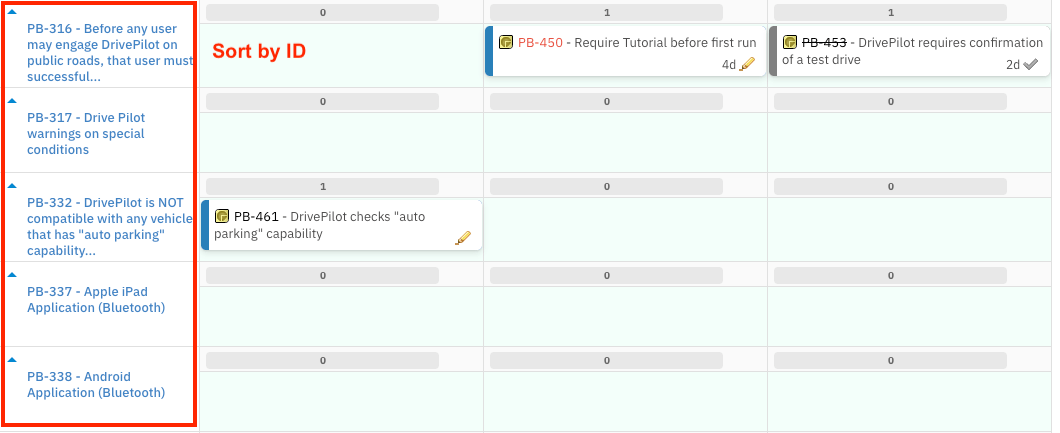 ## Sort Parent Item swimlanes
### Step 1 — Set up Parent Item swimlanes
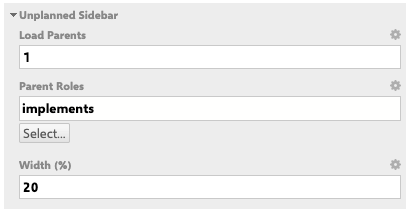
If you have not already configured Parent Item swimlanes, open your Planningboard widget parameters and complete the following before configuring sort order:
1. Go to **Widget Parameters → Unplanned Sidebar**.
2. Set **Load Parents** to at least `1`.
3. Set **Parent Roles** to the link role connecting child items to their parent (for example, `implements`).
## Sort Parent Item swimlanes
### Step 1 — Set up Parent Item swimlanes
If you have not already configured Parent Item swimlanes, open your Planningboard widget parameters and complete the following before configuring sort order:
1. Go to **Widget Parameters → Unplanned Sidebar**.
2. Set **Load Parents** to at least `1`.
3. Set **Parent Roles** to the link role connecting child items to their parent (for example, `implements`).
 ### Step 2 — Configure the Sort by parameter
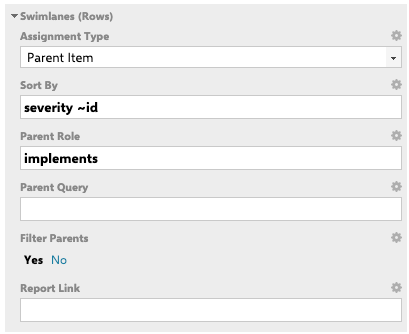
1. Open **Widget Parameters → Swimlanes (Rows)**.
2. Set **Assignment Type** to **Parent Item**.
3. In **Parent Role**, select the link role that defines the parent–child relationship.
4. In **Sort by**, enter one or more work item field IDs.
### Step 2 — Configure the Sort by parameter
1. Open **Widget Parameters → Swimlanes (Rows)**.
2. Set **Assignment Type** to **Parent Item**.
3. In **Parent Role**, select the link role that defines the parent–child relationship.
4. In **Sort by**, enter one or more work item field IDs.
 ### Step 3 — Save and verify
Save the widget parameters and refresh the Planningboard. The swimlane rows now appear in the order defined by your **Sort by** expression.
You should now see swimlane rows ordered according to the field you entered — for example, highest-priority parent items at the top when sorting by `priority`.
***
## Sort by syntax
The **Sort by** field accepts one or more work item field IDs, space-separated. Use the **tilde operator (`~`)** before a field name to sort in descending order.
### Step 3 — Save and verify
Save the widget parameters and refresh the Planningboard. The swimlane rows now appear in the order defined by your **Sort by** expression.
You should now see swimlane rows ordered according to the field you entered — for example, highest-priority parent items at the top when sorting by `priority`.
***
## Sort by syntax
The **Sort by** field accepts one or more work item field IDs, space-separated. Use the **tilde operator (`~`)** before a field name to sort in descending order.
 If you leave **Sort by** empty, swimlanes appear in the default order returned by Polarion.
 ***
## Configuration overview
The table below summarises the key parameters involved in swimlane sorting.
| Parameter | Location | What it controls |
| ------------------------- | ------------------------------------ | -------------------------------------------------------------------- |
| `Sort by` | Widget Parameters → Swimlanes (Rows) | Field(s) used to order Parent Item swimlane rows |
| `Parent Role` | Widget Parameters → Swimlanes (Rows) | Link role connecting child items to parent items |
| `Parent Query` (optional) | Widget Parameters → Swimlanes (Rows) | Lucene query to restrict which parent items appear as swimlanes |
| `Filter Parents` | Widget Parameters → Swimlanes (Rows) | Whether to limit visible parent swimlanes (`Yes` / `No`) |
| `swimlaneSort` | Widget Parameters → Swimlanes (Rows) | Sort order for non-Parent assignment types (default: `alphabetical`) |
You can sort by any valid Polarion work item field ID, including custom fields. For example, if your project defines a custom `team` or `component` field on parent items, enter that field ID in **Sort by** to group swimlanes by that value.
***
## Sorting swimlanes with other assignment types
For assignment types other than **Parent Item** — such as **Users (Assignee)**, **Enumeration Field**, or **Project** — the `swimlaneSort` widget parameter controls the vertical ordering of rows.
The default value is `alphabetical`, which orders swimlane rows by their display label in ascending alphabetical order.
Additional `swimlaneSort` values beyond `alphabetical` are not confirmed in the current documentation sources. Check your installed version's widget parameter options for the full list of accepted values.
***
## Common pitfalls
The **Sort by** field is case-sensitive and must match the exact Polarion field ID as defined in your project. A typo (for example, `Priority` instead of `priority`) will cause the sort to silently fall back to the default Polarion order. Verify field IDs in **Administration → Work Items → Custom Fields**.
The **Sort by** parameter for Parent Item swimlanes was introduced in Planningboard 25.9.0. If your board does not show the **Sort by** field in the Widget Parameters panel, upgrade Planningboard before proceeding.
When multiple parent items share the same value for your primary sort field (for example, equal priority), add a tiebreaker such as `id` to produce a stable, predictable swimlane sequence — for example: `priority id`.
***
## Verification
After saving your widget parameters and refreshing the board:
* Swimlane rows appear in the order specified by your **Sort by** expression.
* Changing the sort expression and saving immediately reorders the rows on the next board load.
* If rows appear in an unexpected order, confirm the field ID is correct and that all parent items have the field populated.
***
## See also
* [Configure Swimlanes (Rows)](/planningboard/guides/configuration/swimlanes-configuration) — full reference for all swimlane widget parameters
* [Parent Item Swimlanes](/planningboard/guides/swimlanes/parent-item-swimlanes) — how to set up parent-based swimlane grouping
* [Filter Swimlanes by Plan Range](/planningboard/guides/swimlanes/filtering-by-plan-range) — hide swimlane rows outside the visible Plan timeframe
* [User and Assignee Swimlanes](/planningboard/guides/swimlanes/user-swimlanes) — configure user-based swimlane rows
* [Enumeration Field Swimlanes](/planningboard/guides/swimlanes/enum-swimlanes) — use a custom enumeration field for swimlane grouping
**KB Articles**
* Swimlane Assignment Types
* Sorting of Swimlanes (Parent Item Assignment Type)
* Filter user swimlanes by Plan range
**Support Tickets**
* [#6681](https://support.nextedy.com/helpdesk/tickets/6681)
* [#6000](https://support.nextedy.com/helpdesk/tickets/6000)
* [#5922](https://support.nextedy.com/helpdesk/tickets/5922)
**Source Code**
* `Config.java`
* `licenseReadonly.cy.ts`
* `PlanningBoardWidgetRenderer.java`
* `AssignmentMode.java`
* `filterMultiSwimlaneRows.cy.ts`
***
## Configuration overview
The table below summarises the key parameters involved in swimlane sorting.
| Parameter | Location | What it controls |
| ------------------------- | ------------------------------------ | -------------------------------------------------------------------- |
| `Sort by` | Widget Parameters → Swimlanes (Rows) | Field(s) used to order Parent Item swimlane rows |
| `Parent Role` | Widget Parameters → Swimlanes (Rows) | Link role connecting child items to parent items |
| `Parent Query` (optional) | Widget Parameters → Swimlanes (Rows) | Lucene query to restrict which parent items appear as swimlanes |
| `Filter Parents` | Widget Parameters → Swimlanes (Rows) | Whether to limit visible parent swimlanes (`Yes` / `No`) |
| `swimlaneSort` | Widget Parameters → Swimlanes (Rows) | Sort order for non-Parent assignment types (default: `alphabetical`) |
You can sort by any valid Polarion work item field ID, including custom fields. For example, if your project defines a custom `team` or `component` field on parent items, enter that field ID in **Sort by** to group swimlanes by that value.
***
## Sorting swimlanes with other assignment types
For assignment types other than **Parent Item** — such as **Users (Assignee)**, **Enumeration Field**, or **Project** — the `swimlaneSort` widget parameter controls the vertical ordering of rows.
The default value is `alphabetical`, which orders swimlane rows by their display label in ascending alphabetical order.
Additional `swimlaneSort` values beyond `alphabetical` are not confirmed in the current documentation sources. Check your installed version's widget parameter options for the full list of accepted values.
***
## Common pitfalls
The **Sort by** field is case-sensitive and must match the exact Polarion field ID as defined in your project. A typo (for example, `Priority` instead of `priority`) will cause the sort to silently fall back to the default Polarion order. Verify field IDs in **Administration → Work Items → Custom Fields**.
The **Sort by** parameter for Parent Item swimlanes was introduced in Planningboard 25.9.0. If your board does not show the **Sort by** field in the Widget Parameters panel, upgrade Planningboard before proceeding.
When multiple parent items share the same value for your primary sort field (for example, equal priority), add a tiebreaker such as `id` to produce a stable, predictable swimlane sequence — for example: `priority id`.
***
## Verification
After saving your widget parameters and refreshing the board:
* Swimlane rows appear in the order specified by your **Sort by** expression.
* Changing the sort expression and saving immediately reorders the rows on the next board load.
* If rows appear in an unexpected order, confirm the field ID is correct and that all parent items have the field populated.
***
## See also
* [Configure Swimlanes (Rows)](/planningboard/guides/configuration/swimlanes-configuration) — full reference for all swimlane widget parameters
* [Parent Item Swimlanes](/planningboard/guides/swimlanes/parent-item-swimlanes) — how to set up parent-based swimlane grouping
* [Filter Swimlanes by Plan Range](/planningboard/guides/swimlanes/filtering-by-plan-range) — hide swimlane rows outside the visible Plan timeframe
* [User and Assignee Swimlanes](/planningboard/guides/swimlanes/user-swimlanes) — configure user-based swimlane rows
* [Enumeration Field Swimlanes](/planningboard/guides/swimlanes/enum-swimlanes) — use a custom enumeration field for swimlane grouping
**KB Articles**
* Swimlane Assignment Types
* Sorting of Swimlanes (Parent Item Assignment Type)
* Filter user swimlanes by Plan range
**Support Tickets**
* [#6681](https://support.nextedy.com/helpdesk/tickets/6681)
* [#6000](https://support.nextedy.com/helpdesk/tickets/6000)
* [#5922](https://support.nextedy.com/helpdesk/tickets/5922)
**Source Code**
* `Config.java`
* `licenseReadonly.cy.ts`
* `PlanningBoardWidgetRenderer.java`
* `AssignmentMode.java`
* `filterMultiSwimlaneRows.cy.ts`