> ## Documentation Index
> Fetch the complete documentation index at: https://learn.nextedy.com/llms.txt
> Use this file to discover all available pages before exploring further.
# Filter Swimlanes by Plan Range
> Show only the team members who have active assignments within the time range covered by the Plans currently displayed on your board — hiding users who have no capacity in that window.
This guide applies when you are using **user-based swimlanes derived from Team Assignments** and want the board to automatically suppress rows for members whose assignments fall entirely outside the shown Plans.
***
## Prerequisites
Before you begin, confirm that your board meets the following requirements:
* The Nextedy PLANNINGBOARD is configured with **Teams Service** enabled (`useTeamsService = true`).
* Team Assignments are set up for the project (members have assignments with start and end dates).
* Swimlanes use the **Users (Assignee)** assignment type, with rows derived from Team Assignments.
* You are running **Planningboard version 25.12.0** or later.
An earlier property, `nextedy.planningboard.activeTeamAssignmentsOnly=true`, was introduced in version 25.3.0 and **deprecated in version 25.12.0**. That version filtered only past assignments, without regard to the scope of the shown Plans. Do not use it for new setups — use `activeTeamAssignmentsInPlanRangeOnly` instead (documented below).
 ***
## How it works
***
## How it works
 When `activeTeamAssignmentsInPlanRangeOnly=true` is set, Planningboard calculates the combined date span of all Plans visible on the board and checks each team member's assignments. Members whose assignments have **no overlap** with that span are hidden. Any work items already assigned to a hidden member are moved automatically to the **Not Assigned / Other** swimlane.
***
## Steps
### 1. Open Polarion Administration Configuration Properties
In Polarion, navigate to:
**Administration > Configuration Properties**
### 2. Add the property
Add the following property to your configuration:
```properties theme={null}
nextedy.planningboard.activeTeamAssignmentsInPlanRangeOnly=true
```
### 3. Save and reload
Save the configuration. Planningboard will apply the filter on the next board load — no server restart is required.
If the board does not reflect the change immediately, make a trivial edit in Configuration Properties (add a space, then remove it) and save again. This forces the configuration cache to refresh.
### 4. Verify the result
Reload the Planningboard. Users who have no Team Assignments overlapping the date range of the currently shown Plans should no longer appear as swimlane rows. Any cards that were in their rows will have moved to the **Not Assigned / Other** swimlane.
***
## Configuration example
A typical setup combining Teams Service with plan-range filtering:
```properties theme={null}
# Enable Teams Service integration
nextedy.planningboard.useTeamsService=true
# Show only members with assignments in the displayed Plan range
nextedy.planningboard.activeTeamAssignmentsInPlanRangeOnly=true
```
Widget parameters (set in the **Widget Parameters** panel of your board):
| Widget parameter | Value |
| ----------------- | ---------------- |
| Assignment Type | Users (Assignee) |
| Use Teams Service | enabled |
***
## Worked example
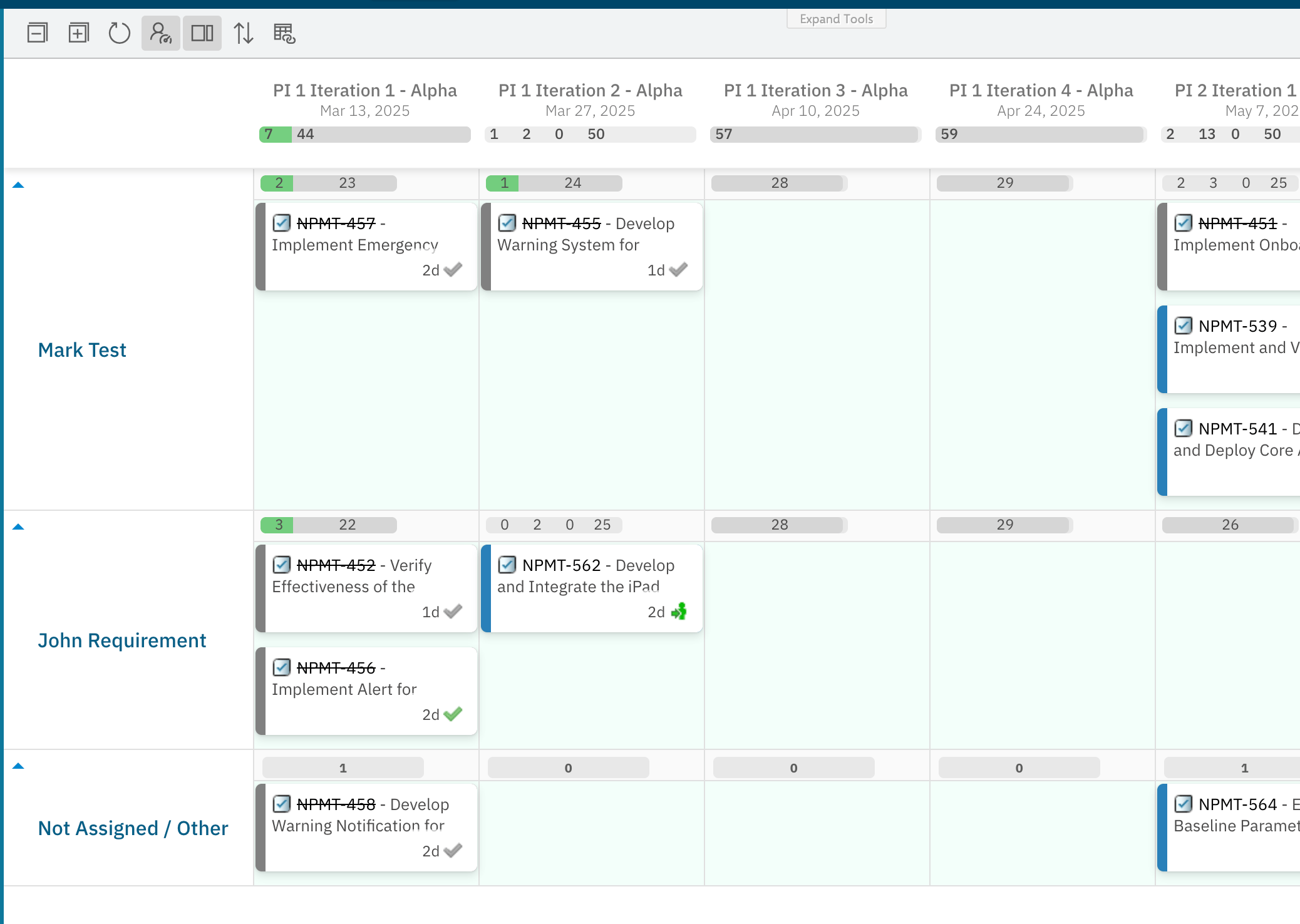
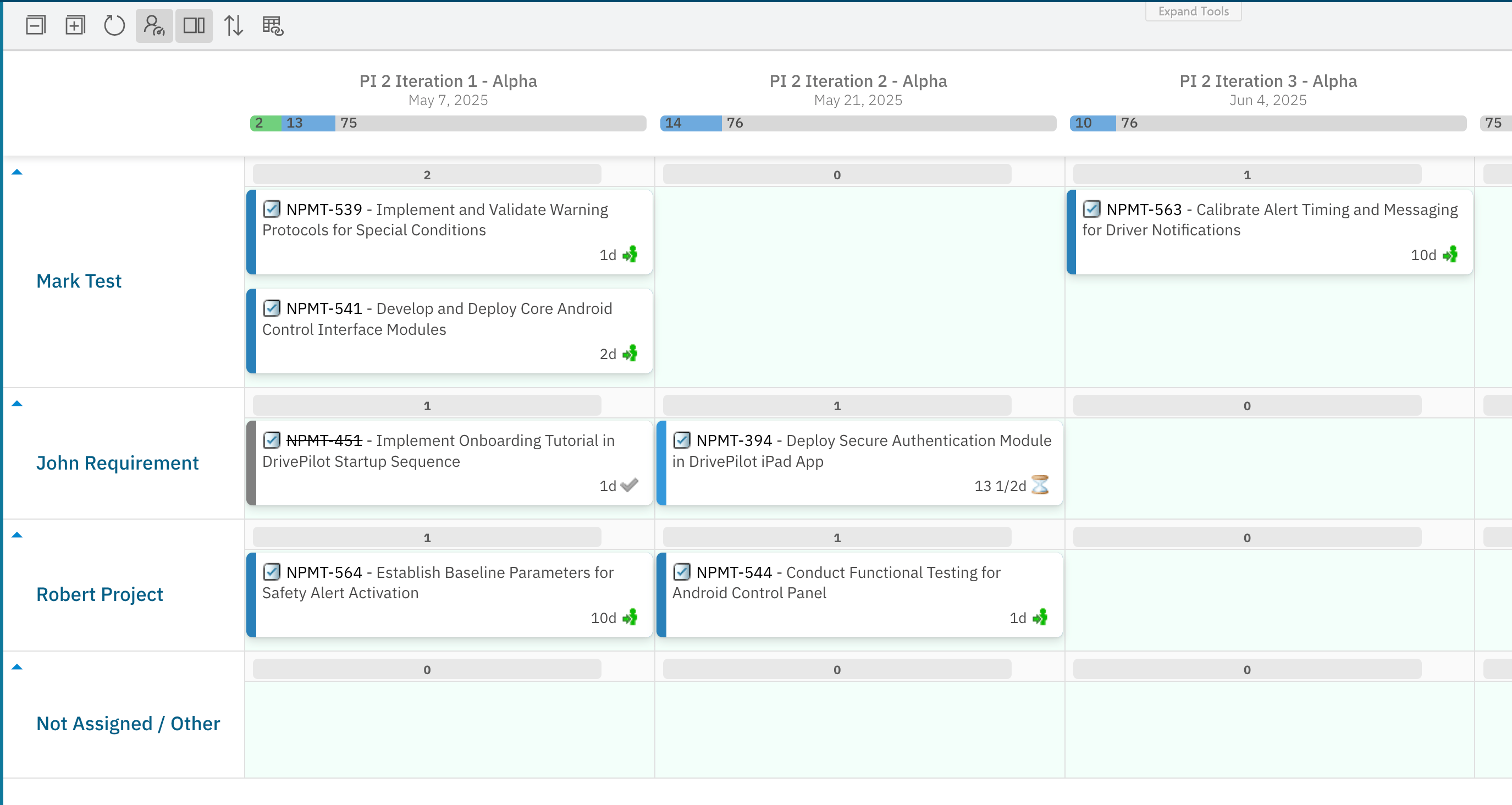
**Scenario:** Team Alpha is planning for three sprints (Sprint 10–12, covering January to mid-February). The board shows swimlanes for all team members. Mark Test left the team in December and has no assignment for this window.
**Before enabling the property:**
The board shows a swimlane for Mark Test even though he has no capacity in the planning window. Tasks that slip into his row are unlikely to be completed.
When `activeTeamAssignmentsInPlanRangeOnly=true` is set, Planningboard calculates the combined date span of all Plans visible on the board and checks each team member's assignments. Members whose assignments have **no overlap** with that span are hidden. Any work items already assigned to a hidden member are moved automatically to the **Not Assigned / Other** swimlane.
***
## Steps
### 1. Open Polarion Administration Configuration Properties
In Polarion, navigate to:
**Administration > Configuration Properties**
### 2. Add the property
Add the following property to your configuration:
```properties theme={null}
nextedy.planningboard.activeTeamAssignmentsInPlanRangeOnly=true
```
### 3. Save and reload
Save the configuration. Planningboard will apply the filter on the next board load — no server restart is required.
If the board does not reflect the change immediately, make a trivial edit in Configuration Properties (add a space, then remove it) and save again. This forces the configuration cache to refresh.
### 4. Verify the result
Reload the Planningboard. Users who have no Team Assignments overlapping the date range of the currently shown Plans should no longer appear as swimlane rows. Any cards that were in their rows will have moved to the **Not Assigned / Other** swimlane.
***
## Configuration example
A typical setup combining Teams Service with plan-range filtering:
```properties theme={null}
# Enable Teams Service integration
nextedy.planningboard.useTeamsService=true
# Show only members with assignments in the displayed Plan range
nextedy.planningboard.activeTeamAssignmentsInPlanRangeOnly=true
```
Widget parameters (set in the **Widget Parameters** panel of your board):
| Widget parameter | Value |
| ----------------- | ---------------- |
| Assignment Type | Users (Assignee) |
| Use Teams Service | enabled |
***
## Worked example
**Scenario:** Team Alpha is planning for three sprints (Sprint 10–12, covering January to mid-February). The board shows swimlanes for all team members. Mark Test left the team in December and has no assignment for this window.
**Before enabling the property:**
The board shows a swimlane for Mark Test even though he has no capacity in the planning window. Tasks that slip into his row are unlikely to be completed.
 **After enabling `activeTeamAssignmentsInPlanRangeOnly=true`:**
Mark Test's swimlane disappears. Any tasks that were assigned to him move to **Not Assigned / Other**, making the capacity gap visible and prompting reassignment.
**After enabling `activeTeamAssignmentsInPlanRangeOnly=true`:**
Mark Test's swimlane disappears. Any tasks that were assigned to him move to **Not Assigned / Other**, making the capacity gap visible and prompting reassignment.
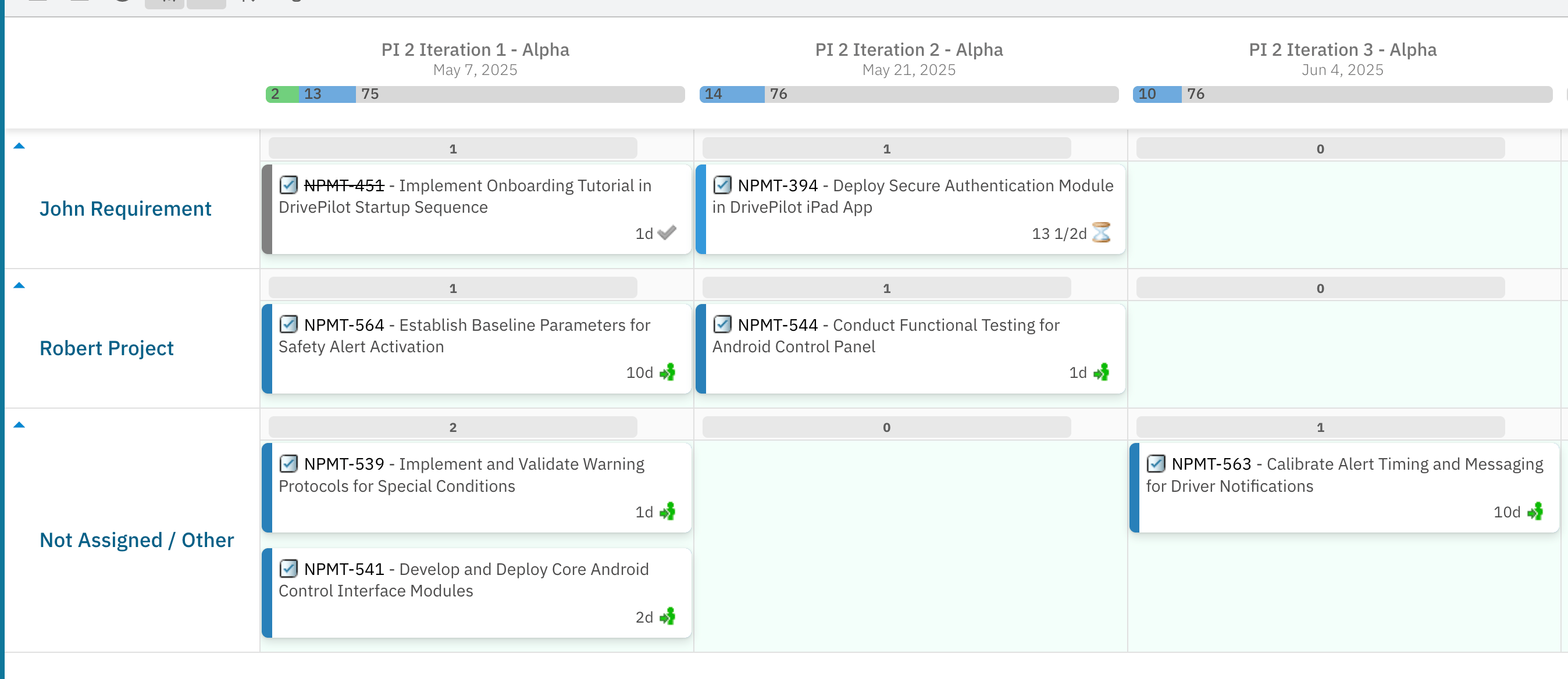 This ensures that capacity shown on the board reflects only members who can realistically take on work within the planning window.
***
## Limitations
* This feature requires **Planningboard 25.12.0 or later**. Earlier versions do not support plan-range-aware filtering.
* The filter is applied at board load time — it reflects the Plans currently shown. If you scroll the board to display a different Plan range, the visible swimlane rows update accordingly on the next load.
* Items assigned to a hidden member are surfaced in **Not Assigned / Other**, not silently dropped. Review that swimlane after enabling the filter to reassign any affected cards.
* This behavior applies only to swimlanes derived from **Team Assignments**. User swimlanes based on project role membership (not Teams Service) are not affected.
***
## Verification
After completing the steps above, reload the Planningboard. You should see:
* Swimlane rows only for team members whose Team Assignments overlap the date range of the Plans shown.
* A **Not Assigned / Other** swimlane at the bottom containing any cards previously belonging to hidden members.
* No swimlane row for members whose assignments fall entirely before or after the current Plan window.
***
## See also
* [User and Assignee Swimlanes](/planningboard/guides/swimlanes/user-swimlanes) — configure the Users (Assignee) assignment type
* [Filter Swimlanes by Team](/planningboard/guides/swimlanes/filtering-by-team) — restrict swimlane rows to a specific team
* [Configure Swimlanes (Rows)](/planningboard/guides/configuration/swimlanes-configuration) — full swimlane configuration reference
* [Set Up Teams Service](/planningboard/guides/capacity/teams-service-setup) — prerequisite for Team Assignment–based filtering
* [Track Team Capacity](/planningboard/guides/capacity/team-capacity) — use capacity bars alongside swimlane filtering
**KB Articles**
* Filter user swimlanes by Plan range
* Swimlane Assignment Types
* Sorting of Swimlanes (Parent Item Assignment Type)
**Support Tickets**
* [#5760](https://support.nextedy.com/helpdesk/tickets/5760)
* [#6681](https://support.nextedy.com/helpdesk/tickets/6681)
* [#5922](https://support.nextedy.com/helpdesk/tickets/5922)
**Source Code**
* `filterMultiSwimlaneRows.cy.ts`
* `PlanningBoardWidgetRenderer.java`
* `AssignmentMode.java`
* `licenseReadonly.cy.ts`
* `enum-rows-filter.cy.ts`
This ensures that capacity shown on the board reflects only members who can realistically take on work within the planning window.
***
## Limitations
* This feature requires **Planningboard 25.12.0 or later**. Earlier versions do not support plan-range-aware filtering.
* The filter is applied at board load time — it reflects the Plans currently shown. If you scroll the board to display a different Plan range, the visible swimlane rows update accordingly on the next load.
* Items assigned to a hidden member are surfaced in **Not Assigned / Other**, not silently dropped. Review that swimlane after enabling the filter to reassign any affected cards.
* This behavior applies only to swimlanes derived from **Team Assignments**. User swimlanes based on project role membership (not Teams Service) are not affected.
***
## Verification
After completing the steps above, reload the Planningboard. You should see:
* Swimlane rows only for team members whose Team Assignments overlap the date range of the Plans shown.
* A **Not Assigned / Other** swimlane at the bottom containing any cards previously belonging to hidden members.
* No swimlane row for members whose assignments fall entirely before or after the current Plan window.
***
## See also
* [User and Assignee Swimlanes](/planningboard/guides/swimlanes/user-swimlanes) — configure the Users (Assignee) assignment type
* [Filter Swimlanes by Team](/planningboard/guides/swimlanes/filtering-by-team) — restrict swimlane rows to a specific team
* [Configure Swimlanes (Rows)](/planningboard/guides/configuration/swimlanes-configuration) — full swimlane configuration reference
* [Set Up Teams Service](/planningboard/guides/capacity/teams-service-setup) — prerequisite for Team Assignment–based filtering
* [Track Team Capacity](/planningboard/guides/capacity/team-capacity) — use capacity bars alongside swimlane filtering
**KB Articles**
* Filter user swimlanes by Plan range
* Swimlane Assignment Types
* Sorting of Swimlanes (Parent Item Assignment Type)
**Support Tickets**
* [#5760](https://support.nextedy.com/helpdesk/tickets/5760)
* [#6681](https://support.nextedy.com/helpdesk/tickets/6681)
* [#5922](https://support.nextedy.com/helpdesk/tickets/5922)
**Source Code**
* `filterMultiSwimlaneRows.cy.ts`
* `PlanningBoardWidgetRenderer.java`
* `AssignmentMode.java`
* `licenseReadonly.cy.ts`
* `enum-rows-filter.cy.ts`