> ## Documentation Index
> Fetch the complete documentation index at: https://learn.nextedy.com/llms.txt
> Use this file to discover all available pages before exploring further.
# Enumeration Field Swimlanes
> Group your Nextedy PLANNINGBOARD rows by any enumeration custom field — such as team, severity, or priority — so every card lands in the swimlane that reflects its category value.
## Prerequisites
* A Planningboard widget is already embedded in a Polarion LiveDoc or Wiki page.
* The Polarion project has at least one custom field of enumeration type (or a list-type field whose items are enum values) defined for the work item type you plan to display.
* You have edit access to the page containing the widget.
The `status`, `resolution`, and `type` built-in Polarion fields cannot be used as the enumeration field for swimlane grouping. Use a custom enumeration field instead.
1. Open the Polarion page containing your Planningboard widget.
2. Switch the page to **Edit** mode (click the page-level **Edit** button in the Polarion rich-page editor toolbar).
3. Expand the **Tools** panel on the widget.
4. Click the widget **Edit** () button to open the Widget Parameters dialog.
1. In the Widget Parameters dialog, navigate to the **Swimlanes (Rows)** section.
2. Open the **Assignment Type** dropdown.
3. Select **Enumeration Field**.
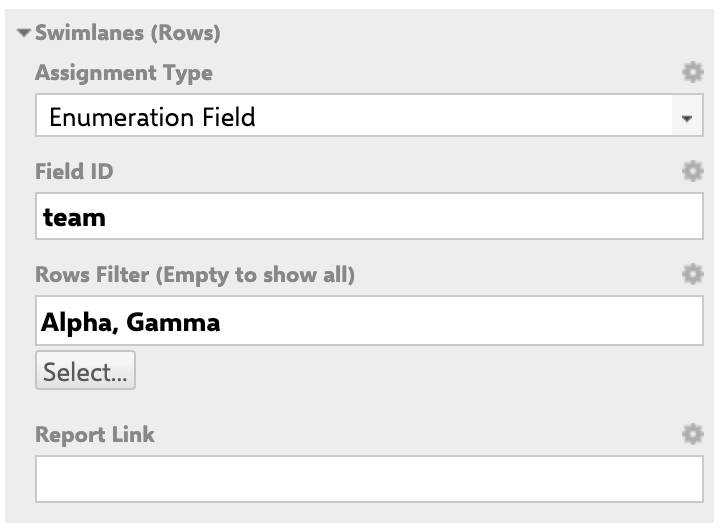 In the **Field ID** input, enter the exact identifier of the enumeration custom field you want to use as the grouping criterion.
For example, if your project has a custom field whose ID is `team`, enter:
```
team
```
The field ID must match the identifier as it is defined in Polarion Administration — it is case-sensitive. Common choices include fields such as `team`, `severity`, or `priority` (when those are custom enum fields on your work item type).
Go to **Administration > Work Items > Custom Fields** in your Polarion project and locate the field. The value in the **ID** column is what you enter here — not the display label.
The **Rows Filter** (optional) limits which enumeration values appear as swimlane rows.
* **Leave empty** to display all enum values as rows (default — shows all).
* **Select specific values** to restrict the board to only those swimlanes.
To configure the filter:
1. Click the **Rows Filter** selector.
2. A multi-value selection dialog opens, listing all available enum values for the configured field and work item type.
3. Select the values you want displayed as swimlane rows.
4. Confirm the selection.
Available values in the Rows Filter depend on the **work item type** displayed on the board. If you change the work item type, the available enum options in the filter will update accordingly.
You can attach an optional **Report Link** to the swimlane configuration. This lets you navigate from a swimlane directly to a related Polarion report filtered by that field value. Enter the report URL or leave blank.
1. Click **Save** (or **OK**) in the Widget Parameters dialog.
2. Exit page edit mode.
3. The Planningboard reloads and displays one swimlane row per enum value present in the loaded work items (or per the filtered selection you configured).
In the **Field ID** input, enter the exact identifier of the enumeration custom field you want to use as the grouping criterion.
For example, if your project has a custom field whose ID is `team`, enter:
```
team
```
The field ID must match the identifier as it is defined in Polarion Administration — it is case-sensitive. Common choices include fields such as `team`, `severity`, or `priority` (when those are custom enum fields on your work item type).
Go to **Administration > Work Items > Custom Fields** in your Polarion project and locate the field. The value in the **ID** column is what you enter here — not the display label.
The **Rows Filter** (optional) limits which enumeration values appear as swimlane rows.
* **Leave empty** to display all enum values as rows (default — shows all).
* **Select specific values** to restrict the board to only those swimlanes.
To configure the filter:
1. Click the **Rows Filter** selector.
2. A multi-value selection dialog opens, listing all available enum values for the configured field and work item type.
3. Select the values you want displayed as swimlane rows.
4. Confirm the selection.
Available values in the Rows Filter depend on the **work item type** displayed on the board. If you change the work item type, the available enum options in the filter will update accordingly.
You can attach an optional **Report Link** to the swimlane configuration. This lets you navigate from a swimlane directly to a related Polarion report filtered by that field value. Enter the report URL or leave blank.
1. Click **Save** (or **OK**) in the Widget Parameters dialog.
2. Exit page edit mode.
3. The Planningboard reloads and displays one swimlane row per enum value present in the loaded work items (or per the filtered selection you configured).
 Items with no value for the field appear in a **(none)** / unassigned swimlane row.
## Showing Empty Swimlanes
By default (`showEmptySwimlanes = false`), Planningboard hides swimlane rows that contain no work items. To show all enum values as rows even when they are empty, enable **Show Empty Swimlanes** in the widget parameters.
## Multi-Value Enum Fields
If the enumeration field on your work items allows multiple values (list-type with enum items), each card can appear in more than one swimlane — one row per value it holds.
Multi-value enumeration fields for swimlane grouping were committed for release by end of February 2026. If you configure a multi-value enum field and cards do not distribute across rows as expected, verify your installed Planningboard version supports this capability. Earlier versions may surface a field validation error (`field is not enumeration`) for certain multi-value field configurations. If you see that error, also try **clearing the widget configuration cache** and re-saving the widget parameters to trigger a config rebuild.
## Troubleshooting
### Cards all appear in a single row or in "(none)"
* Confirm the **Field ID** exactly matches the Polarion custom field identifier (case-sensitive).
* Confirm the field is of enumeration type (or a list-type whose items are enum values). Status, resolution, and type fields are not supported.
* Confirm work items in the board's query actually have values set for that field.
### The Rows Filter shows no values
* This usually means the field ID does not resolve to an enum field for the currently configured work item type. Verify the field ID and the work item type selection in the widget parameters.
### A swimlane row is missing for a value I expect
* The Rows Filter may be limiting visible rows — open it and check the selection.
* `showEmptySwimlanes` may be off: rows with no matching items are hidden by default.
Enumeration field swimlanes are compatible with capacity tracking. However, capacity normalization (`planCellsMode`) is not supported when the assignment type is set to **Parent Item** — this limitation does not apply to enumeration field swimlanes.
## You Should Now See
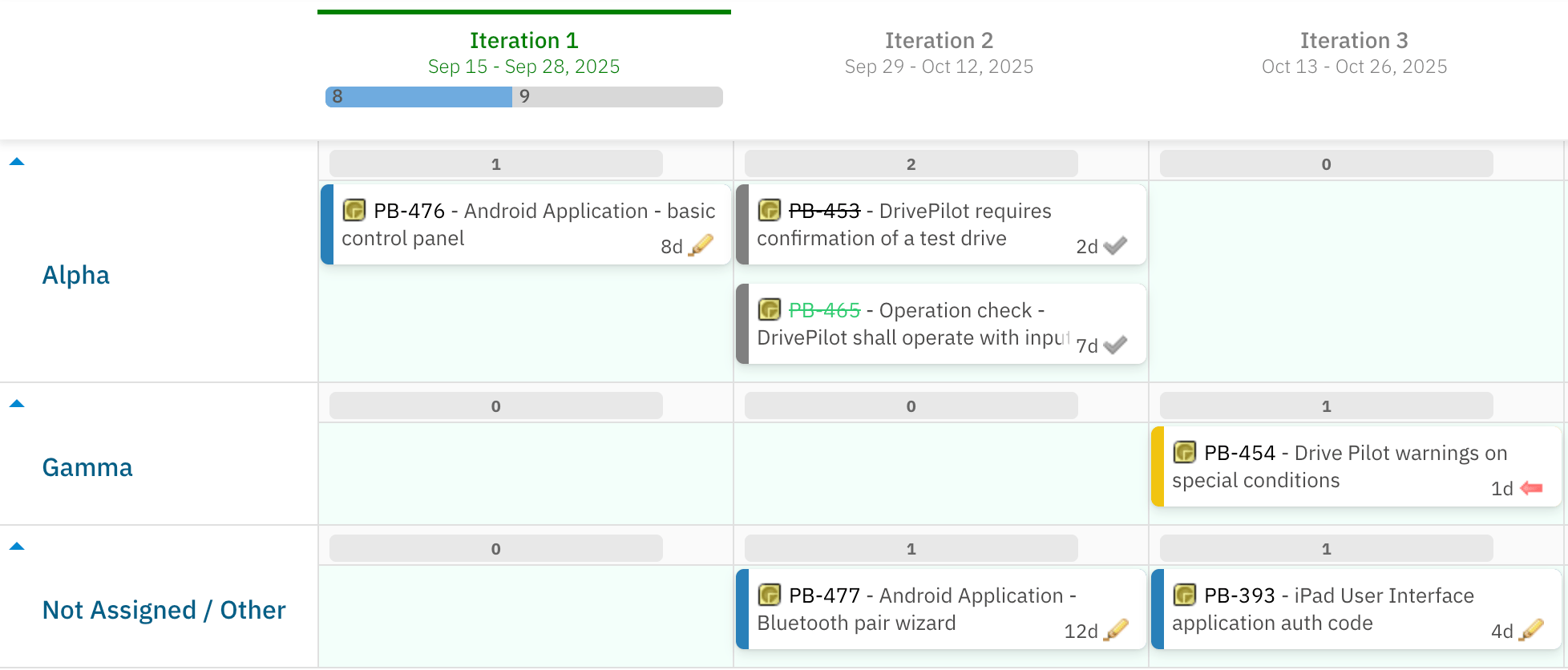
Your Planningboard displays one horizontal swimlane row per enumeration value (filtered to your selection if a Rows Filter is set). Work items are grouped into rows by their field value, and dragging a card between rows updates that field's value on the underlying Polarion work item.
Items with no value for the field appear in a **(none)** / unassigned swimlane row.
## Showing Empty Swimlanes
By default (`showEmptySwimlanes = false`), Planningboard hides swimlane rows that contain no work items. To show all enum values as rows even when they are empty, enable **Show Empty Swimlanes** in the widget parameters.
## Multi-Value Enum Fields
If the enumeration field on your work items allows multiple values (list-type with enum items), each card can appear in more than one swimlane — one row per value it holds.
Multi-value enumeration fields for swimlane grouping were committed for release by end of February 2026. If you configure a multi-value enum field and cards do not distribute across rows as expected, verify your installed Planningboard version supports this capability. Earlier versions may surface a field validation error (`field is not enumeration`) for certain multi-value field configurations. If you see that error, also try **clearing the widget configuration cache** and re-saving the widget parameters to trigger a config rebuild.
## Troubleshooting
### Cards all appear in a single row or in "(none)"
* Confirm the **Field ID** exactly matches the Polarion custom field identifier (case-sensitive).
* Confirm the field is of enumeration type (or a list-type whose items are enum values). Status, resolution, and type fields are not supported.
* Confirm work items in the board's query actually have values set for that field.
### The Rows Filter shows no values
* This usually means the field ID does not resolve to an enum field for the currently configured work item type. Verify the field ID and the work item type selection in the widget parameters.
### A swimlane row is missing for a value I expect
* The Rows Filter may be limiting visible rows — open it and check the selection.
* `showEmptySwimlanes` may be off: rows with no matching items are hidden by default.
Enumeration field swimlanes are compatible with capacity tracking. However, capacity normalization (`planCellsMode`) is not supported when the assignment type is set to **Parent Item** — this limitation does not apply to enumeration field swimlanes.
## You Should Now See
Your Planningboard displays one horizontal swimlane row per enumeration value (filtered to your selection if a Rows Filter is set). Work items are grouped into rows by their field value, and dragging a card between rows updates that field's value on the underlying Polarion work item.
 ## See Also
* [Configure Swimlanes (Rows)](/planningboard/guides/configuration/swimlanes-configuration) — overview of all swimlane settings
* [User and Assignee Swimlanes](/planningboard/guides/swimlanes/user-swimlanes) — group rows by assignee instead of a custom field
* [Parent Item Swimlanes](/planningboard/guides/swimlanes/parent-item-swimlanes) — group rows by parent work item
* [Multi-Valued Field Swimlanes](/planningboard/guides/swimlanes/multi-valued-swimlanes) — details on multi-value enum behavior
* [Sort Swimlanes](/planningboard/guides/swimlanes/sorting-swimlanes) — control the vertical order of swimlane rows
* [Widget Parameters Overview](/planningboard/guides/configuration/widget-parameters) — full parameter reference
**KB Articles**
* Swimlane Assignment Types
* Filter user swimlanes by Plan range
* Sorting of Swimlanes (Parent Item Assignment Type)
**Support Tickets**
* [#6000](https://support.nextedy.com/helpdesk/tickets/6000)
* [#6777](https://support.nextedy.com/helpdesk/tickets/6777)
* [#6681](https://support.nextedy.com/helpdesk/tickets/6681)
**Source Code**
* `PlanningBoardWidgetRenderer.java`
* `enum-rows-filter.cy.ts`
* `licenseReadonly.cy.ts`
* `AssignmentMode.java`
* `PlanningBoardWidget.java`
## See Also
* [Configure Swimlanes (Rows)](/planningboard/guides/configuration/swimlanes-configuration) — overview of all swimlane settings
* [User and Assignee Swimlanes](/planningboard/guides/swimlanes/user-swimlanes) — group rows by assignee instead of a custom field
* [Parent Item Swimlanes](/planningboard/guides/swimlanes/parent-item-swimlanes) — group rows by parent work item
* [Multi-Valued Field Swimlanes](/planningboard/guides/swimlanes/multi-valued-swimlanes) — details on multi-value enum behavior
* [Sort Swimlanes](/planningboard/guides/swimlanes/sorting-swimlanes) — control the vertical order of swimlane rows
* [Widget Parameters Overview](/planningboard/guides/configuration/widget-parameters) — full parameter reference
**KB Articles**
* Swimlane Assignment Types
* Filter user swimlanes by Plan range
* Sorting of Swimlanes (Parent Item Assignment Type)
**Support Tickets**
* [#6000](https://support.nextedy.com/helpdesk/tickets/6000)
* [#6777](https://support.nextedy.com/helpdesk/tickets/6777)
* [#6681](https://support.nextedy.com/helpdesk/tickets/6681)
**Source Code**
* `PlanningBoardWidgetRenderer.java`
* `enum-rows-filter.cy.ts`
* `licenseReadonly.cy.ts`
* `AssignmentMode.java`
* `PlanningBoardWidget.java`