> ## Documentation Index
> Fetch the complete documentation index at: https://learn.nextedy.com/llms.txt
> Use this file to discover all available pages before exploring further.
# SAFe Plan Naming Conventions
> Apply consistent SAFe naming patterns to Plans so that Nextedy PLANNINGBOARD correctly parses hierarchy, renders columns, and displays capacity.
Plan names containing dashes (e.g. `PI-2401`, `I-2401-1`) caused column spans to render incorrectly, capacity to show zero, and plan shortcuts to disappear in versions before 25.3.0. A partial fix shipped in 23.8.0; full support for dashes in plan names requires **version 25.3.0 or later**. Verify your installed version before adopting dash-based naming.
***
## SAFe hierarchy overview
Planningboard models SAFe planning across four levels. Each level maps to a `plansMode` value and a corresponding Plan ID pattern:
 The Plan **ID** (not just the display name) is what Planningboard uses when loading and cross-referencing plans. Using a predictable, level-consistent pattern across all Plans prevents silent mismatches.
***
Adopt one naming pattern per level and apply it uniformly. The examples below match the patterns used in support tickets for enterprise SAFe deployments:
| Level | Example Plan ID | Example Plan Name |
| ---------------------- | --------------- | ----------------- |
| Program Increment (PI) | `PI-2401` | PI 2401 |
| Team Iteration | `I-2401-1` | Iteration 2401.1 |
| Program Iteration | `PI-2401-IP` | IP Sprint 2401 |
Rules:
* Use only alphanumeric characters, dashes (`-`), and underscores (`_`) in Plan IDs.
* Dashes are safe from version 25.3.0 onward — do not use them on earlier versions.
* Keep the delimiter consistent within each level (all dashes or all underscores — do not mix).
* The Plan ID must be unique within the project; the Plan Name is the display label shown in column headers.
Encoding the year and quarter in the PI name (e.g. `PI-2401` = 2024 Q1) makes boards self-documenting and simplifies the `Last Plan Query` when creating new plans from the board.
***
When creating Plans manually in Polarion, set both the **ID** and the **Name** fields:
* **ID** — enter the pattern ID exactly (e.g. `PI-2401`). This is the value Planningboard stores internally and uses when syncing SAFe parent plans.
* **Name** — enter the human-readable label (e.g. `PI 2401`). This appears in the board column header.
If you are using Planningboard's **New Plan** feature to create Plans from the board, configure the `Plan ID Pattern` and `Plan Name Pattern` widget parameters to match your chosen scheme. See [Configure Plans (Columns)](/planningboard/guides/configuration/plans-configuration) for parameter details.
***
Open the widget parameters for your Planningboard widget and locate the **New Plan** section:
| Parameter | Value for PI level | Value for Iteration level |
| ------------------- | ------------------------ | -------------------------------------- |
| `Plan ID Pattern` | `PI-${year}${quarter}` | `I-${year}${quarter}-${index}` |
| `Plan Name Pattern` | `PI ${year}${quarter}` | `Iteration ${year}${quarter}.${index}` |
| `Template ID` | your PI plan template ID | your iteration plan template ID |
The `Plan ID Pattern` and `Plan Name Pattern` fields are pre-filled with Team-aware placeholders when Teams are enabled. If you are not using Teams, replace the defaults with your SAFe pattern — otherwise newly created plans will not match your naming scheme and the `Last Plan Query` will not find them.
***
The `plansMode` widget parameter controls which Plans Planningboard loads and how it groups them. Set it to the value that matches the board's level in the SAFe hierarchy:
| Board scope | `plansMode` value |
| ------------------------------------ | ----------------- |
| Team-level sprints within a program | `safeSprints` |
| Sprints across the portfolio | `safePflSprints` |
| Program Increments within an ART | `safePIs` |
| Program Increments at solution level | `safeSIs` |
In the widget configuration UI, `plansMode` appears as the **Plans Type** dropdown. Selecting a SAFe type changes which configuration fields are shown — for example, the **Program Increment Parameter ID** field appears only for the **SAFe Sprints in Program** (`safeSprints`) and **SAFe Sprints in Portfolio** (`safePflSprints`) modes, and the plan items section is hidden for SAFe modes (it is available only in **Project Plans** (`PROJECT_PLANS`) mode).
***
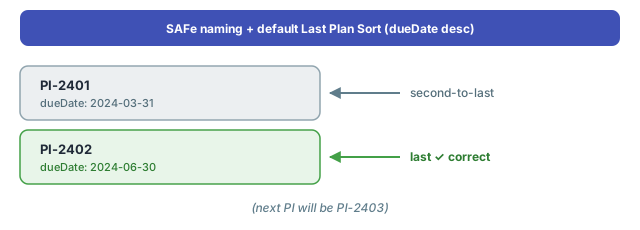
When Planningboard creates a new plan, it finds the "last plan" to calculate the next plan's date range using the `Last Plan Query` (defaults to the latest plan of the same template type if left empty) and `Last Plan Sort` (defaults to `dueDate` descending).
If your IDs contain dates or sequence numbers, confirm that the query can still find the correct last plan after renaming. For example, if you use `PI-2401`, `PI-2402`, `PI-2403`, the default sort by `dueDate` finds the last PI correctly without a custom query.
The Plan **ID** (not just the display name) is what Planningboard uses when loading and cross-referencing plans. Using a predictable, level-consistent pattern across all Plans prevents silent mismatches.
***
Adopt one naming pattern per level and apply it uniformly. The examples below match the patterns used in support tickets for enterprise SAFe deployments:
| Level | Example Plan ID | Example Plan Name |
| ---------------------- | --------------- | ----------------- |
| Program Increment (PI) | `PI-2401` | PI 2401 |
| Team Iteration | `I-2401-1` | Iteration 2401.1 |
| Program Iteration | `PI-2401-IP` | IP Sprint 2401 |
Rules:
* Use only alphanumeric characters, dashes (`-`), and underscores (`_`) in Plan IDs.
* Dashes are safe from version 25.3.0 onward — do not use them on earlier versions.
* Keep the delimiter consistent within each level (all dashes or all underscores — do not mix).
* The Plan ID must be unique within the project; the Plan Name is the display label shown in column headers.
Encoding the year and quarter in the PI name (e.g. `PI-2401` = 2024 Q1) makes boards self-documenting and simplifies the `Last Plan Query` when creating new plans from the board.
***
When creating Plans manually in Polarion, set both the **ID** and the **Name** fields:
* **ID** — enter the pattern ID exactly (e.g. `PI-2401`). This is the value Planningboard stores internally and uses when syncing SAFe parent plans.
* **Name** — enter the human-readable label (e.g. `PI 2401`). This appears in the board column header.
If you are using Planningboard's **New Plan** feature to create Plans from the board, configure the `Plan ID Pattern` and `Plan Name Pattern` widget parameters to match your chosen scheme. See [Configure Plans (Columns)](/planningboard/guides/configuration/plans-configuration) for parameter details.
***
Open the widget parameters for your Planningboard widget and locate the **New Plan** section:
| Parameter | Value for PI level | Value for Iteration level |
| ------------------- | ------------------------ | -------------------------------------- |
| `Plan ID Pattern` | `PI-${year}${quarter}` | `I-${year}${quarter}-${index}` |
| `Plan Name Pattern` | `PI ${year}${quarter}` | `Iteration ${year}${quarter}.${index}` |
| `Template ID` | your PI plan template ID | your iteration plan template ID |
The `Plan ID Pattern` and `Plan Name Pattern` fields are pre-filled with Team-aware placeholders when Teams are enabled. If you are not using Teams, replace the defaults with your SAFe pattern — otherwise newly created plans will not match your naming scheme and the `Last Plan Query` will not find them.
***
The `plansMode` widget parameter controls which Plans Planningboard loads and how it groups them. Set it to the value that matches the board's level in the SAFe hierarchy:
| Board scope | `plansMode` value |
| ------------------------------------ | ----------------- |
| Team-level sprints within a program | `safeSprints` |
| Sprints across the portfolio | `safePflSprints` |
| Program Increments within an ART | `safePIs` |
| Program Increments at solution level | `safeSIs` |
In the widget configuration UI, `plansMode` appears as the **Plans Type** dropdown. Selecting a SAFe type changes which configuration fields are shown — for example, the **Program Increment Parameter ID** field appears only for the **SAFe Sprints in Program** (`safeSprints`) and **SAFe Sprints in Portfolio** (`safePflSprints`) modes, and the plan items section is hidden for SAFe modes (it is available only in **Project Plans** (`PROJECT_PLANS`) mode).
***
When Planningboard creates a new plan, it finds the "last plan" to calculate the next plan's date range using the `Last Plan Query` (defaults to the latest plan of the same template type if left empty) and `Last Plan Sort` (defaults to `dueDate` descending).
If your IDs contain dates or sequence numbers, confirm that the query can still find the correct last plan after renaming. For example, if you use `PI-2401`, `PI-2402`, `PI-2403`, the default sort by `dueDate` finds the last PI correctly without a custom query.
 If you add PIs out of chronological order, or your template has mixed types, provide an explicit `Last Plan Query` to pin the lookup.
***
After applying your naming scheme:
1. Open the Planningboard page in Polarion.
2. Check that the expected Plans appear as **columns** and that column headers show the display names (not the IDs).
3. Hover over a **capacity bar** to confirm the capacity tooltip shows a non-zero value. A zero capacity value is a symptom of Planningboard failing to parse the plan name — upgrade to 25.3.0 if this occurs on a plan with dashes in the name.
4. Confirm that **plan shortcuts** (the links in column headers) open the correct Polarion Plan pages.
If you rename existing Plans in Polarion and the board still shows old column headers, use the **Refresh data** toolbar button (circular arrow icon) to force a reload. The board does not auto-detect Plan renames.
***
## ASCII diagram — SAFe Plan ID hierarchy
If you add PIs out of chronological order, or your template has mixed types, provide an explicit `Last Plan Query` to pin the lookup.
***
After applying your naming scheme:
1. Open the Planningboard page in Polarion.
2. Check that the expected Plans appear as **columns** and that column headers show the display names (not the IDs).
3. Hover over a **capacity bar** to confirm the capacity tooltip shows a non-zero value. A zero capacity value is a symptom of Planningboard failing to parse the plan name — upgrade to 25.3.0 if this occurs on a plan with dashes in the name.
4. Confirm that **plan shortcuts** (the links in column headers) open the correct Polarion Plan pages.
If you rename existing Plans in Polarion and the board still shows old column headers, use the **Refresh data** toolbar button (circular arrow icon) to force a reload. The board does not auto-detect Plan renames.
***
## ASCII diagram — SAFe Plan ID hierarchy
 Each level's Plan IDs must be unique within their Polarion project. Cross-level references (parent plan assignment, `syncSAFEParentsFromChildren`) rely on the ID patterns being parseable — consistent dash placement ensures correct parsing.
***
## Common pitfalls
Using `PI_2401` in one sprint and `PI-2401` in another causes Planningboard to treat them as different hierarchy branches. Pick one delimiter per level and do not mix.
If you rename a PI plan after the board has been used, existing capacity values stored against the old ID will not transfer automatically. Re-enter capacity values via the capacity bar tooltip or the `POST /capacity` API endpoint after any rename.
Selecting **SAFe Sprints in Program** (`safeSprints`) or **SAFe Sprints in Portfolio** (`safePflSprints`) shows a **Program Increment Parameter ID** field that is absent in **Project Plans** (`PROJECT_PLANS`) mode. Page Parameters must be explicitly created in the widget configuration and referenced here — they are not created automatically. Missing Page Parameter setup is the most common reason SAFe boards show no columns after configuration.
***
## You should now see
* All Plans appear as columns with the correct display names from your naming scheme.
* Hovering over a capacity bar shows a non-zero capacity tooltip (assuming capacity is configured).
* Plan shortcut links in column headers navigate to the correct Polarion Plan pages.
* The **New Plan** button (if enabled) creates plans whose IDs follow your chosen pattern.
***
## See also
* [SAFe Planning Workflows](/planningboard/guides/planning/safe-planning) — end-to-end SAFe board configuration by hierarchy level
* [Configure Plans (Columns)](/planningboard/guides/configuration/plans-configuration) — `Plan ID Pattern`, `Plan Name Pattern`, `Last Plan Query`, and other column parameters
* [Bulk Plan Creation](/planningboard/guides/planning/bulk-plan-creation) — scripted creation of multiple Plans with consistent naming
* [Use Plan Templates](/planningboard/guides/planning/plan-templates) — template IDs and how they interact with plan creation
* [Capacity Calculation Issues](/planningboard/guides/troubleshooting/capacity-issues) — diagnosing zero capacity after naming changes
**KB Articles**
* Introduction to Planningboard
* Planningboard interface & basic interactions
* Planningboard Widget Parameters
**Support Tickets**
* [#5879](https://support.nextedy.com/helpdesk/tickets/5879)
* [#4711](https://support.nextedy.com/helpdesk/tickets/4711)
* [#6174](https://support.nextedy.com/helpdesk/tickets/6174)
**Source Code**
* `PlanningBoardDataService.java`
* `Config.java`
* `PlansMode.java`
* `Item.java`
* `PlanningBoardWidgetDependenciesProcessor.java`
Each level's Plan IDs must be unique within their Polarion project. Cross-level references (parent plan assignment, `syncSAFEParentsFromChildren`) rely on the ID patterns being parseable — consistent dash placement ensures correct parsing.
***
## Common pitfalls
Using `PI_2401` in one sprint and `PI-2401` in another causes Planningboard to treat them as different hierarchy branches. Pick one delimiter per level and do not mix.
If you rename a PI plan after the board has been used, existing capacity values stored against the old ID will not transfer automatically. Re-enter capacity values via the capacity bar tooltip or the `POST /capacity` API endpoint after any rename.
Selecting **SAFe Sprints in Program** (`safeSprints`) or **SAFe Sprints in Portfolio** (`safePflSprints`) shows a **Program Increment Parameter ID** field that is absent in **Project Plans** (`PROJECT_PLANS`) mode. Page Parameters must be explicitly created in the widget configuration and referenced here — they are not created automatically. Missing Page Parameter setup is the most common reason SAFe boards show no columns after configuration.
***
## You should now see
* All Plans appear as columns with the correct display names from your naming scheme.
* Hovering over a capacity bar shows a non-zero capacity tooltip (assuming capacity is configured).
* Plan shortcut links in column headers navigate to the correct Polarion Plan pages.
* The **New Plan** button (if enabled) creates plans whose IDs follow your chosen pattern.
***
## See also
* [SAFe Planning Workflows](/planningboard/guides/planning/safe-planning) — end-to-end SAFe board configuration by hierarchy level
* [Configure Plans (Columns)](/planningboard/guides/configuration/plans-configuration) — `Plan ID Pattern`, `Plan Name Pattern`, `Last Plan Query`, and other column parameters
* [Bulk Plan Creation](/planningboard/guides/planning/bulk-plan-creation) — scripted creation of multiple Plans with consistent naming
* [Use Plan Templates](/planningboard/guides/planning/plan-templates) — template IDs and how they interact with plan creation
* [Capacity Calculation Issues](/planningboard/guides/troubleshooting/capacity-issues) — diagnosing zero capacity after naming changes
**KB Articles**
* Introduction to Planningboard
* Planningboard interface & basic interactions
* Planningboard Widget Parameters
**Support Tickets**
* [#5879](https://support.nextedy.com/helpdesk/tickets/5879)
* [#4711](https://support.nextedy.com/helpdesk/tickets/4711)
* [#6174](https://support.nextedy.com/helpdesk/tickets/6174)
**Source Code**
* `PlanningBoardDataService.java`
* `Config.java`
* `PlansMode.java`
* `Item.java`
* `PlanningBoardWidgetDependenciesProcessor.java`