> ## Documentation Index
> Fetch the complete documentation index at: https://learn.nextedy.com/llms.txt
> Use this file to discover all available pages before exploring further.
# Create Plans
> Create new Polarion Plans directly from the Nextedy PLANNINGBOARD toolbar without leaving your planning session.
## Overview
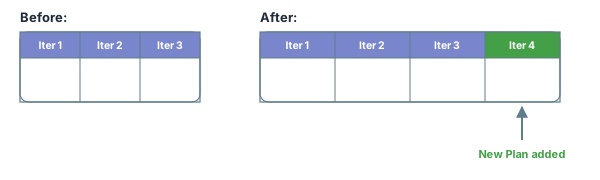
Planningboard lets you add Plans (sprint iterations, releases, or other plan types) to your board on the fly. The **New Plan** feature must be enabled and configured via widget parameters before the toolbar button appears. Once enabled, a single click opens a confirmation dialog, auto-numbers the new Plan, and appends it as a new column — with optional team expansion for multi-team setups.
 ## Prerequisites
* Planningboard is embedded in a Polarion LiveDoc or Wiki page.
* You have write permission to create Plans in the target project.
* The **New Plan** section is configured in the widget parameters (see Step 1 below).
Open the widget parameters for your Planningboard instance and locate the **New Plan** section. Set the following fields:
| Parameter | Description | Example |
| ------------------- | ------------------------------------------------------------------------------------------------------------------------------------------------------------------------------- | --------------------------- |
| `Template ID` | Plan template type to use when creating the Plan (e.g. `iteration`, `release`) | `iteration` |
| `Parent ID` | Optional. ID of the parent Plan under which new Plans are created. Useful when a project has multiple versions and you want new iterations under only one of them. | `Version_3_0` |
| `Plan Name Pattern` | Display name template. Use `{planNum}` for auto-incrementing numbers and `{teamName}` for the team's display name. | `Iteration {planNum}` |
| `Plan ID Pattern` | Internal ID template. Use `{planNum}` for the sequence number and `{teamId}` for the team identifier. Must be unique across the project. | `Iter_{planNum}` |
| `New Plan Duration` | Duration of each new Plan in days. | `14` |
| `Enable Teams` | Toggle on if you want one Plan created per team in a single click. | enabled / disabled |
| `Teams` | When **Enable Teams** is on: specify team names and IDs. | see below |
| `Last Plan Query` | Optional Lucene query that identifies the "last plan" for auto-numbering. If empty, Planningboard searches for the latest plan in the same project with the same template type. | *(leave empty for default)* |
| `Last Plan Sort` | Optional sort field for the last-plan lookup. If empty, sorts by `dueDate` (latest due date = last plan). | *(leave empty for default)* |
If `{planNum}` is not present in both the `Plan Name Pattern` and `Plan ID Pattern`, auto-numbering cannot extract the sequence from existing plan IDs. Planningboard defaults to `1` when no existing plans match the pattern, which can create duplicate IDs. Always include `{planNum}` in both fields.
The default patterns ship predefined for Teams usage (`{teamName}` / `{teamId}`). If **Enable Teams** is disabled, remove `{teamName}` and `{teamId}` from the patterns or new plans will have literal placeholder text in their names and IDs.
Capacity configuration parameters are whitespace-sensitive. Avoid leading or trailing spaces in field values — unexpected spaces cause silent parsing failures.
Save the widget parameters. The **plus (+) button** now appears in the Planningboard toolbar.
This workflow creates one Plan at a time.
1. Ensure **Enable Teams** is off in the widget parameters.
2. On the Planningboard, click the **plus (+) button** in the toolbar.
3. A confirmation dialog appears showing the resolved values — name, ID, start date, and due date.
4. Review the values, then confirm.
5. Planningboard creates the Plan and refreshes the board. The new Plan appears as a new column.
## Prerequisites
* Planningboard is embedded in a Polarion LiveDoc or Wiki page.
* You have write permission to create Plans in the target project.
* The **New Plan** section is configured in the widget parameters (see Step 1 below).
Open the widget parameters for your Planningboard instance and locate the **New Plan** section. Set the following fields:
| Parameter | Description | Example |
| ------------------- | ------------------------------------------------------------------------------------------------------------------------------------------------------------------------------- | --------------------------- |
| `Template ID` | Plan template type to use when creating the Plan (e.g. `iteration`, `release`) | `iteration` |
| `Parent ID` | Optional. ID of the parent Plan under which new Plans are created. Useful when a project has multiple versions and you want new iterations under only one of them. | `Version_3_0` |
| `Plan Name Pattern` | Display name template. Use `{planNum}` for auto-incrementing numbers and `{teamName}` for the team's display name. | `Iteration {planNum}` |
| `Plan ID Pattern` | Internal ID template. Use `{planNum}` for the sequence number and `{teamId}` for the team identifier. Must be unique across the project. | `Iter_{planNum}` |
| `New Plan Duration` | Duration of each new Plan in days. | `14` |
| `Enable Teams` | Toggle on if you want one Plan created per team in a single click. | enabled / disabled |
| `Teams` | When **Enable Teams** is on: specify team names and IDs. | see below |
| `Last Plan Query` | Optional Lucene query that identifies the "last plan" for auto-numbering. If empty, Planningboard searches for the latest plan in the same project with the same template type. | *(leave empty for default)* |
| `Last Plan Sort` | Optional sort field for the last-plan lookup. If empty, sorts by `dueDate` (latest due date = last plan). | *(leave empty for default)* |
If `{planNum}` is not present in both the `Plan Name Pattern` and `Plan ID Pattern`, auto-numbering cannot extract the sequence from existing plan IDs. Planningboard defaults to `1` when no existing plans match the pattern, which can create duplicate IDs. Always include `{planNum}` in both fields.
The default patterns ship predefined for Teams usage (`{teamName}` / `{teamId}`). If **Enable Teams** is disabled, remove `{teamName}` and `{teamId}` from the patterns or new plans will have literal placeholder text in their names and IDs.
Capacity configuration parameters are whitespace-sensitive. Avoid leading or trailing spaces in field values — unexpected spaces cause silent parsing failures.
Save the widget parameters. The **plus (+) button** now appears in the Planningboard toolbar.
This workflow creates one Plan at a time.
1. Ensure **Enable Teams** is off in the widget parameters.
2. On the Planningboard, click the **plus (+) button** in the toolbar.
3. A confirmation dialog appears showing the resolved values — name, ID, start date, and due date.
4. Review the values, then confirm.
5. Planningboard creates the Plan and refreshes the board. The new Plan appears as a new column.
 If `nextStartDate` is not set, Planningboard calculates the start date automatically based on the due date of the last plan found by the `Last Plan Query`. If no tail plan is found, it falls back to the parent plan's start date.
When **Enable Teams** is on, clicking the **plus (+) button** creates one Plan per configured team in a single transaction. All Plans are created or none are created — the operation rolls back automatically on failure.
1. Enable **Enable Teams** in the widget parameters.
2. Configure the `Teams` list with each team's name and ID.
3. Verify `Plan Name Pattern` includes `{teamName}` and `Plan ID Pattern` includes `{teamId}`.
4. Click the **plus (+) button** in the toolbar.
5. The confirmation dialog shows the full set of Plans that will be created (one per team).
6. Confirm. Planningboard creates all Plans and refreshes the board.
**Example Teams configuration:**
```
Teams:
- Name: Alpha Team ID: alpha
- Name: Beta Team ID: beta
```
With `Plan Name Pattern = PI-{planNum} {teamName}` and `Plan ID Pattern = PI-{planNum}-{teamId}`, clicking the button creates:
| Plan Name | Plan ID |
| --------------- | ---------- |
| PI-4 Alpha Team | PI-4-alpha |
| PI-4 Beta Team | PI-4-beta |
The `{planNum}` sequence is shared across all teams. Planningboard extracts the current number from the last plan matching the ID pattern, increments it by one, and applies that number to all teams' plans in the same batch. If no existing plans match, it starts from `1`.
After creation, the board refreshes automatically. You should now see:
* The new Plan column(s) appearing in the board header.
* Cards can be dragged into the new column from the Unplanned section or from other Plan columns.
* If capacity tracking is enabled, the capacity bar for the new Plan is visible when hovering over the column header.
If the new column does not appear, click the **Refresh data** button in the toolbar (circular arrow icon) to force a reload.
## Auto-numbering logic
Planningboard determines the next plan number using this sequence:
1. If `nextNumber` is set explicitly in the configuration, use it.
2. Otherwise, query for existing plans matching `Template ID` + project ID (+ `Last Plan Query` if set).
3. Sort results by `Last Plan Sort` (default: `dueDate` descending).
4. Extract `{planNum}` from the last matching plan's ID using the `Plan ID Pattern` as the extraction template.
5. Increment by one. If no plans match, start from `1`.
## Assign to Parent Plan
When the **Assign to Parent Plan** widget parameter is enabled, planning a work item into a new Plan also automatically plans it into that Plan's parent. For example, dragging a work item into `Iteration 4` (child of `Version 1.0`) also assigns it to `Version 1.0`.
If you use SAFe naming conventions with dashes (e.g. `PI-2401`, `I-2401-1`), ensure you are running **version 25.3.0 or later**. Earlier versions (including the partial fix in 23.8.0) incorrectly parsed dashes in plan names, causing column spans to render incorrectly, capacity to show zero, and plan shortcuts to disappear. Upgrade before adopting dash-containing plan name patterns.
## Common pitfalls
When `Plans Type` is set to **SAFe Program Increments**, the widget parameter UI changes — different fields are shown compared to **Project Plans** mode. If you switch Plans Type, review all plan-related parameters because some fields (such as `Scope` and `Query`) are not shown for SAFe modes and different fields become relevant.
The `Parent ID` must be the exact Polarion plan ID within the current project. If the board spans multiple projects or you have recently renamed plans, confirm the parent plan ID is still valid before creating plans.
In projects with multiple plan hierarchies (e.g. multiple versions each containing iterations), set `Last Plan Query` to a Lucene expression that narrows the search to only the relevant parent — for example `parentId:Version_3_0`. This prevents Planningboard from picking up the highest-numbered iteration from a different version when calculating the next number.
## See also
* [Widget Parameters Overview](/planningboard/guides/configuration/widget-parameters) — full reference for all widget parameters
* [Configure Plans (Columns)](/planningboard/guides/configuration/plans-configuration) — configure which Plans appear as columns
* [Bulk Plan Creation](/planningboard/guides/planning/bulk-plan-creation) — create multiple Plans in one operation via scripting
* [Use Plan Templates](/planningboard/guides/planning/plan-templates) — pre-defined plan structures for consistent setup
* [Drag and Drop Planning](/planningboard/guides/planning/drag-and-drop) — assign work items to Plans after creating them
* [SAFe Planning Workflows](/planningboard/guides/planning/safe-planning) — configure Planningboard for SAFe hierarchies
* [SAFe Plan Naming Conventions](/planningboard/guides/planning/safe-naming-conventions) — naming patterns for SAFe Plans and version requirements
**KB Articles**
* Introduction to Planningboard
* Planningboard interface & basic interactions
* Planningboard Widget Parameters
**Support Tickets**
* [#5879](https://support.nextedy.com/helpdesk/tickets/5879)
* [#6174](https://support.nextedy.com/helpdesk/tickets/6174)
* [#4711](https://support.nextedy.com/helpdesk/tickets/4711)
**Source Code**
* `Item.java`
* `PlanningBoardWidgetRenderer.java`
* `Config.java`
* `PlansMode.java`
* `PlanningBoardDataService.java`
If `nextStartDate` is not set, Planningboard calculates the start date automatically based on the due date of the last plan found by the `Last Plan Query`. If no tail plan is found, it falls back to the parent plan's start date.
When **Enable Teams** is on, clicking the **plus (+) button** creates one Plan per configured team in a single transaction. All Plans are created or none are created — the operation rolls back automatically on failure.
1. Enable **Enable Teams** in the widget parameters.
2. Configure the `Teams` list with each team's name and ID.
3. Verify `Plan Name Pattern` includes `{teamName}` and `Plan ID Pattern` includes `{teamId}`.
4. Click the **plus (+) button** in the toolbar.
5. The confirmation dialog shows the full set of Plans that will be created (one per team).
6. Confirm. Planningboard creates all Plans and refreshes the board.
**Example Teams configuration:**
```
Teams:
- Name: Alpha Team ID: alpha
- Name: Beta Team ID: beta
```
With `Plan Name Pattern = PI-{planNum} {teamName}` and `Plan ID Pattern = PI-{planNum}-{teamId}`, clicking the button creates:
| Plan Name | Plan ID |
| --------------- | ---------- |
| PI-4 Alpha Team | PI-4-alpha |
| PI-4 Beta Team | PI-4-beta |
The `{planNum}` sequence is shared across all teams. Planningboard extracts the current number from the last plan matching the ID pattern, increments it by one, and applies that number to all teams' plans in the same batch. If no existing plans match, it starts from `1`.
After creation, the board refreshes automatically. You should now see:
* The new Plan column(s) appearing in the board header.
* Cards can be dragged into the new column from the Unplanned section or from other Plan columns.
* If capacity tracking is enabled, the capacity bar for the new Plan is visible when hovering over the column header.
If the new column does not appear, click the **Refresh data** button in the toolbar (circular arrow icon) to force a reload.
## Auto-numbering logic
Planningboard determines the next plan number using this sequence:
1. If `nextNumber` is set explicitly in the configuration, use it.
2. Otherwise, query for existing plans matching `Template ID` + project ID (+ `Last Plan Query` if set).
3. Sort results by `Last Plan Sort` (default: `dueDate` descending).
4. Extract `{planNum}` from the last matching plan's ID using the `Plan ID Pattern` as the extraction template.
5. Increment by one. If no plans match, start from `1`.
## Assign to Parent Plan
When the **Assign to Parent Plan** widget parameter is enabled, planning a work item into a new Plan also automatically plans it into that Plan's parent. For example, dragging a work item into `Iteration 4` (child of `Version 1.0`) also assigns it to `Version 1.0`.
If you use SAFe naming conventions with dashes (e.g. `PI-2401`, `I-2401-1`), ensure you are running **version 25.3.0 or later**. Earlier versions (including the partial fix in 23.8.0) incorrectly parsed dashes in plan names, causing column spans to render incorrectly, capacity to show zero, and plan shortcuts to disappear. Upgrade before adopting dash-containing plan name patterns.
## Common pitfalls
When `Plans Type` is set to **SAFe Program Increments**, the widget parameter UI changes — different fields are shown compared to **Project Plans** mode. If you switch Plans Type, review all plan-related parameters because some fields (such as `Scope` and `Query`) are not shown for SAFe modes and different fields become relevant.
The `Parent ID` must be the exact Polarion plan ID within the current project. If the board spans multiple projects or you have recently renamed plans, confirm the parent plan ID is still valid before creating plans.
In projects with multiple plan hierarchies (e.g. multiple versions each containing iterations), set `Last Plan Query` to a Lucene expression that narrows the search to only the relevant parent — for example `parentId:Version_3_0`. This prevents Planningboard from picking up the highest-numbered iteration from a different version when calculating the next number.
## See also
* [Widget Parameters Overview](/planningboard/guides/configuration/widget-parameters) — full reference for all widget parameters
* [Configure Plans (Columns)](/planningboard/guides/configuration/plans-configuration) — configure which Plans appear as columns
* [Bulk Plan Creation](/planningboard/guides/planning/bulk-plan-creation) — create multiple Plans in one operation via scripting
* [Use Plan Templates](/planningboard/guides/planning/plan-templates) — pre-defined plan structures for consistent setup
* [Drag and Drop Planning](/planningboard/guides/planning/drag-and-drop) — assign work items to Plans after creating them
* [SAFe Planning Workflows](/planningboard/guides/planning/safe-planning) — configure Planningboard for SAFe hierarchies
* [SAFe Plan Naming Conventions](/planningboard/guides/planning/safe-naming-conventions) — naming patterns for SAFe Plans and version requirements
**KB Articles**
* Introduction to Planningboard
* Planningboard interface & basic interactions
* Planningboard Widget Parameters
**Support Tickets**
* [#5879](https://support.nextedy.com/helpdesk/tickets/5879)
* [#6174](https://support.nextedy.com/helpdesk/tickets/6174)
* [#4711](https://support.nextedy.com/helpdesk/tickets/4711)
**Source Code**
* `Item.java`
* `PlanningBoardWidgetRenderer.java`
* `Config.java`
* `PlansMode.java`
* `PlanningBoardDataService.java`