> ## Documentation Index
> Fetch the complete documentation index at: https://learn.nextedy.com/llms.txt
> Use this file to discover all available pages before exploring further.
# Highlight Work Items by Rules
> Use highlighting rules to visually flag work items that need attention — for example, cards planned after their due date — so planners can spot scheduling problems at a glance.
## How the default highlight works
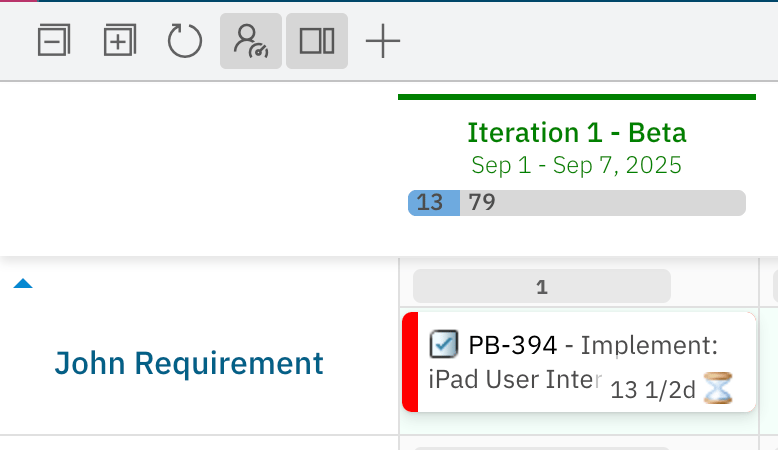
Since version **25.10.0**, Nextedy PLANNINGBOARD automatically highlights work items that are placed in a Plan whose end date falls after the work item's own **Due Date** field. These cards receive a red frame to signal the scheduling conflict.
The comparison logic is:
* Planningboard reads the **Due Date** field of each work item.
* It compares that date against the **end date of the Plan column** the card occupies.
* If the work item's due date is earlier than the plan's end date, the card is highlighted in red.
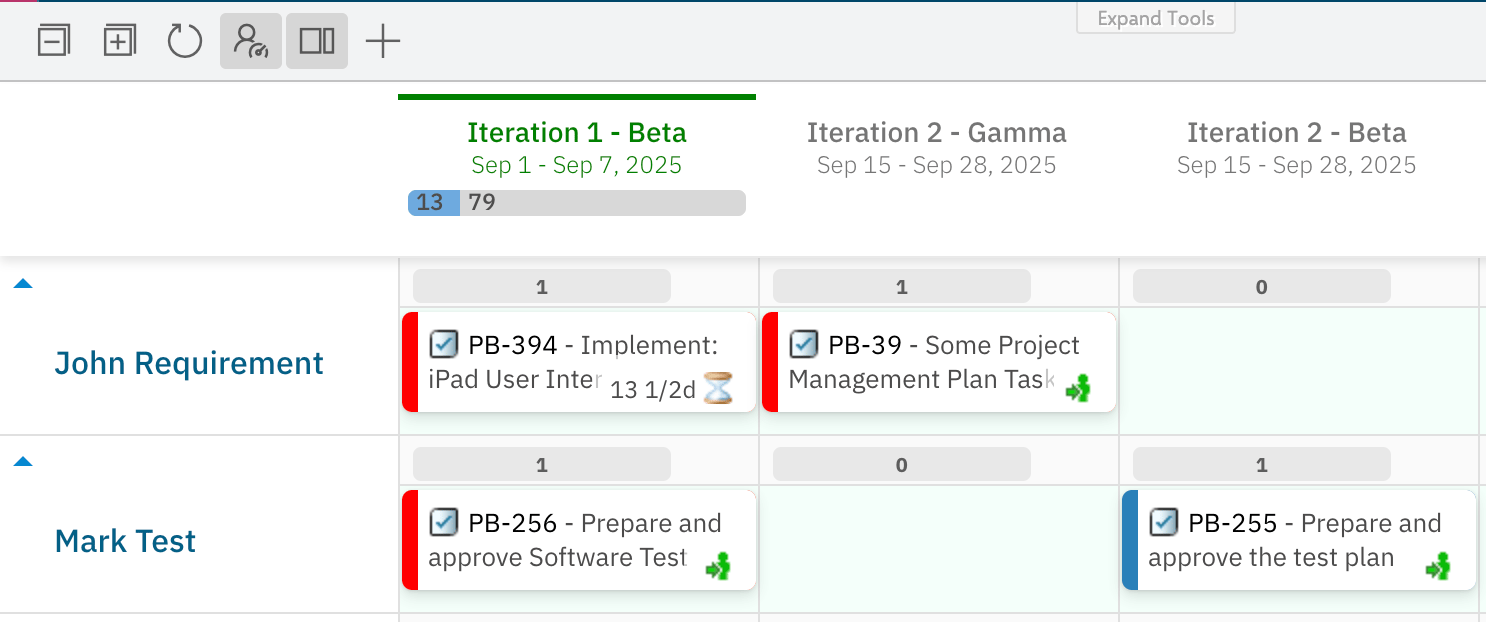 For example: a Plan ends on September 7, but a work item's due date is August 5. Because August 5 is earlier than September 7, Planningboard flags the card automatically.
 No widget parameter is required to enable this — the behavior is on by default from version 25.10.0 onward.
***
## Customize the highlight with an Item Script
The default red frame can be replaced or extended using an **Item Script**. The script runs for each card and lets you change the frame color, background color, or both.
### Step 1 — Open widget parameters
Open the Polarion page that contains your Planningboard widget. Enter edit mode and open the widget configuration panel.
### Step 2 — Navigate to the Item Script field
Go to **Widget Parameters → Advanced → Item Script**.
### Step 3 — Enter your highlighting script
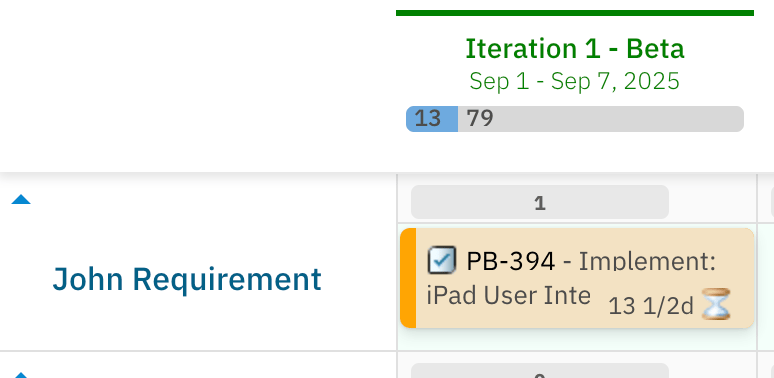
Paste a script that checks the due date condition and sets the visual properties you want. The example below changes the default red frame to orange and adds a soft orange card background:
```javascript theme={null}
if (wi.getDueDate() != null && cli.planEndDate != null
&& wi.getDueDate().getDate().getTime() < cli.planEndDate.getTime()) {
cli.color = "orange";
cli.cardColor = "#f3e2c2";
}
```
### Step 4 — Save and reload the board
Save the widget parameters and reload the page. Cards meeting the condition will now display with the orange frame and background instead of the default red frame.
No widget parameter is required to enable this — the behavior is on by default from version 25.10.0 onward.
***
## Customize the highlight with an Item Script
The default red frame can be replaced or extended using an **Item Script**. The script runs for each card and lets you change the frame color, background color, or both.
### Step 1 — Open widget parameters
Open the Polarion page that contains your Planningboard widget. Enter edit mode and open the widget configuration panel.
### Step 2 — Navigate to the Item Script field
Go to **Widget Parameters → Advanced → Item Script**.
### Step 3 — Enter your highlighting script
Paste a script that checks the due date condition and sets the visual properties you want. The example below changes the default red frame to orange and adds a soft orange card background:
```javascript theme={null}
if (wi.getDueDate() != null && cli.planEndDate != null
&& wi.getDueDate().getDate().getTime() < cli.planEndDate.getTime()) {
cli.color = "orange";
cli.cardColor = "#f3e2c2";
}
```
### Step 4 — Save and reload the board
Save the widget parameters and reload the page. Cards meeting the condition will now display with the orange frame and background instead of the default red frame.
 ***
## Item Script properties for highlighting
The following properties are available when writing a highlight rule in the Item Script:
| Property | Type | Purpose |
| ----------------- | ------ | ------------------------------------------------------------------------------ |
| `wi.getDueDate()` | Method | Returns the work item's Due Date field value, or `null` if unset |
| `cli.planEndDate` | Date | The end date of the Plan column where the card is placed |
| `cli.color` | String | Sets the **frame (border) color** of the card (CSS color value or named color) |
| `cli.cardColor` | String | Sets the **background color** of the card (CSS color value or hex code) |
Always guard against `null` before comparing dates. If `wi.getDueDate()` is `null` (the work item has no due date set) or `cli.planEndDate` is `null`, the comparison will throw an error and the script will fail silently for that card.
***
## Example: color by priority
You can extend the same pattern to apply different highlights based on other work item fields. For example, to use a stronger color for high-priority overdue items:
```javascript theme={null}
if (wi.getDueDate() != null && cli.planEndDate != null
&& wi.getDueDate().getDate().getTime() < cli.planEndDate.getTime()) {
if (wi.getPriority() != null && wi.getPriority().getId() === "high") {
cli.color = "red";
cli.cardColor = "#fce4e4";
} else {
cli.color = "orange";
cli.cardColor = "#f3e2c2";
}
}
```
A single Item Script can apply multiple highlight rules sequentially. Each condition block can set `cli.color` and `cli.cardColor` independently. The last block to match wins, so order conditions from lowest to highest priority.
***
## Diagram: how highlighting is evaluated
```text theme={null}
For each card on the board
|
v
wi.getDueDate() present?
| |
No Yes
| |
(no highlight) v
cli.planEndDate present?
| |
No Yes
| |
(no highlight) v
dueDate < planEndDate?
| |
No Yes
| |
(no highlight) Apply cli.color
and cli.cardColor
from Item Script
(default: red frame)
```
***
## Pitfalls and limitations
The automatic red-frame highlight for overdue items was introduced in version **25.10.0**. On earlier versions, no default highlight appears. To check your version, go to **Administration > Nextedy PLANNINGBOARD** and look at the installed version number.
A syntax error or uncaught exception in the Item Script will prevent the highlighting logic from running for affected cards. If your customized highlight stops appearing, check the browser console for script errors. See [Script Errors](/planningboard/guides/troubleshooting/script-errors) for diagnosis steps.
Planningboard card coloring (including highlights set via `cli.color` and `cli.cardColor`) is driven by Item Scripts, not by custom enumeration fields. Unlike Scrumboard, Planningboard does not support custom-enum-based card coloring out of the box. If you need color to reflect an enumeration value, read the field in the Item Script and map it to a color manually.
***
## Verification
After saving the widget parameters and reloading the board, scan for cards that are placed in Plans whose end date is later than each card's due date. Those cards should display with the frame color defined in your script (or the default red if no script is set). Cards without a due date, or cards placed in Plans that end before their due date, should remain unhighlighted.
***
## See also
* [Customize Card Appearance](/planningboard/guides/customization/card-appearance) — change card layout and visual style beyond highlighting
* [Customize Card Colors](/planningboard/guides/customization/card-colors) — set card colors based on status or other rules
* [Item Scripts](/planningboard/guides/advanced/item-scripts) — full reference for the Item Script API
* [Widget Parameters Overview](/planningboard/guides/configuration/widget-parameters) — where to find the Advanced → Item Script field
* [Script Errors](/planningboard/guides/troubleshooting/script-errors) — diagnose Item Script failures
**KB Articles**
* Planningboard: Customizable Statistics and Capacity Indicators
* Planningboard interface & basic interactions
* Highlight Work Items planned after their due date
**Support Tickets**
* [#6679](https://support.nextedy.com/helpdesk/tickets/6679)
* [#6612](https://support.nextedy.com/helpdesk/tickets/6612)
* [#6496](https://support.nextedy.com/helpdesk/tickets/6496)
**Source Code**
* `unplanned_sidebar.js`
* `PlanningBoardWidget.java`
* `Item.java`
* `customProgressTooltip.cy.ts`
* `perUserCapacity.cy.ts`
***
## Item Script properties for highlighting
The following properties are available when writing a highlight rule in the Item Script:
| Property | Type | Purpose |
| ----------------- | ------ | ------------------------------------------------------------------------------ |
| `wi.getDueDate()` | Method | Returns the work item's Due Date field value, or `null` if unset |
| `cli.planEndDate` | Date | The end date of the Plan column where the card is placed |
| `cli.color` | String | Sets the **frame (border) color** of the card (CSS color value or named color) |
| `cli.cardColor` | String | Sets the **background color** of the card (CSS color value or hex code) |
Always guard against `null` before comparing dates. If `wi.getDueDate()` is `null` (the work item has no due date set) or `cli.planEndDate` is `null`, the comparison will throw an error and the script will fail silently for that card.
***
## Example: color by priority
You can extend the same pattern to apply different highlights based on other work item fields. For example, to use a stronger color for high-priority overdue items:
```javascript theme={null}
if (wi.getDueDate() != null && cli.planEndDate != null
&& wi.getDueDate().getDate().getTime() < cli.planEndDate.getTime()) {
if (wi.getPriority() != null && wi.getPriority().getId() === "high") {
cli.color = "red";
cli.cardColor = "#fce4e4";
} else {
cli.color = "orange";
cli.cardColor = "#f3e2c2";
}
}
```
A single Item Script can apply multiple highlight rules sequentially. Each condition block can set `cli.color` and `cli.cardColor` independently. The last block to match wins, so order conditions from lowest to highest priority.
***
## Diagram: how highlighting is evaluated
```text theme={null}
For each card on the board
|
v
wi.getDueDate() present?
| |
No Yes
| |
(no highlight) v
cli.planEndDate present?
| |
No Yes
| |
(no highlight) v
dueDate < planEndDate?
| |
No Yes
| |
(no highlight) Apply cli.color
and cli.cardColor
from Item Script
(default: red frame)
```
***
## Pitfalls and limitations
The automatic red-frame highlight for overdue items was introduced in version **25.10.0**. On earlier versions, no default highlight appears. To check your version, go to **Administration > Nextedy PLANNINGBOARD** and look at the installed version number.
A syntax error or uncaught exception in the Item Script will prevent the highlighting logic from running for affected cards. If your customized highlight stops appearing, check the browser console for script errors. See [Script Errors](/planningboard/guides/troubleshooting/script-errors) for diagnosis steps.
Planningboard card coloring (including highlights set via `cli.color` and `cli.cardColor`) is driven by Item Scripts, not by custom enumeration fields. Unlike Scrumboard, Planningboard does not support custom-enum-based card coloring out of the box. If you need color to reflect an enumeration value, read the field in the Item Script and map it to a color manually.
***
## Verification
After saving the widget parameters and reloading the board, scan for cards that are placed in Plans whose end date is later than each card's due date. Those cards should display with the frame color defined in your script (or the default red if no script is set). Cards without a due date, or cards placed in Plans that end before their due date, should remain unhighlighted.
***
## See also
* [Customize Card Appearance](/planningboard/guides/customization/card-appearance) — change card layout and visual style beyond highlighting
* [Customize Card Colors](/planningboard/guides/customization/card-colors) — set card colors based on status or other rules
* [Item Scripts](/planningboard/guides/advanced/item-scripts) — full reference for the Item Script API
* [Widget Parameters Overview](/planningboard/guides/configuration/widget-parameters) — where to find the Advanced → Item Script field
* [Script Errors](/planningboard/guides/troubleshooting/script-errors) — diagnose Item Script failures
**KB Articles**
* Planningboard: Customizable Statistics and Capacity Indicators
* Planningboard interface & basic interactions
* Highlight Work Items planned after their due date
**Support Tickets**
* [#6679](https://support.nextedy.com/helpdesk/tickets/6679)
* [#6612](https://support.nextedy.com/helpdesk/tickets/6612)
* [#6496](https://support.nextedy.com/helpdesk/tickets/6496)
**Source Code**
* `unplanned_sidebar.js`
* `PlanningBoardWidget.java`
* `Item.java`
* `customProgressTooltip.cy.ts`
* `perUserCapacity.cy.ts`