> ## Documentation Index
> Fetch the complete documentation index at: https://learn.nextedy.com/llms.txt
> Use this file to discover all available pages before exploring further.
# Widget Parameters Overview
> Configure the Nextedy PLANNINGBOARD widget parameters to control which work items and Plans appear on your board, how swimlanes are structured, and what capacity data is displayed.
## Before you start
* You must be in **edit mode** on the Polarion LiveDoc or Wiki page that contains the Planningboard widget.
* Expand the **Tools** panel in the Polarion rich page editor, then click the **Edit** button on the widget to open the configuration dialog.
Planningboard supports only one widget instance per Polarion page. Multi-team dashboard layouts that require multiple independent boards must use separate pages — one Planningboard per page.
***
## Parameter groups
The configuration dialog is organized into five groups. The sections below cover each in turn.
 ***
## 1. Work Items
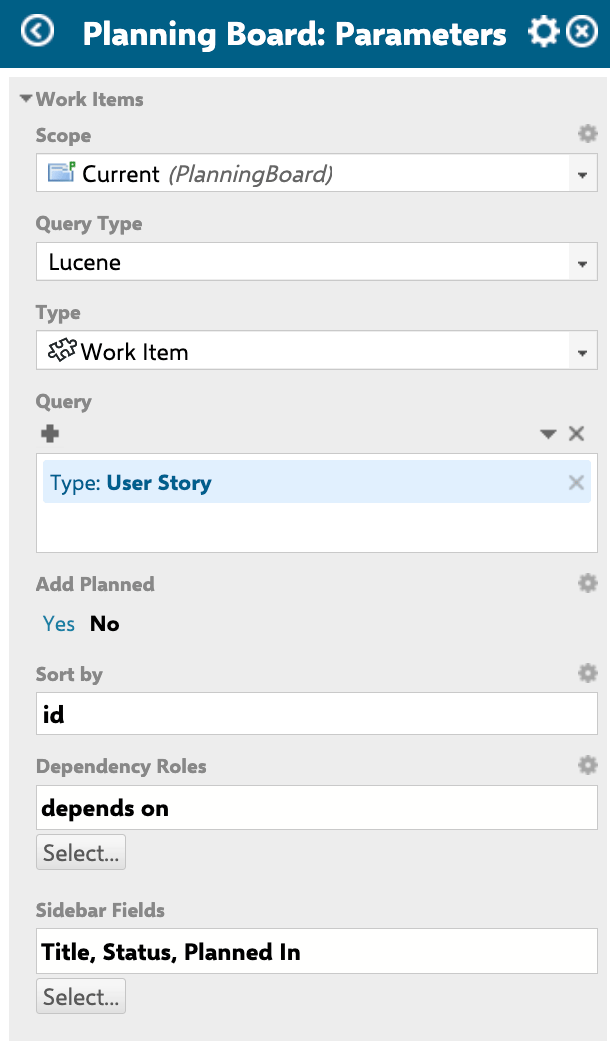
These parameters define **which work items are loaded** onto the board and how they appear.
| Parameter | What it does |
| -------------------- | ------------------------------------------------------------------------------------------------------------------ |
| **Scope** | Project scope for this board instance (from which projects items will appear) |
| **Query type** | Type of the Lucene query (if used) |
| **Query** | Lucene query to filter work items shown on the board. Default: `NOT *:*` (nothing shown until configured) |
| **Add Planned** | When enabled, loads all already-planned items in addition to those matched by Type and Query |
| **Sort by** | Defines card sort order within swimlane cells |
| **Dependency Roles** | Link roles to visualize as dependency arrows between cards |
| **Sidebar Fields** | Fields shown in the Work Item Properties sidebar when a card is clicked. Defaults: `Title`, `Status`, `Planned In` |
Users can further personalize sidebar fields using the **gear icon** (Select Fields button) in the sidebar. Those additions apply only to that user and to all work items of the same type — they do not affect the widget's `Sidebar Fields` default.
***
## 1. Work Items
These parameters define **which work items are loaded** onto the board and how they appear.
| Parameter | What it does |
| -------------------- | ------------------------------------------------------------------------------------------------------------------ |
| **Scope** | Project scope for this board instance (from which projects items will appear) |
| **Query type** | Type of the Lucene query (if used) |
| **Query** | Lucene query to filter work items shown on the board. Default: `NOT *:*` (nothing shown until configured) |
| **Add Planned** | When enabled, loads all already-planned items in addition to those matched by Type and Query |
| **Sort by** | Defines card sort order within swimlane cells |
| **Dependency Roles** | Link roles to visualize as dependency arrows between cards |
| **Sidebar Fields** | Fields shown in the Work Item Properties sidebar when a card is clicked. Defaults: `Title`, `Status`, `Planned In` |
Users can further personalize sidebar fields using the **gear icon** (Select Fields button) in the sidebar. Those additions apply only to that user and to all work items of the same type — they do not affect the widget's `Sidebar Fields` default.
 ### Configuration example
A Scrum team tracking Stories and Tasks with effort estimates:
* **Query**: `type:story OR type:task`
* **Sort by**: priority
* **Dependency Roles**: `depends on`
* **Sidebar Fields**: `Title`, `Status`, `Planned In`, `Estimate`
***
## 2. Plans (Columns)
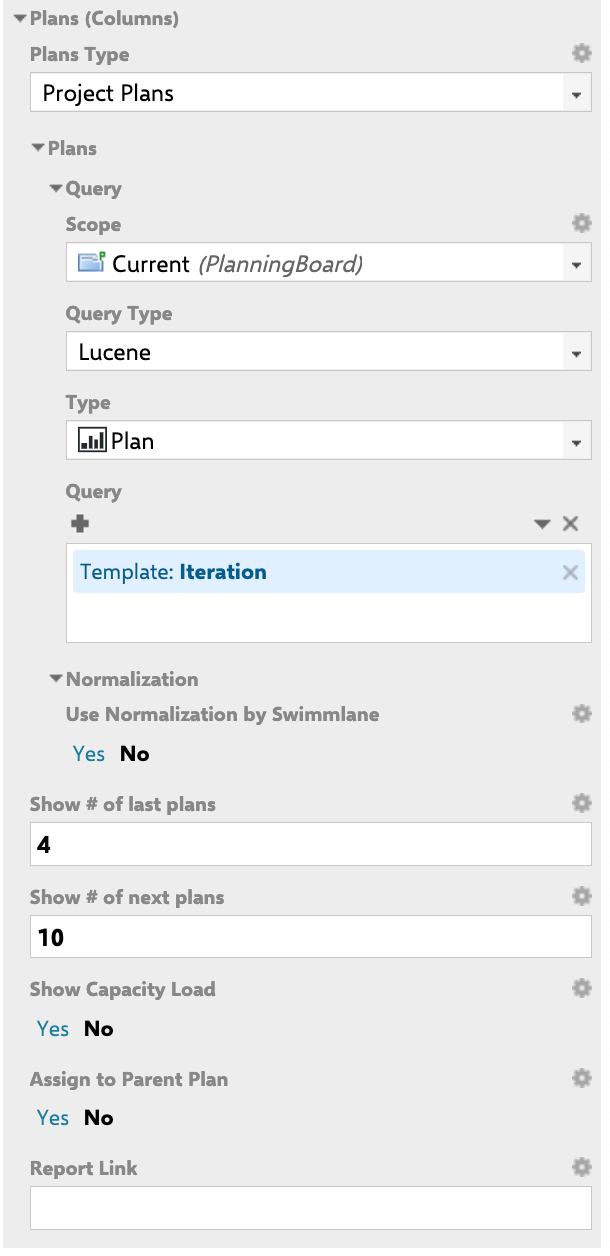
These parameters control **which Polarion Plans appear as columns** and how capacity is displayed.
| Parameter | What it does |
| ------------------------- | ---------------------------------------------------------------------------------------------------------------------------------------------- |
| **Plans Type** | Plan type / mode for column generation. Options include project plans and SAFe plan types (see note below) |
| **Plans** | Lucene query selecting which Plans to load as columns (`plansQuery`) |
| **Normalization** | Enables capacity normalization across swimlanes. See [Configure Capacity Tracking](/planningboard/guides/configuration/capacity-configuration) |
| **Show # of last plans** | Number of past/completed plans to display (`lastPlans`, default: `1`) |
| **Show # of next plans** | Number of upcoming plans to display (`nextPlans`, default: `5`) |
| **Show Capacity Load** | Enables the capacity bar visualization per Plan column (`capacityLoad`) |
| **Assign to Parent Plan** | When enabled, dropping a card into a Plan also plans it in that Plan's parent Plan |
| **Report Link** | URL template for the link opened when clicking a column label. Supports `${plan.objectId.projectId}` and `${plan.objectId.itemId}` variables |
If you need a SAFe plan type (SAFe Sprints, Program Increments), contact Nextedy support to assist with the configuration — these modes require Polarion SAFe Solution to be present.
With **Assign to Parent Plan** disabled: dragging a card into *Iteration 4* plans it only in Iteration 4. With it enabled: the card is also planned in *Version 1.0* (Iteration 4's parent Plan) automatically.
### Configuration example
A Scrum team tracking Stories and Tasks with effort estimates:
* **Query**: `type:story OR type:task`
* **Sort by**: priority
* **Dependency Roles**: `depends on`
* **Sidebar Fields**: `Title`, `Status`, `Planned In`, `Estimate`
***
## 2. Plans (Columns)
These parameters control **which Polarion Plans appear as columns** and how capacity is displayed.
| Parameter | What it does |
| ------------------------- | ---------------------------------------------------------------------------------------------------------------------------------------------- |
| **Plans Type** | Plan type / mode for column generation. Options include project plans and SAFe plan types (see note below) |
| **Plans** | Lucene query selecting which Plans to load as columns (`plansQuery`) |
| **Normalization** | Enables capacity normalization across swimlanes. See [Configure Capacity Tracking](/planningboard/guides/configuration/capacity-configuration) |
| **Show # of last plans** | Number of past/completed plans to display (`lastPlans`, default: `1`) |
| **Show # of next plans** | Number of upcoming plans to display (`nextPlans`, default: `5`) |
| **Show Capacity Load** | Enables the capacity bar visualization per Plan column (`capacityLoad`) |
| **Assign to Parent Plan** | When enabled, dropping a card into a Plan also plans it in that Plan's parent Plan |
| **Report Link** | URL template for the link opened when clicking a column label. Supports `${plan.objectId.projectId}` and `${plan.objectId.itemId}` variables |
If you need a SAFe plan type (SAFe Sprints, Program Increments), contact Nextedy support to assist with the configuration — these modes require Polarion SAFe Solution to be present.
With **Assign to Parent Plan** disabled: dragging a card into *Iteration 4* plans it only in Iteration 4. With it enabled: the card is also planned in *Version 1.0* (Iteration 4's parent Plan) automatically.
 ### Report Link example
```text theme={null}
/polarion/#/project/${plan.objectId.projectId}/wiki/SPRINT_REPORT?plan=${plan.objectId.itemId}
```
***
## 3. Queries (Unplanned Sidebar Filters)
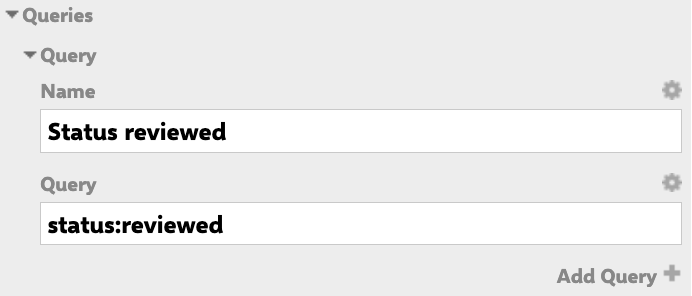
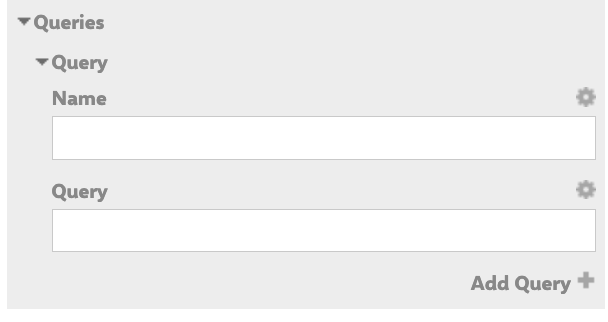
The **Queries** group lets you define named filters that appear in the unplanned section's filter menu.
| Parameter | What it does |
| ----------- | ------------------------------------------------------------------------------------ |
| **Queries** | List of named Lucene queries accessible via the funnel icon in the unplanned section |
Use this to give planners fast access to subsets of the backlog — for example, items with a specific status, type, or component — without changing the main board query.
**Example**: Create a query named `Reviewed` with value `status:reviewed`. It surfaces all reviewed cards under the unplanned section when the filter is enabled.
### Report Link example
```text theme={null}
/polarion/#/project/${plan.objectId.projectId}/wiki/SPRINT_REPORT?plan=${plan.objectId.itemId}
```
***
## 3. Queries (Unplanned Sidebar Filters)
The **Queries** group lets you define named filters that appear in the unplanned section's filter menu.
| Parameter | What it does |
| ----------- | ------------------------------------------------------------------------------------ |
| **Queries** | List of named Lucene queries accessible via the funnel icon in the unplanned section |
Use this to give planners fast access to subsets of the backlog — for example, items with a specific status, type, or component — without changing the main board query.
**Example**: Create a query named `Reviewed` with value `status:reviewed`. It surfaces all reviewed cards under the unplanned section when the filter is enabled.
 ***
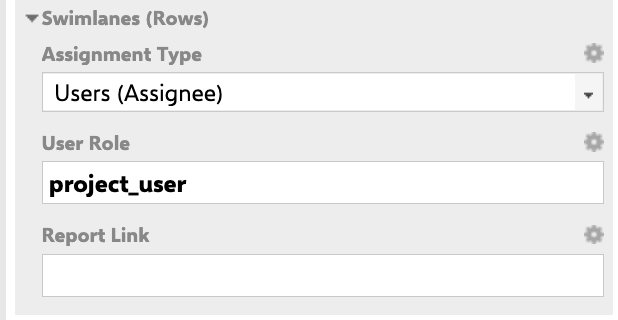
## 4. Swimlanes (Rows)
These parameters control **how work items are grouped into horizontal rows**.
| Parameter | What it does |
| ------------------- | ---------------------------------------------------------------------------------------------------------- |
| **Assignment Type** | The swimlane assignment mode — determines what each row represents |
| **User Role** | (Visible when Assignment Type is user-based) Filters which users appear as swimlane rows |
| **Report Link** | URL template opened when clicking a swimlane label. Supports `${r.objectId.itemId}` for the row's resource |
### Assignment modes
| Mode | Swimlane rows represent | Notes |
| ---------------------------------- | --------------------------------------------------- | --------------------------------------------------------------------------------------------------------- |
| `Users (Assignee)` | Individual users (assignees) | Supports role filtering and Teams Service integration |
| `Enumeration Field` | Enum field values (e.g., component, priority, team) | Single and multi-value enum fields supported; `status`, `resolution`, and `type` fields are not supported |
| `Parent Item` | Parent work items (via Lucene query) | Does not support plan normalization |
| `Program / Solution TEams (SAFe)` | SAFe teams in the current program | Requires Polarion SAFe Solution |
| `Agile Release Train Teams (SAFe)` | Teams within a specific Agile Release Train | Requires ART ID parameter |
| `Programs (SAFe)` | SAFe programs in a solution train | Requires Polarion SAFe Solution at portfolio level |
| `Project` | Sub-projects within the current project group | Excludes the current project itself; only readable sub-projects shown |
Polarion page parameters (`$pageParameters.xxx`) are accepted in swimlane configuration as **string values only** — manual text entry is required; no enum picker dropdown is available. For multi-team deployments where string-entry is not sufficient, create a separate Planningboard page per team and configure swimlanes statically using link roles.
Planningboard swimlane configuration requires Nextedy's standard Team work item type (with its specific custom fields). Custom team work item types are not supported. If your project uses a custom team structure, consider using Nextedy GANTT (25.5.0+), which added support for custom team types.
### Report Link example
```text theme={null}
/polarion/#/project/PlanningBoard/wiki/TEAM_REPORT?user=${r.objectId.itemId}
```
***
## 4. Swimlanes (Rows)
These parameters control **how work items are grouped into horizontal rows**.
| Parameter | What it does |
| ------------------- | ---------------------------------------------------------------------------------------------------------- |
| **Assignment Type** | The swimlane assignment mode — determines what each row represents |
| **User Role** | (Visible when Assignment Type is user-based) Filters which users appear as swimlane rows |
| **Report Link** | URL template opened when clicking a swimlane label. Supports `${r.objectId.itemId}` for the row's resource |
### Assignment modes
| Mode | Swimlane rows represent | Notes |
| ---------------------------------- | --------------------------------------------------- | --------------------------------------------------------------------------------------------------------- |
| `Users (Assignee)` | Individual users (assignees) | Supports role filtering and Teams Service integration |
| `Enumeration Field` | Enum field values (e.g., component, priority, team) | Single and multi-value enum fields supported; `status`, `resolution`, and `type` fields are not supported |
| `Parent Item` | Parent work items (via Lucene query) | Does not support plan normalization |
| `Program / Solution TEams (SAFe)` | SAFe teams in the current program | Requires Polarion SAFe Solution |
| `Agile Release Train Teams (SAFe)` | Teams within a specific Agile Release Train | Requires ART ID parameter |
| `Programs (SAFe)` | SAFe programs in a solution train | Requires Polarion SAFe Solution at portfolio level |
| `Project` | Sub-projects within the current project group | Excludes the current project itself; only readable sub-projects shown |
Polarion page parameters (`$pageParameters.xxx`) are accepted in swimlane configuration as **string values only** — manual text entry is required; no enum picker dropdown is available. For multi-team deployments where string-entry is not sufficient, create a separate Planningboard page per team and configure swimlanes statically using link roles.
Planningboard swimlane configuration requires Nextedy's standard Team work item type (with its specific custom fields). Custom team work item types are not supported. If your project uses a custom team structure, consider using Nextedy GANTT (25.5.0+), which added support for custom team types.
### Report Link example
```text theme={null}
/polarion/#/project/PlanningBoard/wiki/TEAM_REPORT?user=${r.objectId.itemId}
```
 ***
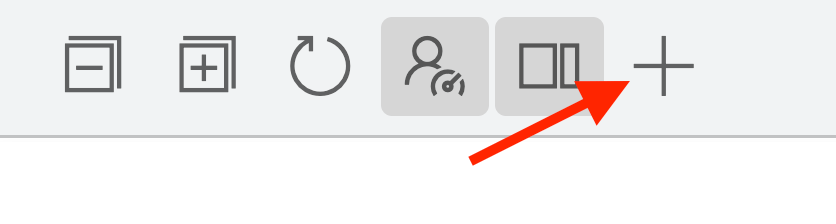
## 5. New Plan
When enabled, adds a **plus (+) button** to the board toolbar so users can create new Plans directly from the board.
***
## 5. New Plan
When enabled, adds a **plus (+) button** to the board toolbar so users can create new Plans directly from the board.
 | Parameter | What it does |
| --------------------- | ---------------------------------------------------------------------------------------------------------------------------- |
| **Template ID** | Polarion plan template ID for newly created plans (e.g., `iteration`, `release`) |
| **Parent ID** | If set, new plans are always created under this specific parent Plan |
| **Plan Name Pattern** | Display name pattern for the new Plan's column header |
| **Plan ID Pattern** | ID pattern new Plans should follow |
| **New Plan Duration** | Duration of newly created plans |
| **Enable Teams** | Enables team-based plan creation (creates one plan per team) |
| **Teams** | Name and ID of each Team (when Enable Teams is on) |
| **Last Plan Query** | Lucene query to find the "last plan". Default (empty): finds the latest plan in the same project with the same template type |
| **Last Plan Sort** | How to determine which plan from the query is "last". Default (empty): sorts by `dueDate` descending |
When **Enable Teams** is on, the Plan Name Pattern and Plan ID Pattern fields are pre-populated for team-based naming. If you are **not** using Teams, remember to update these patterns to match your project's naming conventions — the pre-filled defaults assume Teams are present.
During Planningboard setup, you may encounter a template zip file in the plugin distribution. This file does **not** need to be imported via the Polarion Administration UI. Follow the standard installation steps instead; importing the zip is not part of the setup process.
### Example: New Plan without Teams
| Parameter | What it does |
| --------------------- | ---------------------------------------------------------------------------------------------------------------------------- |
| **Template ID** | Polarion plan template ID for newly created plans (e.g., `iteration`, `release`) |
| **Parent ID** | If set, new plans are always created under this specific parent Plan |
| **Plan Name Pattern** | Display name pattern for the new Plan's column header |
| **Plan ID Pattern** | ID pattern new Plans should follow |
| **New Plan Duration** | Duration of newly created plans |
| **Enable Teams** | Enables team-based plan creation (creates one plan per team) |
| **Teams** | Name and ID of each Team (when Enable Teams is on) |
| **Last Plan Query** | Lucene query to find the "last plan". Default (empty): finds the latest plan in the same project with the same template type |
| **Last Plan Sort** | How to determine which plan from the query is "last". Default (empty): sorts by `dueDate` descending |
When **Enable Teams** is on, the Plan Name Pattern and Plan ID Pattern fields are pre-populated for team-based naming. If you are **not** using Teams, remember to update these patterns to match your project's naming conventions — the pre-filled defaults assume Teams are present.
During Planningboard setup, you may encounter a template zip file in the plugin distribution. This file does **not** need to be imported via the Polarion Administration UI. Follow the standard installation steps instead; importing the zip is not part of the setup process.
### Example: New Plan without Teams
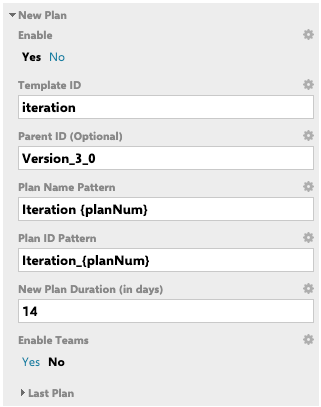
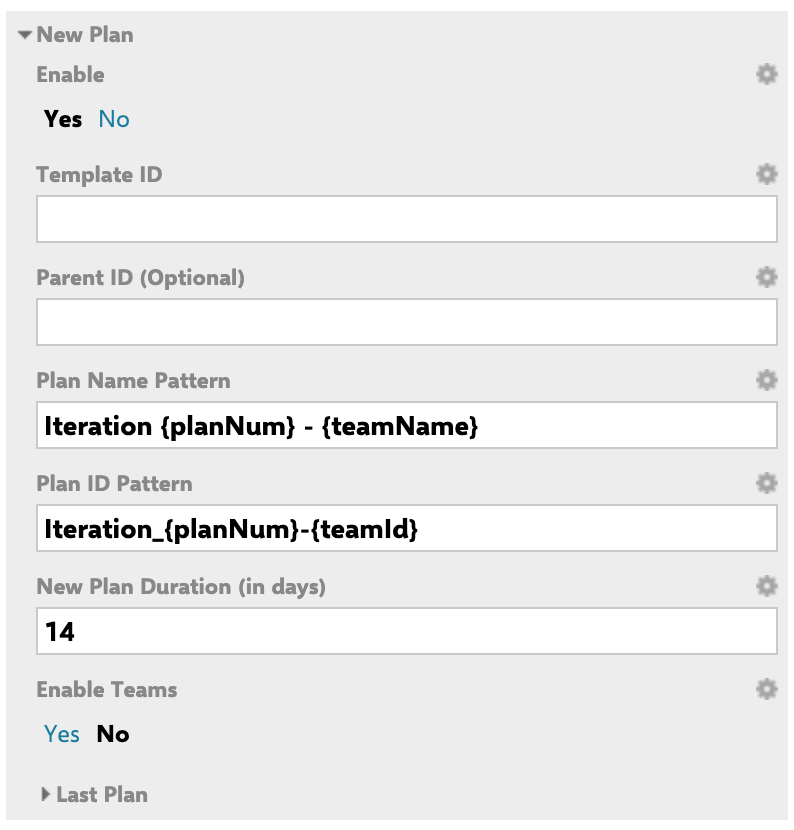 Configure new iteration plans under a specific parent version:
* **Template ID**: `iteration`
* **Parent ID**: `Version_3_0`
* **Plan Name Pattern**: `Iteration ${lastPlan.counter + 1}`
* **Plan ID Pattern**: `iteration_${lastPlan.counter + 1}`
* **New Plan Duration**: `14d`
* **Enable Teams**: disabled
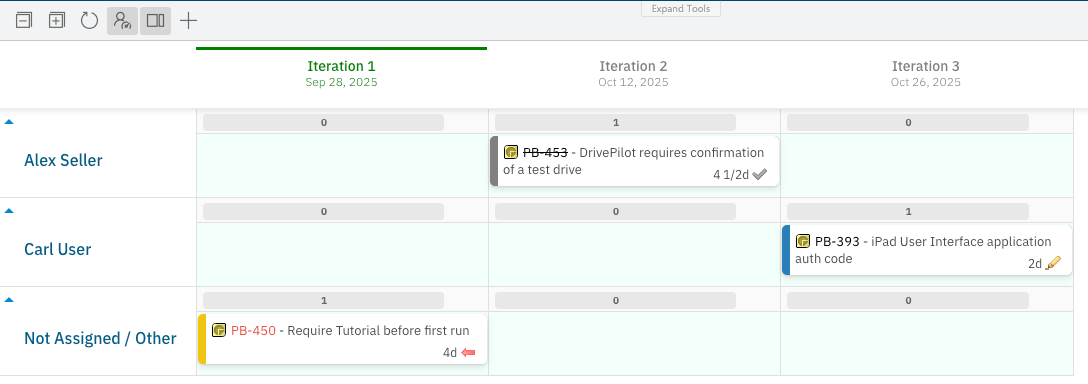
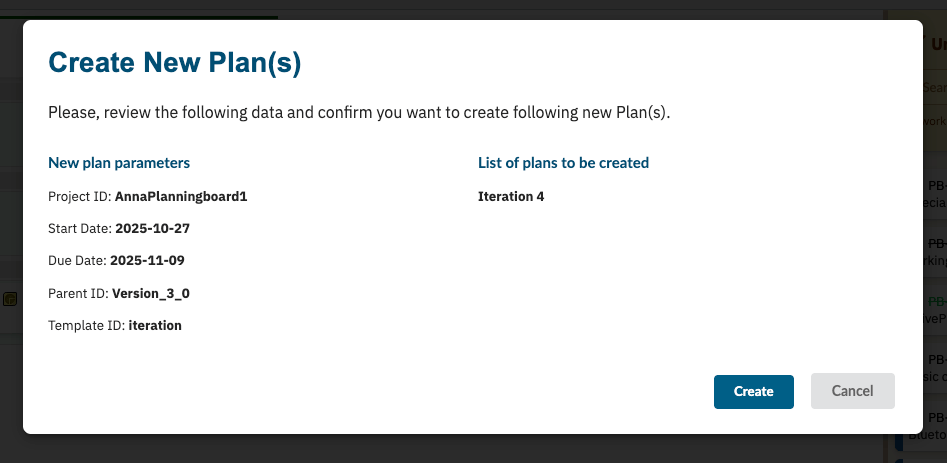
When the **+** button is clicked, a confirmation window shows the resolved values before the Plan is created.
Configure new iteration plans under a specific parent version:
* **Template ID**: `iteration`
* **Parent ID**: `Version_3_0`
* **Plan Name Pattern**: `Iteration ${lastPlan.counter + 1}`
* **Plan ID Pattern**: `iteration_${lastPlan.counter + 1}`
* **New Plan Duration**: `14d`
* **Enable Teams**: disabled
When the **+** button is clicked, a confirmation window shows the resolved values before the Plan is created.
 ***
## Verification
After saving the widget configuration, **refresh the page**. You should now see:
* Cards matching your **Query** loaded into the board
* Columns corresponding to the Plans selected by your **Plans** query and count settings
* Swimlane rows reflecting the chosen **Assignment Type**
* The capacity bar visible in each Plan column header (if **Show Capacity Load** is enabled)
* The unplanned section populated with cards not yet assigned to any Plan
If the board appears empty, check that your **Query** is not `NOT *:*` (the default — intentionally loads nothing) and that at least one Plan exists in the selected project scope.
Hover over the capacity bar in any Plan column header to see a detailed tooltip with capacity figures. This is only available when **Show Capacity Load** is enabled in the Plans parameters.
***
## See also
* [Configure Plans (Columns)](/planningboard/guides/configuration/plans-configuration) — detailed Plans query and mode options
* [Configure Swimlanes (Rows)](/planningboard/guides/configuration/swimlanes-configuration) — swimlane assignment type setup
* [Configure Work Items Dataset](/planningboard/guides/configuration/work-items-configuration) — query and type filtering
* [Configure Unplanned Sidebar](/planningboard/guides/configuration/unplanned-sidebar) — unplanned section and query filters
* [Configure Capacity Tracking](/planningboard/guides/configuration/capacity-configuration) — capacity load and normalization
* [Configure Dependencies Display](/planningboard/guides/configuration/dependencies-configuration) — dependency link role setup
* [Use Page Parameters](/planningboard/guides/configuration/page-parameters) — parameterizing board configuration per page
***
## Verification
After saving the widget configuration, **refresh the page**. You should now see:
* Cards matching your **Query** loaded into the board
* Columns corresponding to the Plans selected by your **Plans** query and count settings
* Swimlane rows reflecting the chosen **Assignment Type**
* The capacity bar visible in each Plan column header (if **Show Capacity Load** is enabled)
* The unplanned section populated with cards not yet assigned to any Plan
If the board appears empty, check that your **Query** is not `NOT *:*` (the default — intentionally loads nothing) and that at least one Plan exists in the selected project scope.
Hover over the capacity bar in any Plan column header to see a detailed tooltip with capacity figures. This is only available when **Show Capacity Load** is enabled in the Plans parameters.
***
## See also
* [Configure Plans (Columns)](/planningboard/guides/configuration/plans-configuration) — detailed Plans query and mode options
* [Configure Swimlanes (Rows)](/planningboard/guides/configuration/swimlanes-configuration) — swimlane assignment type setup
* [Configure Work Items Dataset](/planningboard/guides/configuration/work-items-configuration) — query and type filtering
* [Configure Unplanned Sidebar](/planningboard/guides/configuration/unplanned-sidebar) — unplanned section and query filters
* [Configure Capacity Tracking](/planningboard/guides/configuration/capacity-configuration) — capacity load and normalization
* [Configure Dependencies Display](/planningboard/guides/configuration/dependencies-configuration) — dependency link role setup
* [Use Page Parameters](/planningboard/guides/configuration/page-parameters) — parameterizing board configuration per page