> ## Documentation Index
> Fetch the complete documentation index at: https://learn.nextedy.com/llms.txt
> Use this file to discover all available pages before exploring further.
# Configure Capacity Tracking
> Enable and configure capacity bars in Nextedy PLANNINGBOARD to track how much work is planned against available capacity in each swimlane and Plan column.
## Before you begin
* The board must already be configured with Plans (columns) and swimlanes (rows). See [Configure Plans (Columns)](/planningboard/guides/configuration/plans-configuration) and [Configure Swimlanes (Rows)](/planningboard/guides/configuration/swimlanes-configuration).
* Capacity tracking works with time-based effort fields (`remainingEstimate`, `initialEstimate`) or a custom numeric field on work items. Decide which approach your team uses before proceeding.
Open the widget parameters for your Planningboard widget.
Under **Parameters for Plans (Columns)**, locate the **Show Capacity Load** toggle and enable it. This activates the `capacityLoad` property, which defaults to `false`.
```properties theme={null}
capacityLoad = true
```
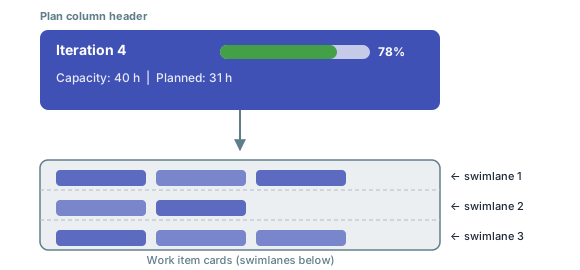
Once enabled, a **capacity bar** appears at the top of each Plan column, showing the aggregate planned effort versus capacity for that Plan.
Users can show or hide the capacity visualization at any time using the **Toggle Resource Load visualization** button in the board toolbar (the bar-chart icon). This does not change the widget configuration — it is a per-session display toggle.
By default, Planningboard reads effort from Polarion's built-in time-tracking fields (`remainingEstimate` and `initialEstimate`). If your team uses a custom numeric field instead (for example, story points stored in a custom field), set the `capacityField` property to that field's ID.
```properties theme={null}
capacityField = storyPoints
```
Leave `capacityField` empty to use the default time-based fields.
Capacity configuration property values are whitespace-sensitive. Do not include leading or trailing spaces around the field ID. A value such as `capacityField = storyPoints ` (with extra spaces) will not resolve correctly.
If you are using time-based effort fields, Planningboard converts effort values using the `hoursPerDay` property. The default is `8` hours per day.
```properties theme={null}
hoursPerDay = 8
```
Adjust this value to match your team's working day (for example, `6` for a 6-hour working day). This affects how the capacity bar computes load when effort is stored in hours.
Planningboard supports two capacity modes:
| Mode | Property | When to use |
| ----------------------------------- | -------------------------- | -------------------------------------------------------------------------------------------------------- |
| Single capacity | `capacityLoad = true` | One capacity bar per Plan column aggregated across all swimlanes |
| Multi-dimensional capacity | `multiCapacityLoad = true` | Each swimlane cell shows its own capacity bar, useful when different resources have different capacities |
| User-level capacity (Teams service) | `userCapacityLoad = true` | Per-user capacity drawn from the Teams service integration |
These modes build on each other — `multiCapacityLoad` requires `capacityLoad = true` to take effect:
```properties theme={null}
# Option A — column-level capacity only
capacityLoad = true
multiCapacityLoad = false
userCapacityLoad = false
# Option B — per-swimlane capacity (multiCapacityLoad requires capacityLoad = true)
capacityLoad = true
multiCapacityLoad = true
userCapacityLoad = false
```
`userCapacityLoad = true` depends on the Teams service integration (`useTeamsService = true`). Without the Teams service configured, this property has no effect. See [Set Up Teams Service](/planningboard/guides/capacity/teams-service-setup) and [Track User Capacity](/planningboard/guides/capacity/user-capacity).
If your project uses the Polarion Teams service, enable it to supply accurate per-team and per-user capacity values that override the default plan capacity:
```properties theme={null}
useTeamsService = true
selectedTeam = team-alpha
```
`selectedTeam` filters the board to a specific team ID. Leave it empty to show all teams.
After saving the widget parameters, open or refresh the Planningboard. You should now see:
* A **capacity bar** at the top of each Plan column (if `capacityLoad = true`).
* The bar fills proportionally as work items are planned into the column.
* Hovering over a capacity bar shows a **tooltip** with detailed capacity information: total planned effort, available capacity, and the load percentage.
 The detailed capacity tooltip only appears if capacity tracking is enabled in the widget parameters. If hovering over the bar shows nothing, verify that `capacityLoad` is set to `true` and the widget has been saved and reloaded.
## Known limitations
* **No multi-assignee effort distribution.** When a work item has multiple assignees, Planningboard does not split the effort across them — the full effort is attributed to the primary resource. This differs from Nextedy GANTT's behavior.
* **No sub-item effort roll-up.** Effort from child work items is not automatically aggregated into parent items for capacity calculation purposes.
* **Swimlane sort order is coupled to item sort order.** Sorting items affects swimlane display order; these cannot be independently configured.
For troubleshooting capacity bars that do not appear or show unexpected values, see [Capacity Calculation Issues](/planningboard/guides/troubleshooting/capacity-issues).
## See also
* [Widget Parameters Overview](/planningboard/guides/configuration/widget-parameters)
* [Configure Swimlanes (Rows)](/planningboard/guides/configuration/swimlanes-configuration)
* [Configure Plans (Columns)](/planningboard/guides/configuration/plans-configuration)
* [Track Team Capacity](/planningboard/guides/capacity/team-capacity)
* [Track User Capacity](/planningboard/guides/capacity/user-capacity)
* [Normalize Capacity Across Swimlanes](/planningboard/guides/capacity/capacity-normalization)
* [Configure Multi-Dimensional Capacity](/planningboard/guides/capacity/multi-capacity)
* [Visualize Capacity Load](/planningboard/guides/capacity/capacity-visualization)
* [Capacity Calculation Issues](/planningboard/guides/troubleshooting/capacity-issues)
**KB Articles**
* Planningboard Widget Parameters
* Planningboard: Customizable Statistics and Capacity Indicators
* Planningboard interface & basic interactions
**Support Tickets**
* [#4714](https://support.nextedy.com/helpdesk/tickets/4714)
* [#6174](https://support.nextedy.com/helpdesk/tickets/6174)
* [#6777](https://support.nextedy.com/helpdesk/tickets/6777)
**Source Code**
* `PlanningBoardWidget.java`
* `Config.java`
* `planningboard.js`
* `widget.vm`
* `PlanningBoardDataService.java`
The detailed capacity tooltip only appears if capacity tracking is enabled in the widget parameters. If hovering over the bar shows nothing, verify that `capacityLoad` is set to `true` and the widget has been saved and reloaded.
## Known limitations
* **No multi-assignee effort distribution.** When a work item has multiple assignees, Planningboard does not split the effort across them — the full effort is attributed to the primary resource. This differs from Nextedy GANTT's behavior.
* **No sub-item effort roll-up.** Effort from child work items is not automatically aggregated into parent items for capacity calculation purposes.
* **Swimlane sort order is coupled to item sort order.** Sorting items affects swimlane display order; these cannot be independently configured.
For troubleshooting capacity bars that do not appear or show unexpected values, see [Capacity Calculation Issues](/planningboard/guides/troubleshooting/capacity-issues).
## See also
* [Widget Parameters Overview](/planningboard/guides/configuration/widget-parameters)
* [Configure Swimlanes (Rows)](/planningboard/guides/configuration/swimlanes-configuration)
* [Configure Plans (Columns)](/planningboard/guides/configuration/plans-configuration)
* [Track Team Capacity](/planningboard/guides/capacity/team-capacity)
* [Track User Capacity](/planningboard/guides/capacity/user-capacity)
* [Normalize Capacity Across Swimlanes](/planningboard/guides/capacity/capacity-normalization)
* [Configure Multi-Dimensional Capacity](/planningboard/guides/capacity/multi-capacity)
* [Visualize Capacity Load](/planningboard/guides/capacity/capacity-visualization)
* [Capacity Calculation Issues](/planningboard/guides/troubleshooting/capacity-issues)
**KB Articles**
* Planningboard Widget Parameters
* Planningboard: Customizable Statistics and Capacity Indicators
* Planningboard interface & basic interactions
**Support Tickets**
* [#4714](https://support.nextedy.com/helpdesk/tickets/4714)
* [#6174](https://support.nextedy.com/helpdesk/tickets/6174)
* [#6777](https://support.nextedy.com/helpdesk/tickets/6777)
**Source Code**
* `PlanningBoardWidget.java`
* `Config.java`
* `planningboard.js`
* `widget.vm`
* `PlanningBoardDataService.java`