> ## Documentation Index
> Fetch the complete documentation index at: https://learn.nextedy.com/llms.txt
> Use this file to discover all available pages before exploring further.
# Track User Capacity
> Track how much work each team member has allocated versus available across sprint iterations to identify overallocation and balance workloads before finalizing a plan.
## Prerequisites
* The Teams Service must be configured for your project. See [Set Up Teams Service](/planningboard/guides/capacity/teams-service-setup).
* Your board must use the **Users (Assignee)** swimlane assignment type. See [User and Assignee Swimlanes](/planningboard/guides/swimlanes/user-swimlanes).
* Each team member must have a calendar entry in the Teams Service so total capacity can be derived from working hours.
* Work items must have `remainingEstimate` or `initialEstimate` values set (or a custom capacity field configured).
***
## How User Capacity Is Calculated
Nextedy PLANNINGBOARD tracks three values per user per plan column:
| Value | Source |
| ---------------------- | ------------------------------------------------------------------------------- |
| **Total capacity** | Derived from the user's team calendar for the plan's date range |
| **Allocated capacity** | Sum of `remainingEstimate` for all work items assigned to that user in the plan |
| **Available capacity** | `totalCapacity − allocatedCapacity` (auto-calculated; negative = overallocated) |
Both `allocatedCapacity` and `availableCapacity` are rounded to one decimal place.
If a team member does not have a calendar entry in the Teams Service for the plan's date range, their `totalCapacity` is 0.0. They will appear permanently overallocated regardless of how much work is assigned. Verify calendar coverage before relying on capacity numbers.
Planningboard capacity load does **not** support multiple assignees per work item. If a work item has more than one assignee, its effort is not split or distributed — only the primary assignee is counted. This is a known gap compared to Nextedy GANTT. Plan assignments accordingly.
Effort is read directly from the work item's own estimate fields. Capacity is **not** calculated from child or sub-item estimates rolled up to a parent. Ensure estimates are set at the level of items that appear on the board.
***
In your board's widget parameters, locate **Capacity** settings and enable the Teams Service integration by setting the `useTeamsService` flag. When enabled, Planningboard uses team calendar data to populate `totalCapacity` for each user rather than a static plan capacity value.
The exact widget parameter name for enabling the Teams Service integration should be confirmed against your installed version. See [Configure Capacity Tracking](/planningboard/guides/configuration/capacity-configuration) for the full parameter reference.
***
Enable per-user capacity tracking by setting the capacity parameters in your widget configuration. These are separate boolean parameters — not values of a single parameter.
For per-user capacity display (where each swimlane cell shows that user's own capacity progress), enable both `capacityLoad` and `userCapacityLoad`:
```properties theme={null}
capacityLoad=true
userCapacityLoad=true
```
Capacity configuration parameters are whitespace-sensitive. Do not add spaces around the `=` sign or trailing spaces after the value. An incorrect entry silently disables capacity tracking.
If you need each swimlane row to show its own capacity bar independently (rather than an aggregate column bar), enable `multiCapacityLoad` alongside `capacityLoad`:
```properties theme={null}
capacityLoad=true
multiCapacityLoad=true
```
Use `userCapacityLoad=true` when the swimlane assignment type is **Users (Assignee)** and you want per-person total capacity drawn from the Teams Service. Use `multiCapacityLoad=true` when you want a separate capacity bar rendered inside each individual swimlane cell. Both require `capacityLoad=true` to be active.
***
User capacity tracking requires swimlanes grouped by individual users. In the widget parameters, confirm:
* **Swimlanes (Rows) > Assignment Type** is set to **Users (Assignee)**
* **User Role** is set to the Polarion role that identifies team members (for example, `project_user`)
Only users holding the specified role in the current project will appear as swimlane rows. Users outside the role are excluded from both the board view and capacity calculations.
***
Once configured, each user row on the board shows a **capacity bar** in the plan column summary cell. The bar visualizes:
* **Filled portion** — allocated capacity (hours assigned to this user in this plan)
* **Total bar width** — total capacity from the team calendar
* **Overallocation** — when allocated exceeds total, the bar overflows or changes state to signal the overallocation
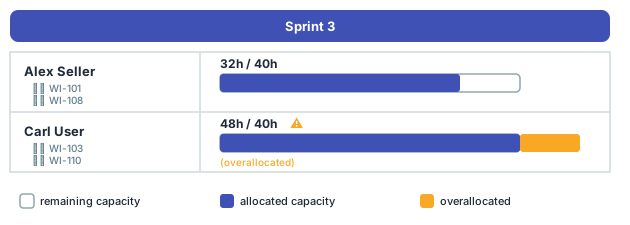 Summary cells for user rows aggregate the user's load across all work items in that plan column. Available capacity values that go negative indicate overallocation and signal that work should be moved to another plan or reassigned.
***
With capacity visible per user per plan column:
1. Identify swimlane rows where allocated capacity exceeds total capacity (overallocated users).
2. Drag one or more cards from the overallocated user's row into a future plan column or into the unplanned sidebar.
3. Observe the capacity bar update as you move cards — allocated capacity recalculates on drop.
4. Repeat until all user rows show available capacity at or above zero.
Items dragged off the board return to the unplanned sidebar with their estimates intact. This lets you stage work that cannot fit this iteration without losing the effort values.
***
## Verification
You should now see:
* Each user swimlane row displays a capacity bar in every plan column header.
* The bar shows allocated vs total hours derived from the team calendar.
* Moving cards between columns or between users updates the bars immediately.
* Users without calendar entries show 0.0 total capacity — address these in the Teams Service configuration.
If capacity bars are missing or all users show 0.0, see [Capacity Calculation Issues](/planningboard/guides/troubleshooting/capacity-issues) for diagnostic steps.
***
## Limitations
* **No multi-assignee support** — effort is not distributed across co-assignees.
* **No sub-item rollup** — capacity is not calculated from child work item estimates.
* Users not covered by the team calendar default to 0.0 total capacity.
***
## See also
* [Configure Capacity Tracking](/planningboard/guides/configuration/capacity-configuration)
* [Set Up Teams Service](/planningboard/guides/capacity/teams-service-setup)
* [Track Team Capacity](/planningboard/guides/capacity/team-capacity)
* [Visualize Capacity Load](/planningboard/guides/capacity/capacity-visualization)
* [Normalize Capacity Across Swimlanes](/planningboard/guides/capacity/capacity-normalization)
* [User and Assignee Swimlanes](/planningboard/guides/swimlanes/user-swimlanes)
* [Capacity Calculation Issues](/planningboard/guides/troubleshooting/capacity-issues)
**KB Articles**
* Swimlane Assignment Types
* Introduction to Planningboard
* What is 'Normalization'
**Support Tickets**
* [#6605](https://support.nextedy.com/helpdesk/tickets/6605)
* [#6777](https://support.nextedy.com/helpdesk/tickets/6777)
* [#4714](https://support.nextedy.com/helpdesk/tickets/4714)
**Source Code**
* `PlanningBoardDataService.java`
* `PlanningBoardWidget.java`
* `planningboard.js`
* `UserCapacityInfo.java`
* `capacityHelperData.cy.ts`
Summary cells for user rows aggregate the user's load across all work items in that plan column. Available capacity values that go negative indicate overallocation and signal that work should be moved to another plan or reassigned.
***
With capacity visible per user per plan column:
1. Identify swimlane rows where allocated capacity exceeds total capacity (overallocated users).
2. Drag one or more cards from the overallocated user's row into a future plan column or into the unplanned sidebar.
3. Observe the capacity bar update as you move cards — allocated capacity recalculates on drop.
4. Repeat until all user rows show available capacity at or above zero.
Items dragged off the board return to the unplanned sidebar with their estimates intact. This lets you stage work that cannot fit this iteration without losing the effort values.
***
## Verification
You should now see:
* Each user swimlane row displays a capacity bar in every plan column header.
* The bar shows allocated vs total hours derived from the team calendar.
* Moving cards between columns or between users updates the bars immediately.
* Users without calendar entries show 0.0 total capacity — address these in the Teams Service configuration.
If capacity bars are missing or all users show 0.0, see [Capacity Calculation Issues](/planningboard/guides/troubleshooting/capacity-issues) for diagnostic steps.
***
## Limitations
* **No multi-assignee support** — effort is not distributed across co-assignees.
* **No sub-item rollup** — capacity is not calculated from child work item estimates.
* Users not covered by the team calendar default to 0.0 total capacity.
***
## See also
* [Configure Capacity Tracking](/planningboard/guides/configuration/capacity-configuration)
* [Set Up Teams Service](/planningboard/guides/capacity/teams-service-setup)
* [Track Team Capacity](/planningboard/guides/capacity/team-capacity)
* [Visualize Capacity Load](/planningboard/guides/capacity/capacity-visualization)
* [Normalize Capacity Across Swimlanes](/planningboard/guides/capacity/capacity-normalization)
* [User and Assignee Swimlanes](/planningboard/guides/swimlanes/user-swimlanes)
* [Capacity Calculation Issues](/planningboard/guides/troubleshooting/capacity-issues)
**KB Articles**
* Swimlane Assignment Types
* Introduction to Planningboard
* What is 'Normalization'
**Support Tickets**
* [#6605](https://support.nextedy.com/helpdesk/tickets/6605)
* [#6777](https://support.nextedy.com/helpdesk/tickets/6777)
* [#4714](https://support.nextedy.com/helpdesk/tickets/4714)
**Source Code**
* `PlanningBoardDataService.java`
* `PlanningBoardWidget.java`
* `planningboard.js`
* `UserCapacityInfo.java`
* `capacityHelperData.cy.ts`