> ## Documentation Index
> Fetch the complete documentation index at: https://learn.nextedy.com/llms.txt
> Use this file to discover all available pages before exploring further.
# Normalize Capacity Across Swimlanes
> Enable capacity normalization so each swimlane's capacity bar reflects the actual availability of its assigned users rather than a flat plan-level value.
## What you will achieve
After completing this guide, each swimlane on your Nextedy PLANNINGBOARD will display a capacity bar that accurately accounts for individual user availability within the plan's date range. Over-allocated users will be flagged visually, and users with no capacity in the current plan window will be suppressed from the board.
## Prerequisites
* Planningboard is installed and a board is already configured on a Polarion Wiki page or LiveDoc.
* Swimlane assignment type is set to **Users (Assignee)**. Capacity normalization works at the per-user level; it requires user-based swimlanes.
* Teams Service is set up with at least one team, team members, and a calendar. See [Set Up Teams Service](/planningboard/guides/capacity/teams-service-setup).
* At least one Polarion Plan with a start date and due date is visible on the board.
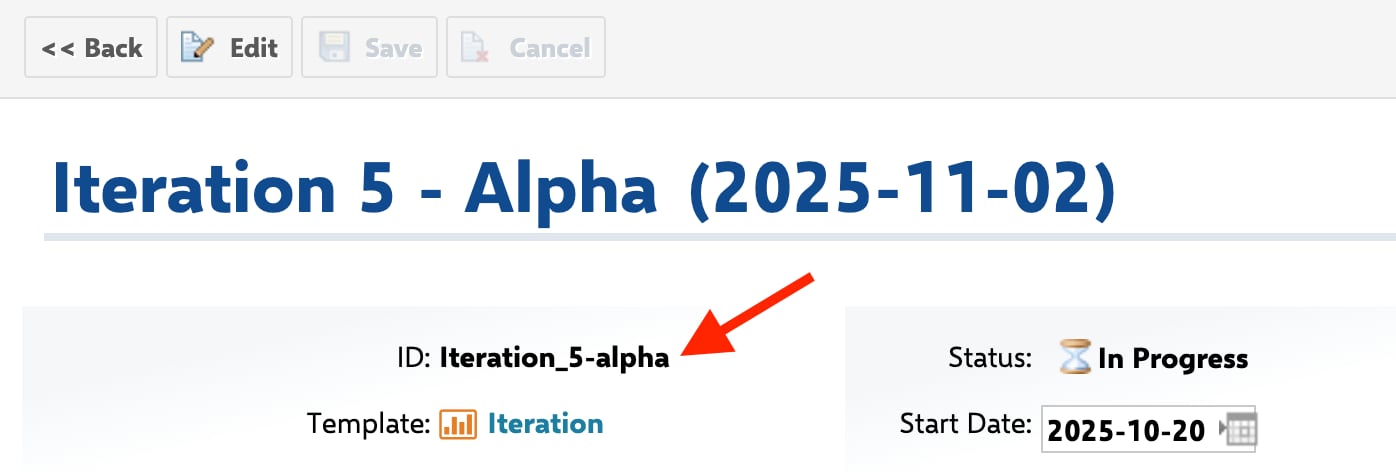
For swimlane-based normalization, your Polarion Plan IDs must follow a consistent pattern such as `Iteration_{planNum}-{teamName}` (e.g. `Iteration_5-alpha`). This naming convention is what allows Planningboard to group plans by iteration number across teams:
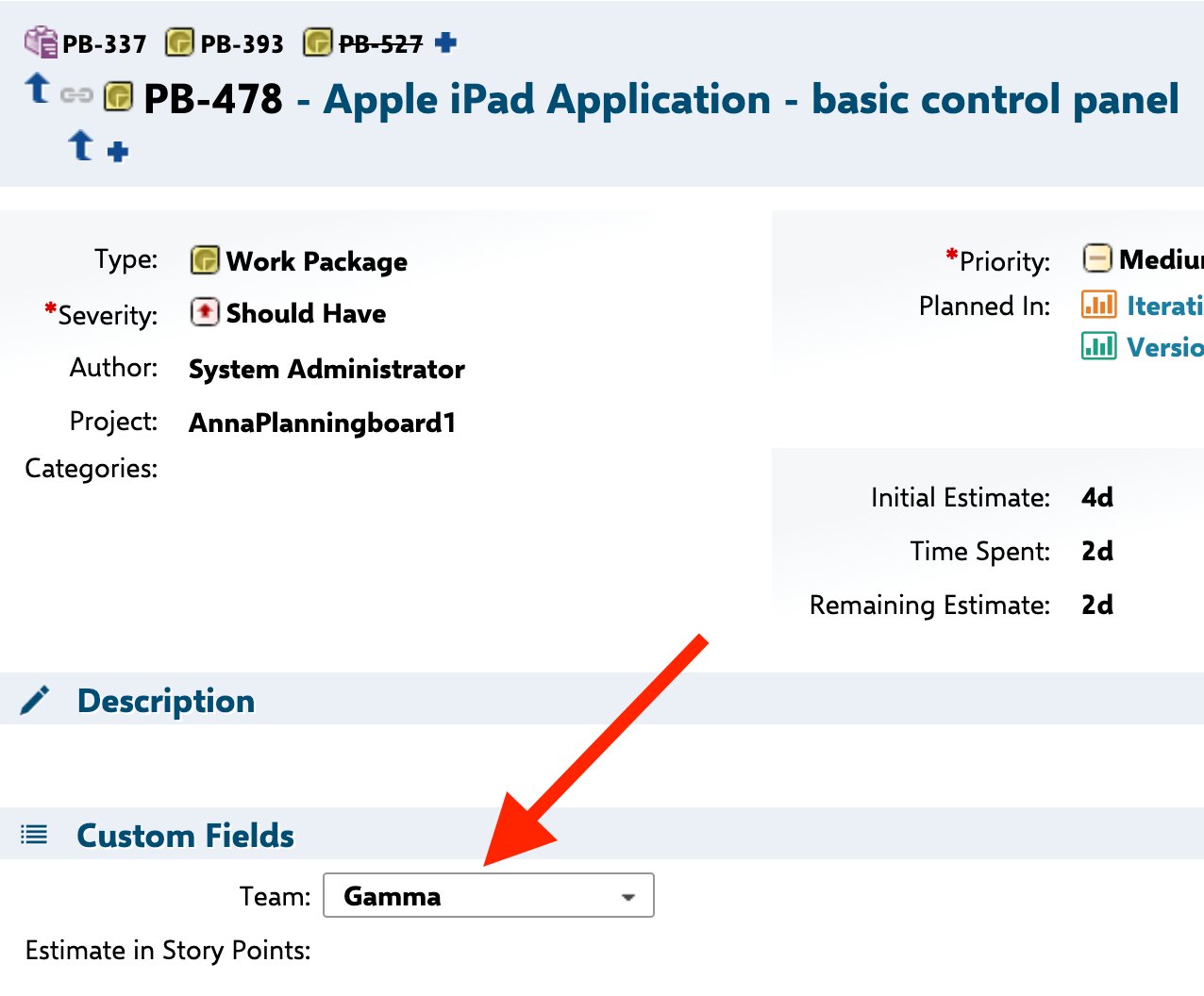
 Work items must also have an enumeration custom field that identifies the team (for example, a field named `team`). Planningboard uses this field to map each work item to its swimlane:
 Planningboard capacity tracking has the following confirmed limitations compared to Nextedy GANTT:
* **No multi-assignee support.** If a work item has multiple assignees, capacity is not distributed across them. Only the primary assignee is counted.
* **No sub-item effort distribution.** Effort from child work items is not rolled up to the parent for capacity calculations. Configure `capacityLoad` at the work-item level that holds the estimates.
* **Whitespace-sensitive configuration.** Configuration property values must have no leading or trailing whitespace. A single extra space will silently prevent the feature from activating.
***
Capacity normalization depends on data from the Teams Service. Before configuring normalization, confirm that user capacity is flowing through correctly.
Open the board and inspect the capacity bar in any swimlane. If the bar shows `0 / 0` for all users, the Teams Service is either not configured or not returning calendar data for the current plan range.
Refer to [Track User Capacity](/planningboard/guides/capacity/user-capacity) and [Track Team Capacity](/planningboard/guides/capacity/team-capacity) to confirm the prerequisite setup is in place.
***
In the Widget Parameters panel, locate **Capacity** and confirm the `useTeamsService` parameter is enabled. This parameter connects the board to the Teams Service, which supplies `totalCapacity`, `allocatedCapacity`, and `availableCapacity` per user per plan.
```text theme={null}
Capacity
└─ Use Teams Service: ✓ (enabled)
```
When `useTeamsService` is active, the plan's flat `capacity` value is replaced by per-user capacity values derived from the team calendar and the percentage assignment for each user.
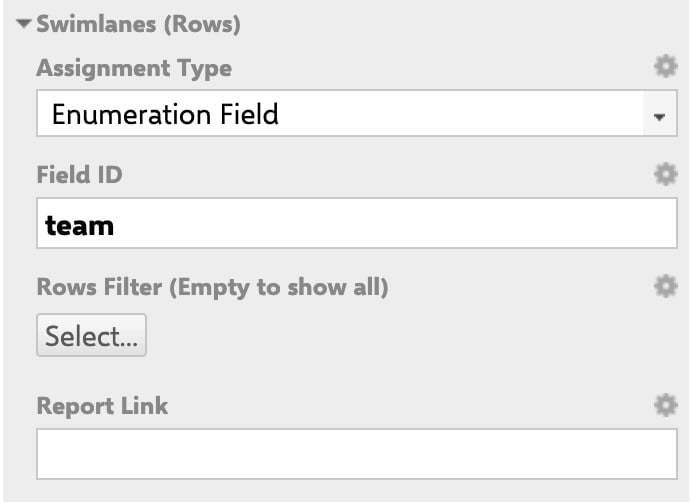
In the same Widget Parameters panel, also confirm that the **Swimlanes (Rows)** section is set to use the team enumeration field. Set Assignment Type to **Enumeration Field** and enter the field ID (for example, `team`):
Planningboard capacity tracking has the following confirmed limitations compared to Nextedy GANTT:
* **No multi-assignee support.** If a work item has multiple assignees, capacity is not distributed across them. Only the primary assignee is counted.
* **No sub-item effort distribution.** Effort from child work items is not rolled up to the parent for capacity calculations. Configure `capacityLoad` at the work-item level that holds the estimates.
* **Whitespace-sensitive configuration.** Configuration property values must have no leading or trailing whitespace. A single extra space will silently prevent the feature from activating.
***
Capacity normalization depends on data from the Teams Service. Before configuring normalization, confirm that user capacity is flowing through correctly.
Open the board and inspect the capacity bar in any swimlane. If the bar shows `0 / 0` for all users, the Teams Service is either not configured or not returning calendar data for the current plan range.
Refer to [Track User Capacity](/planningboard/guides/capacity/user-capacity) and [Track Team Capacity](/planningboard/guides/capacity/team-capacity) to confirm the prerequisite setup is in place.
***
In the Widget Parameters panel, locate **Capacity** and confirm the `useTeamsService` parameter is enabled. This parameter connects the board to the Teams Service, which supplies `totalCapacity`, `allocatedCapacity`, and `availableCapacity` per user per plan.
```text theme={null}
Capacity
└─ Use Teams Service: ✓ (enabled)
```
When `useTeamsService` is active, the plan's flat `capacity` value is replaced by per-user capacity values derived from the team calendar and the percentage assignment for each user.
In the same Widget Parameters panel, also confirm that the **Swimlanes (Rows)** section is set to use the team enumeration field. Set Assignment Type to **Enumeration Field** and enter the field ID (for example, `team`):
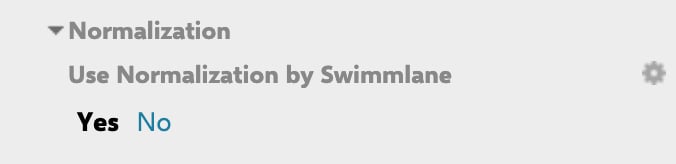
 Finally, enable the **Normalization** option in the widget parameters. Under the **Normalization** section, set **Use Normalization by Swimlane** to **Yes**:
 Users who have no team calendar entry for the plan's date range will default to `totalCapacity = 0.0`. Their swimlane will show zero available capacity but will still appear on the board unless you also enable Plan Range filtering (see Step 4).
***
In the Widget Parameters panel, set the **Capacity Load** mode. Planningboard derives effort from `remainingEstimate` / `initialEstimate` time-tracking fields by default. If your team uses a custom field for effort points, specify it here.
```text theme={null}
Capacity
└─ Capacity Load: remainingEstimate (or your custom field ID)
```
The `setEffort` calculation produces three values per work item:
| Value | Meaning |
| ------------ | -------------------------------------------------------------------------- |
| `effort` | Total estimate (initial or custom field value) |
| `effortDone` | For resolved items, equals `effort`; for open items, 0 |
| `effortTodo` | Remaining work (`remainingEstimate` or custom field; 0 for resolved items) |
Effort values are rounded to one decimal place. Ensure the field you reference holds numeric values in the same unit as your team calendar (hours or story points, whichever the Teams Service is configured to use).
Configuration parameters are whitespace-sensitive. Do not include spaces around the field ID value. `remainingEstimate ` (trailing space) will not resolve to the correct field.
***
When a plan covers a short iteration and some team members have assignments only outside that window, their swimlanes contribute noise. Enable Plan Range filtering to show only users with active capacity in the currently displayed plans.
Go to **Polarion Administration → Configuration Properties** and add:
```properties theme={null}
nextedy.planningboard.activeTeamAssignmentsInPlanRangeOnly=true
```
Once applied:
* Users with team assignments overlapping the displayed plan range are shown.
* Users with assignments entirely outside the plan range are hidden.
* Work items previously assigned to hidden users are moved to the **Not Assigned / Other** swimlane.
If the property appears not to apply after saving, make a trivial edit to any other Configuration Property (add and remove a space) and save again. This forces Polarion to flush and re-read the configuration.
An earlier property `nextedy.planningboard.activeTeamAssignmentsOnly=true` (introduced in version 25.3.0) hid only *past* assignments and was independent of the displayed plan scope. It was deprecated in version 25.12.0. Use `activeTeamAssignmentsInPlanRangeOnly` instead.
***
After the configuration above is in place, each swimlane capacity bar reflects:
```text theme={null}
availableCapacity = totalCapacity − allocatedCapacity
```
Where:
* **`totalCapacity`** — hours derived from the team calendar for the plan's start-to-due-date window, multiplied by the user's percentage assignment.
* **`allocatedCapacity`** — sum of `remainingEstimate` (or custom field) for all work items assigned to the user within the plan.
* **`availableCapacity`** — the remaining headroom. A **negative value indicates overallocation**.
The board displays this as a progress bar inside each swimlane header. An overallocated swimlane will appear filled beyond 100%.
***
## Capacity flow at a glance
Users who have no team calendar entry for the plan's date range will default to `totalCapacity = 0.0`. Their swimlane will show zero available capacity but will still appear on the board unless you also enable Plan Range filtering (see Step 4).
***
In the Widget Parameters panel, set the **Capacity Load** mode. Planningboard derives effort from `remainingEstimate` / `initialEstimate` time-tracking fields by default. If your team uses a custom field for effort points, specify it here.
```text theme={null}
Capacity
└─ Capacity Load: remainingEstimate (or your custom field ID)
```
The `setEffort` calculation produces three values per work item:
| Value | Meaning |
| ------------ | -------------------------------------------------------------------------- |
| `effort` | Total estimate (initial or custom field value) |
| `effortDone` | For resolved items, equals `effort`; for open items, 0 |
| `effortTodo` | Remaining work (`remainingEstimate` or custom field; 0 for resolved items) |
Effort values are rounded to one decimal place. Ensure the field you reference holds numeric values in the same unit as your team calendar (hours or story points, whichever the Teams Service is configured to use).
Configuration parameters are whitespace-sensitive. Do not include spaces around the field ID value. `remainingEstimate ` (trailing space) will not resolve to the correct field.
***
When a plan covers a short iteration and some team members have assignments only outside that window, their swimlanes contribute noise. Enable Plan Range filtering to show only users with active capacity in the currently displayed plans.
Go to **Polarion Administration → Configuration Properties** and add:
```properties theme={null}
nextedy.planningboard.activeTeamAssignmentsInPlanRangeOnly=true
```
Once applied:
* Users with team assignments overlapping the displayed plan range are shown.
* Users with assignments entirely outside the plan range are hidden.
* Work items previously assigned to hidden users are moved to the **Not Assigned / Other** swimlane.
If the property appears not to apply after saving, make a trivial edit to any other Configuration Property (add and remove a space) and save again. This forces Polarion to flush and re-read the configuration.
An earlier property `nextedy.planningboard.activeTeamAssignmentsOnly=true` (introduced in version 25.3.0) hid only *past* assignments and was independent of the displayed plan scope. It was deprecated in version 25.12.0. Use `activeTeamAssignmentsInPlanRangeOnly` instead.
***
After the configuration above is in place, each swimlane capacity bar reflects:
```text theme={null}
availableCapacity = totalCapacity − allocatedCapacity
```
Where:
* **`totalCapacity`** — hours derived from the team calendar for the plan's start-to-due-date window, multiplied by the user's percentage assignment.
* **`allocatedCapacity`** — sum of `remainingEstimate` (or custom field) for all work items assigned to the user within the plan.
* **`availableCapacity`** — the remaining headroom. A **negative value indicates overallocation**.
The board displays this as a progress bar inside each swimlane header. An overallocated swimlane will appear filled beyond 100%.
***
## Capacity flow at a glance
 ***
## Common pitfalls
The user has no team calendar entry covering the plan's date range. Either add a calendar record in the Teams Service for that period, or enable `activeTeamAssignmentsInPlanRangeOnly=true` to hide such users automatically.
Refresh the board using the **Refresh** button to reload capacity totals from the server. Capacity is calculated server-side and is not recalculated live on drag-and-drop.
If `useTeamsService` is disabled or misconfigured, Planningboard falls back to the plan's flat `capacity` value, applying it uniformly to all swimlanes. Verify the Teams Service integration and confirm the parameter is saved correctly with no whitespace.
If your team tracks capacity across multiple dimensions (for example, separate front-end and back-end budgets per plan), see [Configure Multi-Dimensional Capacity](/planningboard/guides/capacity/multi-capacity) for the `multiCapacityLoad` parameter, which provides per-swimlane capacity breakdowns using a keyed capacity map.
***
## Verification
You should now see:
1. Each user swimlane displays a capacity bar with distinct values — not identical values across all swimlanes.
2. Users without team assignments in the current plan range are absent from the board (if `activeTeamAssignmentsInPlanRangeOnly=true` is set).
3. Overallocated swimlanes show a filled or overflowing capacity bar.
4. The **Not Assigned / Other** swimlane contains any work items that belonged to now-hidden users.
If capacity bars still show identical values or zeros, review [Capacity Calculation Issues](/planningboard/guides/troubleshooting/capacity-issues) for diagnostic steps.
***
## See also
* [Configure Capacity Tracking](/planningboard/guides/configuration/capacity-configuration)
* [Track Team Capacity](/planningboard/guides/capacity/team-capacity)
* [Track User Capacity](/planningboard/guides/capacity/user-capacity)
* [Visualize Capacity Load](/planningboard/guides/capacity/capacity-visualization)
* [Configure Multi-Dimensional Capacity](/planningboard/guides/capacity/multi-capacity)
* [Set Up Teams Service](/planningboard/guides/capacity/teams-service-setup)
* [Filter Swimlanes by Plan Range](/planningboard/guides/swimlanes/filtering-by-plan-range)
* [Capacity Calculation Issues](/planningboard/guides/troubleshooting/capacity-issues)
**KB Articles**
* What is 'Normalization'
* Swimlane Assignment Types
* Filter user swimlanes by Plan range
**Support Tickets**
* [#6777](https://support.nextedy.com/helpdesk/tickets/6777)
* [#6605](https://support.nextedy.com/helpdesk/tickets/6605)
* [#4714](https://support.nextedy.com/helpdesk/tickets/4714)
**Source Code**
* `PlanningBoardDataService.java`
* `PlanningBoardWidget.java`
* `planningboard.js`
* `capacityHelperData.cy.ts`
* `AssignmentMode.java`
***
## Common pitfalls
The user has no team calendar entry covering the plan's date range. Either add a calendar record in the Teams Service for that period, or enable `activeTeamAssignmentsInPlanRangeOnly=true` to hide such users automatically.
Refresh the board using the **Refresh** button to reload capacity totals from the server. Capacity is calculated server-side and is not recalculated live on drag-and-drop.
If `useTeamsService` is disabled or misconfigured, Planningboard falls back to the plan's flat `capacity` value, applying it uniformly to all swimlanes. Verify the Teams Service integration and confirm the parameter is saved correctly with no whitespace.
If your team tracks capacity across multiple dimensions (for example, separate front-end and back-end budgets per plan), see [Configure Multi-Dimensional Capacity](/planningboard/guides/capacity/multi-capacity) for the `multiCapacityLoad` parameter, which provides per-swimlane capacity breakdowns using a keyed capacity map.
***
## Verification
You should now see:
1. Each user swimlane displays a capacity bar with distinct values — not identical values across all swimlanes.
2. Users without team assignments in the current plan range are absent from the board (if `activeTeamAssignmentsInPlanRangeOnly=true` is set).
3. Overallocated swimlanes show a filled or overflowing capacity bar.
4. The **Not Assigned / Other** swimlane contains any work items that belonged to now-hidden users.
If capacity bars still show identical values or zeros, review [Capacity Calculation Issues](/planningboard/guides/troubleshooting/capacity-issues) for diagnostic steps.
***
## See also
* [Configure Capacity Tracking](/planningboard/guides/configuration/capacity-configuration)
* [Track Team Capacity](/planningboard/guides/capacity/team-capacity)
* [Track User Capacity](/planningboard/guides/capacity/user-capacity)
* [Visualize Capacity Load](/planningboard/guides/capacity/capacity-visualization)
* [Configure Multi-Dimensional Capacity](/planningboard/guides/capacity/multi-capacity)
* [Set Up Teams Service](/planningboard/guides/capacity/teams-service-setup)
* [Filter Swimlanes by Plan Range](/planningboard/guides/swimlanes/filtering-by-plan-range)
* [Capacity Calculation Issues](/planningboard/guides/troubleshooting/capacity-issues)
**KB Articles**
* What is 'Normalization'
* Swimlane Assignment Types
* Filter user swimlanes by Plan range
**Support Tickets**
* [#6777](https://support.nextedy.com/helpdesk/tickets/6777)
* [#6605](https://support.nextedy.com/helpdesk/tickets/6605)
* [#4714](https://support.nextedy.com/helpdesk/tickets/4714)
**Source Code**
* `PlanningBoardDataService.java`
* `PlanningBoardWidget.java`
* `planningboard.js`
* `capacityHelperData.cy.ts`
* `AssignmentMode.java`