> ## Documentation Index
> Fetch the complete documentation index at: https://learn.nextedy.com/llms.txt
> Use this file to discover all available pages before exploring further.
# Introduction to Planningboard
> Nextedy PLANNINGBOARD is a capacity-aware planning widget embedded in Siemens Polarion ALM.
This page explains the core mental model behind Planningboard: what it is, how it structures information, and why it is designed the way it is. For setup instructions, see [Getting Started](/planningboard/getting-started/index). For the individual concept pages, see [Concepts](/planningboard/concepts/index).
 ***
## The core idea: plans as a spatial canvas
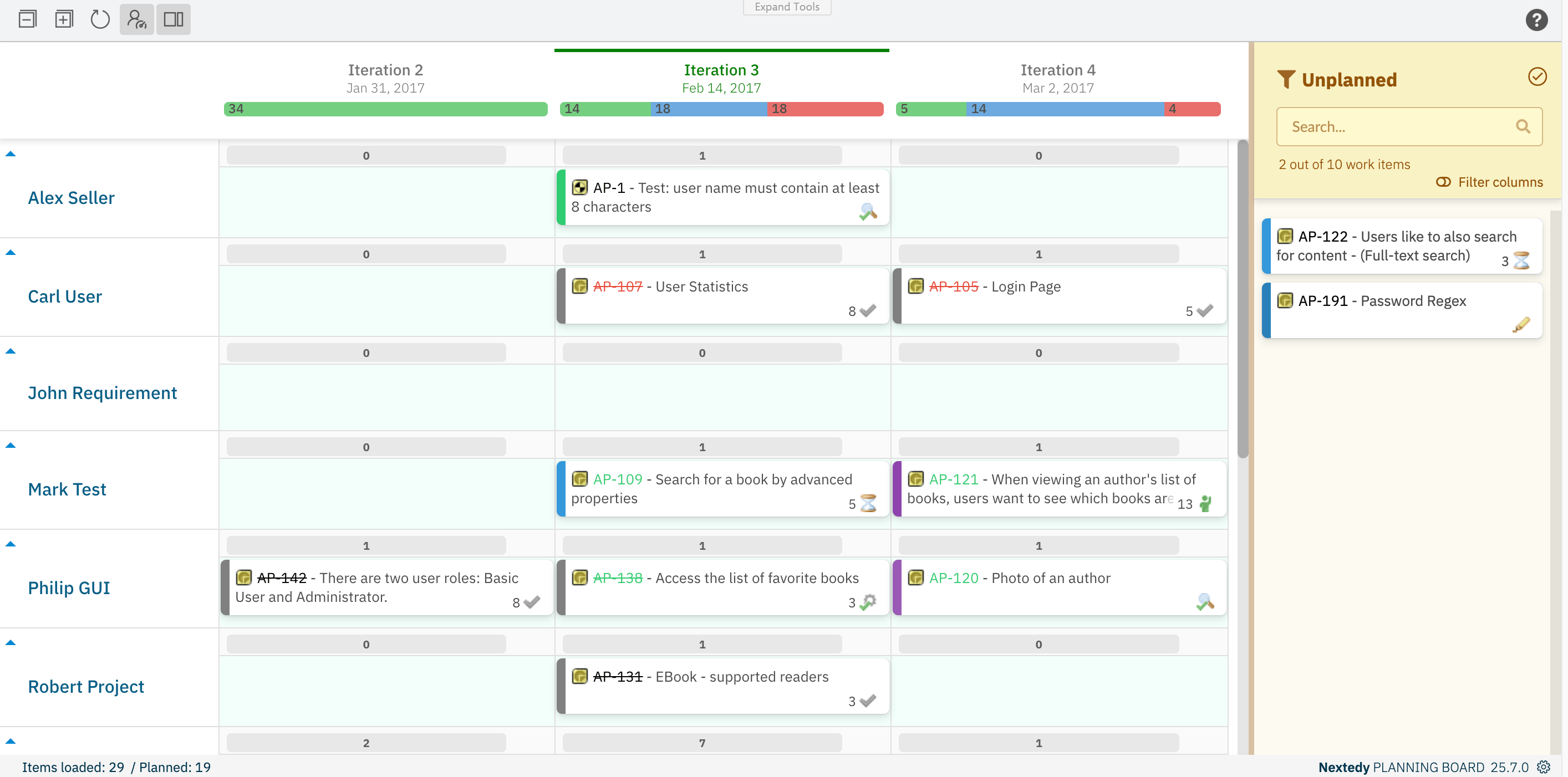
Traditional ALM planning happens in lists. A plan holds a queue of work items, and understanding workload means reading rows of text or interpreting summary counts. Planningboard turns those lists into a spatial canvas: each Plan becomes a column, each work item becomes a **card**, and the column cells are divided into horizontal **swimlanes** that represent a grouping criterion — such as the assignee, the parent work item, or a custom field value.
The result is a two-dimensional grid. Moving a card from one column to another changes which Plan it belongs to. Moving it from one swimlane to another changes its swimlane assignment (for example, its assignee). Both operations happen through drag-and-drop and persist back to Polarion immediately.
This spatial model is borrowed from Kanban-style boards, but Planningboard adapts it specifically for release and sprint planning in Polarion: the columns are Plans (sprints, program increments, or project milestones), not workflow states.
***
## The board layout
The board is split into two main sections:
* **Unplanned section** (right): cards that are not yet assigned to any Plan. This is the backlog — items waiting to be scheduled.
* **Planningboard area** (left): a grid of columns (Plans) and rows (swimlanes). Cards here are scheduled.
***
## The core idea: plans as a spatial canvas
Traditional ALM planning happens in lists. A plan holds a queue of work items, and understanding workload means reading rows of text or interpreting summary counts. Planningboard turns those lists into a spatial canvas: each Plan becomes a column, each work item becomes a **card**, and the column cells are divided into horizontal **swimlanes** that represent a grouping criterion — such as the assignee, the parent work item, or a custom field value.
The result is a two-dimensional grid. Moving a card from one column to another changes which Plan it belongs to. Moving it from one swimlane to another changes its swimlane assignment (for example, its assignee). Both operations happen through drag-and-drop and persist back to Polarion immediately.
This spatial model is borrowed from Kanban-style boards, but Planningboard adapts it specifically for release and sprint planning in Polarion: the columns are Plans (sprints, program increments, or project milestones), not workflow states.
***
## The board layout
The board is split into two main sections:
* **Unplanned section** (right): cards that are not yet assigned to any Plan. This is the backlog — items waiting to be scheduled.
* **Planningboard area** (left): a grid of columns (Plans) and rows (swimlanes). Cards here are scheduled.
 The number of columns shown is controlled by the `lastPlans` and `nextPlans` widget parameters (defaulting to 1 past plan and 5 future plans). The columns are Polarion Plans, selected by a **Plan query** (`plansQuery` parameter).
***
## Cards
Every card on the board represents a Polarion work item. The card is a compact visual summary: it shows a configurable set of fields and offers quick actions when hovered (show links, add link, unplan item). Clicking a card opens the **Work Item Properties** sidebar, where fields can be reviewed and edited without leaving the board.
Once a card reaches the Verified status, it cannot be moved or unplanned. This protects completed work from accidental rescheduling.
The content displayed on each card — which fields appear, what font or color is used — is configurable through widget parameters. The card is the primary unit of interaction on the board.
***
## Swimlanes
A **swimlane** is a horizontal row that groups cards by a shared criterion. Swimlanes are the vertical axis of the board: they tell you not just *when* something is planned (the column) but *who* is doing it, *which parent initiative* it belongs to, or *which team* owns it.
The grouping criterion is called the **swimlane assignment type**. Planningboard supports several:
| Assignment Type | What each swimlane represents |
| ----------------- | ------------------------------------------------------------- |
| Users (Assignee) | One swimlane per project member matching a configured role |
| Parent Item | One swimlane per parent work item (e.g., per Feature or Epic) |
| Enumeration Field | One swimlane per value of a custom enumeration field |
| Project | One swimlane per Polarion project (for cross-project views) |
| SAFe types | Program/Solution Teams, Agile Release Train Teams, Programs |
| No Swimlanes | All cards in a single unified view |
The assignment type is set via the `assignmentMode` widget parameter. Swimlane ordering is controlled by `swimlaneSort` (default: alphabetical). Individual swimlanes can be collapsed or expanded.
### Multi-valued field swimlanes
When a work item has multiple values for the swimlane field — for example, two assignees — the card appears in *each* relevant swimlane simultaneously. Dragging the card from one user's swimlane to the **UNASSIGNED** row removes that specific user from the field, without affecting other assignments.
### Parent Item swimlanes and placement rules
When the assignment type is **Parent Item**, Planningboard enforces placement: a card can only be placed in the swimlane corresponding to its actual parent. If you drag it to a different parent's swimlane, it will snap back to the correct one. This ensures the parent–child relationship in Polarion always stays consistent.
Since Planningboard 25.9.0, parent swimlanes can be sorted by any custom property, including priority. See [Swimlane Assignment Modes](/planningboard/concepts/assignment-modes) for configuration details.
***
## Capacity bars
Each column cell (the intersection of a Plan column and a swimlane row) can show a **capacity bar** — a visual indicator of how loaded that swimlane is within that Plan. Hovering over the capacity bar reveals a tooltip with detailed numbers: allocated capacity, total capacity, and available capacity.
Capacity calculations depend on the planning configuration:
* **Allocated capacity** — the sum of remaining estimates for tasks assigned to the swimlane's resource within the Plan.
* **Total capacity** — the resource's available hours for that Plan period, drawn from the Polarion Teams service calendar.
* **Available capacity** — total minus allocated. Negative values indicate overallocation.
All Plans in the project must use the same calculation type. Mixing calculation types across Plans produces incorrect capacity totals. If your capacity numbers look wrong, verify that every Plan uses the same type.
Capacity bars are enabled via `capacityLoad` (or `userCapacityLoad` when using the Teams service). The `hoursPerDay` parameter (default: 8) controls how hours are converted from estimates.
### Enabling team-level capacity
The `useTeamsService` widget parameter connects Planningboard to the Polarion Teams service. With this enabled, capacity is visualized per user within each swimlane, drawing from the team calendar. Without it, total capacity defaults to zero for users without manual capacity configuration.
***
## Plans and plan queries
Planningboard does not show all Plans in a project. Instead, a **Plan query** (`plansQuery` parameter) filters which Plans appear as columns. This lets you focus the board on the current sprint window, a specific release, or a filtered set of iterations.
The `plansMode` parameter determines what kind of Plans are displayed:
* **`PROJECT_PLANS`** (default) — standard Polarion project Plans.
* **SAFe modes** — SAFe Sprints, Program Increments, or Solution Increments for organizations using the Scaled Agile Framework.
* **Custom stemming** — Plans generated automatically from resource field values.
The number of Plans visible at once is controlled by `lastPlans` (past Plans, default 1) and `nextPlans` (future Plans, default 5).
***
## How Planningboard fits into Polarion
Planningboard is a Polarion widget — it embeds in Polarion LiveDoc and Wiki pages. One page can contain one or more Planningboard instances, each independently configured via its own **widget parameters**. This means different teams can have different board views on the same Polarion project, each with their own swimlane grouping, Plan query, and capacity settings.
The number of columns shown is controlled by the `lastPlans` and `nextPlans` widget parameters (defaulting to 1 past plan and 5 future plans). The columns are Polarion Plans, selected by a **Plan query** (`plansQuery` parameter).
***
## Cards
Every card on the board represents a Polarion work item. The card is a compact visual summary: it shows a configurable set of fields and offers quick actions when hovered (show links, add link, unplan item). Clicking a card opens the **Work Item Properties** sidebar, where fields can be reviewed and edited without leaving the board.
Once a card reaches the Verified status, it cannot be moved or unplanned. This protects completed work from accidental rescheduling.
The content displayed on each card — which fields appear, what font or color is used — is configurable through widget parameters. The card is the primary unit of interaction on the board.
***
## Swimlanes
A **swimlane** is a horizontal row that groups cards by a shared criterion. Swimlanes are the vertical axis of the board: they tell you not just *when* something is planned (the column) but *who* is doing it, *which parent initiative* it belongs to, or *which team* owns it.
The grouping criterion is called the **swimlane assignment type**. Planningboard supports several:
| Assignment Type | What each swimlane represents |
| ----------------- | ------------------------------------------------------------- |
| Users (Assignee) | One swimlane per project member matching a configured role |
| Parent Item | One swimlane per parent work item (e.g., per Feature or Epic) |
| Enumeration Field | One swimlane per value of a custom enumeration field |
| Project | One swimlane per Polarion project (for cross-project views) |
| SAFe types | Program/Solution Teams, Agile Release Train Teams, Programs |
| No Swimlanes | All cards in a single unified view |
The assignment type is set via the `assignmentMode` widget parameter. Swimlane ordering is controlled by `swimlaneSort` (default: alphabetical). Individual swimlanes can be collapsed or expanded.
### Multi-valued field swimlanes
When a work item has multiple values for the swimlane field — for example, two assignees — the card appears in *each* relevant swimlane simultaneously. Dragging the card from one user's swimlane to the **UNASSIGNED** row removes that specific user from the field, without affecting other assignments.
### Parent Item swimlanes and placement rules
When the assignment type is **Parent Item**, Planningboard enforces placement: a card can only be placed in the swimlane corresponding to its actual parent. If you drag it to a different parent's swimlane, it will snap back to the correct one. This ensures the parent–child relationship in Polarion always stays consistent.
Since Planningboard 25.9.0, parent swimlanes can be sorted by any custom property, including priority. See [Swimlane Assignment Modes](/planningboard/concepts/assignment-modes) for configuration details.
***
## Capacity bars
Each column cell (the intersection of a Plan column and a swimlane row) can show a **capacity bar** — a visual indicator of how loaded that swimlane is within that Plan. Hovering over the capacity bar reveals a tooltip with detailed numbers: allocated capacity, total capacity, and available capacity.
Capacity calculations depend on the planning configuration:
* **Allocated capacity** — the sum of remaining estimates for tasks assigned to the swimlane's resource within the Plan.
* **Total capacity** — the resource's available hours for that Plan period, drawn from the Polarion Teams service calendar.
* **Available capacity** — total minus allocated. Negative values indicate overallocation.
All Plans in the project must use the same calculation type. Mixing calculation types across Plans produces incorrect capacity totals. If your capacity numbers look wrong, verify that every Plan uses the same type.
Capacity bars are enabled via `capacityLoad` (or `userCapacityLoad` when using the Teams service). The `hoursPerDay` parameter (default: 8) controls how hours are converted from estimates.
### Enabling team-level capacity
The `useTeamsService` widget parameter connects Planningboard to the Polarion Teams service. With this enabled, capacity is visualized per user within each swimlane, drawing from the team calendar. Without it, total capacity defaults to zero for users without manual capacity configuration.
***
## Plans and plan queries
Planningboard does not show all Plans in a project. Instead, a **Plan query** (`plansQuery` parameter) filters which Plans appear as columns. This lets you focus the board on the current sprint window, a specific release, or a filtered set of iterations.
The `plansMode` parameter determines what kind of Plans are displayed:
* **`PROJECT_PLANS`** (default) — standard Polarion project Plans.
* **SAFe modes** — SAFe Sprints, Program Increments, or Solution Increments for organizations using the Scaled Agile Framework.
* **Custom stemming** — Plans generated automatically from resource field values.
The number of Plans visible at once is controlled by `lastPlans` (past Plans, default 1) and `nextPlans` (future Plans, default 5).
***
## How Planningboard fits into Polarion
Planningboard is a Polarion widget — it embeds in Polarion LiveDoc and Wiki pages. One page can contain one or more Planningboard instances, each independently configured via its own **widget parameters**. This means different teams can have different board views on the same Polarion project, each with their own swimlane grouping, Plan query, and capacity settings.
 Configuration happens at two levels:
* **Widget parameters** — per-instance configuration, set by editing the widget on the page. These control what the board shows and how it behaves.
* **Administration properties** — system-wide settings applied globally (for example, `nextedy.planningboard.useTeamsService`).
***
## What Planningboard is not
Understanding what Planningboard is *not* prevents misconfiguration and mismatched expectations.
**It is not a workflow board.** The columns are Plans, not workflow states (like "To Do → In Progress → Done"). If you want a Kanban-style board organized by status, that is a different tool. Planningboard's columns represent *time* (sprints, iterations, releases), not *status transitions*.
**It is not a Gantt chart.** Planningboard shows the relative allocation of items across Plans but not calendar timelines, bar lengths proportional to duration, or dependency arrows on a timeline. That is what Nextedy GANTT provides. Planningboard and Gantt are complementary: Gantt for timeline reasoning, Planningboard for capacity-aware sprint allocation.
**It does not replace Polarion's built-in plan management.** The Plans shown on the board are real Polarion Plans. Planningboard is a visual layer over them — changes made on the board (dragging cards, updating fields in the sidebar) write back to Polarion. The Plans themselves are still managed in Polarion's plan administration.
***
## Known limitations
* **No multi-assignee capacity distribution.** When a work item has multiple assignees, Planningboard does not distribute its effort across them. Capacity load is calculated per single assignee. This differs from Nextedy GANTT's multi-assignee support.
* **Swimlane sort order is coupled to item sort order.** The sort order applied to swimlanes affects the ordering of items within those swimlanes. These cannot be independently controlled.
* **Custom-enum card coloring** parity with SCRUMBOARD is not fully implemented. Coloring behavior for custom enumeration fields may differ between the two boards.
* **Capacity configuration parameters are whitespace-sensitive.** Extra spaces in parameter values can cause capacity calculations to silently fail.
***
## Where to go next
* [Board Structure](/planningboard/concepts/board-structure) — detailed breakdown of columns, swimlanes, cards, and the unplanned section.
* [Swimlane Assignment Modes](/planningboard/concepts/assignment-modes) — how each assignment type works and when to choose it.
* [Capacity Tracking](/planningboard/concepts/capacity-tracking) — how capacity is calculated and how to configure it.
* [Plans Modes](/planningboard/concepts/plans-modes) — the different plan display modes including SAFe.
* [Getting Started](/planningboard/getting-started/index) — installation and first board setup.
**KB Articles**
* Introduction to Planningboard
* Planningboard interface & basic interactions
* Swimlane Assignment Types
**Support Tickets**
* [#6681](https://support.nextedy.com/helpdesk/tickets/6681)
* [#5879](https://support.nextedy.com/helpdesk/tickets/5879)
* [#6496](https://support.nextedy.com/helpdesk/tickets/6496)
**Source Code**
* `Config.java`
* `AssignmentMode.java`
* `displayingMultiEvents.cy.ts`
* `enum-rows-filter.cy.ts`
* `PlanningBoardWidget.java`
Configuration happens at two levels:
* **Widget parameters** — per-instance configuration, set by editing the widget on the page. These control what the board shows and how it behaves.
* **Administration properties** — system-wide settings applied globally (for example, `nextedy.planningboard.useTeamsService`).
***
## What Planningboard is not
Understanding what Planningboard is *not* prevents misconfiguration and mismatched expectations.
**It is not a workflow board.** The columns are Plans, not workflow states (like "To Do → In Progress → Done"). If you want a Kanban-style board organized by status, that is a different tool. Planningboard's columns represent *time* (sprints, iterations, releases), not *status transitions*.
**It is not a Gantt chart.** Planningboard shows the relative allocation of items across Plans but not calendar timelines, bar lengths proportional to duration, or dependency arrows on a timeline. That is what Nextedy GANTT provides. Planningboard and Gantt are complementary: Gantt for timeline reasoning, Planningboard for capacity-aware sprint allocation.
**It does not replace Polarion's built-in plan management.** The Plans shown on the board are real Polarion Plans. Planningboard is a visual layer over them — changes made on the board (dragging cards, updating fields in the sidebar) write back to Polarion. The Plans themselves are still managed in Polarion's plan administration.
***
## Known limitations
* **No multi-assignee capacity distribution.** When a work item has multiple assignees, Planningboard does not distribute its effort across them. Capacity load is calculated per single assignee. This differs from Nextedy GANTT's multi-assignee support.
* **Swimlane sort order is coupled to item sort order.** The sort order applied to swimlanes affects the ordering of items within those swimlanes. These cannot be independently controlled.
* **Custom-enum card coloring** parity with SCRUMBOARD is not fully implemented. Coloring behavior for custom enumeration fields may differ between the two boards.
* **Capacity configuration parameters are whitespace-sensitive.** Extra spaces in parameter values can cause capacity calculations to silently fail.
***
## Where to go next
* [Board Structure](/planningboard/concepts/board-structure) — detailed breakdown of columns, swimlanes, cards, and the unplanned section.
* [Swimlane Assignment Modes](/planningboard/concepts/assignment-modes) — how each assignment type works and when to choose it.
* [Capacity Tracking](/planningboard/concepts/capacity-tracking) — how capacity is calculated and how to configure it.
* [Plans Modes](/planningboard/concepts/plans-modes) — the different plan display modes including SAFe.
* [Getting Started](/planningboard/getting-started/index) — installation and first board setup.
**KB Articles**
* Introduction to Planningboard
* Planningboard interface & basic interactions
* Swimlane Assignment Types
**Support Tickets**
* [#6681](https://support.nextedy.com/helpdesk/tickets/6681)
* [#5879](https://support.nextedy.com/helpdesk/tickets/5879)
* [#6496](https://support.nextedy.com/helpdesk/tickets/6496)
**Source Code**
* `Config.java`
* `AssignmentMode.java`
* `displayingMultiEvents.cy.ts`
* `enum-rows-filter.cy.ts`
* `PlanningBoardWidget.java`