> ## Documentation Index
> Fetch the complete documentation index at: https://learn.nextedy.com/llms.txt
> Use this file to discover all available pages before exploring further.
# Installing a License
> Install and reload a Nextedy product license in Polarion — via the admin UI or the filesystem — and configure named and concurrent users.
export const LastReviewed = ({date}) => {
if (!date) return null;
const formatted = new Date(`${date}T00:00:00Z`).toLocaleDateString("en-US", {
year: "numeric",
month: "long",
day: "numeric",
timeZone: "UTC"
});
return
Last reviewed on {formatted}
;
};
Once you receive your license file by email, you can install it for the relevant Nextedy product. There are two ways to do this — through the Polarion administration UI (recommended) or directly on the filesystem — followed by configuring which users the license applies to.
Throughout this guide, replace `PRODUCTNAME` with the product you are licensing (for example, `powersheet`, `risksheet`, `gantt`, `planningboard`, or `checklist`).
## Install the license from the Polarion UI
Most Nextedy products — currently Powersheet, Risksheet, Gantt, Planningboard, and Checklist — let you install the license directly from the Polarion administration interface.
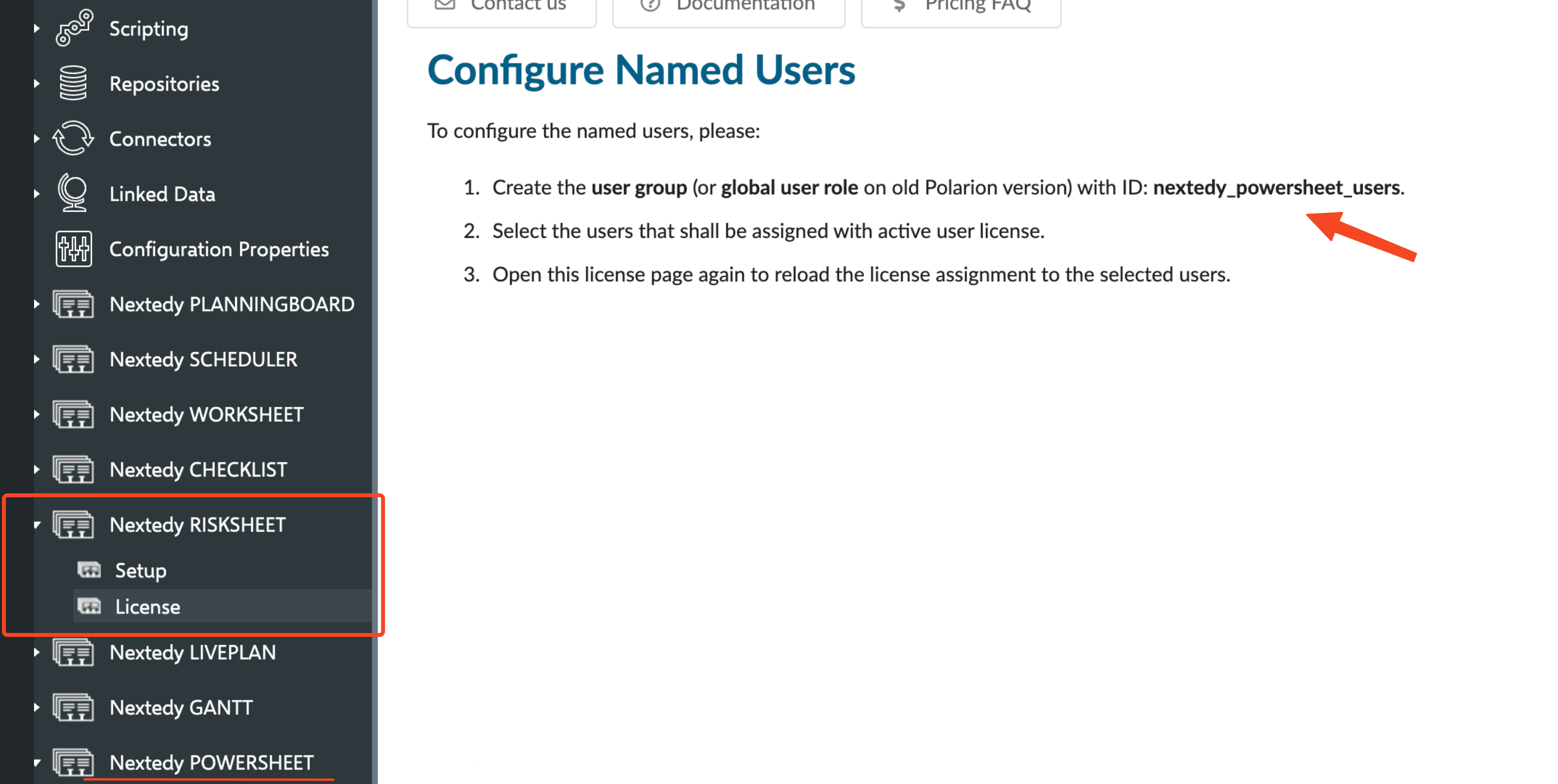
Go to **Polarion Administration → Nextedy `PRODUCTNAME` → License**.
Drag and drop the license file onto the upload dialog, or select it from your file system. It is uploaded automatically and added under the correct repository.
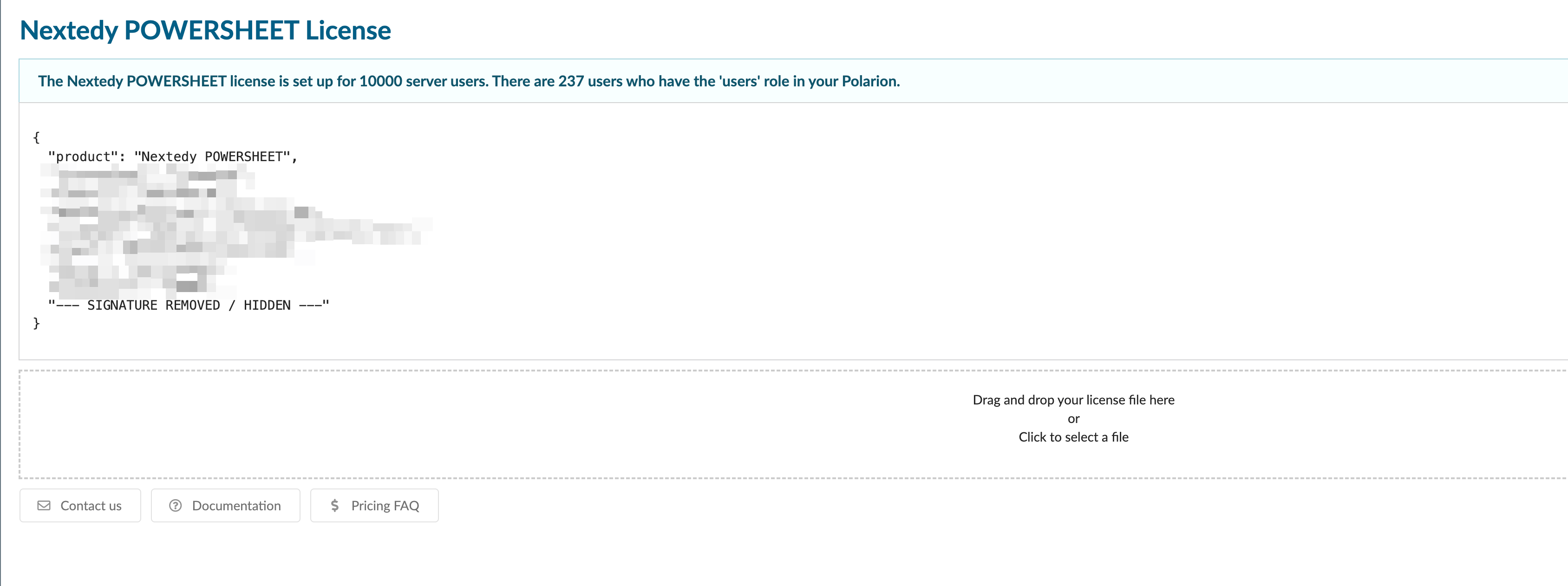 If the license file is invalid, a pop-up message explains what went wrong during the upload.
Once the license is uploaded, follow the on-page instructions to configure the named or concurrent user list. See [Configure named (active) users](#configure-named-active-users) and [Configure concurrent users](#configure-concurrent-users) below.
## Install the license via the filesystem
Older versions of Nextedy products use the following filesystem-based deployment.
Ensure the license file name ends with `PRODUCTNAME_lic.json` — for example, `YOURCOMPANY-gantt_lic.json` or `YOURCOMPANY-risksheet_lic.json`.
Move the license file to the following folder on your Polarion server:
```
[POLARION_INSTALL]/polarion/license
```
This is the same directory where the main Polarion license is stored.
You do not need to restart the Polarion server. Simply navigate to **Polarion Administration → Nextedy `PRODUCT_NAME` → License** to reload the license file.
Some Nextedy products require a selection of active users. In that case, open the **Polarion Administration → Nextedy `PRODUCT_NAME` → License** page and follow the instructions there, or refer to [Configure named (active) users](#configure-named-active-users) below.
## Polarion cluster setup
If you run a **Polarion cluster** (with multiple Polarion nodes), you must place the license file on **each node** in the same location:
```
[POLARION_INSTALL]/polarion/license
```
## Configure named (active) users
To configure the named users:
Create a **user group** (**Polarion Administration → User Management → Groups**) or a **global user role** (**Polarion Administration → User Management → Roles**) with the ID `nextedy_PRODUCTNAME_users`.
Add the users who should be assigned an active user license to this group or role.
To reload the updated configuration, reopen the License page: **Polarion Administration → Nextedy `PRODUCT_NAME` → License**.
If you don't perform this reload action, the newly added users will not receive an active license.
## Configure concurrent users
To configure the concurrent users:
Create a **user group** (**Polarion Administration → User Management → Groups**) or a **global user role** (**Polarion Administration → User Management → Roles**) with the ID `nextedy_PRODUCTNAME_users_concurrent`.
Add the users who should be assigned a concurrent user license to this group or role.
To reload the updated configuration, reopen the License page: **Polarion Administration → Nextedy `PRODUCT_NAME` → License**.
You can add more users to the concurrent users group than the number of licenses you purchased. The concurrent license is assigned to the users from that list who log in to the system first.
## When both Risksheet and Powersheet are installed
If your server has a production license for both Risksheet and Powersheet, you only need to configure **one** Powersheet users group (named or concurrent, depending on your license). There is no need to create a separate group for Risksheet — it is ignored.
This is because the Risksheet active user license is provided free of charge: it is bundled with Powersheet active user licenses.
As a result, both Risksheet and Powersheet check the `nextedy_powersheet_users` or `nextedy_powersheet_users_concurrent` groups.
If the license file is invalid, a pop-up message explains what went wrong during the upload.
Once the license is uploaded, follow the on-page instructions to configure the named or concurrent user list. See [Configure named (active) users](#configure-named-active-users) and [Configure concurrent users](#configure-concurrent-users) below.
## Install the license via the filesystem
Older versions of Nextedy products use the following filesystem-based deployment.
Ensure the license file name ends with `PRODUCTNAME_lic.json` — for example, `YOURCOMPANY-gantt_lic.json` or `YOURCOMPANY-risksheet_lic.json`.
Move the license file to the following folder on your Polarion server:
```
[POLARION_INSTALL]/polarion/license
```
This is the same directory where the main Polarion license is stored.
You do not need to restart the Polarion server. Simply navigate to **Polarion Administration → Nextedy `PRODUCT_NAME` → License** to reload the license file.
Some Nextedy products require a selection of active users. In that case, open the **Polarion Administration → Nextedy `PRODUCT_NAME` → License** page and follow the instructions there, or refer to [Configure named (active) users](#configure-named-active-users) below.
## Polarion cluster setup
If you run a **Polarion cluster** (with multiple Polarion nodes), you must place the license file on **each node** in the same location:
```
[POLARION_INSTALL]/polarion/license
```
## Configure named (active) users
To configure the named users:
Create a **user group** (**Polarion Administration → User Management → Groups**) or a **global user role** (**Polarion Administration → User Management → Roles**) with the ID `nextedy_PRODUCTNAME_users`.
Add the users who should be assigned an active user license to this group or role.
To reload the updated configuration, reopen the License page: **Polarion Administration → Nextedy `PRODUCT_NAME` → License**.
If you don't perform this reload action, the newly added users will not receive an active license.
## Configure concurrent users
To configure the concurrent users:
Create a **user group** (**Polarion Administration → User Management → Groups**) or a **global user role** (**Polarion Administration → User Management → Roles**) with the ID `nextedy_PRODUCTNAME_users_concurrent`.
Add the users who should be assigned a concurrent user license to this group or role.
To reload the updated configuration, reopen the License page: **Polarion Administration → Nextedy `PRODUCT_NAME` → License**.
You can add more users to the concurrent users group than the number of licenses you purchased. The concurrent license is assigned to the users from that list who log in to the system first.
## When both Risksheet and Powersheet are installed
If your server has a production license for both Risksheet and Powersheet, you only need to configure **one** Powersheet users group (named or concurrent, depending on your license). There is no need to create a separate group for Risksheet — it is ignored.
This is because the Risksheet active user license is provided free of charge: it is bundled with Powersheet active user licenses.
As a result, both Risksheet and Powersheet check the `nextedy_powersheet_users` or `nextedy_powersheet_users_concurrent` groups.
 ## Behavior without a license
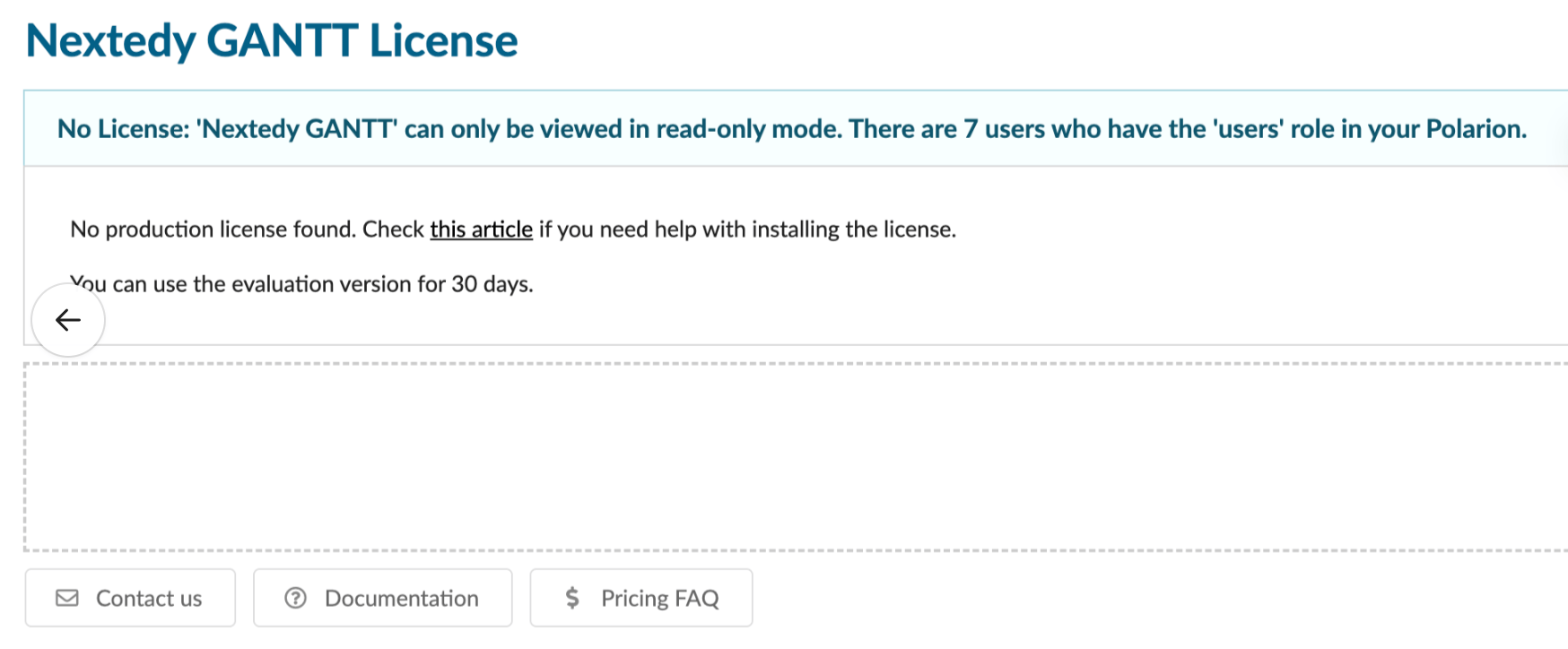
If you don't have a production or evaluation license for a specific Nextedy product, the product is shown in a **read-only** view. You can see all the content, but you cannot actively manipulate the data.
The License page signals that there is no active license.
## Behavior without a license
If you don't have a production or evaluation license for a specific Nextedy product, the product is shown in a **read-only** view. You can see all the content, but you cannot actively manipulate the data.
The License page signals that there is no active license.
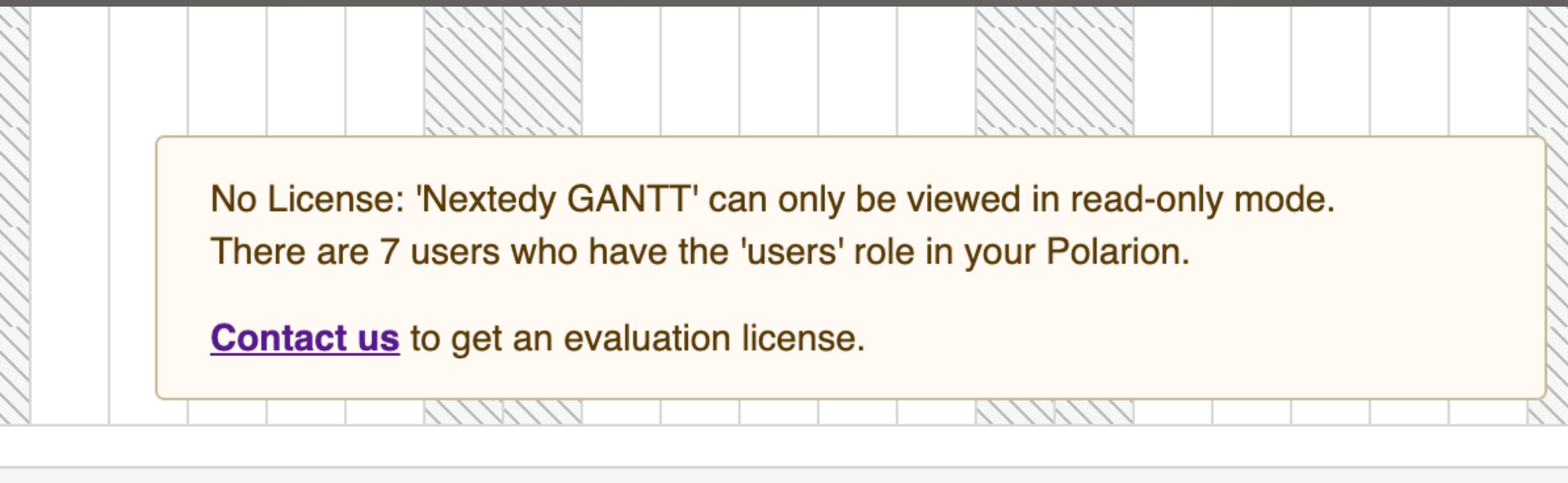
 On the product page itself, a similar pop-up appears. You can request an evaluation license by following the **Contact us** link.
 The license upload procedure is the same for both production and evaluation licenses. However, once an evaluation license expires, the product switches back to the read-only view. You'll see the pop-up notification when the license expires.
## Need help?
For any assistance, [submit a ticket](https://support.nextedy.com/support/tickets/new) and the Nextedy support team will help you out.
The license upload procedure is the same for both production and evaluation licenses. However, once an evaluation license expires, the product switches back to the read-only view. You'll see the pop-up notification when the license expires.
## Need help?
For any assistance, [submit a ticket](https://support.nextedy.com/support/tickets/new) and the Nextedy support team will help you out.