> ## Documentation Index
> Fetch the complete documentation index at: https://learn.nextedy.com/llms.txt
> Use this file to discover all available pages before exploring further.
# Configure Milestone Work Items
> This guide shows you how to display work items as milestone diamonds in Nextedy GANTT, using either type-based configuration or conditional scripting, and how to render additional milestone markers fr
export const LastReviewed = ({date}) => {
if (!date) return null;
const formatted = new Date(`${date}T00:00:00Z`).toLocaleDateString("en-US", {
year: "numeric",
month: "long",
day: "numeric",
timeZone: "UTC"
});
return
Last reviewed on {formatted}
;
};
## Option 1: Type-Based Milestones
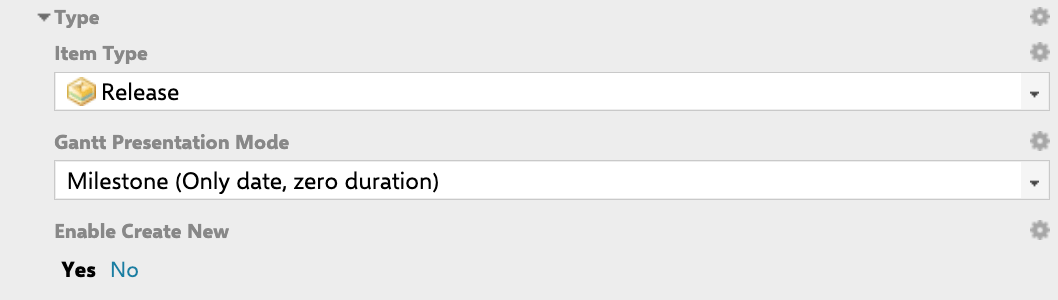
The simplest approach sets an entire work item type to render as milestones. Navigate to the work item type configuration in Polarion and set the **Gantt Presentation Mode** to **Milestone (Only date, zero duration)**.
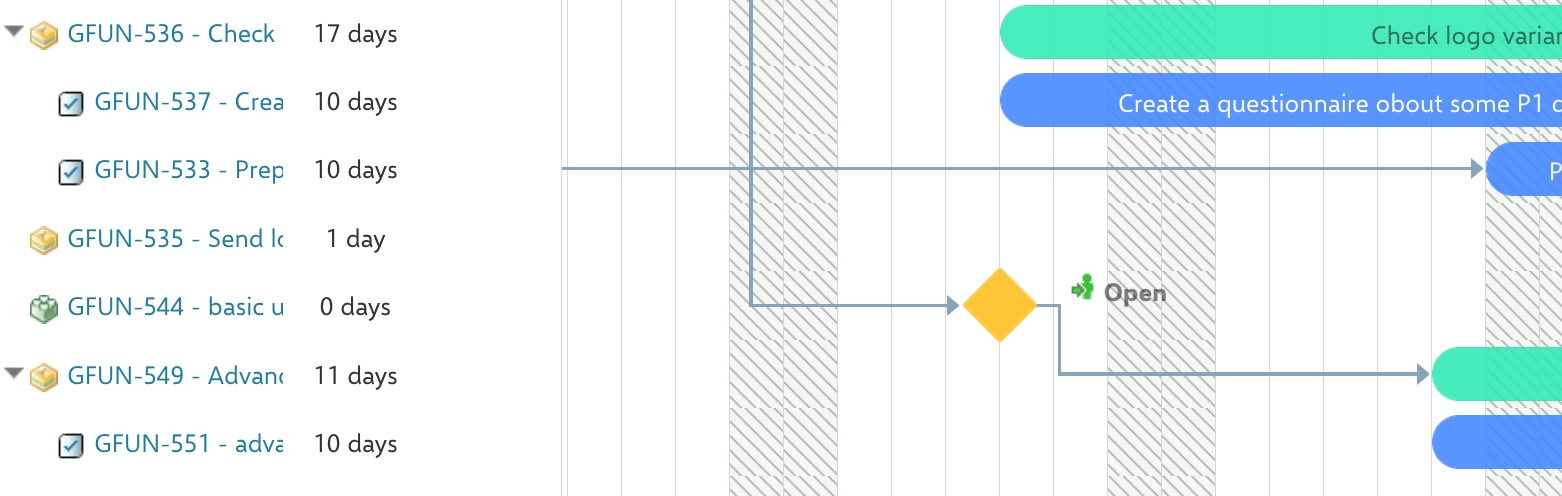
All work items of that type will appear as diamond shapes on the timeline instead of task bars. Milestones represent a single point in time with zero duration.
 | Presentation Mode | Visual Appearance | Behavior |
| :--------------------------- | :---------------------------- | :---------------------------------------------------------- |
| `TASK` (Item) | Standard task bar | Directly editable, shows duration |
| `PROJECT` (Derived Schedule) | Summary bar spanning children | Dates computed from child extents, not directly editable |
| `MILESTONE` (Milestone) | Diamond shape | Zero duration, shows only the start date |
| `AUTO` (Auto-Mode) | Automatic | Renders as `TASK` if no children, `PROJECT` if has children |
Set the presentation mode to `AUTO` when work items of the same type may or may not have children. Items with children will render as summary project bars, while leaf items will render as standard task bars.
## Option 2: Conditional Milestones via Item Script
Use an **Item Script** when you need to control which individual items appear as milestones based on conditions beyond the work item type. Navigate to **Widget Properties > Advanced > Item Script** and add a script that sets `task.type` to `"milestone"`:
```javascript theme={null}
if(wi.getType().getId() === "release" && wi.getStatus().getId() === "inprogress") {
task.type = "milestone";
}
```
In this example, only Release items with the status "In progress" render as milestones. When the status changes, the item reverts to its default presentation (a standard task bar with duration).
| Presentation Mode | Visual Appearance | Behavior |
| :--------------------------- | :---------------------------- | :---------------------------------------------------------- |
| `TASK` (Item) | Standard task bar | Directly editable, shows duration |
| `PROJECT` (Derived Schedule) | Summary bar spanning children | Dates computed from child extents, not directly editable |
| `MILESTONE` (Milestone) | Diamond shape | Zero duration, shows only the start date |
| `AUTO` (Auto-Mode) | Automatic | Renders as `TASK` if no children, `PROJECT` if has children |
Set the presentation mode to `AUTO` when work items of the same type may or may not have children. Items with children will render as summary project bars, while leaf items will render as standard task bars.
## Option 2: Conditional Milestones via Item Script
Use an **Item Script** when you need to control which individual items appear as milestones based on conditions beyond the work item type. Navigate to **Widget Properties > Advanced > Item Script** and add a script that sets `task.type` to `"milestone"`:
```javascript theme={null}
if(wi.getType().getId() === "release" && wi.getStatus().getId() === "inprogress") {
task.type = "milestone";
}
```
In this example, only Release items with the status "In progress" render as milestones. When the status changes, the item reverts to its default presentation (a standard task bar with duration).

 You can combine multiple conditions to match your project needs. For example, display all items of a specific type as milestones only when they are unresolved:
```javascript theme={null}
if(wi.getType().getId() === "goal" && wi.getResolution() === null) {
task.type = "milestone";
}
```
## Schedule Milestones from a Custom Date Field
By default, milestones use the date fields configured in the widget Data Mapping section. To pull the date from a different field (such as a "Public Launch" custom field), use an Item Script that overrides the schedule for unplanned items:
```javascript theme={null}
var typeId = wi.getType().getId();
if (typeId === "release") {
if (task.unplanned && wi.getValue("publicLaunch")) {
task.start_date = util.getDate(wi, "publicLaunch");
task.readonly = true;
task.unplanned = false;
}
}
```
When overriding the schedule from a custom field, always set `task.readonly = true`. This prevents users from dragging the milestone on the timeline, which would trigger the default scheduling logic and overwrite the custom date field value.
## Render a Visual Milestone Marker from a Custom Field
To highlight an important date on a work item without changing its actual schedule, render a small diamond marker at the custom field date. This requires both an **Item Script** and a **Gantt Config Script**.
**Item Script** (passes the custom field value to the client):
```javascript theme={null}
function storeMS(field) {
var milestone_Field = wi.getValue(field);
if (milestone_Field) {
task.getFields().put(field, milestone_Field.toString());
}
}
if(wi.getType().getId() === "workpackage") {
storeMS("testDateField");
}
```
**Gantt Config Script** (attaches the milestone marker to the task bar):
```javascript theme={null}
var milestones = [];
milestones.push(["testDateField", "green"]);
gantt.attachEvent("onTaskLoading", function(task) {
milestones.forEach(m => {
parseDateHelper(task, m[0])
});
return true;
});
milestones.forEach(m => {
attachMilestoneMarker(m[0], m[1]);
});
```
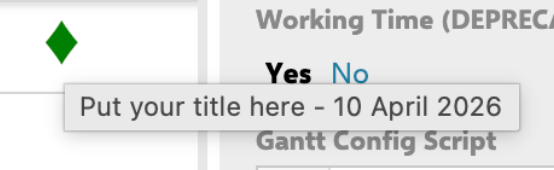
The result is a small diamond shape at the custom field date, overlaid on the task bar without altering the task's start or end dates. This is useful for highlighting review dates, internal checkpoints, or delivery milestones.
You can combine multiple conditions to match your project needs. For example, display all items of a specific type as milestones only when they are unresolved:
```javascript theme={null}
if(wi.getType().getId() === "goal" && wi.getResolution() === null) {
task.type = "milestone";
}
```
## Schedule Milestones from a Custom Date Field
By default, milestones use the date fields configured in the widget Data Mapping section. To pull the date from a different field (such as a "Public Launch" custom field), use an Item Script that overrides the schedule for unplanned items:
```javascript theme={null}
var typeId = wi.getType().getId();
if (typeId === "release") {
if (task.unplanned && wi.getValue("publicLaunch")) {
task.start_date = util.getDate(wi, "publicLaunch");
task.readonly = true;
task.unplanned = false;
}
}
```
When overriding the schedule from a custom field, always set `task.readonly = true`. This prevents users from dragging the milestone on the timeline, which would trigger the default scheduling logic and overwrite the custom date field value.
## Render a Visual Milestone Marker from a Custom Field
To highlight an important date on a work item without changing its actual schedule, render a small diamond marker at the custom field date. This requires both an **Item Script** and a **Gantt Config Script**.
**Item Script** (passes the custom field value to the client):
```javascript theme={null}
function storeMS(field) {
var milestone_Field = wi.getValue(field);
if (milestone_Field) {
task.getFields().put(field, milestone_Field.toString());
}
}
if(wi.getType().getId() === "workpackage") {
storeMS("testDateField");
}
```
**Gantt Config Script** (attaches the milestone marker to the task bar):
```javascript theme={null}
var milestones = [];
milestones.push(["testDateField", "green"]);
gantt.attachEvent("onTaskLoading", function(task) {
milestones.forEach(m => {
parseDateHelper(task, m[0])
});
return true;
});
milestones.forEach(m => {
attachMilestoneMarker(m[0], m[1]);
});
```
The result is a small diamond shape at the custom field date, overlaid on the task bar without altering the task's start or end dates. This is useful for highlighting review dates, internal checkpoints, or delivery milestones.


 By default the marker's label shows the field ID. To display a friendlier label, replace the `.deadline` element's title text in an `onGanttRender` event handler.
 By default, milestones inherit progress-based coloring. To apply custom colors to milestone diamonds, disable progress coloring in the Gantt Config Script with `gantt.config.show_progress_colors = false;` and use static coloring via the Item Script. See [Configure Item Colors](/gantt/guides/visualization/configure-colors) for details.
## Alternative: Use Milestone Markers
For dates that are not tied to a specific work item (such as version releases or phase deadlines), consider using **milestone markers** instead. Markers appear as vertical lines spanning the entire timeline. See [Create and Configure Markers](/gantt/guides/visualization/markers) for setup details.
## Verification
You should now see milestone diamonds on the Gantt timeline for the configured work item types or script conditions. Hover over a milestone to verify the tooltip shows the correct name and date. If you used a custom date field, confirm the diamond appears at the expected date position.
## See also
* [Create and Configure Markers](/gantt/guides/visualization/markers)
* [Configure Item Colors](/gantt/guides/visualization/configure-colors)
* [Write Item Scripts](/gantt/guides/scripting/item-script-basics)
* [Write Gantt Config Scripts](/gantt/guides/scripting/gantt-config-script)
* [Show Deadlines and Due Dates](/gantt/guides/visualization/deadlines)
By default, milestones inherit progress-based coloring. To apply custom colors to milestone diamonds, disable progress coloring in the Gantt Config Script with `gantt.config.show_progress_colors = false;` and use static coloring via the Item Script. See [Configure Item Colors](/gantt/guides/visualization/configure-colors) for details.
## Alternative: Use Milestone Markers
For dates that are not tied to a specific work item (such as version releases or phase deadlines), consider using **milestone markers** instead. Markers appear as vertical lines spanning the entire timeline. See [Create and Configure Markers](/gantt/guides/visualization/markers) for setup details.
## Verification
You should now see milestone diamonds on the Gantt timeline for the configured work item types or script conditions. Hover over a milestone to verify the tooltip shows the correct name and date. If you used a custom date field, confirm the diamond appears at the expected date position.
## See also
* [Create and Configure Markers](/gantt/guides/visualization/markers)
* [Configure Item Colors](/gantt/guides/visualization/configure-colors)
* [Write Item Scripts](/gantt/guides/scripting/item-script-basics)
* [Write Gantt Config Scripts](/gantt/guides/scripting/gantt-config-script)
* [Show Deadlines and Due Dates](/gantt/guides/visualization/deadlines)