> ## Documentation Index
> Fetch the complete documentation index at: https://learn.nextedy.com/llms.txt
> Use this file to discover all available pages before exploring further.
# Troubleshooting Today Marker Position
> This guide explains why the Nextedy GANTT today marker may show an incorrect date and how to resolve or hide it.
export const LastReviewed = ({date}) => {
if (!date) return null;
const formatted = new Date(`${date}T00:00:00Z`).toLocaleDateString("en-US", {
year: "numeric",
month: "long",
day: "numeric",
timeZone: "UTC"
});
return
Last reviewed on {formatted}
;
};
## Symptom
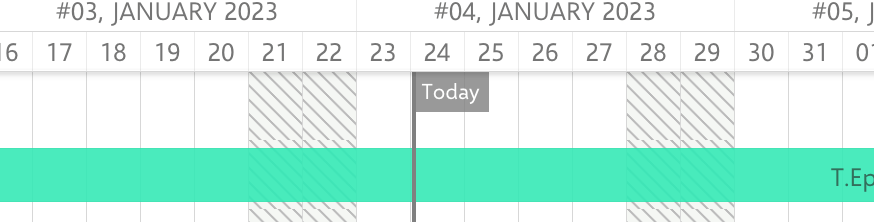
The today marker (a vertical line on the Gantt timeline) displays a date that does not match your current local date. For example, it may show January 24 when your local date is already January 25.
 ## Why This Happens
The today marker date is determined by the **Polarion server's timezone**, not the user's browser timezone. When the server is located in a different timezone than the user, the today marker may appear to be one day behind or ahead.
| Scenario | Server Time | Client Time | Today Marker Shows |
| -------------------------------- | ------------- | ------------- | ------------------ |
| Server in UTC, client in UTC+9 | Jan 24, 23:00 | Jan 25, 08:00 | Jan 24 |
| Server in UTC+1, client in UTC-5 | Jan 25, 01:00 | Jan 24, 19:00 | Jan 25 |
The today marker tooltip displays the exact date in `Today: YYYY-MM-DD` format. Hover over the marker to see the precise server date.
The timezone difference between server and client is the most common cause of the today marker appearing in the wrong position. In most environments where server and client are in the same timezone, the dates match.
## Option 1: Align Server Timezone
If your organization requires the today marker to match client time, coordinate with your Polarion server administrator to set the server timezone to match your primary user base.
The server timezone configuration is managed at the operating system level on the Polarion server host. Consult your Polarion administrator for changes.
## Option 2: Hide the Today Marker
If the timezone discrepancy is not critical and you prefer to remove the marker entirely:
1. Open the Gantt widget parameters in the page editor
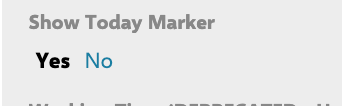
2. Navigate to **Widget Parameters > Advanced > Show Today Marker**
3. Set the value to **No**
4. Save the page
## Why This Happens
The today marker date is determined by the **Polarion server's timezone**, not the user's browser timezone. When the server is located in a different timezone than the user, the today marker may appear to be one day behind or ahead.
| Scenario | Server Time | Client Time | Today Marker Shows |
| -------------------------------- | ------------- | ------------- | ------------------ |
| Server in UTC, client in UTC+9 | Jan 24, 23:00 | Jan 25, 08:00 | Jan 24 |
| Server in UTC+1, client in UTC-5 | Jan 25, 01:00 | Jan 24, 19:00 | Jan 25 |
The today marker tooltip displays the exact date in `Today: YYYY-MM-DD` format. Hover over the marker to see the precise server date.
The timezone difference between server and client is the most common cause of the today marker appearing in the wrong position. In most environments where server and client are in the same timezone, the dates match.
## Option 1: Align Server Timezone
If your organization requires the today marker to match client time, coordinate with your Polarion server administrator to set the server timezone to match your primary user base.
The server timezone configuration is managed at the operating system level on the Polarion server host. Consult your Polarion administrator for changes.
## Option 2: Hide the Today Marker
If the timezone discrepancy is not critical and you prefer to remove the marker entirely:
1. Open the Gantt widget parameters in the page editor
2. Navigate to **Widget Parameters > Advanced > Show Today Marker**
3. Set the value to **No**
4. Save the page
 ## Option 3: Adjust Marker Position with Scripts
For milestone markers that you create via the Markers Script, the marker date follows an end-of-day rendering convention. If a marker appears one day off from where you expect it, you can apply a `-1` day offset in your script to shift it to a start-of-day position.
All markers (including the today marker) render at the end of the specified date by convention. If you need a marker to appear at the start of a day, subtract one day from the date value in your markers script. This is particularly relevant for custom milestone markers created with `markerFactory`.
## Custom Marker Troubleshooting
If you use custom markers via the **Markers Script** (under **Widget Parameters > Advanced**), verify these common issues:
* **Markers not appearing** -- Ensure the markers script has no syntax errors (check the Gantt footer for a "Markers Script Error" indicator)
* **Wrong marker color** -- The `setColor` method accepts one of the 16 basic HTML color names (e.g., `"red"`, `"blue"`, `"green"`, `"fuchsia"`)
* **Markers from wrong project** -- When using `addPlanMarkers` or `addWorkItemMarkers`, verify the `project.id` in the Lucene query matches the intended source project
## Verify
After applying your chosen solution, reload the Gantt chart. You should now see either:
* The today marker correctly aligned with the expected date (Option 1)
* No today marker displayed on the timeline (Option 2)
* Custom markers positioned at the correct dates (Option 3)
Hover over the today marker (if visible) to confirm the tooltip shows `Today: YYYY-MM-DD` with the expected date.
## See also
* [Create and Configure Markers](/gantt/guides/visualization/markers)
* [Create Markers with Scripts](/gantt/guides/scripting/marker-scripts)
* [Scroll to Today on Load](/gantt/guides/layout/scroll-to-today)
* [Configure the Time Scale](/gantt/guides/visualization/timescale)
## Option 3: Adjust Marker Position with Scripts
For milestone markers that you create via the Markers Script, the marker date follows an end-of-day rendering convention. If a marker appears one day off from where you expect it, you can apply a `-1` day offset in your script to shift it to a start-of-day position.
All markers (including the today marker) render at the end of the specified date by convention. If you need a marker to appear at the start of a day, subtract one day from the date value in your markers script. This is particularly relevant for custom milestone markers created with `markerFactory`.
## Custom Marker Troubleshooting
If you use custom markers via the **Markers Script** (under **Widget Parameters > Advanced**), verify these common issues:
* **Markers not appearing** -- Ensure the markers script has no syntax errors (check the Gantt footer for a "Markers Script Error" indicator)
* **Wrong marker color** -- The `setColor` method accepts one of the 16 basic HTML color names (e.g., `"red"`, `"blue"`, `"green"`, `"fuchsia"`)
* **Markers from wrong project** -- When using `addPlanMarkers` or `addWorkItemMarkers`, verify the `project.id` in the Lucene query matches the intended source project
## Verify
After applying your chosen solution, reload the Gantt chart. You should now see either:
* The today marker correctly aligned with the expected date (Option 1)
* No today marker displayed on the timeline (Option 2)
* Custom markers positioned at the correct dates (Option 3)
Hover over the today marker (if visible) to confirm the tooltip shows `Today: YYYY-MM-DD` with the expected date.
## See also
* [Create and Configure Markers](/gantt/guides/visualization/markers)
* [Create Markers with Scripts](/gantt/guides/scripting/marker-scripts)
* [Scroll to Today on Load](/gantt/guides/layout/scroll-to-today)
* [Configure the Time Scale](/gantt/guides/visualization/timescale)