> ## Documentation Index
> Fetch the complete documentation index at: https://learn.nextedy.com/llms.txt
> Use this file to discover all available pages before exploring further.
# Troubleshooting Installation Issues
> This guide helps you resolve common problems that occur after installing or upgrading Nextedy GANTT on your Polarion server.
export const LastReviewed = ({date}) => {
if (!date) return null;
const formatted = new Date(`${date}T00:00:00Z`).toLocaleDateString("en-US", {
year: "numeric",
month: "long",
day: "numeric",
timeZone: "UTC"
});
return
Last reviewed on {formatted}
;
};
## Symptom: Widget Not Found or Error Message After Installation
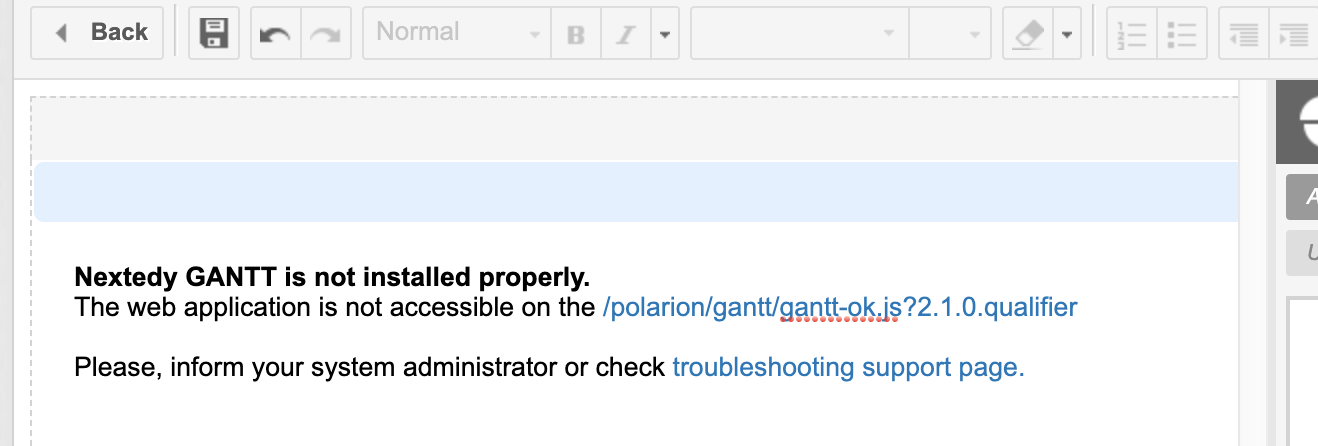
If you see an error message in the Polarion UI where the Gantt widget should appear, or the widget is not listed in the available widgets, the most common cause is that the configuration cache was not cleared after installation.
 Shut down the Polarion server before making any file system changes. Use your standard server management process to stop the service.
Navigate to your Polarion installation directory and delete the `.config` folder:
```
[POLARION_INSTALL]/data/workspace/.config
```
This folder contains configuration caches that Polarion rebuilds automatically on startup. Deleting it forces Polarion to re-read all extension registrations, including the newly installed Gantt widget.
Deleting the `.config` folder is prescribed by the Polarion team whenever a new extension with a web application component is installed. The caches are rebuilt automatically and no data is lost.
Restart the Polarion server. The first startup after clearing the cache may take slightly longer as Polarion rebuilds its configuration.
1. Navigate to a LiveDoc or Wiki page in Polarion
2. Enter edit mode and add a widget
3. Search for **Gantt** in the widget list
4. Verify that both **Gantt (Work Items)** and **Gantt (Plans)** appear
If the widget still does not appear after clearing the cache, verify that the Gantt extension files were placed in the correct directory as described in the `INSTALL.txt` file included in the distribution package.
## Additional Checks
| Check | Location | Expected Result |
| ----------------------- | ------------------------------------------- | --------------------------------- |
| Extension files present | `[POLARION_INSTALL]/polarion/extensions/` | Gantt extension folder exists |
| Cache cleared | `[POLARION_INSTALL]/data/workspace/.config` | Folder deleted (rebuilt on start) |
| Server restarted | Polarion service | Running without errors |
| Widget available | Page editor > Add Widget | Gantt widgets listed |
## Verify
After completing these steps, you should now see the Gantt widget available in the Polarion page editor widget picker. Adding it to a page should display the Gantt chart configuration panel without errors.
## See also
* [Install Gantt](/gantt/getting-started/installation)
* [Update to the Latest Version](/gantt/getting-started/update-gantt)
* [Troubleshooting Blank or Non-Loading Gantt](/gantt/guides/troubleshooting/blank-gantt)
Shut down the Polarion server before making any file system changes. Use your standard server management process to stop the service.
Navigate to your Polarion installation directory and delete the `.config` folder:
```
[POLARION_INSTALL]/data/workspace/.config
```
This folder contains configuration caches that Polarion rebuilds automatically on startup. Deleting it forces Polarion to re-read all extension registrations, including the newly installed Gantt widget.
Deleting the `.config` folder is prescribed by the Polarion team whenever a new extension with a web application component is installed. The caches are rebuilt automatically and no data is lost.
Restart the Polarion server. The first startup after clearing the cache may take slightly longer as Polarion rebuilds its configuration.
1. Navigate to a LiveDoc or Wiki page in Polarion
2. Enter edit mode and add a widget
3. Search for **Gantt** in the widget list
4. Verify that both **Gantt (Work Items)** and **Gantt (Plans)** appear
If the widget still does not appear after clearing the cache, verify that the Gantt extension files were placed in the correct directory as described in the `INSTALL.txt` file included in the distribution package.
## Additional Checks
| Check | Location | Expected Result |
| ----------------------- | ------------------------------------------- | --------------------------------- |
| Extension files present | `[POLARION_INSTALL]/polarion/extensions/` | Gantt extension folder exists |
| Cache cleared | `[POLARION_INSTALL]/data/workspace/.config` | Folder deleted (rebuilt on start) |
| Server restarted | Polarion service | Running without errors |
| Widget available | Page editor > Add Widget | Gantt widgets listed |
## Verify
After completing these steps, you should now see the Gantt widget available in the Polarion page editor widget picker. Adding it to a page should display the Gantt chart configuration panel without errors.
## See also
* [Install Gantt](/gantt/getting-started/installation)
* [Update to the Latest Version](/gantt/getting-started/update-gantt)
* [Troubleshooting Blank or Non-Loading Gantt](/gantt/guides/troubleshooting/blank-gantt)