> ## Documentation Index
> Fetch the complete documentation index at: https://learn.nextedy.com/llms.txt
> Use this file to discover all available pages before exploring further.
# Troubleshooting Calendar Integration Issues
> Diagnose and resolve common problems with Nextedy GANTT working calendar integration, including user calendars not loading, capacity calculations appearing incorrect, and calendar project connectivity
export const LastReviewed = ({date}) => {
if (!date) return null;
const formatted = new Date(`${date}T00:00:00Z`).toLocaleDateString("en-US", {
year: "numeric",
month: "long",
day: "numeric",
timeZone: "UTC"
});
return
Last reviewed on {formatted}
;
};
The working calendar parameters follow a strict dependency chain. Each level must be enabled before the next becomes available:
1. Open the Gantt widget parameters
2. Navigate to the **Working Calendars** section
3. Confirm the toggles are enabled in order:
* **Use Working Calendar** must be `Yes`
* **Load User Calendars** only appears when Use Working Calendar is `Yes`
* **Load Team Assignments** only appears when both above are `Yes`
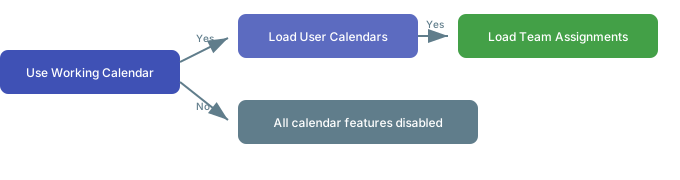 If you do not see the **Load User Calendars** option, check that **Use Working Calendar** is set to `Yes` first. The sub-options are hidden until their parent toggle is enabled.
If user calendars are not loading, verify that the required administration properties are set in **Administration > Configuration Properties** for both the calendar project and the consuming project:
```
nextedy.gantt.workitemCalendar.projectId=
nextedy.gantt.workitemCalendar.globalID=
```
* Replace `` with the project ID of the work item calendar project
* Replace `` with the work item ID of the calendar work item used as the global calendar
These properties must be configured in both the work item calendar project **and** every project that uses it. Missing either side causes silent failures where calendars appear empty.
Calendar work items must have the correct assignee set to link to a resource in the Gantt chart.
| Calendar Item Type | Required Fields | Purpose |
| ------------------ | --------------------------------------- | ----------------------------------- |
| Calendar | Assignee, From/To dates, Weekday hours | Defines regular working schedule |
| Time Off | Assignee, From/To dates | Marks non-working periods |
| Time On | Assignee, From/To dates | Overrides Time Off for a user |
| Tweak | Assignee, From/To dates, Work Start/End | Adjusts hours for a specific period |
Calendar items without an assignee will not be associated with any resource. Ensure every user-specific calendar work item has the correct Polarion user set as the assignee.
Calendar work items use the `inherits from` link role for parent-child inheritance and the `affects` link role for exceptions (Time Off, Time On, Tweak).
* User calendars should have a parent link to the global calendar via **inherits from**
* Exception items (Time Off, Time On, Tweak) must be linked to their target calendar via **affects**
If exception items are not linked to a calendar via the `affects` link role, they will be silently ignored by the Gantt chart regardless of their date settings.
If user calendar changes stop reflecting in resource allocation bubbles after an upgrade:
* Versions **v25.7.0 through v25.8.0** contain a known regression where work items missing fields required by a workflow action can fail to load on the Gantt, which can leave resource rows and allocations incomplete
* Upgrade to **v25.9.0** or later to resolve this issue
* As a workaround, roll back to **v24.10.1** if upgrading is not immediately possible
If calendar changes are not reflected after editing calendar work items, the server-side calendar cache may be stale. Caching is enabled by the **Cache Working Calendars** widget parameter (or the `nextedy.gantt.workingCalendar.useCache` administration property).
When caching is active, clear the stale cache using either method:
* Click the **Clear Calendar Cache** toolbar button, which appears in the Gantt toolbar when caching is enabled
* Call the `api/clearCalendarCache` endpoint directly
## Verification
You should now see:
* The **Working Calendars** section in widget parameters shows all three toggles in sequence
* User-specific non-working days appear as gray areas on the resource view
* Resource allocation markers reflect correct capacity based on each user's calendar
* Time Off, Time On, and Tweak items correctly adjust the displayed availability
## See Also
* [Load User Calendars](/gantt/guides/calendars/user-calendars)
* [Set Up Work Item Calendars](/gantt/guides/calendars/work-item-calendar)
* [Use Calendars from Another Project](/gantt/guides/calendars/cross-project-calendar)
* [Customize Working Hours per Resource](/gantt/guides/calendars/working-hours-per-resource)
* [Set Up the Resource View](/gantt/guides/resources/resource-view)
If you do not see the **Load User Calendars** option, check that **Use Working Calendar** is set to `Yes` first. The sub-options are hidden until their parent toggle is enabled.
If user calendars are not loading, verify that the required administration properties are set in **Administration > Configuration Properties** for both the calendar project and the consuming project:
```
nextedy.gantt.workitemCalendar.projectId=
nextedy.gantt.workitemCalendar.globalID=
```
* Replace `` with the project ID of the work item calendar project
* Replace `` with the work item ID of the calendar work item used as the global calendar
These properties must be configured in both the work item calendar project **and** every project that uses it. Missing either side causes silent failures where calendars appear empty.
Calendar work items must have the correct assignee set to link to a resource in the Gantt chart.
| Calendar Item Type | Required Fields | Purpose |
| ------------------ | --------------------------------------- | ----------------------------------- |
| Calendar | Assignee, From/To dates, Weekday hours | Defines regular working schedule |
| Time Off | Assignee, From/To dates | Marks non-working periods |
| Time On | Assignee, From/To dates | Overrides Time Off for a user |
| Tweak | Assignee, From/To dates, Work Start/End | Adjusts hours for a specific period |
Calendar items without an assignee will not be associated with any resource. Ensure every user-specific calendar work item has the correct Polarion user set as the assignee.
Calendar work items use the `inherits from` link role for parent-child inheritance and the `affects` link role for exceptions (Time Off, Time On, Tweak).
* User calendars should have a parent link to the global calendar via **inherits from**
* Exception items (Time Off, Time On, Tweak) must be linked to their target calendar via **affects**
If exception items are not linked to a calendar via the `affects` link role, they will be silently ignored by the Gantt chart regardless of their date settings.
If user calendar changes stop reflecting in resource allocation bubbles after an upgrade:
* Versions **v25.7.0 through v25.8.0** contain a known regression where work items missing fields required by a workflow action can fail to load on the Gantt, which can leave resource rows and allocations incomplete
* Upgrade to **v25.9.0** or later to resolve this issue
* As a workaround, roll back to **v24.10.1** if upgrading is not immediately possible
If calendar changes are not reflected after editing calendar work items, the server-side calendar cache may be stale. Caching is enabled by the **Cache Working Calendars** widget parameter (or the `nextedy.gantt.workingCalendar.useCache` administration property).
When caching is active, clear the stale cache using either method:
* Click the **Clear Calendar Cache** toolbar button, which appears in the Gantt toolbar when caching is enabled
* Call the `api/clearCalendarCache` endpoint directly
## Verification
You should now see:
* The **Working Calendars** section in widget parameters shows all three toggles in sequence
* User-specific non-working days appear as gray areas on the resource view
* Resource allocation markers reflect correct capacity based on each user's calendar
* Time Off, Time On, and Tweak items correctly adjust the displayed availability
## See Also
* [Load User Calendars](/gantt/guides/calendars/user-calendars)
* [Set Up Work Item Calendars](/gantt/guides/calendars/work-item-calendar)
* [Use Calendars from Another Project](/gantt/guides/calendars/cross-project-calendar)
* [Customize Working Hours per Resource](/gantt/guides/calendars/working-hours-per-resource)
* [Set Up the Resource View](/gantt/guides/resources/resource-view)