> ## Documentation Index
> Fetch the complete documentation index at: https://learn.nextedy.com/llms.txt
> Use this file to discover all available pages before exploring further.
# Derive Schedule from Polarion Plans
> Configure Nextedy GANTT to derive work item schedules from their assignment to Polarion Plans, so that unplanned items inherit the plan's start and end dates automatically.
export const LastReviewed = ({date}) => {
if (!date) return null;
const formatted = new Date(`${date}T00:00:00Z`).toLocaleDateString("en-US", {
year: "numeric",
month: "long",
day: "numeric",
timeZone: "UTC"
});
return
Last reviewed on {formatted}
;
};
## When to Use This Approach
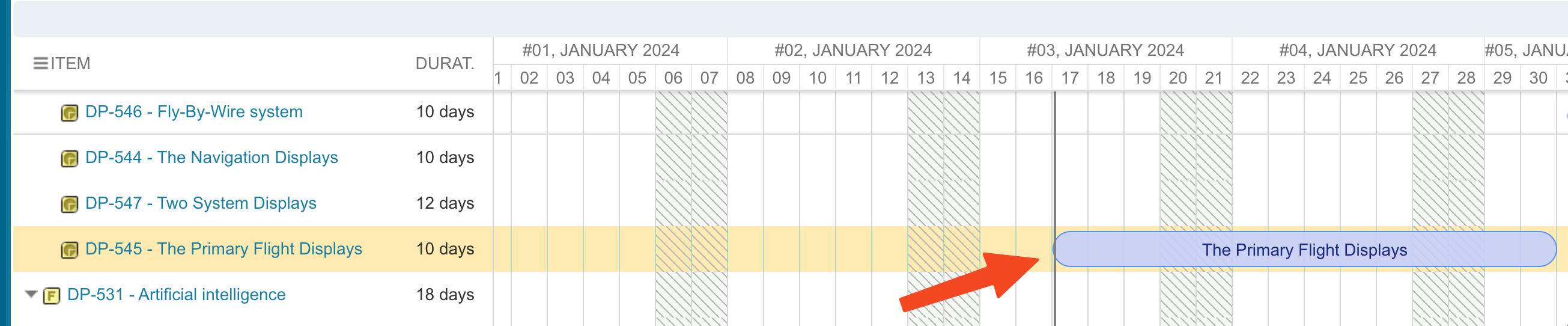
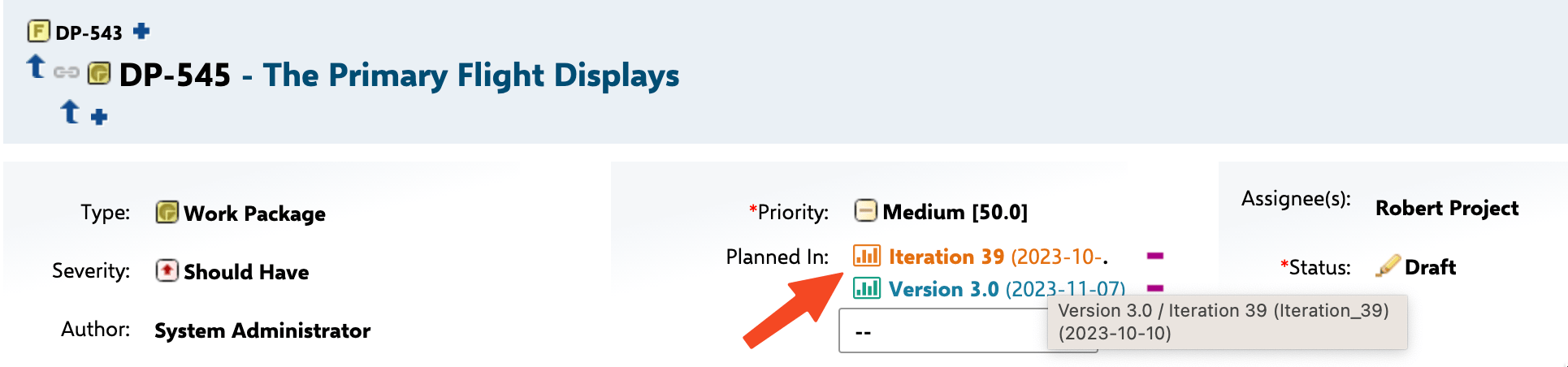
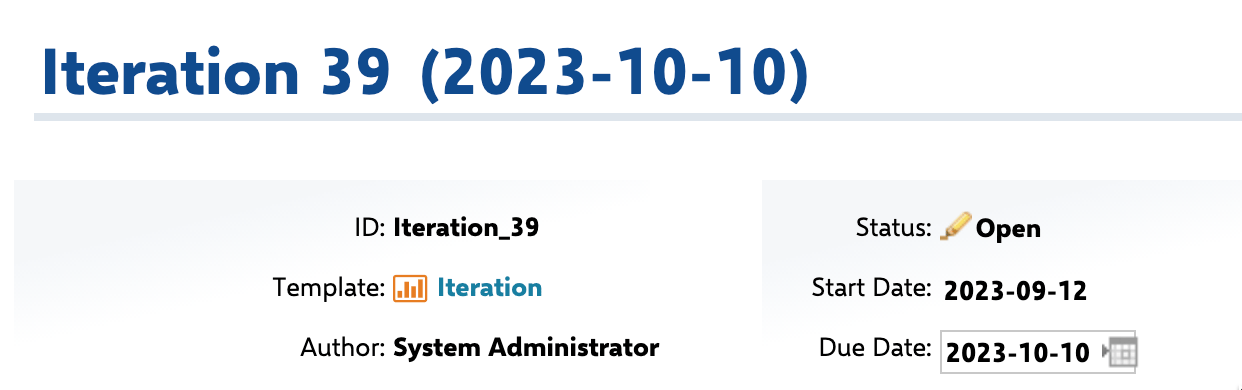
Use plan-derived scheduling when work items do not have their own start/end date fields populated but are assigned to Polarion Plans (iterations, releases) that have defined date ranges. This is common in agile workflows where sprints and iterations define the schedule.

 Navigate to **Widget Properties > Advanced > Item Script** and add one of the following scripts depending on your scenario.
### Option A: Derive Schedule for All Unplanned Items
Use the built-in utility method to automatically assign plan dates to unplanned work items:
```javascript theme={null}
if (wi != null) {
if (task.unplanned) {
task.deriveScheduleFromPlans(wi, "iteration");
}
}
```
Replace `"iteration"` with the plan template ID that matches your project (e.g., `"release"`, `"sprint"`).
Navigate to **Widget Properties > Advanced > Item Script** and add one of the following scripts depending on your scenario.
### Option A: Derive Schedule for All Unplanned Items
Use the built-in utility method to automatically assign plan dates to unplanned work items:
```javascript theme={null}
if (wi != null) {
if (task.unplanned) {
task.deriveScheduleFromPlans(wi, "iteration");
}
}
```
Replace `"iteration"` with the plan template ID that matches your project (e.g., `"release"`, `"sprint"`).
 ### Option B: Derive Schedule for a Specific Plan Type
For more control, iterate through the work item's plan assignments and match a specific template:
```javascript theme={null}
var plans = wi.getPlannedIn().iterator();
while (plans.hasNext()) {
var plan = plans.next();
if (plan.getTemplate().getId() === "Iteration") {
task.start_date = util.getDate(plan, "startDate");
task.end_date = util.getDate(plan, "dueDate");
task.duration = null;
task.readonly = true;
task.unplanned = false;
}
}
```
| Property | Effect |
| ------------------------ | ---------------------------------------------- |
| `task.start_date` | Sets the task start from the plan's start date |
| `task.end_date` | Sets the task end from the plan's due date |
| `task.duration = null` | Clears duration so it is computed from dates |
| `task.readonly = true` | Prevents manual editing of derived dates |
| `task.unplanned = false` | Marks the item as scheduled on the Gantt chart |
Always wrap your Item Script with `if (wi != null)` to prevent errors when the script processes synthetic or missing work items. Without this check, the script may fail silently.
Set the derived dates with `task.start_date` and `task.end_date` (property assignment, as shown above) -- this is the documented form (see the [Item Script API](/gantt/reference/api/item-script-api)). Do **not** assign to `task.setStart_date` / `task.setEnd_date`: those are setter *methods*, not assignment targets, so assigning a value to them does not set the date. For the Polarion 2304+ scripting changes (getter methods and `typeof` checks), see [Migrate Scripts for Polarion 2304+](/gantt/guides/scripting/script-migration-2304).
If you want to display both plans and work items together on a single Gantt chart, use the Plans Gantt widget:
1. Set **Widget Properties > Show Plan Work Item > Enable Show Items** to **true**.
2. Configure the **Load Children** depth to control how many levels of sub-plans and work items are displayed.
3. Set the child link role to load work items under their parent plans.
For portfolio-level visibility, configure the Plans Gantt with Release as the top-level plan template, Iteration as the second level, and work items as the third level. Set **Load Children** to `3` to display the full hierarchy.
Save the widget properties and reload the page. The Gantt chart recalculates work item positions based on their plan assignments.
## Verification
You should now see:
* Previously unplanned work items now positioned on the Gantt chart at the dates of their assigned plans
* Derived items marked as read-only (not draggable) if you set `task.readonly = true`
* Plan date ranges reflected accurately on the work item task bars
### Option B: Derive Schedule for a Specific Plan Type
For more control, iterate through the work item's plan assignments and match a specific template:
```javascript theme={null}
var plans = wi.getPlannedIn().iterator();
while (plans.hasNext()) {
var plan = plans.next();
if (plan.getTemplate().getId() === "Iteration") {
task.start_date = util.getDate(plan, "startDate");
task.end_date = util.getDate(plan, "dueDate");
task.duration = null;
task.readonly = true;
task.unplanned = false;
}
}
```
| Property | Effect |
| ------------------------ | ---------------------------------------------- |
| `task.start_date` | Sets the task start from the plan's start date |
| `task.end_date` | Sets the task end from the plan's due date |
| `task.duration = null` | Clears duration so it is computed from dates |
| `task.readonly = true` | Prevents manual editing of derived dates |
| `task.unplanned = false` | Marks the item as scheduled on the Gantt chart |
Always wrap your Item Script with `if (wi != null)` to prevent errors when the script processes synthetic or missing work items. Without this check, the script may fail silently.
Set the derived dates with `task.start_date` and `task.end_date` (property assignment, as shown above) -- this is the documented form (see the [Item Script API](/gantt/reference/api/item-script-api)). Do **not** assign to `task.setStart_date` / `task.setEnd_date`: those are setter *methods*, not assignment targets, so assigning a value to them does not set the date. For the Polarion 2304+ scripting changes (getter methods and `typeof` checks), see [Migrate Scripts for Polarion 2304+](/gantt/guides/scripting/script-migration-2304).
If you want to display both plans and work items together on a single Gantt chart, use the Plans Gantt widget:
1. Set **Widget Properties > Show Plan Work Item > Enable Show Items** to **true**.
2. Configure the **Load Children** depth to control how many levels of sub-plans and work items are displayed.
3. Set the child link role to load work items under their parent plans.
For portfolio-level visibility, configure the Plans Gantt with Release as the top-level plan template, Iteration as the second level, and work items as the third level. Set **Load Children** to `3` to display the full hierarchy.
Save the widget properties and reload the page. The Gantt chart recalculates work item positions based on their plan assignments.
## Verification
You should now see:
* Previously unplanned work items now positioned on the Gantt chart at the dates of their assigned plans
* Derived items marked as read-only (not draggable) if you set `task.readonly = true`
* Plan date ranges reflected accurately on the work item task bars
 ## See Also
* [Derive Parent Schedule from Children](/gantt/guides/scheduling/parent-derived-schedule)
* [Show Plans and Work Items Together](/gantt/guides/plans/plans-and-work-items)
* [Write Item Scripts](/gantt/guides/scripting/item-script-basics)
* [Migrate Scripts for Polarion 2304+](/gantt/guides/scripting/script-migration-2304)
* [Sync Work Item Dates to Plans](/gantt/guides/plans/sync-to-plans)
## See Also
* [Derive Parent Schedule from Children](/gantt/guides/scheduling/parent-derived-schedule)
* [Show Plans and Work Items Together](/gantt/guides/plans/plans-and-work-items)
* [Write Item Scripts](/gantt/guides/scripting/item-script-basics)
* [Migrate Scripts for Polarion 2304+](/gantt/guides/scripting/script-migration-2304)
* [Sync Work Item Dates to Plans](/gantt/guides/plans/sync-to-plans)