> ## Documentation Index
> Fetch the complete documentation index at: https://learn.nextedy.com/llms.txt
> Use this file to discover all available pages before exploring further.
# Derive Parent Schedule from Children
> Configure Nextedy GANTT so that parent work items automatically calculate their schedule from the date range of their children, instead of being scheduled manually.
export const LastReviewed = ({date}) => {
if (!date) return null;
const formatted = new Date(`${date}T00:00:00Z`).toLocaleDateString("en-US", {
year: "numeric",
month: "long",
day: "numeric",
timeZone: "UTC"
});
return
Last reviewed on {formatted}
;
};
Ensure your Gantt chart displays the correct hierarchy by configuring the parent link role:
1. Open the page in edit mode and access **Widget Properties**.
2. Under **Work Items > Parent Role**, select the link role that defines parent-child relationships (e.g., `has_parent`).
3. Verify that both parent and child work items appear in the Gantt chart with the correct nesting.
For each work item type that should derive its schedule from children, set the Gantt presentation mode:
1. In **Widget Properties > Work Item Types**, locate the configuration for the parent work item type (e.g., "Portfolio Epic" or "Feature").
2. Set the **Gantt Presentation Mode** to **Project**.
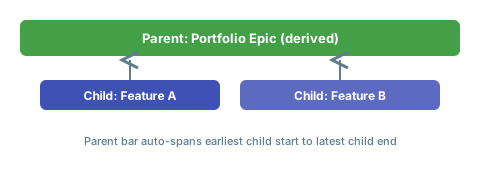
When a work item type uses the Project presentation mode, its task bar spans the full range of its child items. The parent's start date equals the earliest child start, and its end date equals the latest child end.
 If your work breakdown structure has multiple levels, configure how many levels the Gantt loads:
1. In **Widget Properties**, set the **Load Children** depth to the number of levels you need (e.g., `3` for three levels of nesting).
When a work item type uses Project presentation mode, its dates cannot be edited directly in the Gantt chart. The parent's schedule is always computed from its children. Attempting to drag or resize the parent bar will not change its dates.
If you need some parent types to derive their schedule from children while others remain manually scheduled, configure the presentation mode per work item type. Only types set to **Project** mode will derive dates automatically.
Parent items using the Project presentation mode are rendered with a distinct visual style (typically green summary bars) to distinguish them from manually scheduled items. This helps users quickly identify which work items are derived.
When auto-scheduling is enabled alongside derived parent schedules, be aware that moving child items triggers recalculation of the parent range. If you also have dependency links, the auto-scheduler recalculates successor dates first, then the parent bar adjusts. For complex hierarchies, consider using an Item Script to control which levels participate in auto-scheduling.
## Verification
You should now see:
* Parent work items displayed as summary bars that span the full range of their children
* Parent bars automatically updating when you move or resize child items
* Parent task dates being read-only (not draggable)
## See Also
* [Configure Auto-Scheduling](/gantt/guides/scheduling/configure-auto-scheduling)
* [Prevent Tasks from Moving Outside Parent Range](/gantt/guides/scheduling/prevent-moving-out-of-parent)
* [Derive Schedule from Polarion Plans](/gantt/guides/scheduling/plan-derived-schedule)
* [Configure Item Colors](/gantt/guides/visualization/configure-colors)
If your work breakdown structure has multiple levels, configure how many levels the Gantt loads:
1. In **Widget Properties**, set the **Load Children** depth to the number of levels you need (e.g., `3` for three levels of nesting).
When a work item type uses Project presentation mode, its dates cannot be edited directly in the Gantt chart. The parent's schedule is always computed from its children. Attempting to drag or resize the parent bar will not change its dates.
If you need some parent types to derive their schedule from children while others remain manually scheduled, configure the presentation mode per work item type. Only types set to **Project** mode will derive dates automatically.
Parent items using the Project presentation mode are rendered with a distinct visual style (typically green summary bars) to distinguish them from manually scheduled items. This helps users quickly identify which work items are derived.
When auto-scheduling is enabled alongside derived parent schedules, be aware that moving child items triggers recalculation of the parent range. If you also have dependency links, the auto-scheduler recalculates successor dates first, then the parent bar adjusts. For complex hierarchies, consider using an Item Script to control which levels participate in auto-scheduling.
## Verification
You should now see:
* Parent work items displayed as summary bars that span the full range of their children
* Parent bars automatically updating when you move or resize child items
* Parent task dates being read-only (not draggable)
## See Also
* [Configure Auto-Scheduling](/gantt/guides/scheduling/configure-auto-scheduling)
* [Prevent Tasks from Moving Outside Parent Range](/gantt/guides/scheduling/prevent-moving-out-of-parent)
* [Derive Schedule from Polarion Plans](/gantt/guides/scheduling/plan-derived-schedule)
* [Configure Item Colors](/gantt/guides/visualization/configure-colors)