> ## Documentation Index
> Fetch the complete documentation index at: https://learn.nextedy.com/llms.txt
> Use this file to discover all available pages before exploring further.
# Set Up Team Assignments Gantt
> Configure a Nextedy GANTT chart to visualize team member allocation percentages and track capacity across teams over defined time periods.
export const LastReviewed = ({date}) => {
if (!date) return null;
const formatted = new Date(`${date}T00:00:00Z`).toLocaleDateString("en-US", {
year: "numeric",
month: "long",
day: "numeric",
timeZone: "UTC"
});
return
Last reviewed on {formatted}
;
};
## Prerequisites
Before you begin, ensure that:
* You have Team and Team Assignment work item types configured in Polarion (version 23.4.0 or later)
* Team Assignment work items are linked to parent Team work items
* Custom date fields exist for team assignment start and end dates
Unlike Polarion's built-in **Time-split Assignments** (Administration > Users), which allocate a user's time to a *project* rather than to a *team*, this setup models allocation at the team level:
 Create a new LiveDoc page that will host the Gantt widget. In the widget parameters:
1. Set the **Work Item Type** to `Team`
2. Set **Load Children** to `1` so the Gantt loads both Team and Team Assignment work items
In the widget parameters, specify the **Parent Role** that links Team Assignment work items to their parent Team work items -- the `assignment` link role (opposite role "is assigned to"). Fill in the **WI Type Configuration** section to define how each work item type appears in the chart.
In Polarion **Administration**, define the two work item types this guide relies on -- `team` (Team) and `teamAssignment` (Team Assignment):
Create a new LiveDoc page that will host the Gantt widget. In the widget parameters:
1. Set the **Work Item Type** to `Team`
2. Set **Load Children** to `1` so the Gantt loads both Team and Team Assignment work items
In the widget parameters, specify the **Parent Role** that links Team Assignment work items to their parent Team work items -- the `assignment` link role (opposite role "is assigned to"). Fill in the **WI Type Configuration** section to define how each work item type appears in the chart.
In Polarion **Administration**, define the two work item types this guide relies on -- `team` (Team) and `teamAssignment` (Team Assignment):
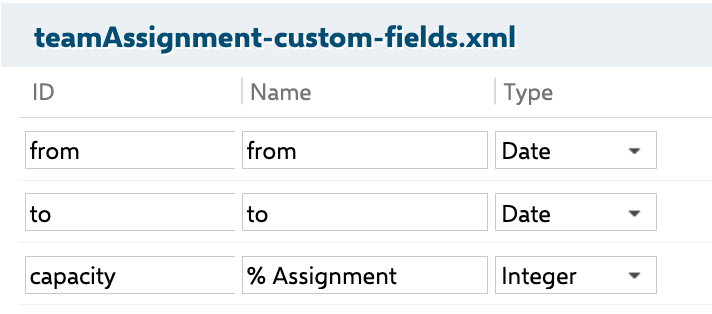
 Add the three custom fields that hold each assignment's period and capacity on the `teamAssignment` type -- `from` and `to` (Date) and `capacity` labeled % Assignment (Integer):
 Create the `assignment` work item link role (opposite role "is assigned to") that connects each Team Assignment to its parent Team:
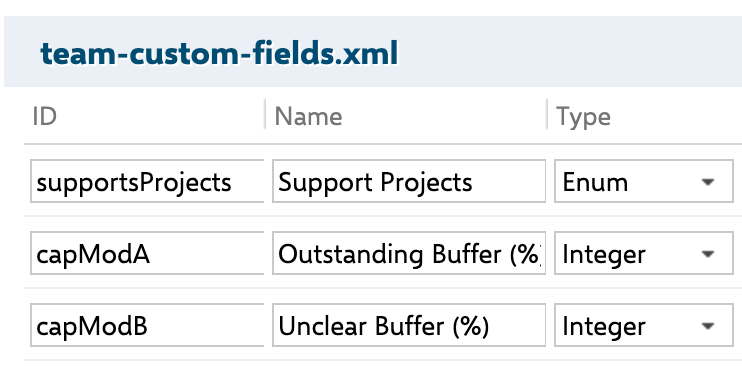
 Optionally, add capacity-modifier custom fields to the `team` type -- `capModA` (Outstanding Buffer %) and `capModB` (Unclear Buffer %) -- to reserve a share of each member's time for unplanned work or future uncertainty:
 Select the start and end date fields that correspond to your team assignment custom fields:
| Parameter | Value |
| --------------- | -------------------------------------------- |
| **Start Field** | Your custom team assignment start date field |
| **End Field** | Your custom team assignment end date field |
Set the **Resource Load Calculation** field to **Assignment Allocation**. This tells the Gantt to calculate resource load based on the percentage allocation specified in each team assignment rather than task estimates.
In the widget parameters under **Resource View**:
1. Set **Show Resource View** to `Yes`
2. Configure the **Resource Field** to point to the assignee field
The resource view displays each team member's allocation percentage. Cells turn green when allocation is within capacity (at or below 100%) and red when the resource is overallocated.
Each Team Assignment work item **must be linked to a parent Team work item**. Assignments not associated with a parent team are ignored during capacity calculations. Verify all team assignment links before relying on the resource view data.
Team Assignment work items are treated specially by the Gantt. The system automatically enforces the presence of fields required for team assignment handling, so you do not need to set those fields as required in Polarion.
## How Allocation Percentages Work
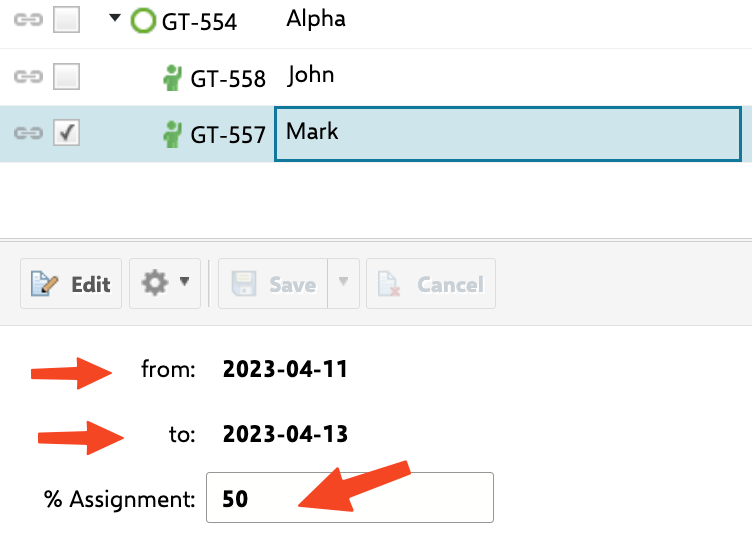
When you open a team assignment in the lightbox, you see two required fields:
* **Assignee** (marked with a red asterisk) -- select the team member from the dropdown
* **Assignment** -- specify the allocation percentage for that member
The lightbox title updates dynamically to show the selected user name and assignment percentage. The resource view then aggregates these percentages across all teams for each user, making overallocation immediately visible.
Select the start and end date fields that correspond to your team assignment custom fields:
| Parameter | Value |
| --------------- | -------------------------------------------- |
| **Start Field** | Your custom team assignment start date field |
| **End Field** | Your custom team assignment end date field |
Set the **Resource Load Calculation** field to **Assignment Allocation**. This tells the Gantt to calculate resource load based on the percentage allocation specified in each team assignment rather than task estimates.
In the widget parameters under **Resource View**:
1. Set **Show Resource View** to `Yes`
2. Configure the **Resource Field** to point to the assignee field
The resource view displays each team member's allocation percentage. Cells turn green when allocation is within capacity (at or below 100%) and red when the resource is overallocated.
Each Team Assignment work item **must be linked to a parent Team work item**. Assignments not associated with a parent team are ignored during capacity calculations. Verify all team assignment links before relying on the resource view data.
Team Assignment work items are treated specially by the Gantt. The system automatically enforces the presence of fields required for team assignment handling, so you do not need to set those fields as required in Polarion.
## How Allocation Percentages Work
When you open a team assignment in the lightbox, you see two required fields:
* **Assignee** (marked with a red asterisk) -- select the team member from the dropdown
* **Assignment** -- specify the allocation percentage for that member
The lightbox title updates dynamically to show the selected user name and assignment percentage. The resource view then aggregates these percentages across all teams for each user, making overallocation immediately visible.
 | Scenario | Resource View Display |
| ------------------------------------------- | -------------------------------------- |
| User at 50% in Team Alpha, 30% in Team Beta | 80% total -- green cell |
| User at 70% in Team Alpha, 50% in Team Beta | 120% total -- red cell (overallocated) |
| User at 100% in one team only | 100% -- green cell |
The resources dropdown in the team assignment lightbox only shows explicit users. The automatic assignee option is not available for team assignments, distinguishing them from regular work item assignments.
## Cross-Project Team Management
If your teams span multiple Polarion projects, you can centralize team management in a single project and reference it from other projects. See [Configure External Team Management Project](/gantt/guides/resources/external-team-management) for details on cross-project team setups.
## Verification
A working setup has each Team work item (Alpha, Beta, Gama) as a parent with its Team Assignment children carrying the assignees:
| Scenario | Resource View Display |
| ------------------------------------------- | -------------------------------------- |
| User at 50% in Team Alpha, 30% in Team Beta | 80% total -- green cell |
| User at 70% in Team Alpha, 50% in Team Beta | 120% total -- red cell (overallocated) |
| User at 100% in one team only | 100% -- green cell |
The resources dropdown in the team assignment lightbox only shows explicit users. The automatic assignee option is not available for team assignments, distinguishing them from regular work item assignments.
## Cross-Project Team Management
If your teams span multiple Polarion projects, you can centralize team management in a single project and reference it from other projects. See [Configure External Team Management Project](/gantt/guides/resources/external-team-management) for details on cross-project team setups.
## Verification
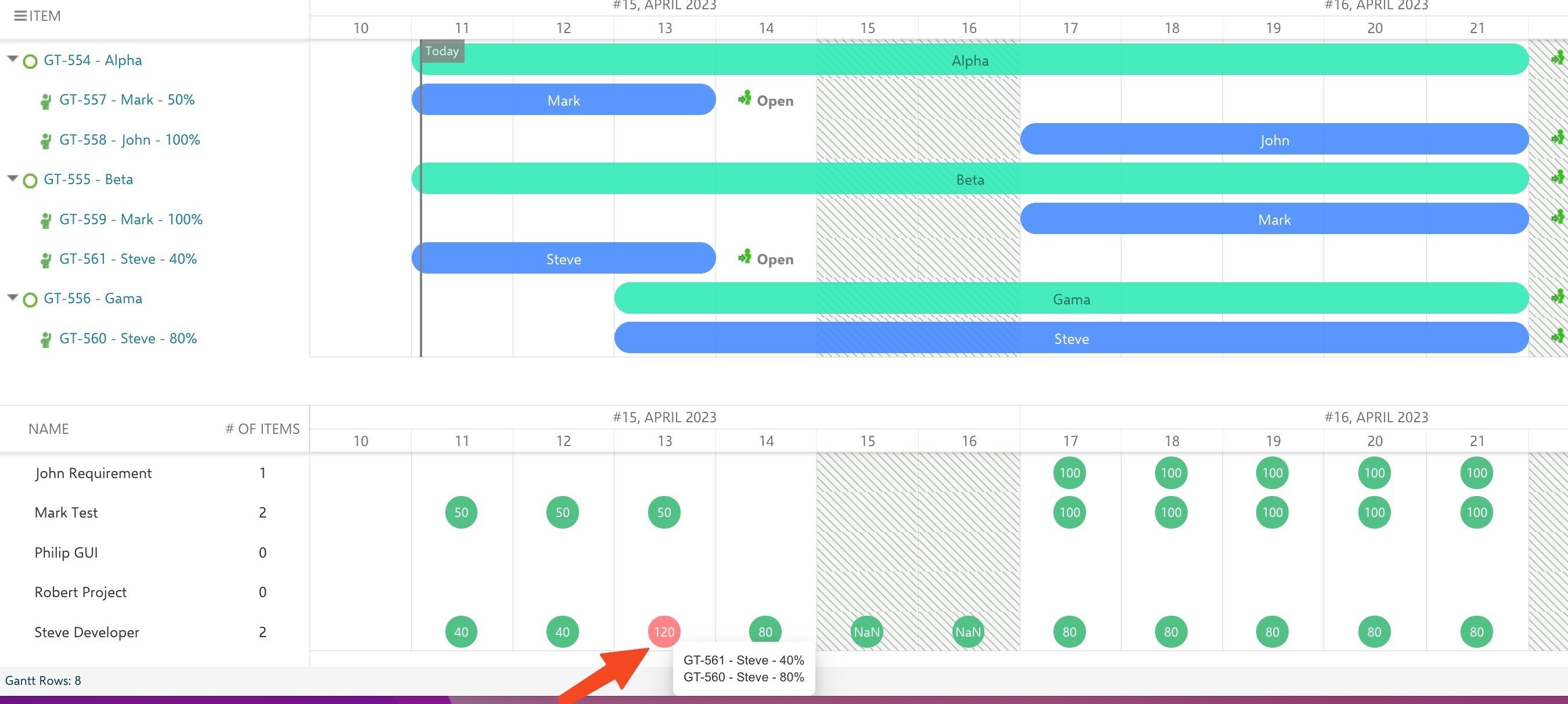
A working setup has each Team work item (Alpha, Beta, Gama) as a parent with its Team Assignment children carrying the assignees:
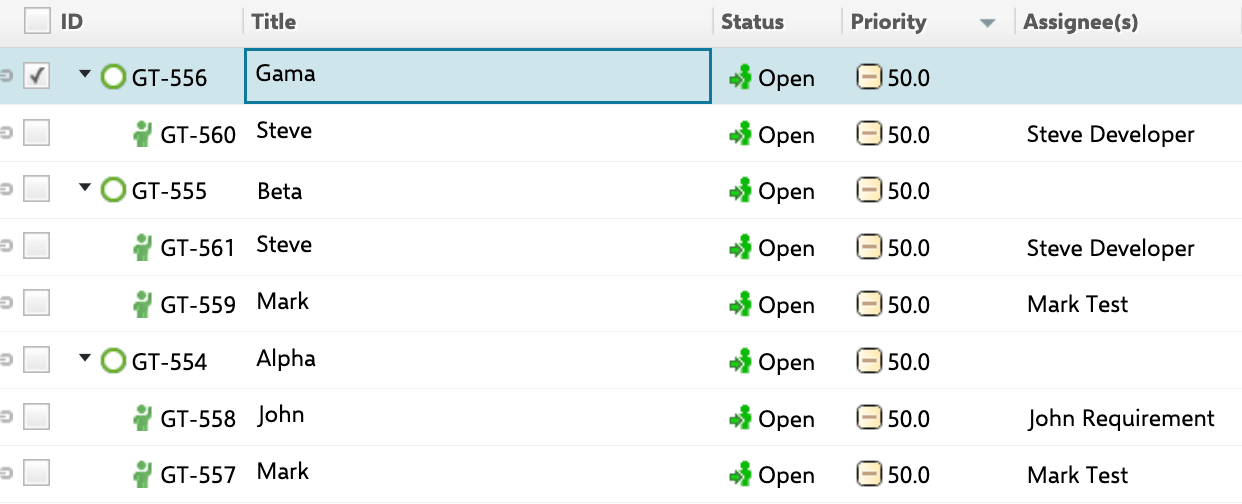 You should now see:
* Team work items displayed as parent rows in the Gantt chart
* Team Assignment work items nested under their respective teams
* The resource view showing allocation percentages per user, with green cells for normal allocation and red cells for overallocation
In the rendered Gantt, teams appear as bars with their assignments below, and the resource view aggregates each user's allocation per day -- here a red bubble flags Steve at a combined 120% (GT-561 at 40% plus GT-560 at 80%):
You should now see:
* Team work items displayed as parent rows in the Gantt chart
* Team Assignment work items nested under their respective teams
* The resource view showing allocation percentages per user, with green cells for normal allocation and red cells for overallocation
In the rendered Gantt, teams appear as bars with their assignments below, and the resource view aggregates each user's allocation per day -- here a red bubble flags Steve at a combined 120% (GT-561 at 40% plus GT-560 at 80%):
 ## See Also
* [Set Up a Cross-Team Gantt Chart](/gantt/guides/resources/cross-team-gantt)
* [Set Up a Release Gantt with Teams](/gantt/guides/resources/release-gantt-with-teams)
* [Configure External Team Management Project](/gantt/guides/resources/external-team-management)
* [Set Up the Resource View](/gantt/guides/resources/resource-view)
* [Configure Resource Fields](/gantt/guides/resources/resource-field-configuration)
## See Also
* [Set Up a Cross-Team Gantt Chart](/gantt/guides/resources/cross-team-gantt)
* [Set Up a Release Gantt with Teams](/gantt/guides/resources/release-gantt-with-teams)
* [Configure External Team Management Project](/gantt/guides/resources/external-team-management)
* [Set Up the Resource View](/gantt/guides/resources/resource-view)
* [Configure Resource Fields](/gantt/guides/resources/resource-field-configuration)