> ## Documentation Index
> Fetch the complete documentation index at: https://learn.nextedy.com/llms.txt
> Use this file to discover all available pages before exploring further.
# Mark Tasks Without Resource Allocation
> Identify unassigned tasks at a glance in Nextedy GANTT by enabling visual indicators that highlight work items missing a resource allocation.
export const LastReviewed = ({date}) => {
if (!date) return null;
const formatted = new Date(`${date}T00:00:00Z`).toLocaleDateString("en-US", {
year: "numeric",
month: "long",
day: "numeric",
timeZone: "UTC"
});
return
Last reviewed on {formatted}
;
};
## How No-Allocation Marking Works
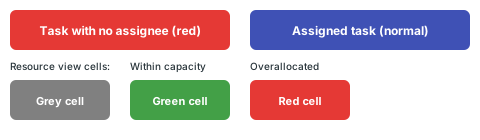
When a task has no assignee, the Gantt chart applies two visual indicators:
1. **Red task bar background** -- the task bar in the Gantt chart receives a red highlight, making it immediately distinguishable from assigned tasks
2. **Grey resource view cell** -- in the resource view, cells for unallocated tasks display with a grey background instead of the usual green or red allocation markers
These indicators help project managers quickly spot work items that need assignment during planning sessions.
| Task State | Task Bar | Resource View Cell |
| ------------------------- | ----------------------------- | ------------------ |
| Assigned, within capacity | Standard color | Green marker |
| Assigned, overallocated | Standard color | Red marker |
| No assignee (active) | Red highlight | Grey cell |
| No assignee, status Done | Standard color (no highlight) | No indicator |
Tasks with a **Done** status are exempt from the no-allocation marking even if they have no resource assignment. This prevents completed items from cluttering the view with false warnings.
To see both the task bar and resource view indicators, enable the resource view in your Gantt widget parameters:
1. Open the Gantt widget parameters
2. Set **Show Resource View** to `Yes`
3. Configure the **Resource Field** (defaults to `assignee`)
To see unallocated tasks grouped in the resource view:
1. In the widget parameters, set **Show Unassigned** to `Yes`
2. This adds a dedicated row in the resource view for all work items that have no value in the resource field
If you use the [Hide Inactive Resources](/gantt/guides/resources/resource-hiding) feature, the Unassigned row remains visible as long as there are unassigned tasks, making it easy to spot items needing attention.
With the configuration in place:
1. Open the Gantt chart and look for task bars highlighted in red -- these are tasks without an assignee
2. Check the resource view for grey cells indicating unallocated time periods
3. Open any highlighted task in the lightbox to assign a resource
 Work items that are filtered from the task list but not hidden may still contribute to resource view markers. If you see unexpected grey cells, check your active filters to ensure items are not being filtered out of the task view while remaining in resource calculations.
If you use team assignments, ensure all team assignment work items are properly linked to their parent team. Unlinked team assignments can cause grey capacity indicators that appear similar to the no-allocation markers but indicate a configuration issue rather than a missing assignee.
## Verification
You should now see:
* Task bars with no assignee highlighted in red in the Gantt chart
* Grey cells in the resource view for unallocated time periods
* Completed (Done) tasks displaying normally without the red highlight, even if they have no assignee
## See Also
* [Set Up the Resource View](/gantt/guides/resources/resource-view)
* [Hide Inactive Resources](/gantt/guides/resources/resource-hiding)
* [Configure Resource Fields](/gantt/guides/resources/resource-field-configuration)
* [Configure Resource Allocation Marker Colors](/gantt/guides/visualization/resource-marker-colors)
* [Filter by Resource and Allocation](/gantt/guides/filtering/filter-by-resource)
Work items that are filtered from the task list but not hidden may still contribute to resource view markers. If you see unexpected grey cells, check your active filters to ensure items are not being filtered out of the task view while remaining in resource calculations.
If you use team assignments, ensure all team assignment work items are properly linked to their parent team. Unlinked team assignments can cause grey capacity indicators that appear similar to the no-allocation markers but indicate a configuration issue rather than a missing assignee.
## Verification
You should now see:
* Task bars with no assignee highlighted in red in the Gantt chart
* Grey cells in the resource view for unallocated time periods
* Completed (Done) tasks displaying normally without the red highlight, even if they have no assignee
## See Also
* [Set Up the Resource View](/gantt/guides/resources/resource-view)
* [Hide Inactive Resources](/gantt/guides/resources/resource-hiding)
* [Configure Resource Fields](/gantt/guides/resources/resource-field-configuration)
* [Configure Resource Allocation Marker Colors](/gantt/guides/visualization/resource-marker-colors)
* [Filter by Resource and Allocation](/gantt/guides/filtering/filter-by-resource)