> ## Documentation Index
> Fetch the complete documentation index at: https://learn.nextedy.com/llms.txt
> Use this file to discover all available pages before exploring further.
# Show Plans and Work Items Together
> Configure the Nextedy GANTT Plans Gantt widget to display Polarion Plans alongside their contained work items in a unified hierarchy on the Gantt chart.
export const LastReviewed = ({date}) => {
if (!date) return null;
const formatted = new Date(`${date}T00:00:00Z`).toLocaleDateString("en-US", {
year: "numeric",
month: "long",
day: "numeric",
timeZone: "UTC"
});
return
Last reviewed on {formatted}
;
};
## Overview
The standard Work Items Gantt shows only work items. The Plans Gantt mode lets you visualize multi-level structures such as:
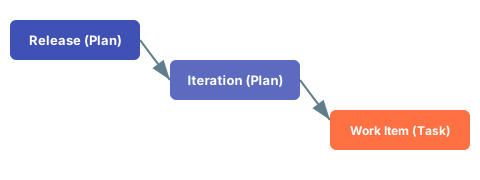
* **Release** (Polarion Plan) > **Iteration** (Polarion Plan) > **Work Package** (work item) > **Task** (work item)
This guide walks you through configuring the Plans Gantt widget to show both plans and their associated work items.
1. Open a Polarion wiki page in edit mode.
2. Add a **Gantt (Plans)** widget to the page.
3. Configure the **Plans data set** parameter to select which plans appear. For example, filter by plan template `Release` to show only release-level plans at the top.
In the widget parameters, navigate to **Plan Types Configurations**:
1. Define which plan types you use (e.g., Release, Iteration).
2. For each plan type, specify which other plan types are allowed as parents. Unlike work items, plans do not use parent-child linking roles -- you only specify the allowed parent plan types.
 Scroll down in the widget parameters to the **Show Plan Work Item** section:
1. Toggle **Enable Show Items** to display work items within plans.
2. Configure the **Data mapping** fields for work items: Start Field, End Field, Duration Field, and Progress Field.
Showing work items under plans is optional. Some configurations only display the plan hierarchy without individual work items.
In the **Work Item Types Configuration** section within the Plans Gantt parameters, define which work item types appear under plans. This configuration is identical to the Work Items Gantt setup:
* Set the **Item Type** to display
* Choose the **Gantt Presentation Mode** (Item, Derived Schedule, Auto-Mode, or Milestone)
* Configure **Parent Mode** and **Parent Types** to control hierarchy placement
Set the **Load Children** parameter to control how many child levels of the hierarchy to display. The value counts child levels below the top-level plans, so `0` shows only the top-level plans. For example:
* `0` -- Shows only the top-level plans
* `1` -- Shows plans and their child plans
* `2` -- Shows plans, child plans, and one more level (e.g., work items)
* `3` -- Shows plans, child plans, and two further levels
If you need work items under iterations under releases (a four-level Release > Iteration > Work Package > Task hierarchy), set Load Children to at least `3` and configure the Parent Link Roles to load work item children.
Plans do not support dependency links between each other. Dependency links can only be created between work items. If you need to establish relationships between plans, use the parent-child plan hierarchy instead.
The Gantt processes items sequentially, not level-by-level. If a work item has multiple parent relationships, it displays under the first-found parent. Use a custom field (such as a dedicated `PlannedIn` custom field) to manage complex parent scenarios.
## Verification
You should now see your plan hierarchy displayed on the Gantt chart with releases at the top level, iterations nested beneath them, and work items shown as task bars under their respective iterations. Plan bars and work item bars are visually distinct.
## See Also
* [Set Up a Plans Gantt Chart](/gantt/getting-started/setup-plans-gantt)
* [Configure Multiple Plan Levels](/gantt/guides/plans/plan-level-configuration)
* [Compute Plan Progress](/gantt/guides/plans/plan-progress)
* [Sync Work Item Dates to Plans](/gantt/guides/plans/sync-to-plans)
* [Derive Schedule from Polarion Plans](/gantt/guides/scheduling/plan-derived-schedule)
Scroll down in the widget parameters to the **Show Plan Work Item** section:
1. Toggle **Enable Show Items** to display work items within plans.
2. Configure the **Data mapping** fields for work items: Start Field, End Field, Duration Field, and Progress Field.
Showing work items under plans is optional. Some configurations only display the plan hierarchy without individual work items.
In the **Work Item Types Configuration** section within the Plans Gantt parameters, define which work item types appear under plans. This configuration is identical to the Work Items Gantt setup:
* Set the **Item Type** to display
* Choose the **Gantt Presentation Mode** (Item, Derived Schedule, Auto-Mode, or Milestone)
* Configure **Parent Mode** and **Parent Types** to control hierarchy placement
Set the **Load Children** parameter to control how many child levels of the hierarchy to display. The value counts child levels below the top-level plans, so `0` shows only the top-level plans. For example:
* `0` -- Shows only the top-level plans
* `1` -- Shows plans and their child plans
* `2` -- Shows plans, child plans, and one more level (e.g., work items)
* `3` -- Shows plans, child plans, and two further levels
If you need work items under iterations under releases (a four-level Release > Iteration > Work Package > Task hierarchy), set Load Children to at least `3` and configure the Parent Link Roles to load work item children.
Plans do not support dependency links between each other. Dependency links can only be created between work items. If you need to establish relationships between plans, use the parent-child plan hierarchy instead.
The Gantt processes items sequentially, not level-by-level. If a work item has multiple parent relationships, it displays under the first-found parent. Use a custom field (such as a dedicated `PlannedIn` custom field) to manage complex parent scenarios.
## Verification
You should now see your plan hierarchy displayed on the Gantt chart with releases at the top level, iterations nested beneath them, and work items shown as task bars under their respective iterations. Plan bars and work item bars are visually distinct.
## See Also
* [Set Up a Plans Gantt Chart](/gantt/getting-started/setup-plans-gantt)
* [Configure Multiple Plan Levels](/gantt/guides/plans/plan-level-configuration)
* [Compute Plan Progress](/gantt/guides/plans/plan-progress)
* [Sync Work Item Dates to Plans](/gantt/guides/plans/sync-to-plans)
* [Derive Schedule from Polarion Plans](/gantt/guides/scheduling/plan-derived-schedule)