> ## Documentation Index
> Fetch the complete documentation index at: https://learn.nextedy.com/llms.txt
> Use this file to discover all available pages before exploring further.
# Use Dynamic Queries with Page Parameters
> This guide shows you how to configure Nextedy GANTT widget queries that respond dynamically to Polarion page parameter selections, letting users switch between data sets without editing the widget con
export const LastReviewed = ({date}) => {
if (!date) return null;
const formatted = new Date(`${date}T00:00:00Z`).toLocaleDateString("en-US", {
year: "numeric",
month: "long",
day: "numeric",
timeZone: "UTC"
});
return
Last reviewed on {formatted}
;
};
## Prerequisites
* Your Gantt page must be a **LiveReport** page (page parameters are a LiveReport feature).
* The widget query type must be set to **Lucene + Velocity** (not pure Lucene).
Page parameters only work when the Gantt widget query is configured as **Lucene + Velocity**. If you use a pure Lucene query, Velocity expressions like `$pageParameters` are not processed and the filter will not apply.
1. Open your Gantt LiveReport page in **Edit** mode.
2. Navigate to the page parameter configuration area.
3. Add a new page parameter. For example, create a parameter with:
* **ID**: `department`
* **Type**: Enum (or any appropriate type for your use case)
* **Label**: Department
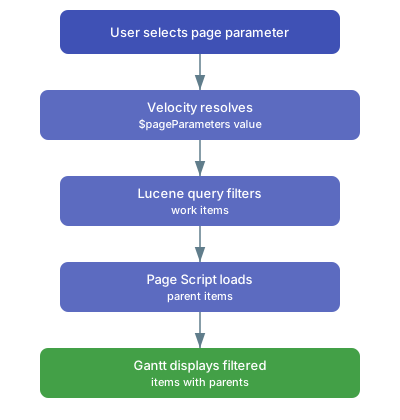
In the Gantt widget configuration, set the **Query Type** to **Lucene + Velocity**, then enter a query that uses the page parameter value:
```velocity theme={null}
type:task AND department.KEY:($pageParameters.department.toLucene())
```
The `$pageParameters.department.toLucene()` expression converts the selected page parameter value into a valid Lucene query fragment.
Always use the `.toLucene()` method on page parameter values to ensure proper escaping and formatting in the Lucene query string.
Page parameters can also drive the Gantt time range. Create `start` and `end` date parameters, then reference them in **Advanced > Gantt Config Script**:
```javascript theme={null}
gantt.config.start_date = new Date($widgetContext.pageParameters.start.value.time);
gantt.config.end_date = new Date($widgetContext.pageParameters.end.value.time);
```
Replace `start` and `end` with your actual parameter IDs if they differ.
When filtering by a page parameter, you may want to display parent items above the filtered work items for context. Use a **Page Script** to traverse parent links and include them in the query:
```velocity theme={null}
#set($parentLinkRole = "parent")
#set($parents = $objectFactory.newSet())
#foreach($i in $transaction.workItems.search.query(
"department.KEY:$pageParameters.department.toLucene()").sort(id))
#if(!$i.isUnresolvable() && $i.can().read())
#foreach($p in $i.fields.linkedWorkItems.direct)
#set($pItem = $p.fields.workItem)
#if(!$pItem.isUnresolvable() && $pItem.can().read()
&& $parentLinkRole.equals($p.fields.role.optionId))
#set($n = $parents.add($pItem.reference.id))
#end
#end
#end
#end
#set($parentQ = "id:(")
#foreach($id in $parents)
#set($parentQ = "$parentQ $id")
#end
#set($parentQ = "$parentQ )")
$!pageContext.put("parentQ", $parentQ)
```
Then include the parent query in the widget query field to add the parent items to the Gantt chart.
 ## Common Use Cases
| Use Case | Parameter Type | Query Pattern |
| -------------------- | -------------- | ---------------------------------------------------------- |
| Filter by department | Enum | `department.KEY:($pageParameters.department.toLucene())` |
| Filter by team | Enum | `team.KEY:($pageParameters.team.toLucene())` |
| Filter by date range | Date | `gantt.config.start_date = new Date(...)` in Config Script |
| Filter by plan level | Enum | Use page parameter to select which plan to display |
## Verification
After configuring dynamic queries, you should now see:
* A page parameter dropdown or selector on your LiveReport page.
* Changing the parameter value reloads the Gantt with a filtered set of work items.
* The funnel icon in the footer reflects any time range filter applied via page parameters.
## See Also
* [Use Gantt Filters](/gantt/guides/filtering/gantt-filters)
* [Configure Page Parameters](/gantt/guides/layout/page-parameters)
* [Write Page Scripts with Velocity](/gantt/guides/scripting/page-script)
* [Configure Multiple Plan Levels](/gantt/guides/plans/plan-level-configuration)
## Common Use Cases
| Use Case | Parameter Type | Query Pattern |
| -------------------- | -------------- | ---------------------------------------------------------- |
| Filter by department | Enum | `department.KEY:($pageParameters.department.toLucene())` |
| Filter by team | Enum | `team.KEY:($pageParameters.team.toLucene())` |
| Filter by date range | Date | `gantt.config.start_date = new Date(...)` in Config Script |
| Filter by plan level | Enum | Use page parameter to select which plan to display |
## Verification
After configuring dynamic queries, you should now see:
* A page parameter dropdown or selector on your LiveReport page.
* Changing the parameter value reloads the Gantt with a filtered set of work items.
* The funnel icon in the footer reflects any time range filter applied via page parameters.
## See Also
* [Use Gantt Filters](/gantt/guides/filtering/gantt-filters)
* [Configure Page Parameters](/gantt/guides/layout/page-parameters)
* [Write Page Scripts with Velocity](/gantt/guides/scripting/page-script)
* [Configure Multiple Plan Levels](/gantt/guides/plans/plan-level-configuration)