Last reviewed on {formatted}
; }; ## Open the Lightbox 1. Enter **Edit mode** by clicking the **Edit** button in the toolbar.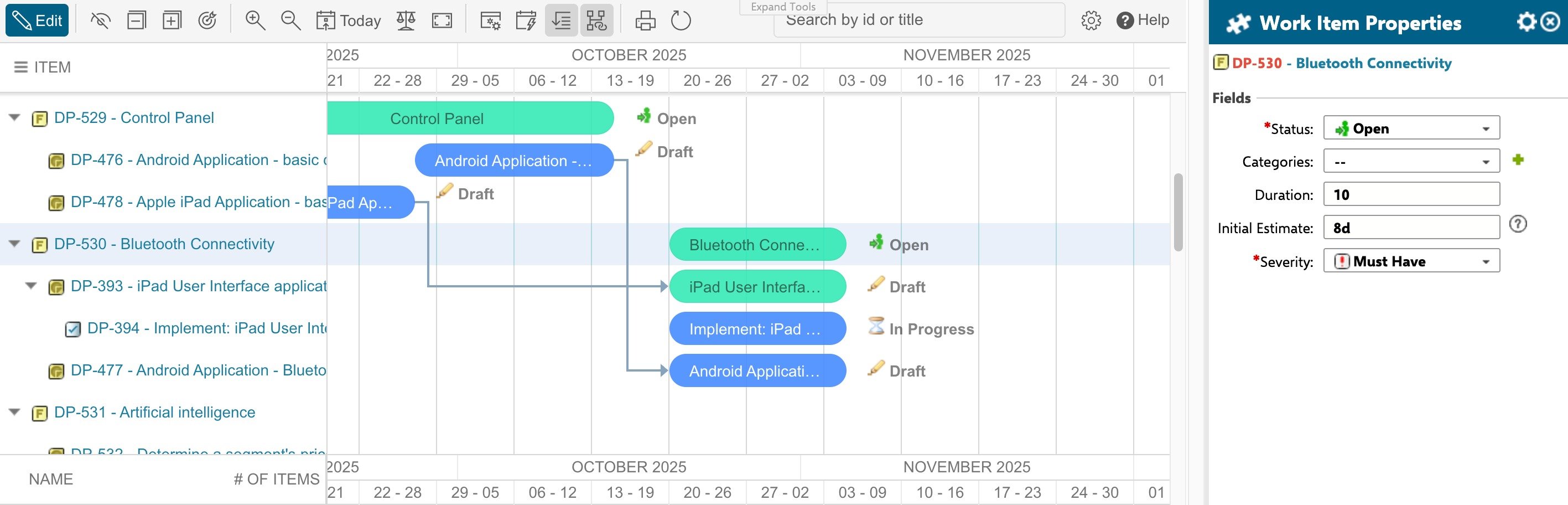 2. Double-click any task bar in the Gantt chart. The lightbox opens as an inline editor overlay.
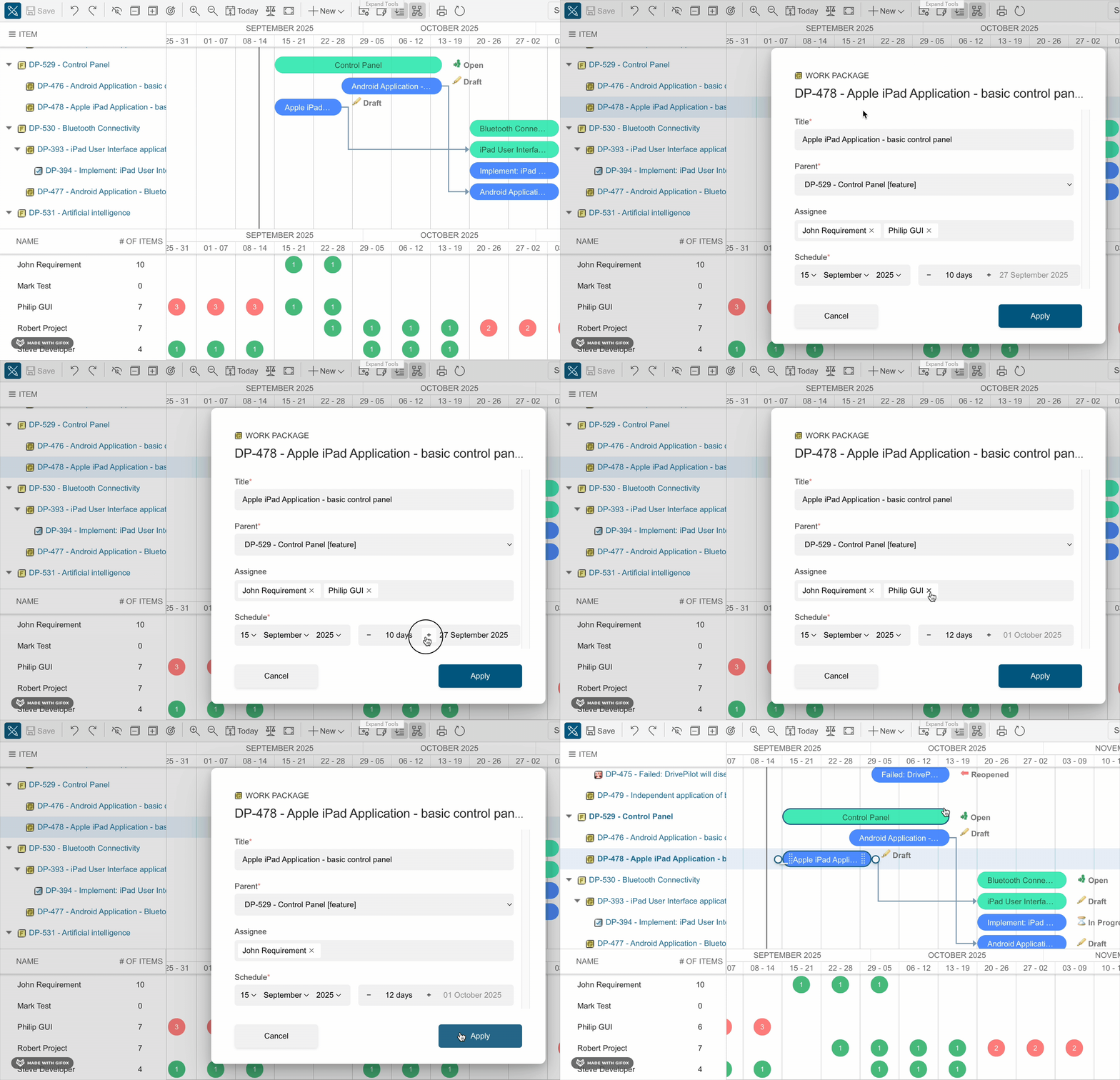 The lightbox displays the core fields by default: **Title**, **Assignee** (the configured resource field), and **Schedule** -- the start date, the duration, and the computed end date grouped together. A **Progress** field and any additional custom fields appear when they are configured (custom fields via **Additional Dialog Fields** in the Work Item Types Configuration).
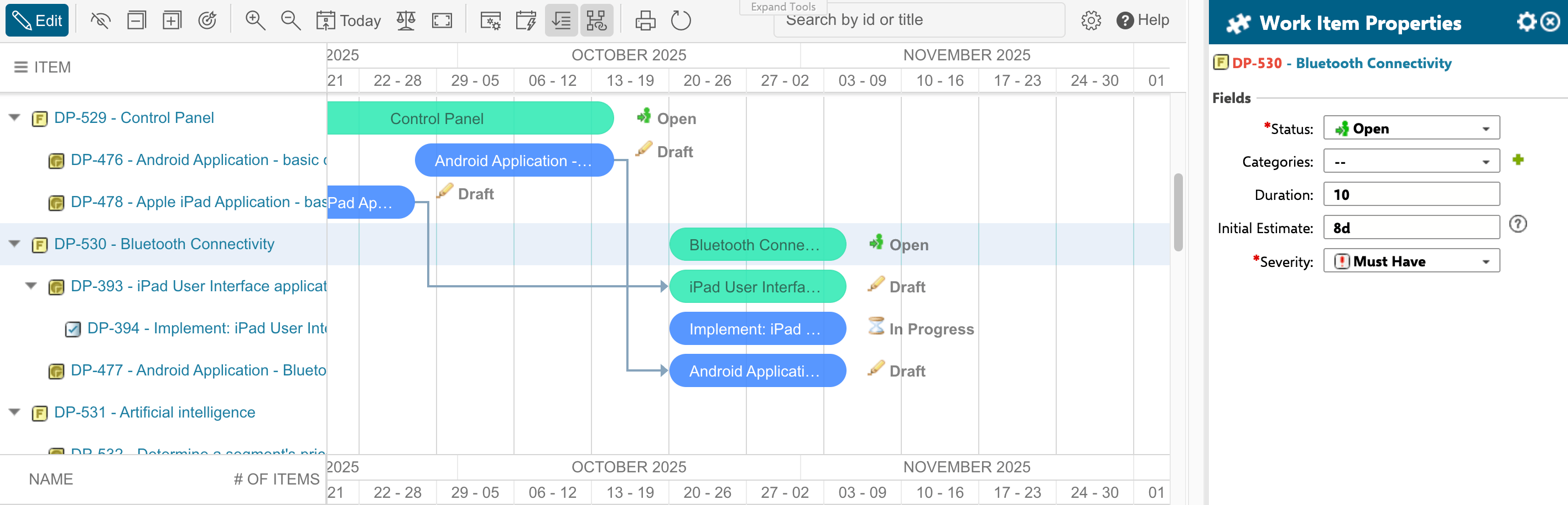
Outside Edit mode (View Mode), clicking a Work Item opens its details in the **Work Item Properties** sidebar (status, estimates, time spent, due date, assignees). Users with edit access can change these fields and click **Save** in the sidebar; Reviewers see them read-only.
The lightbox displays the core fields by default: **Title**, **Assignee** (the configured resource field), and **Schedule** -- the start date, the duration, and the computed end date grouped together. A **Progress** field and any additional custom fields appear when they are configured (custom fields via **Additional Dialog Fields** in the Work Item Types Configuration).
Outside Edit mode (View Mode), clicking a Work Item opens its details in the **Work Item Properties** sidebar (status, estimates, time spent, due date, assignees). Users with edit access can change these fields and click **Save** in the sidebar; Reviewers see them read-only.
 ### Skip View Mode with Always Edit
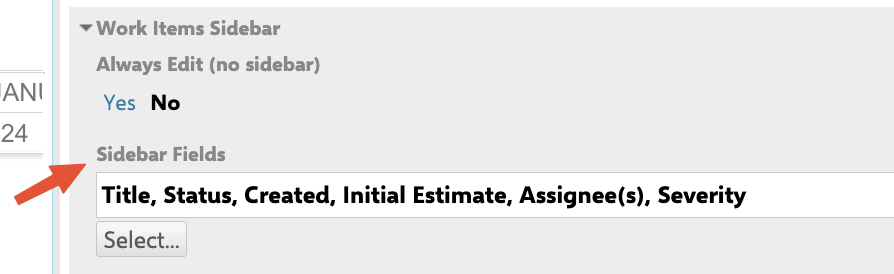
To open the Gantt directly in Edit mode, enable **Always Edit** per widget via **Widget Properties > Work Items Sidebar > Always Edit** (set to **YES**):
### Skip View Mode with Always Edit
To open the Gantt directly in Edit mode, enable **Always Edit** per widget via **Widget Properties > Work Items Sidebar > Always Edit** (set to **YES**):
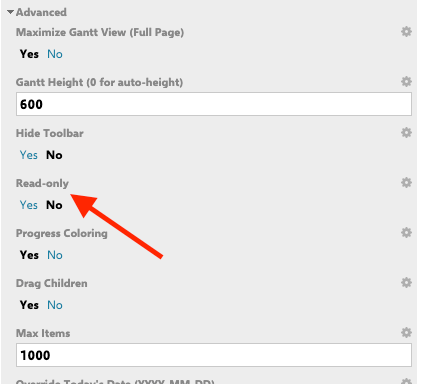
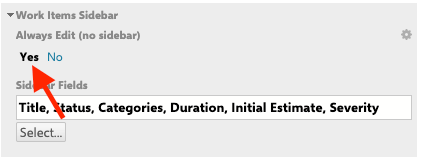 If the **Edit** button is missing from the toolbar, check that **Always Edit** is set to **NO** and that **Read-only** is set to **NO** under **Work Item Parameters > Advanced**:
 ## Edit Fields in the Lightbox
The lightbox supports the following field types:
| Field Type | Input Control | Notes |
| ----------------- | ------------------ | ----------------------------------------------- |
| `TEXT` | Text input | Single-line string values |
| `INTEGER` | Numeric input | Validates integer-only input |
| `FLOAT` | Numeric input | Accepts decimal values |
| `DATE` | Date picker | Day/month/year selectors |
| `DATETIME` | Date + time picker | Includes time selector in hour-precision mode |
| `DURATION` | Duration input | Polarion work-time notation (e.g., `2d 4h 30m`) |
| `SELECT` | Dropdown | Single enumeration value |
| `MULTISELECT` | Multi-picker | Multiple enumeration values |
| `SINGLE_CHECKBOX` | Checkbox | Boolean toggle |
| `RICH_TEXT` | Text area | Multi-line text |
## Edit Fields in the Lightbox
The lightbox supports the following field types:
| Field Type | Input Control | Notes |
| ----------------- | ------------------ | ----------------------------------------------- |
| `TEXT` | Text input | Single-line string values |
| `INTEGER` | Numeric input | Validates integer-only input |
| `FLOAT` | Numeric input | Accepts decimal values |
| `DATE` | Date picker | Day/month/year selectors |
| `DATETIME` | Date + time picker | Includes time selector in hour-precision mode |
| `DURATION` | Duration input | Polarion work-time notation (e.g., `2d 4h 30m`) |
| `SELECT` | Dropdown | Single enumeration value |
| `MULTISELECT` | Multi-picker | Multiple enumeration values |
| `SINGLE_CHECKBOX` | Checkbox | Boolean toggle |
| `RICH_TEXT` | Text area | Multi-line text |
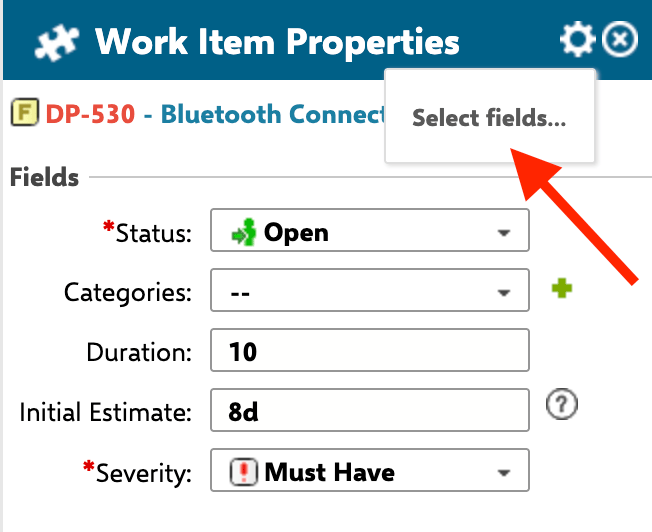
 Individual users can personalize what they see using the **Select Fields** (gear) button in the sidebar. These choices apply only to that user and to all Work Items of the same type:
 ## Change the Parent Task
The lightbox includes a **parent task dropdown** that lists eligible parent tasks based on your Work Item Types Configuration. Select a new parent to reparent the task directly from the editor. Selecting "no parent" detaches the task and makes it a root-level item.
## Validate and Save
Click the 💾 **Save** button to persist your changes. The lightbox runs validation before saving:
* **Required fields** marked with a red asterisk must be filled. The save button remains disabled until all required fields have values.
* **Date range validation** ensures child task dates stay within the parent task's date range. If violated, an inline error message displays the allowed parent date range.
* **Numeric validation** shows an inline error for non-numeric input in integer and float fields.
## Change the Parent Task
The lightbox includes a **parent task dropdown** that lists eligible parent tasks based on your Work Item Types Configuration. Select a new parent to reparent the task directly from the editor. Selecting "no parent" detaches the task and makes it a root-level item.
## Validate and Save
Click the 💾 **Save** button to persist your changes. The lightbox runs validation before saving:
* **Required fields** marked with a red asterisk must be filled. The save button remains disabled until all required fields have values.
* **Date range validation** ensures child task dates stay within the parent task's date range. If violated, an inline error message displays the allowed parent date range.
* **Numeric validation** shows an inline error for non-numeric input in integer and float fields.
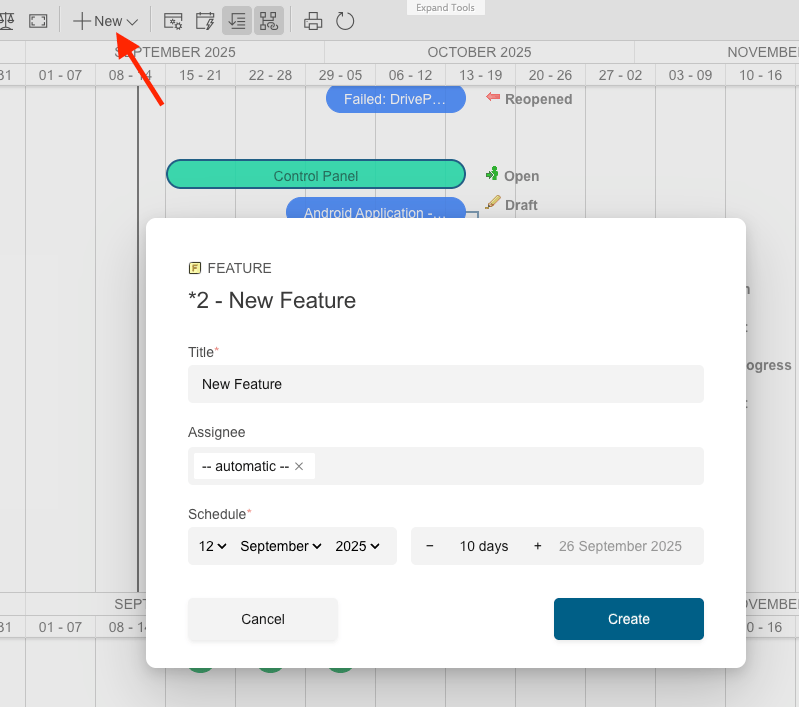 2. Select the work item type to create.
3. The lightbox opens with default field values pre-populated from your configuration.
4. Fill in the required fields and click **Save**.
For new tasks, the save button is disabled until all required fields are completed. The delete button does not appear when creating a new task.
## Delete a Task
When editing an existing task, the lightbox displays a **Delete** button. Clicking it removes the task after a confirmation prompt.
2. Select the work item type to create.
3. The lightbox opens with default field values pre-populated from your configuration.
4. Fill in the required fields and click **Save**.
For new tasks, the save button is disabled until all required fields are completed. The delete button does not appear when creating a new task.
## Delete a Task
When editing an existing task, the lightbox displays a **Delete** button. Clicking it removes the task after a confirmation prompt.