> ## Documentation Index
> Fetch the complete documentation index at: https://learn.nextedy.com/llms.txt
> Use this file to discover all available pages before exploring further.
# Configure Additional Fields in Create Dialog
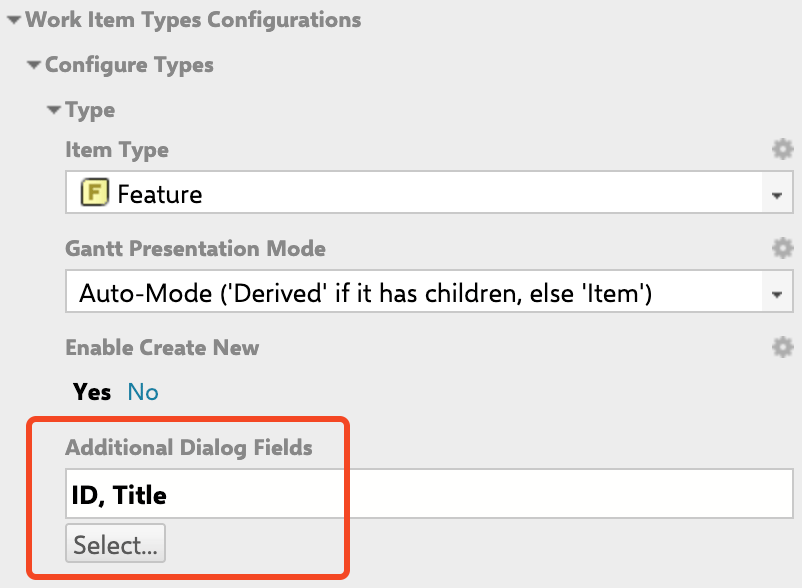
> Add custom Polarion fields to the Nextedy GANTT create and edit dialog so users can fill in project-specific data without leaving the Gantt chart.
export const LastReviewed = ({date}) => {
if (!date) return null;
const formatted = new Date(`${date}T00:00:00Z`).toLocaleDateString("en-US", {
year: "numeric",
month: "long",
day: "numeric",
timeZone: "UTC"
});
return
Last reviewed on {formatted}
;
};
## Prerequisites
* Gantt version **25.3.1** or later
* Access to the Gantt widget parameter configuration (editor or admin role)
1. Open the Gantt page in edit mode.
2. Open **Parameters** (click the ⚙️ settings icon in the toolbar or access the wiki page parameter editor).
3. Navigate to **Work Item Types Configurations**.
4. Select the **Item Type** you want to configure.
1. Locate the **Additional Dialog Fields** section within the selected type configuration.
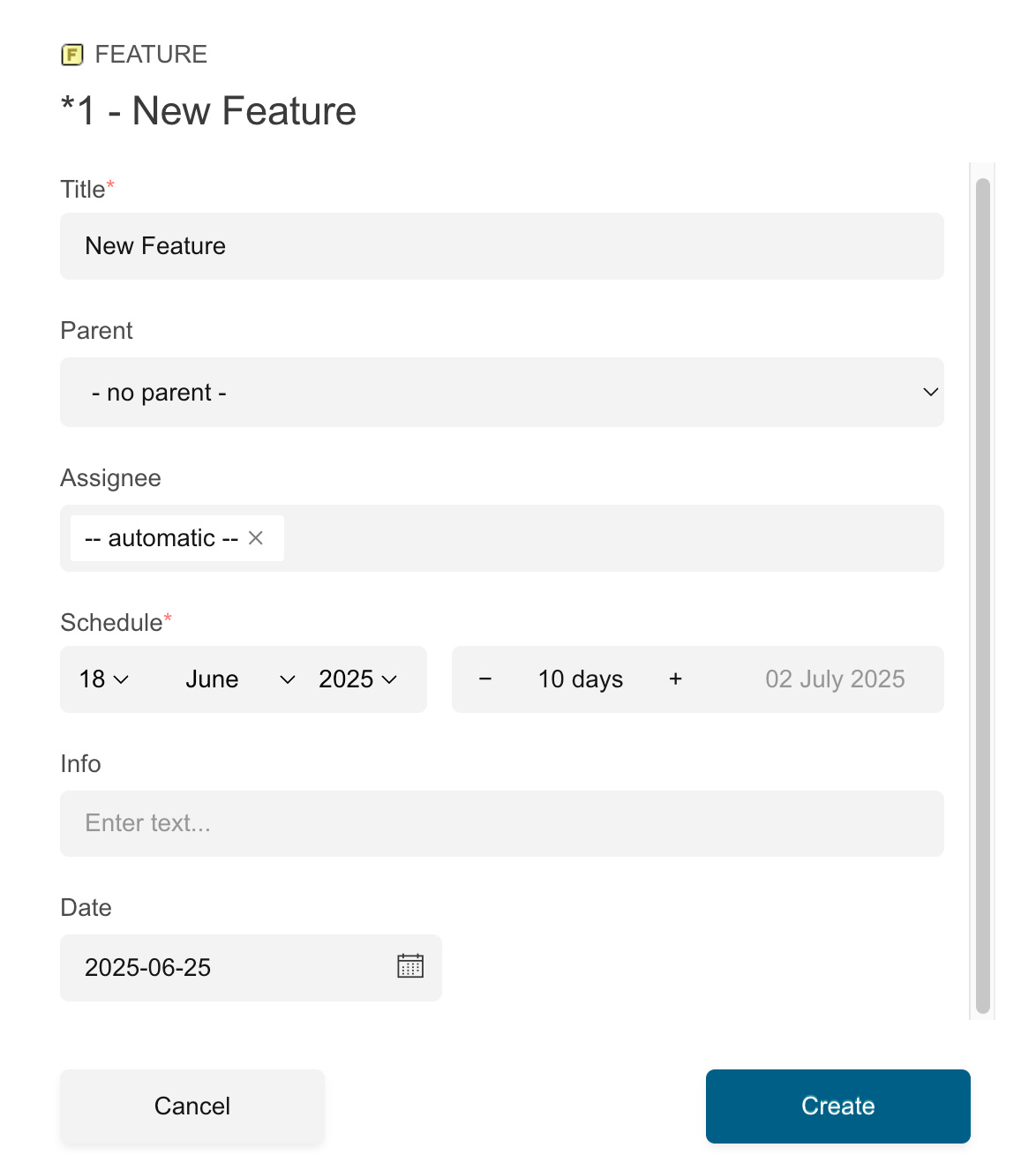 2. Click to add fields. You can select from available Polarion custom fields defined in your project.
3. Reorder fields by dragging them in the selection list. The order determines how fields appear in the dialog.
2. Click to add fields. You can select from available Polarion custom fields defined in your project.
3. Reorder fields by dragging them in the selection list. The order determines how fields appear in the dialog.
 ## Supported Field Types
| Field Type | Supported Since | Notes |
| ------------------------------------- | --------------- | ----------------------------------------------------------------- |
| String | 25.3.1 | Single-line text input |
| Integer | 25.3.1 | Validated numeric input |
| Float | 25.3.1 | Decimal numeric input |
| Boolean | 25.3.1 | Single checkbox |
| Multi-line Text | 25.3.1 | Text area |
| Duration | 25.3.1 | Polarion work-time notation (e.g., `2d 4h`) |
| Enumerations (single and multi-value) | 25.3.1 | Dropdown or multi-select picker |
| Category | 25.3.1 | Category enumeration |
| Date | 25.5.1 | Date picker |
| Date time | 25.5.1 | Date + time picker |
| Assignee | 25.5.1 | User picker (useful when Resource is mapped to a different field) |
| Custom Fields mapped as Resources | 25.5.1 | Resource-mapped custom fields |
| Planned In | 25.7.0 | Plan assignment picker |
**Currently unsupported:** Rich-text, Dependent Enumerations, Priority, Time Point, and complex fields (comments, attachments, Linked Work Items, hyperlinks).
If you add an unsupported field type, the system displays a warning and ignores the field. You do not need to check compatibility manually.
For example, adding the unsupported **Priority** field to the dialog configuration:
## Supported Field Types
| Field Type | Supported Since | Notes |
| ------------------------------------- | --------------- | ----------------------------------------------------------------- |
| String | 25.3.1 | Single-line text input |
| Integer | 25.3.1 | Validated numeric input |
| Float | 25.3.1 | Decimal numeric input |
| Boolean | 25.3.1 | Single checkbox |
| Multi-line Text | 25.3.1 | Text area |
| Duration | 25.3.1 | Polarion work-time notation (e.g., `2d 4h`) |
| Enumerations (single and multi-value) | 25.3.1 | Dropdown or multi-select picker |
| Category | 25.3.1 | Category enumeration |
| Date | 25.5.1 | Date picker |
| Date time | 25.5.1 | Date + time picker |
| Assignee | 25.5.1 | User picker (useful when Resource is mapped to a different field) |
| Custom Fields mapped as Resources | 25.5.1 | Resource-mapped custom fields |
| Planned In | 25.7.0 | Plan assignment picker |
**Currently unsupported:** Rich-text, Dependent Enumerations, Priority, Time Point, and complex fields (comments, attachments, Linked Work Items, hyperlinks).
If you add an unsupported field type, the system displays a warning and ignores the field. You do not need to check compatibility manually.
For example, adding the unsupported **Priority** field to the dialog configuration:
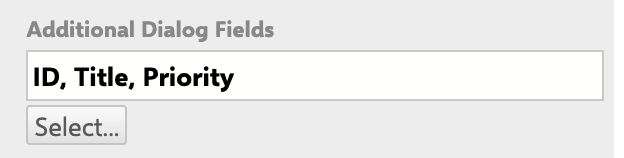 The field is ignored and the following warning is shown:
 Starting with version **25.7.0**, fields required by the initial workflow transition are enforced in the dialog. If a required field is missing from your Additional Dialog Fields configuration, a warning appears in the editor view.
For example, an initial action named **Set Area** is added with the **Area** field marked as required:
Starting with version **25.7.0**, fields required by the initial workflow transition are enforced in the dialog. If a required field is missing from your Additional Dialog Fields configuration, a warning appears in the editor view.
For example, an initial action named **Set Area** is added with the **Area** field marked as required:
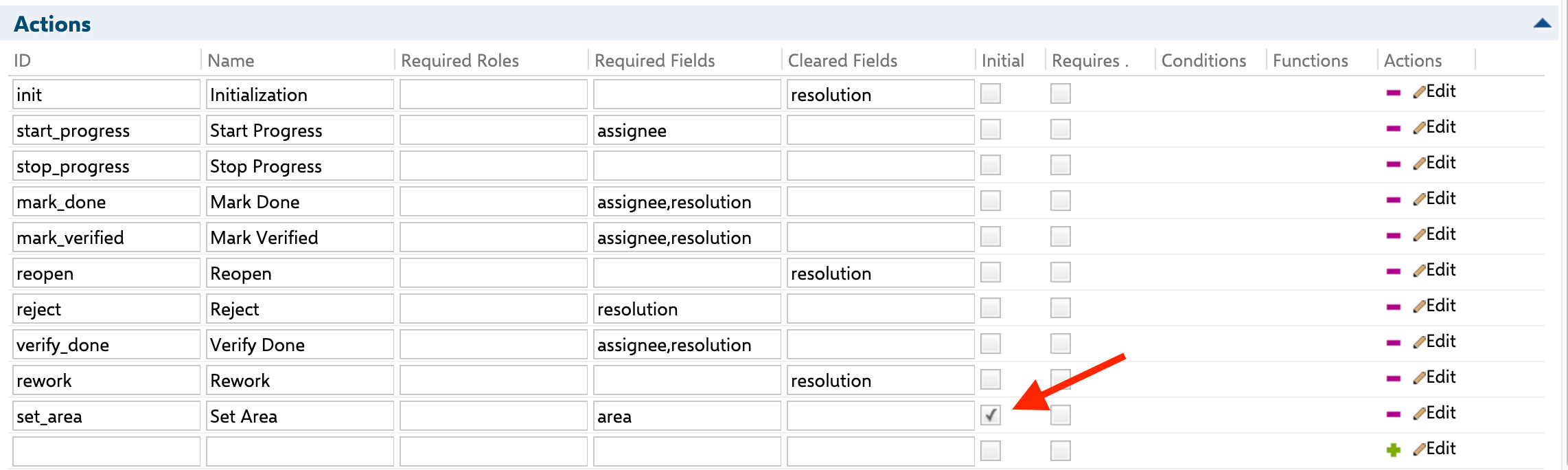 Because the required **Area** field is not included in the dialog configuration, the following warning appears in the edit view:
 Ensure all fields required by the workflow's initial action are included in the dialog configuration.
Fields already used in Data Mapping (such as `startField`, `endField`, `durationField`, `resourceField`, or `progressField`) cannot be added to Additional Dialog Fields. The system prevents this and displays an error. Remove the field from Data Mapping first, or use a different field.
For example, the **Duration** field is already used in the Data Mapping configuration:
Ensure all fields required by the workflow's initial action are included in the dialog configuration.
Fields already used in Data Mapping (such as `startField`, `endField`, `durationField`, `resourceField`, or `progressField`) cannot be added to Additional Dialog Fields. The system prevents this and displays an error. Remove the field from Data Mapping first, or use a different field.
For example, the **Duration** field is already used in the Data Mapping configuration:
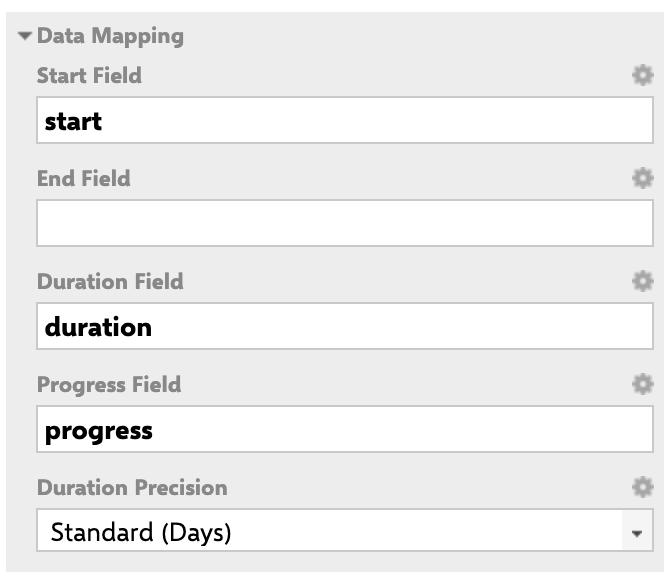 Adding that same field to the dialog configuration triggers an error:
 Custom fields in the dialog can have default values pre-populated when creating a new work item. Default values are supported for:
* **Enum (select)** fields: pre-selected option
* **Text (textarea)** fields: pre-filled text
* **Float (input)** fields: pre-filled numeric value
Since version **25.6.0**, Polarion auto-assignment rules are automatically applied when creating work items from the Gantt chart. The correct assignee is set without manual input.
The dialog enforces these validation rules:
* **Field permissions**: Read-only or editable access is determined by Polarion role permissions, not dialog configuration.
* **Required fields**: Fields marked as required must be filled before saving. The save button is disabled until all required fields have values.
* **Inline validation**: Numeric fields (integer, float) show inline error text when non-numeric characters are entered.
If work item creation fails, the Gantt does not refresh, allowing you to correct the data and retry. Alternatively, you can create the work item via the standard Polarion form and copy the data.
Once a custom field is added to the dialog through Parameters, it appears when creating or editing a Work Item. For example, an Enumeration-type **Department** custom field added to the dialog:
Custom fields in the dialog can have default values pre-populated when creating a new work item. Default values are supported for:
* **Enum (select)** fields: pre-selected option
* **Text (textarea)** fields: pre-filled text
* **Float (input)** fields: pre-filled numeric value
Since version **25.6.0**, Polarion auto-assignment rules are automatically applied when creating work items from the Gantt chart. The correct assignee is set without manual input.
The dialog enforces these validation rules:
* **Field permissions**: Read-only or editable access is determined by Polarion role permissions, not dialog configuration.
* **Required fields**: Fields marked as required must be filled before saving. The save button is disabled until all required fields have values.
* **Inline validation**: Numeric fields (integer, float) show inline error text when non-numeric characters are entered.
If work item creation fails, the Gantt does not refresh, allowing you to correct the data and retry. Alternatively, you can create the work item via the standard Polarion form and copy the data.
Once a custom field is added to the dialog through Parameters, it appears when creating or editing a Work Item. For example, an Enumeration-type **Department** custom field added to the dialog:
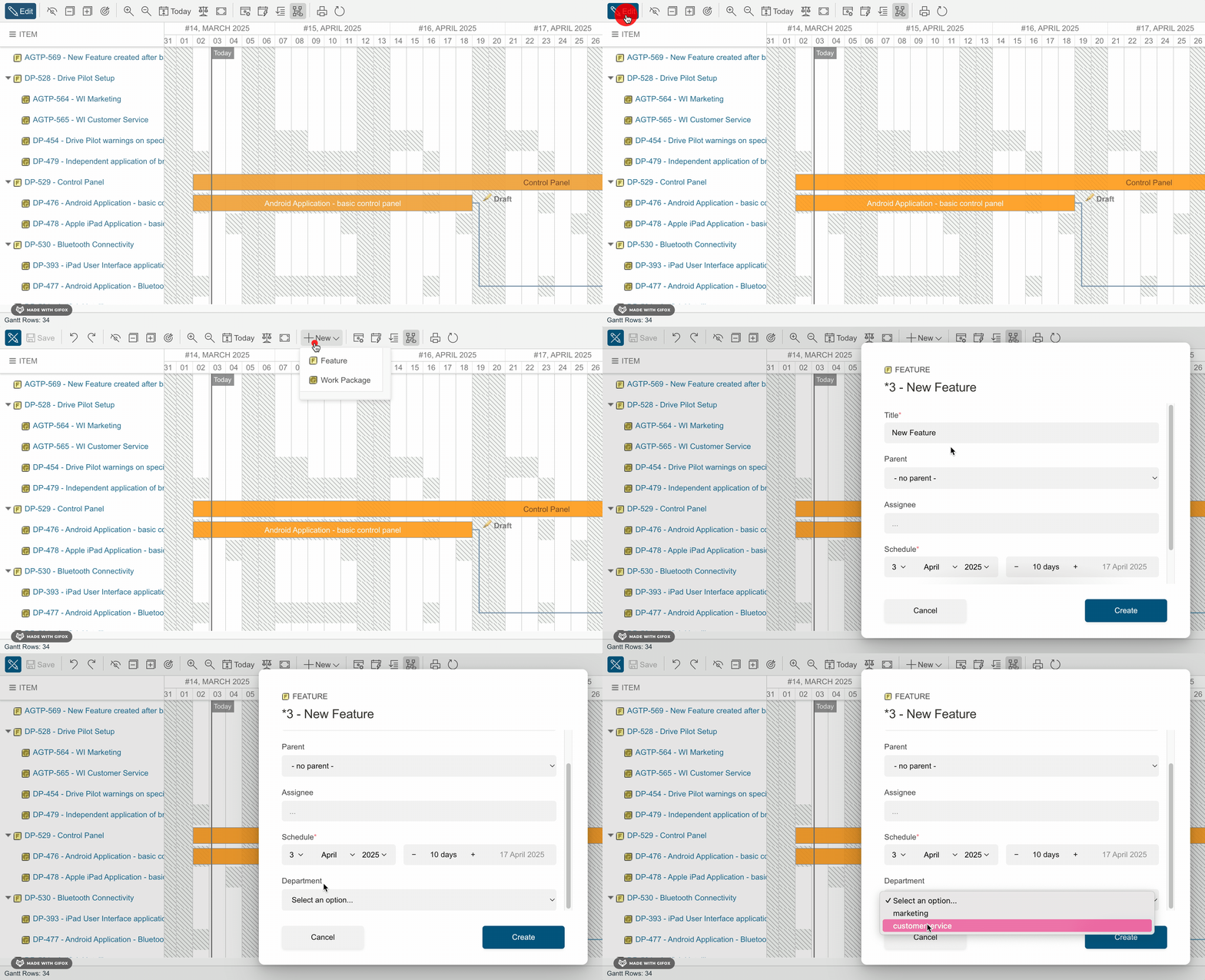
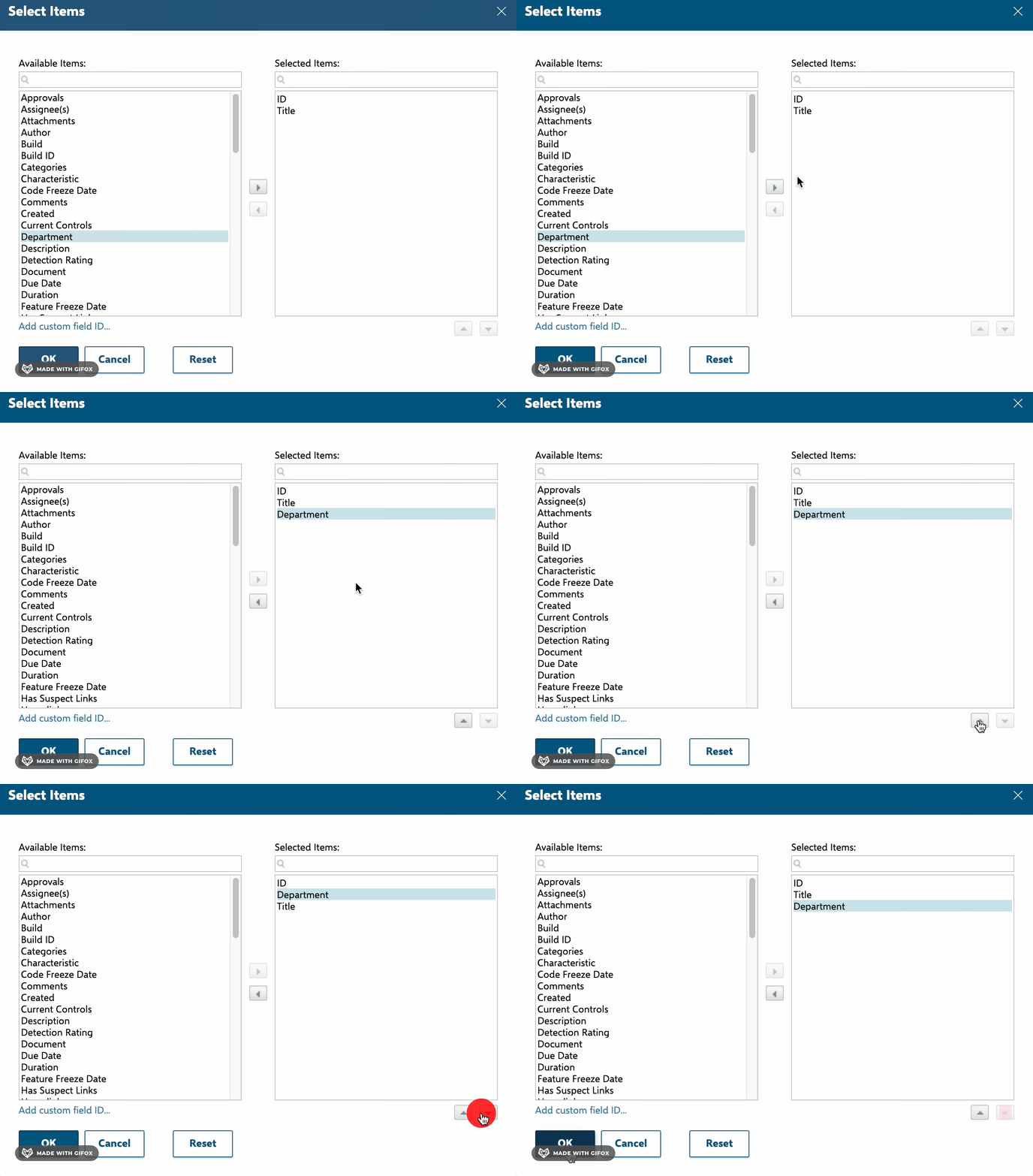 When creating or editing a Work Item, the newly added **Department** dropdown appears in the dialog:
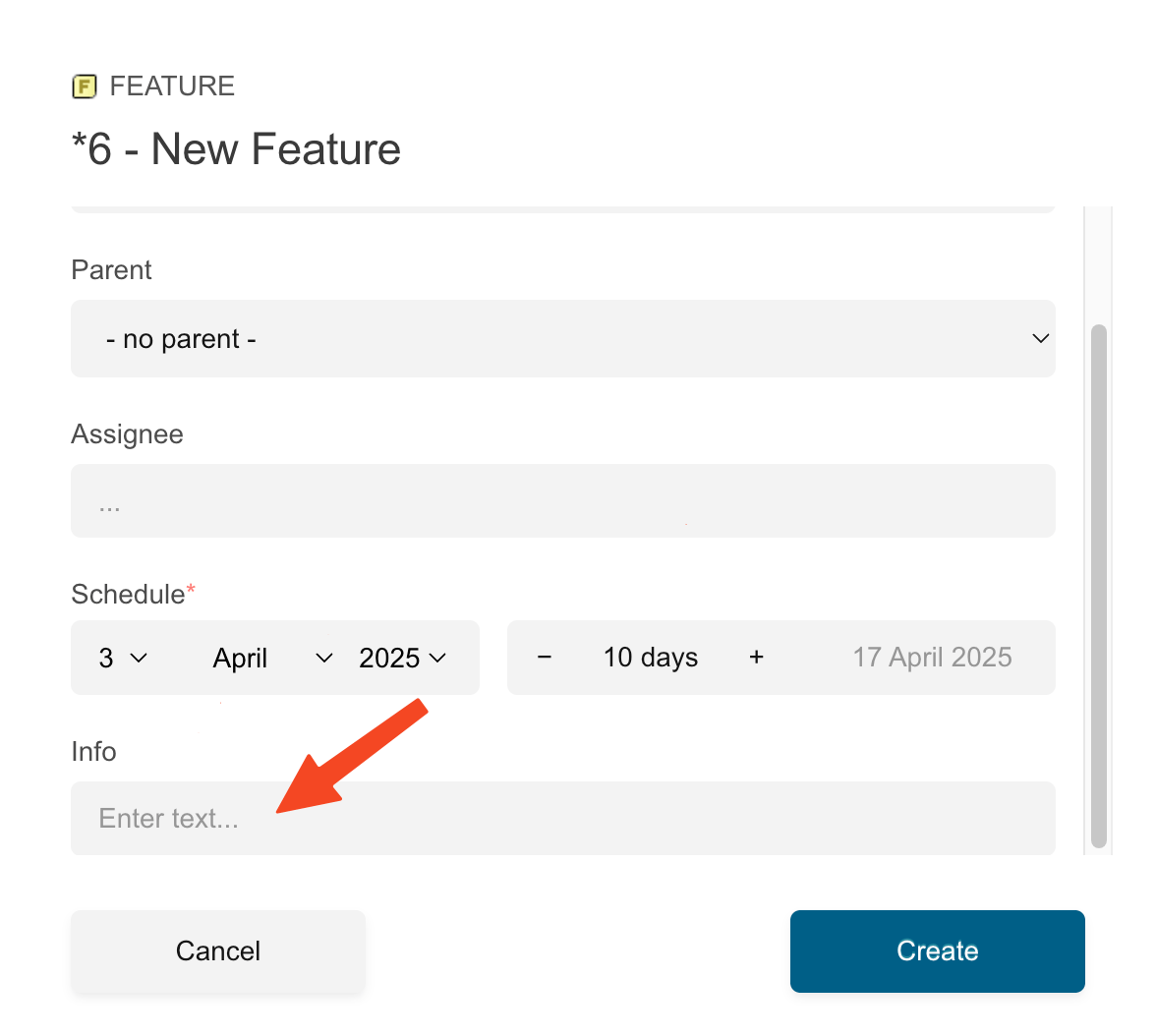
 A simple String-type custom field behaves the same way in the dialog:
 ## Verification
You should now see the configured fields appear in the create/edit dialog when you click ➕ **New** and select the configured work item type. Required fields display a red asterisk, and the save button enables only after all required fields are filled.
## See Also
* [Use the Lightbox Inline Editor](/gantt/guides/editing/lightbox-editor)
* [Track and Calculate Progress](/gantt/guides/editing/progress-tracking)
* [Configure Resource Fields](/gantt/guides/resources/resource-field-configuration)
## Verification
You should now see the configured fields appear in the create/edit dialog when you click ➕ **New** and select the configured work item type. Required fields display a red asterisk, and the save button enables only after all required fields are filled.
## See Also
* [Use the Lightbox Inline Editor](/gantt/guides/editing/lightbox-editor)
* [Track and Calculate Progress](/gantt/guides/editing/progress-tracking)
* [Configure Resource Fields](/gantt/guides/resources/resource-field-configuration)