> ## Documentation Index
> Fetch the complete documentation index at: https://learn.nextedy.com/llms.txt
> Use this file to discover all available pages before exploring further.
# Create and Configure Dependency Links
> Set up Nextedy GANTT to display and manage task dependencies by configuring link roles, creating links visually, and controlling link direction.
export const LastReviewed = ({date}) => {
if (!date) return null;
const formatted = new Date(`${date}T00:00:00Z`).toLocaleDateString("en-US", {
year: "numeric",
month: "long",
day: "numeric",
timeZone: "UTC"
});
return
Last reviewed on {formatted}
;
};
## Step 1: Configure the Dependency Role
Before you can create dependency links, tell the Gantt which Polarion link role represents task dependencies:
1. Open the page in edit mode and access **Widget Properties**.
2. Navigate to **Work Items > Dependency Role**.
3. Select one or more link roles that represent dependency relationships (e.g., `depends_on`).
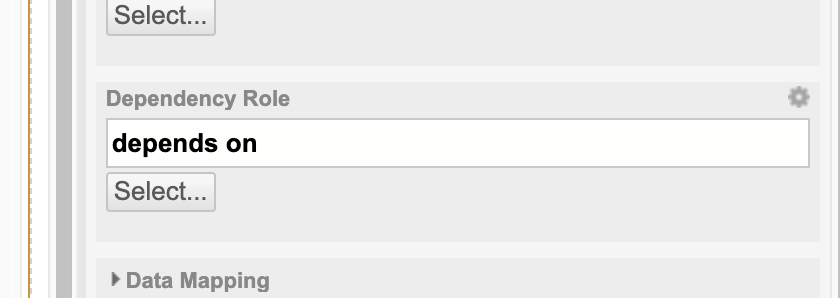 If you select multiple link roles, the **first selected role** is used when you create new dependency links by dragging on the chart.
If the Dependency Role parameter is left empty, no dependency arrows are displayed in the Gantt chart, and users cannot create new links.
## Step 2: Create a Dependency Link Visually
With the Dependency Role configured and the Gantt in edit mode:
1. Hover over a task bar to reveal the link handle circles at the left and right edges.
2. Click and drag from one task's link handle to another task.
3. Release the mouse on the target task to create the dependency link.
If you select multiple link roles, the **first selected role** is used when you create new dependency links by dragging on the chart.
If the Dependency Role parameter is left empty, no dependency arrows are displayed in the Gantt chart, and users cannot create new links.
## Step 2: Create a Dependency Link Visually
With the Dependency Role configured and the Gantt in edit mode:
1. Hover over a task bar to reveal the link handle circles at the left and right edges.
2. Click and drag from one task's link handle to another task.
3. Release the mouse on the target task to create the dependency link.
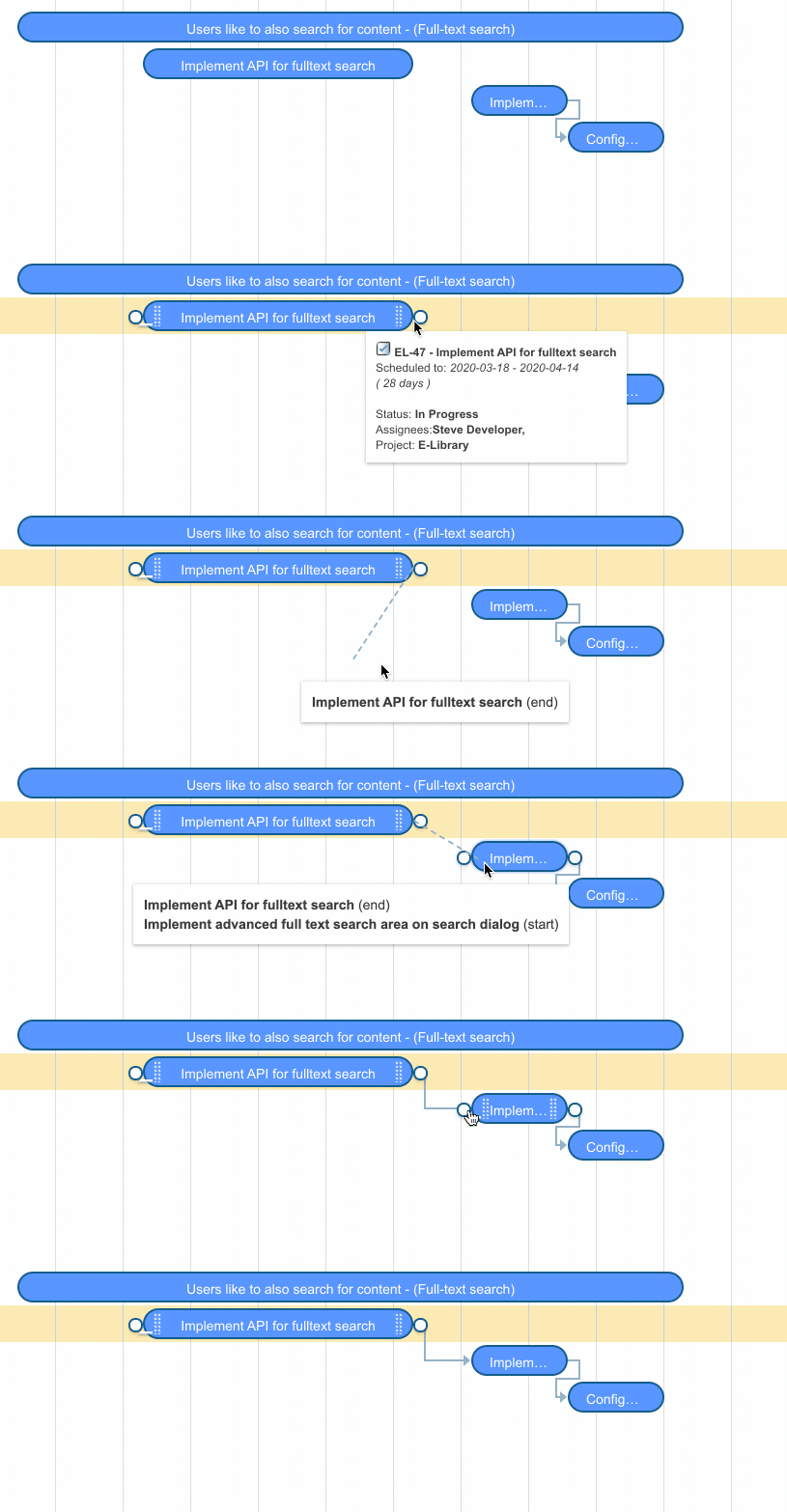 An arrow appears between the two task bars, showing the dependency relationship.

 ## Step 3: Understand Link Direction
By default, Polarion's `depends_on` link role connects the dependent item to its source. Gantt automatically **reverses the arrow direction** so it displays correctly on the Gantt chart (from predecessor to successor).
If your Polarion project uses a custom link role where the source points to the dependent item, set the following configuration property in **Administration > Configuration Properties**:
```
nextedy.gantt.workitems.default.forward_dependency=true
```
## Dependency Types
The default dependency type is **Finish-to-Start (FS)**: the successor cannot start until the predecessor finishes. For advanced dependency types (SS, FF, SF), see [Configure Advanced Dependency Types (FS, SS, FF, SF)](/gantt/guides/dependencies/advanced-dependency-types).
| Type | Code | Meaning |
| ---------------- | ---- | --------------------------------------------------- |
| Finish-to-Start | FS | Successor cannot start before predecessor finishes |
| Start-to-Start | SS | Successor cannot start before predecessor starts |
| Finish-to-Finish | FF | Successor cannot finish before predecessor finishes |
| Start-to-Finish | SF | Successor cannot finish before predecessor starts |
Dependency links are supported between work items in the Work Items Gantt. Plans in the Plans Gantt use parent-child relationships only and do not support direct dependency links between plan items.
When a dependency constraint is violated (e.g., a successor starts before its predecessor finishes in an FS relationship), the Gantt displays a red dotted line under the incorrectly positioned task. Move the task to satisfy the dependency rules to resolve the warning.
## Step 4: Delete a Dependency Link
To remove a dependency link:
1. Enter edit mode.
2. Click on the dependency arrow between two tasks.
3. Confirm the deletion when prompted.
The Polarion link between the two work items is also removed.
## Verification
You should now see:
* Dependency arrows displayed between linked tasks on the Gantt chart
* The ability to create new links by dragging between task bars in edit mode
* Arrows pointing from predecessor to successor in the correct direction
## See Also
* [Create Your First Dependency Link](/gantt/getting-started/first-dependency)
* [Configure Advanced Dependency Types (FS, SS, FF, SF)](/gantt/guides/dependencies/advanced-dependency-types)
* [Configure Link Lag and Delay](/gantt/guides/dependencies/link-lag)
* [Disable Dependency Linking](/gantt/guides/dependencies/disable-linking)
* [Configure Auto-Scheduling](/gantt/guides/scheduling/configure-auto-scheduling)
## Step 3: Understand Link Direction
By default, Polarion's `depends_on` link role connects the dependent item to its source. Gantt automatically **reverses the arrow direction** so it displays correctly on the Gantt chart (from predecessor to successor).
If your Polarion project uses a custom link role where the source points to the dependent item, set the following configuration property in **Administration > Configuration Properties**:
```
nextedy.gantt.workitems.default.forward_dependency=true
```
## Dependency Types
The default dependency type is **Finish-to-Start (FS)**: the successor cannot start until the predecessor finishes. For advanced dependency types (SS, FF, SF), see [Configure Advanced Dependency Types (FS, SS, FF, SF)](/gantt/guides/dependencies/advanced-dependency-types).
| Type | Code | Meaning |
| ---------------- | ---- | --------------------------------------------------- |
| Finish-to-Start | FS | Successor cannot start before predecessor finishes |
| Start-to-Start | SS | Successor cannot start before predecessor starts |
| Finish-to-Finish | FF | Successor cannot finish before predecessor finishes |
| Start-to-Finish | SF | Successor cannot finish before predecessor starts |
Dependency links are supported between work items in the Work Items Gantt. Plans in the Plans Gantt use parent-child relationships only and do not support direct dependency links between plan items.
When a dependency constraint is violated (e.g., a successor starts before its predecessor finishes in an FS relationship), the Gantt displays a red dotted line under the incorrectly positioned task. Move the task to satisfy the dependency rules to resolve the warning.
## Step 4: Delete a Dependency Link
To remove a dependency link:
1. Enter edit mode.
2. Click on the dependency arrow between two tasks.
3. Confirm the deletion when prompted.
The Polarion link between the two work items is also removed.
## Verification
You should now see:
* Dependency arrows displayed between linked tasks on the Gantt chart
* The ability to create new links by dragging between task bars in edit mode
* Arrows pointing from predecessor to successor in the correct direction
## See Also
* [Create Your First Dependency Link](/gantt/getting-started/first-dependency)
* [Configure Advanced Dependency Types (FS, SS, FF, SF)](/gantt/guides/dependencies/advanced-dependency-types)
* [Configure Link Lag and Delay](/gantt/guides/dependencies/link-lag)
* [Disable Dependency Linking](/gantt/guides/dependencies/disable-linking)
* [Configure Auto-Scheduling](/gantt/guides/scheduling/configure-auto-scheduling)