> ## Documentation Index
> Fetch the complete documentation index at: https://learn.nextedy.com/llms.txt
> Use this file to discover all available pages before exploring further.
# Configure Advanced Dependency Types (FS, SS, FF, SF)
> Configure Nextedy GANTT to use all four dependency types -- Finish-to-Start, Start-to-Start, Finish-to-Finish, and Start-to-Finish -- instead of defaulting every link to Finish-to-Start.
export const LastReviewed = ({date}) => {
if (!date) return null;
const formatted = new Date(`${date}T00:00:00Z`).toLocaleDateString("en-US", {
year: "numeric",
month: "long",
day: "numeric",
timeZone: "UTC"
});
return
Last reviewed on {formatted}
;
};
## Prerequisites
* Gantt version **4.4.0** or later (the version that added mapping of advanced dependencies to Polarion link roles)
* A Dependency Role already configured in the widget parameters (see [Create and Configure Dependency Links](/gantt/guides/dependencies/create-dependency-links))
Open **Project / Repository Administration > Configuration Properties** and add:
```
nextedy.gantt.default.advanced_dependencies=true
```
This tells the Gantt to preserve the specific dependency type when you create or edit a link. Without this property, every dependency link is automatically converted to Finish-to-Start.
When advanced dependency types are enabled, the Gantt stores type and lag information in a custom field called `gantt_dependency_metadata`. End users should not see or edit this field directly.
1. Open **Administration > Form Configuration** for the relevant work item types.
2. Locate the `gantt_dependency_metadata` field.
3. Mark it as **hidden** so it does not appear on work item forms.
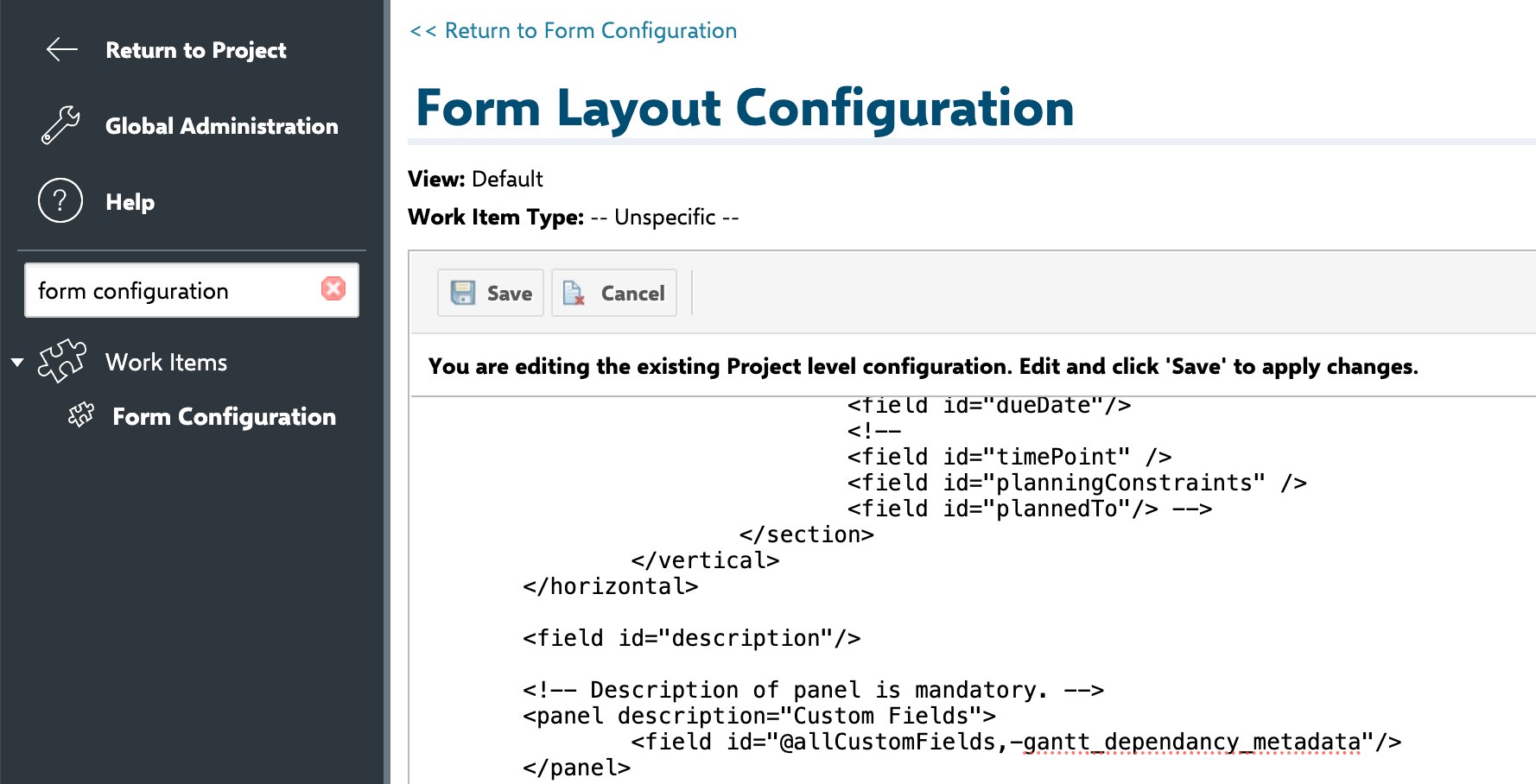 Removing or renaming `gantt_dependency_metadata` will cause the Gantt to lose all advanced dependency type information. Always keep the field -- just hide it from users.
By default, all four dependency types share the same Polarion link role. If your project requires separate link roles for each type, add the following to **Configuration Properties**:
```
nextedy.gantt.workitems.linkRoles.finish_to_start=your_FS_role_id
nextedy.gantt.workitems.linkRoles.start_to_start=your_SS_role_id
nextedy.gantt.workitems.linkRoles.finish_to_finish=your_FF_role_id
nextedy.gantt.workitems.linkRoles.start_to_finish=your_SF_role_id
```
Replace each value with the actual Polarion link role ID used in your project.
You can specify a comma-separated list of link role IDs if different work item types use different dependency roles. For example:
```
nextedy.gantt.workitems.linkRoles.finish_to_finish=dependency_feature_ff,dependency_task_ff
```
## Dependency Types Reference
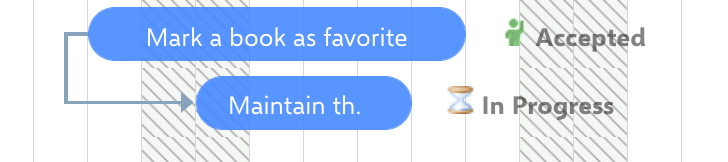
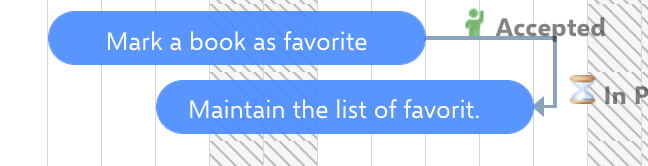
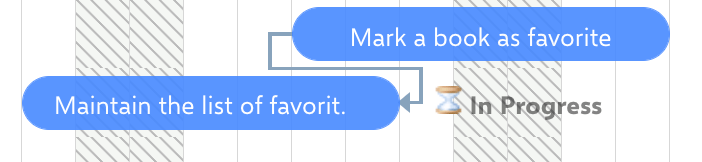
| Type | Code | Constraint |
| ------------------------- | ---- | ---------------------------------------- |
| **Finish-to-Start (FS)** | `0` | Target cannot start before source ends |
| **Start-to-Start (SS)** | `1` | Target cannot start before source starts |
| **Finish-to-Finish (FF)** | `2` | Target cannot end before source ends |
| **Start-to-Finish (SF)** | `3` | Target cannot end before source starts |
All constraints allow the target to shift later -- they define the earliest possible start or finish, not an exact alignment.
Removing or renaming `gantt_dependency_metadata` will cause the Gantt to lose all advanced dependency type information. Always keep the field -- just hide it from users.
By default, all four dependency types share the same Polarion link role. If your project requires separate link roles for each type, add the following to **Configuration Properties**:
```
nextedy.gantt.workitems.linkRoles.finish_to_start=your_FS_role_id
nextedy.gantt.workitems.linkRoles.start_to_start=your_SS_role_id
nextedy.gantt.workitems.linkRoles.finish_to_finish=your_FF_role_id
nextedy.gantt.workitems.linkRoles.start_to_finish=your_SF_role_id
```
Replace each value with the actual Polarion link role ID used in your project.
You can specify a comma-separated list of link role IDs if different work item types use different dependency roles. For example:
```
nextedy.gantt.workitems.linkRoles.finish_to_finish=dependency_feature_ff,dependency_task_ff
```
## Dependency Types Reference
| Type | Code | Constraint |
| ------------------------- | ---- | ---------------------------------------- |
| **Finish-to-Start (FS)** | `0` | Target cannot start before source ends |
| **Start-to-Start (SS)** | `1` | Target cannot start before source starts |
| **Finish-to-Finish (FF)** | `2` | Target cannot end before source ends |
| **Start-to-Finish (SF)** | `3` | Target cannot end before source starts |
All constraints allow the target to shift later -- they define the earliest possible start or finish, not an exact alignment.

 1. Enter **Edit mode** on the Gantt chart.
2. Drag from the link circle on one task bar to another task bar to create a dependency link.
3. The dependency type is assigned based on which edge (start or end) you drag from and drop onto.
If dependency links are not loaded due to item limits or filtering, the Gantt ignores them entirely. This affects both visualization and auto-scheduling calculations.
When a dependency constraint is violated -- for example, a Start-to-Finish link where the target task ends before the source task starts -- the Gantt displays a **red dotted line** beneath the incorrectly positioned task bar.
1. Enter **Edit mode** on the Gantt chart.
2. Drag from the link circle on one task bar to another task bar to create a dependency link.
3. The dependency type is assigned based on which edge (start or end) you drag from and drop onto.
If dependency links are not loaded due to item limits or filtering, the Gantt ignores them entirely. This affects both visualization and auto-scheduling calculations.
When a dependency constraint is violated -- for example, a Start-to-Finish link where the target task ends before the source task starts -- the Gantt displays a **red dotted line** beneath the incorrectly positioned task bar.
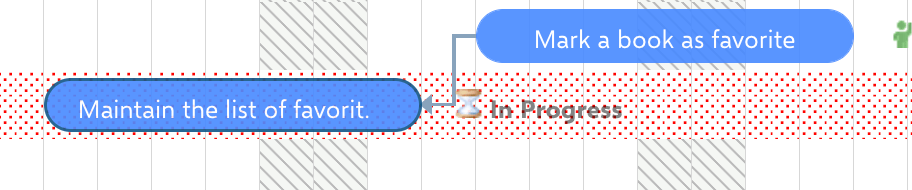 To resolve the violation, drag the affected task bar so its dates satisfy the dependency constraint.
## Verification
You should now see:
* Dependency arrows drawn between tasks reflecting the specific type (FS, SS, FF, or SF)
* The link type preserved when you save and reload the Gantt chart
* Red dotted violation indicators appearing when a task position violates its dependency constraint
## See Also
* [Create and Configure Dependency Links](/gantt/guides/dependencies/create-dependency-links)
* [Configure Link Lag and Delay](/gantt/guides/dependencies/link-lag)
* [Dependency Metadata Storage](/gantt/guides/dependencies/dependency-metadata)
* [Configure Auto-Scheduling](/gantt/guides/scheduling/configure-auto-scheduling)
To resolve the violation, drag the affected task bar so its dates satisfy the dependency constraint.
## Verification
You should now see:
* Dependency arrows drawn between tasks reflecting the specific type (FS, SS, FF, or SF)
* The link type preserved when you save and reload the Gantt chart
* Red dotted violation indicators appearing when a task position violates its dependency constraint
## See Also
* [Create and Configure Dependency Links](/gantt/guides/dependencies/create-dependency-links)
* [Configure Link Lag and Delay](/gantt/guides/dependencies/link-lag)
* [Dependency Metadata Storage](/gantt/guides/dependencies/dependency-metadata)
* [Configure Auto-Scheduling](/gantt/guides/scheduling/configure-auto-scheduling)