> ## Documentation Index
> Fetch the complete documentation index at: https://learn.nextedy.com/llms.txt
> Use this file to discover all available pages before exploring further.
# Set Up Work Item Calendars
> Configure a dedicated Polarion project with work item-based calendars to manage user-specific schedules, holidays, and capacity adjustments for accurate resource planning in Nextedy GANTT.
export const LastReviewed = ({date}) => {
if (!date) return null;
const formatted = new Date(`${date}T00:00:00Z`).toLocaleDateString("en-US", {
year: "numeric",
month: "long",
day: "numeric",
timeZone: "UTC"
});
return
Last reviewed on {formatted}
;
};
## Prerequisites
* A Polarion project created from the **Gantt Calendars** template (or manually configured with the required work item types)
* Access to **Administration > Configuration Properties** on both the calendar project and consuming projects
1. Download the Gantt package from [gantt.nextedy.com/download/](https://gantt.nextedy.com/download/)
2. Locate `nextedy_gantt.zip/com.nextedy.polarion.gantt/template/WorkItemsCalendarTemplate.zip`
3. Upload it as a Project Template via the **Project Templates** global administration page
4. Create a new project based on the **Gantt Calendars** template
The template pre-configures four work item types:
| Work Item Type | ID | Purpose |
| -------------- | --------------- | -------------------------------------------------------------------------- |
| **Calendar** | `calendar` | Defines regular weekly working hours (global or per-user) |
| **Time Off** | `timeoff` | Marks non-working periods (holidays, vacations) |
| **Time On** | `timeon` | Overrides Time Off for specific users who must work |
| **Tweak** | `scheduletweak` | Adjusts working hours for a date range without changing working/off status |
Add the following properties under **Administration > Configuration Properties** in your calendar project:
```
nextedy.gantt.workitemCalendar.projectId=
nextedy.gantt.workitemCalendar.globalID=
```
Replace `` with the project ID of your calendar project and `` with the ID of a Calendar-type work item to use as the global calendar.
You must set these properties on **both** the calendar project and any projects that consume it. If the consuming project does not have these properties, calendar data will not load.
1. In your calendar project, create a new work item of type **Calendar**
2. Set the weekday fields using the format `HH:mm,HH:mm` (for example, `09:00,17:00` for an 8-hour workday)
3. Set Saturday and Sunday to `-` (explicitly non-working)
4. Leave the **Assignee** field empty for a global calendar
5. Set the **From** and **To** date fields to define the calendar's validity period
Use `HH:mm,HH:mm` for working hours, `-` for explicitly non-working days, or leave empty to inherit from a parent calendar.
1. Create a new **Calendar** work item for each user
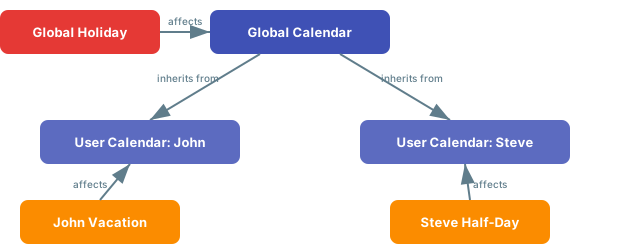
2. Link it to the global calendar using the **inherits from** link role so it inherits the base schedule
3. Set the **Assignee** field to the target Polarion user
4. Override only the weekday fields that differ from the global calendar (leave others empty to inherit)
User calendars must have the **Assignee** field set. Without it, the Gantt cannot match the calendar to the correct resource.
Link exception work items to the appropriate calendar using the **affects** link role:
* **Time Off**: Create for vacations or holidays. Link to the global calendar for company-wide holidays, or to a user calendar for individual time off.
* **Time On**: Override a Time Off period for a specific user who must work during a global holiday.
* **Tweak**: Adjust hours for a date range. Set both `workstart` and `workend` fields to define the modified work window.
 Open the Gantt widget parameters and navigate to the **Working Calendars** section:
1. Set **Use Working Calendar** to **Yes**
2. Set **Load User Calendars** to **Yes**
3. Optionally enable **Load Team Assignments** for team-scoped capacity
The Working Calendars settings are interdependent. **Load User Calendars** only appears after enabling **Use Working Calendar**, and **Load Team Assignments** only appears after enabling both.
## Verify
You should now see grey markers in the resource view for days where users are unavailable. If a user has a Tweak reducing their capacity, the resource view shows the reduced hours and highlights overload with a red indicator.
## See Also
* [Use Calendars from Another Project](/gantt/guides/calendars/cross-project-calendar)
* [Import Calendars from CSV](/gantt/guides/calendars/csv-calendar-import)
* [Customize Working Hours per Resource](/gantt/guides/calendars/working-hours-per-resource)
* [Configure Capacity Modifier Fields](/gantt/guides/calendars/capacity-modifier-fields)
* [Troubleshooting Calendar Integration Issues](/gantt/guides/troubleshooting/calendar-issues)
Open the Gantt widget parameters and navigate to the **Working Calendars** section:
1. Set **Use Working Calendar** to **Yes**
2. Set **Load User Calendars** to **Yes**
3. Optionally enable **Load Team Assignments** for team-scoped capacity
The Working Calendars settings are interdependent. **Load User Calendars** only appears after enabling **Use Working Calendar**, and **Load Team Assignments** only appears after enabling both.
## Verify
You should now see grey markers in the resource view for days where users are unavailable. If a user has a Tweak reducing their capacity, the resource view shows the reduced hours and highlights overload with a red indicator.
## See Also
* [Use Calendars from Another Project](/gantt/guides/calendars/cross-project-calendar)
* [Import Calendars from CSV](/gantt/guides/calendars/csv-calendar-import)
* [Customize Working Hours per Resource](/gantt/guides/calendars/working-hours-per-resource)
* [Configure Capacity Modifier Fields](/gantt/guides/calendars/capacity-modifier-fields)
* [Troubleshooting Calendar Integration Issues](/gantt/guides/troubleshooting/calendar-issues)