> ## Documentation Index
> Fetch the complete documentation index at: https://learn.nextedy.com/llms.txt
> Use this file to discover all available pages before exploring further.
# Use Calendars from Another Project
> Share a centralized work item calendar project across multiple Polarion projects so that resource availability, time off, and capacity constraints are consistent in every Nextedy GANTT instance.
export const LastReviewed = ({date}) => {
if (!date) return null;
const formatted = new Date(`${date}T00:00:00Z`).toLocaleDateString("en-US", {
year: "numeric",
month: "long",
day: "numeric",
timeZone: "UTC"
});
return
Last reviewed on {formatted}
;
};
## Prerequisites
* A dedicated calendar project with work item calendars already configured (see [Set Up Work Item Calendars](/gantt/guides/calendars/work-item-calendar))
* Access to **Administration > Configuration Properties** in both the calendar project and each consuming project
In your calendar project, find the following values:
* **Project ID**: The Polarion project ID of the calendar project (visible in the URL or project settings)
* **Global Calendar Work Item ID**: The ID of the Calendar-type work item used as the global (company) calendar
Add these properties in the calendar project under **Administration > Configuration Properties**:
```
nextedy.gantt.workitemCalendar.projectId=CalendarProject
nextedy.gantt.workitemCalendar.globalID=CAL-1
```
Replace `CalendarProject` with the actual project ID and `CAL-1` with the actual global calendar work item ID.
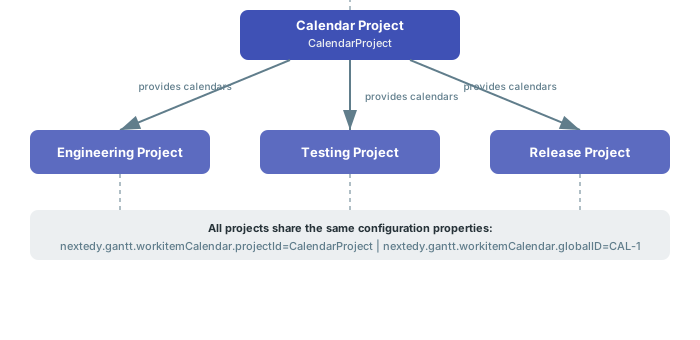
In **every** project that should use the shared calendar, add the **same** properties under **Administration > Configuration Properties**:
```
nextedy.gantt.workitemCalendar.projectId=CalendarProject
nextedy.gantt.workitemCalendar.globalID=CAL-1
```
These properties must be present in **both** the calendar project and every consuming project. If a consuming project is missing the properties, its Gantt will not load calendar data from the shared project.
 In each consuming project's Gantt widget, navigate to the **Working Calendars** section in the widget parameters:
1. Set **Use Working Calendar** to **Yes**
2. Set **Load User Calendars** to **Yes**
3. Optionally enable **Load Team Assignments** for team-scoped capacity
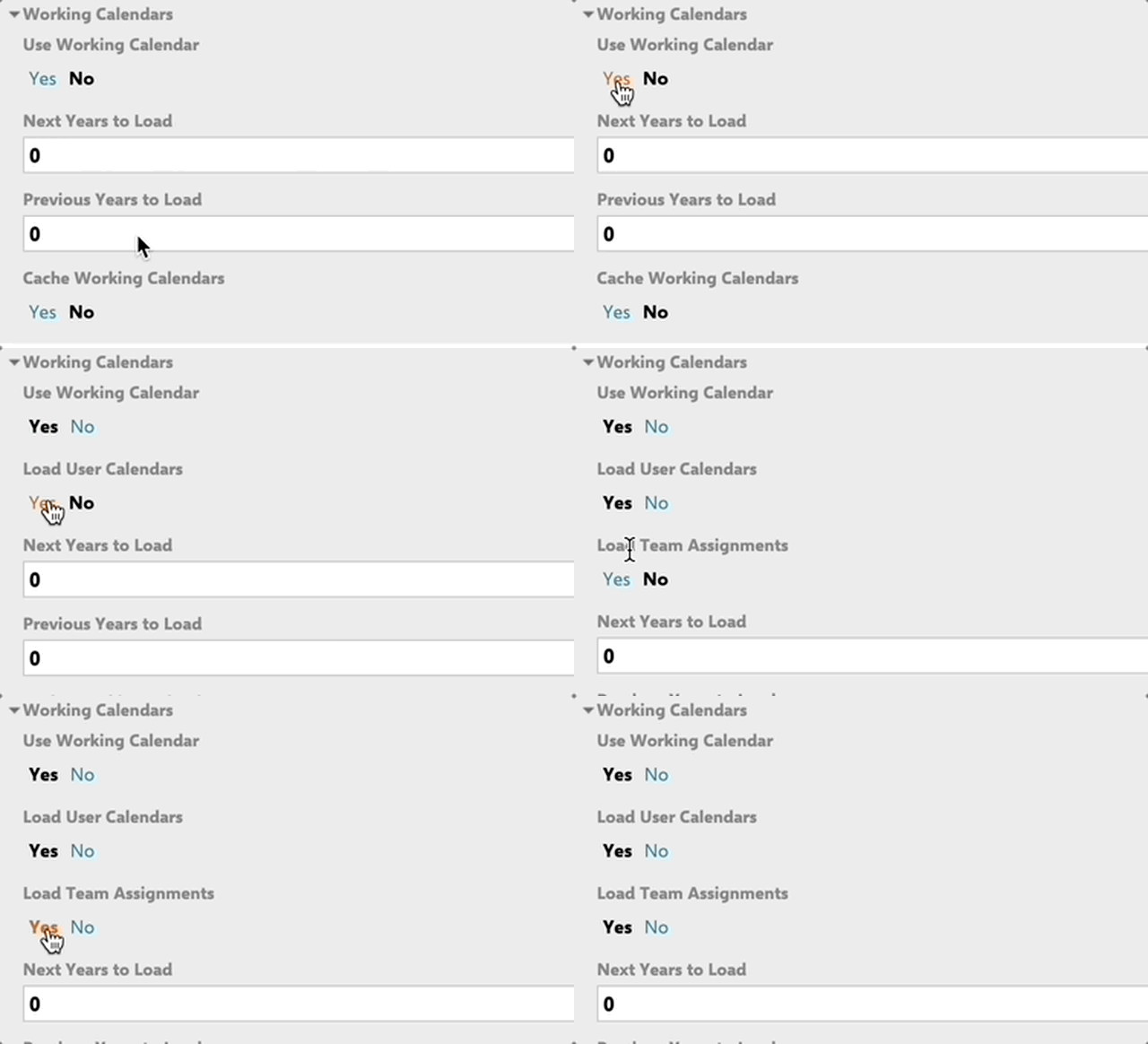
These options are interdependent and revealed in order: enabling **Use Working Calendar** exposes **Load User Calendars**, which in turn exposes **Load Team Assignments**:
In each consuming project's Gantt widget, navigate to the **Working Calendars** section in the widget parameters:
1. Set **Use Working Calendar** to **Yes**
2. Set **Load User Calendars** to **Yes**
3. Optionally enable **Load Team Assignments** for team-scoped capacity
These options are interdependent and revealed in order: enabling **Use Working Calendar** exposes **Load User Calendars**, which in turn exposes **Load Team Assignments**:
 The Gantt looks up each resource's calendar in the shared calendar project by matching the **Assignee** field on Calendar work items to the resource's Polarion user ID.
Cross-project calendar resolution involves querying work items in another project, which can be slow on large installations. Enable caching to improve performance:
```
nextedy.gantt.workingCalendar.useCache=true
```
Enable `nextedy.gantt.workingCalendar.useCache=true` in each consuming project's configuration properties. Clear the cache using the **Clear Calendar Cache** toolbar button (which appears when caching is active), or via the `api/clearCalendarCache` endpoint.
## How Calendar Resolution Works
When the Gantt loads in a consuming project:
1. The Gantt reads `nextedy.gantt.workitemCalendar.projectId` to determine the source project
2. For each resource, it searches for a **Calendar** work item in the source project where the **Assignee** matches the user and the **From/To** date range contains today
3. If a user calendar is found, it loads the regular working hours and all linked exceptions (Time Off, Time On, Tweak) via the **affects** link role
4. If no user calendar is found, the global calendar (specified by `nextedy.gantt.workitemCalendar.globalID`) is used as the fallback
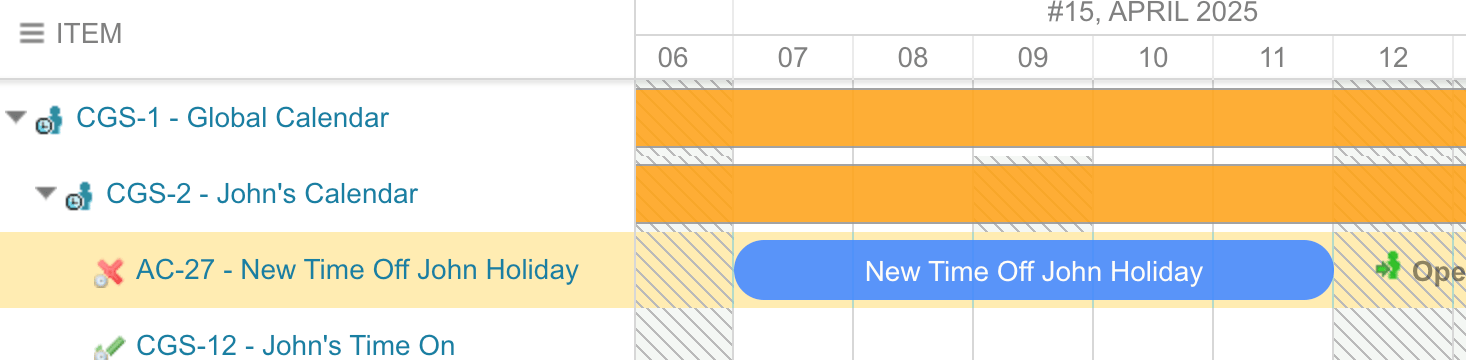
For example, a **Time Off** ("New Time Off John Holiday") is defined under John's Calendar in the central calendar project:
The Gantt looks up each resource's calendar in the shared calendar project by matching the **Assignee** field on Calendar work items to the resource's Polarion user ID.
Cross-project calendar resolution involves querying work items in another project, which can be slow on large installations. Enable caching to improve performance:
```
nextedy.gantt.workingCalendar.useCache=true
```
Enable `nextedy.gantt.workingCalendar.useCache=true` in each consuming project's configuration properties. Clear the cache using the **Clear Calendar Cache** toolbar button (which appears when caching is active), or via the `api/clearCalendarCache` endpoint.
## How Calendar Resolution Works
When the Gantt loads in a consuming project:
1. The Gantt reads `nextedy.gantt.workitemCalendar.projectId` to determine the source project
2. For each resource, it searches for a **Calendar** work item in the source project where the **Assignee** matches the user and the **From/To** date range contains today
3. If a user calendar is found, it loads the regular working hours and all linked exceptions (Time Off, Time On, Tweak) via the **affects** link role
4. If no user calendar is found, the global calendar (specified by `nextedy.gantt.workitemCalendar.globalID`) is used as the fallback
For example, a **Time Off** ("New Time Off John Holiday") is defined under John's Calendar in the central calendar project:
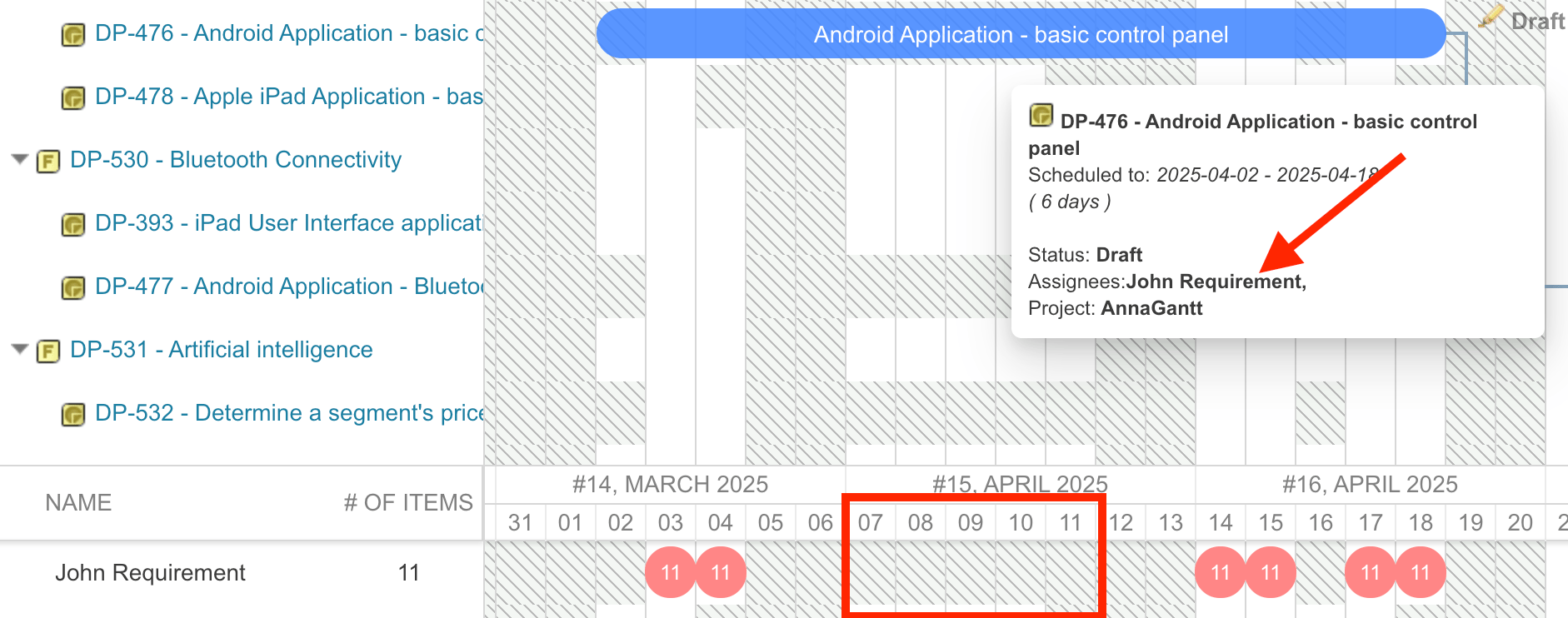
 In the consuming project, those exact dates appear as grey non-working spaces for John, and a work item scheduled over them does not overwrite the holiday:
 Each user-specific calendar in the shared project must have the **Assignee** field set to the correct Polarion user. Without this, the Gantt cannot match calendars to resources in consuming projects.
## Verify
You should now see that time off and custom working hours defined in the central calendar project appear as grey markers and adjusted capacity values in the resource view of each consuming project's Gantt chart.
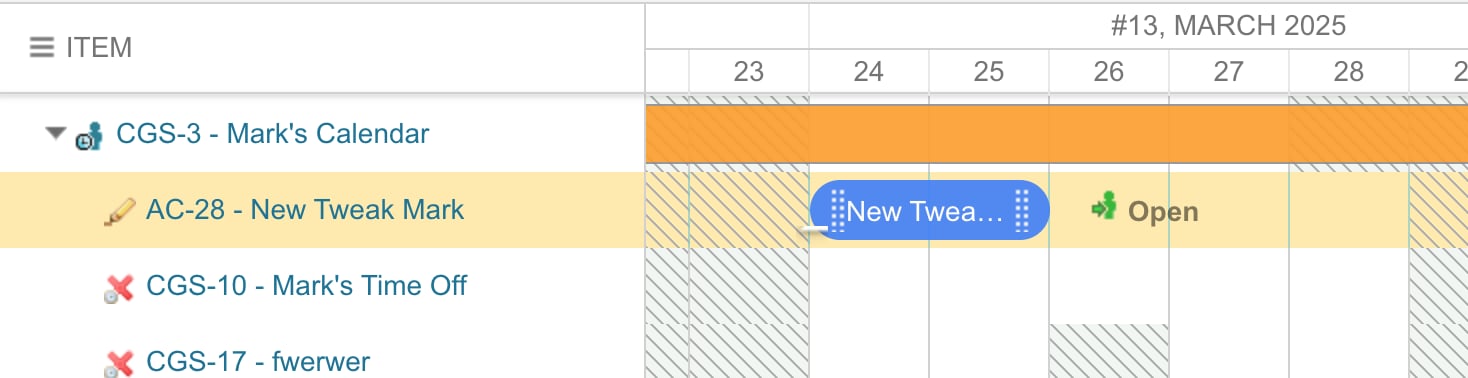
A **Tweak** in the central calendar -- here "New Tweak Mark" on Mark's Calendar, limiting his capacity for those days -- is another exception that flows through to consuming projects:
Each user-specific calendar in the shared project must have the **Assignee** field set to the correct Polarion user. Without this, the Gantt cannot match calendars to resources in consuming projects.
## Verify
You should now see that time off and custom working hours defined in the central calendar project appear as grey markers and adjusted capacity values in the resource view of each consuming project's Gantt chart.
A **Tweak** in the central calendar -- here "New Tweak Mark" on Mark's Calendar, limiting his capacity for those days -- is another exception that flows through to consuming projects:
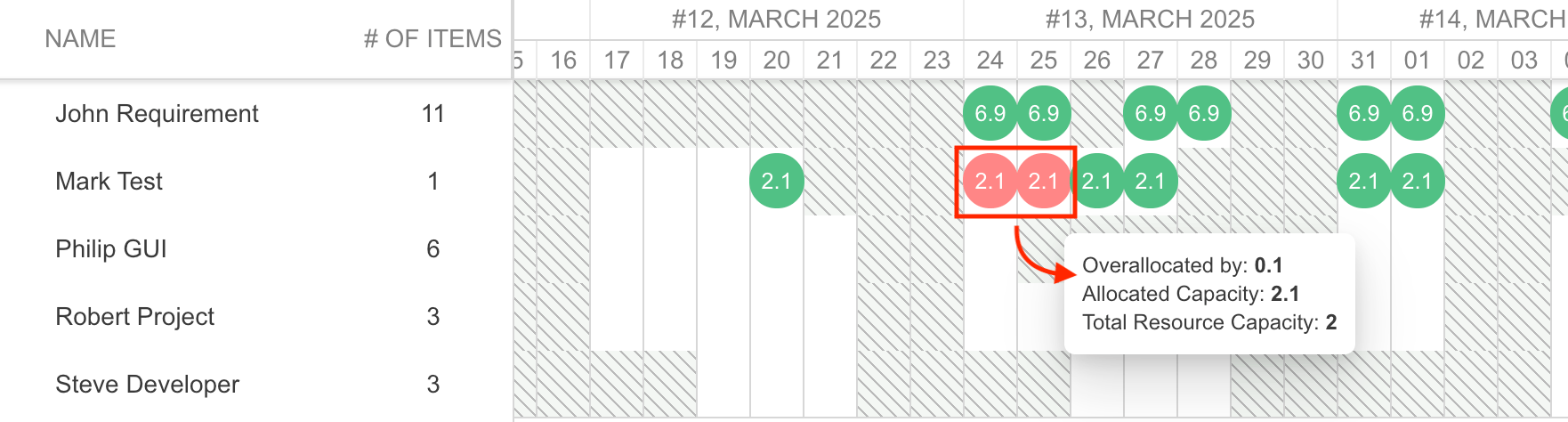
 Because the tweak lowers Mark's available capacity below his assigned workload, the consuming project's resource view flags those days with red overallocation bubbles, and the tooltip reports him overallocated by 0.1 against a total capacity of 2:
 ## See Also
* [Set Up Work Item Calendars](/gantt/guides/calendars/work-item-calendar)
* [Import Calendars from CSV](/gantt/guides/calendars/csv-calendar-import)
* [Customize Working Hours per Resource](/gantt/guides/calendars/working-hours-per-resource)
* [Configure Capacity Modifier Fields](/gantt/guides/calendars/capacity-modifier-fields)
* [Troubleshooting Calendar Integration Issues](/gantt/guides/troubleshooting/calendar-issues)
## See Also
* [Set Up Work Item Calendars](/gantt/guides/calendars/work-item-calendar)
* [Import Calendars from CSV](/gantt/guides/calendars/csv-calendar-import)
* [Customize Working Hours per Resource](/gantt/guides/calendars/working-hours-per-resource)
* [Configure Capacity Modifier Fields](/gantt/guides/calendars/capacity-modifier-fields)
* [Troubleshooting Calendar Integration Issues](/gantt/guides/troubleshooting/calendar-issues)