> ## Documentation Index
> Fetch the complete documentation index at: https://learn.nextedy.com/llms.txt
> Use this file to discover all available pages before exploring further.
# Update to the Latest Version
> This tutorial guides you through checking for updates and upgrading your Nextedy GANTT installation to the latest version.
export const LastReviewed = ({date}) => {
if (!date) return null;
const formatted = new Date(`${date}T00:00:00Z`).toLocaleDateString("en-US", {
year: "numeric",
month: "long",
day: "numeric",
timeZone: "UTC"
});
return
Last reviewed on {formatted}
;
};
## What You Will Achieve
After completing this tutorial, you will have:
* Checked your current installed version against the latest available release
* Downloaded and installed the latest Gantt extension
* A running Polarion server with the updated Gantt version
## Prerequisites
* [Gantt installed](/gantt/getting-started/installation) on your Polarion server
* Server filesystem access to the Polarion installation directory
* Polarion administrator access
Updating the Gantt extension requires stopping and restarting the Polarion server. Plan for a brief maintenance window.
You can find the currently installed version in two places:
**From the Gantt admin page:**
1. Open **Polarion Administration**
2. Navigate to **Nextedy GANTT > Setup**
3. The current version is displayed on the page
**From any Gantt widget:**
The footer of any Gantt chart widget displays the installed version number.
Open **Polarion Administration > Nextedy GANTT > Setup**. The page automatically shows both the **Installed Version** and the **Latest Version**, with an up-to-date indicator (✅ **Up-to-date**) when you are current. If the latest version is newer than the installed one, an update is available.
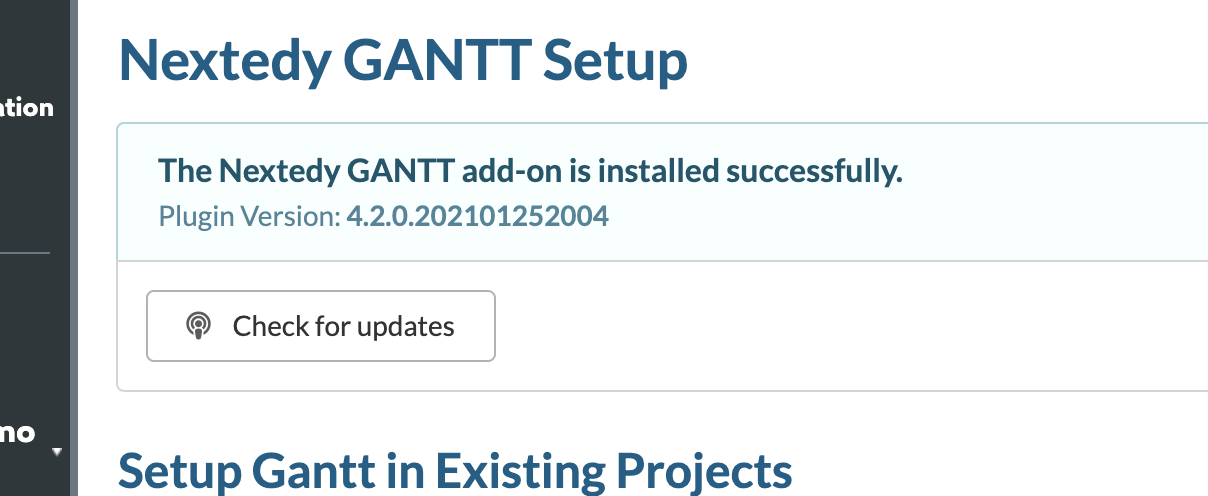 The Setup page also provides a **Download Page** button (to fetch the latest distribution) and a **Changelog** button.
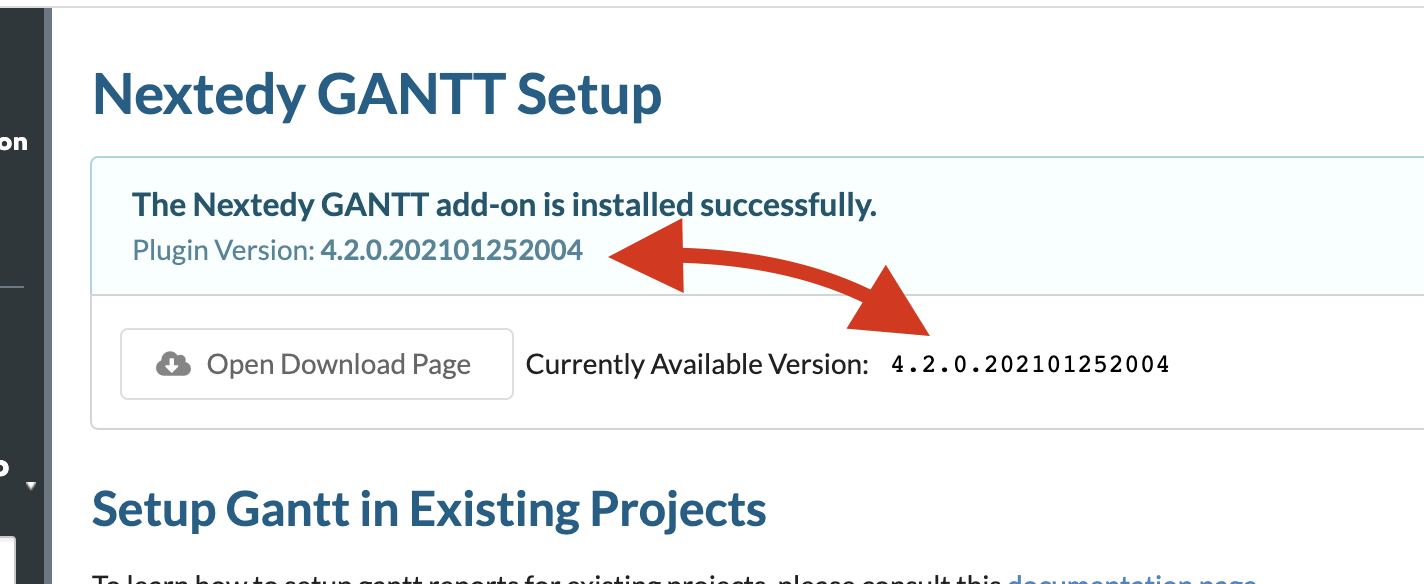 The version check fetches version information from the Nextedy download server. No scripts are executed from the download server, and no data from your installation is transmitted.
Download the latest `nextedy_gantt.zip` from:
```
https://gantt.nextedy.com/download/
```
Stop your Polarion server using your standard procedure:
```bash theme={null}
service polarion stop
```
Or use your application server's management interface.
Delete the existing Gantt extension directory:
```
[POLARION_INSTALL]/polarion/extensions/com.nextedy.polarion.gantt
```
Consider backing up the old extension directory before deletion. This allows you to roll back quickly if the update causes unexpected issues.
Follow the same steps as a fresh installation:
1. Unzip the downloaded `nextedy_gantt.zip`
2. Copy the `com.nextedy.polarion.gantt` folder to `[POLARION_INSTALL]/polarion/extensions/`
Most updates reuse your existing license. If you also received a new `gantt_lic.json` (for example, after renewing a subscription), copy it to `[POLARION_INSTALL]/polarion/license/` now -- otherwise leave the existing license in place.
Delete the Polarion configuration cache:
```
[POLARION_INSTALL]/data/workspace/.config
```
This step is required on every update. The `.config` directory holds plugin cache data and must be cleared to pick up the new extension version. Skipping this step is the most common cause of issues after updating.
Start your Polarion server:
```bash theme={null}
service polarion start
```
1. Open **Polarion Administration > Nextedy GANTT > Setup**
2. Confirm the displayed version matches the version you downloaded
3. Open any existing Gantt chart and verify it loads correctly
The Gantt chart footer should also display the new version number.
## Update Process Summary
The version check fetches version information from the Nextedy download server. No scripts are executed from the download server, and no data from your installation is transmitted.
Download the latest `nextedy_gantt.zip` from:
```
https://gantt.nextedy.com/download/
```
Stop your Polarion server using your standard procedure:
```bash theme={null}
service polarion stop
```
Or use your application server's management interface.
Delete the existing Gantt extension directory:
```
[POLARION_INSTALL]/polarion/extensions/com.nextedy.polarion.gantt
```
Consider backing up the old extension directory before deletion. This allows you to roll back quickly if the update causes unexpected issues.
Follow the same steps as a fresh installation:
1. Unzip the downloaded `nextedy_gantt.zip`
2. Copy the `com.nextedy.polarion.gantt` folder to `[POLARION_INSTALL]/polarion/extensions/`
Most updates reuse your existing license. If you also received a new `gantt_lic.json` (for example, after renewing a subscription), copy it to `[POLARION_INSTALL]/polarion/license/` now -- otherwise leave the existing license in place.
Delete the Polarion configuration cache:
```
[POLARION_INSTALL]/data/workspace/.config
```
This step is required on every update. The `.config` directory holds plugin cache data and must be cleared to pick up the new extension version. Skipping this step is the most common cause of issues after updating.
Start your Polarion server:
```bash theme={null}
service polarion start
```
1. Open **Polarion Administration > Nextedy GANTT > Setup**
2. Confirm the displayed version matches the version you downloaded
3. Open any existing Gantt chart and verify it loads correctly
The Gantt chart footer should also display the new version number.
## Update Process Summary
 ## Update Checklist
| Step | Action | Done |
| ---- | -------------------------------------------------- | ---- |
| 1 | Note current version | |
| 2 | Download latest `nextedy_gantt.zip` | |
| 3 | Stop Polarion server | |
| 4 | Delete `com.nextedy.polarion.gantt` directory | |
| 5 | Copy new `com.nextedy.polarion.gantt` from zip | |
| 6 | Delete `[POLARION_INSTALL]/data/workspace/.config` | |
| 7 | Copy license file if updated | |
| 8 | Start Polarion server | |
| 9 | Verify version in admin panel | |
## Troubleshooting After Update
If the Gantt chart shows a loading screen or fails to render after updating:
1. Verify that `[POLARION_INSTALL]/data/workspace/.config` was deleted
2. Check the Polarion server logs for extension loading errors
3. Open the browser developer console and look for JavaScript errors
4. If issues persist, contact [Nextedy support](https://support.nextedy.com/support/tickets/new) with your server logs, browser console output, and configuration details
Some releases contain critical bug fixes. If you encounter issues with a specific version, check the Nextedy changelog for known issues and consider updating to the latest patch release.
## Next Steps
* [Licensing and User Access](/gantt/getting-started/licensing) -- verify license status after updating
* [Set Up a Basic Gantt Chart](/gantt/getting-started/setup-basic-gantt) -- configure new features available in the updated version
* [Explore the Demo Project](/gantt/getting-started/demo-project) -- review demo data for new feature examples
## Update Checklist
| Step | Action | Done |
| ---- | -------------------------------------------------- | ---- |
| 1 | Note current version | |
| 2 | Download latest `nextedy_gantt.zip` | |
| 3 | Stop Polarion server | |
| 4 | Delete `com.nextedy.polarion.gantt` directory | |
| 5 | Copy new `com.nextedy.polarion.gantt` from zip | |
| 6 | Delete `[POLARION_INSTALL]/data/workspace/.config` | |
| 7 | Copy license file if updated | |
| 8 | Start Polarion server | |
| 9 | Verify version in admin panel | |
## Troubleshooting After Update
If the Gantt chart shows a loading screen or fails to render after updating:
1. Verify that `[POLARION_INSTALL]/data/workspace/.config` was deleted
2. Check the Polarion server logs for extension loading errors
3. Open the browser developer console and look for JavaScript errors
4. If issues persist, contact [Nextedy support](https://support.nextedy.com/support/tickets/new) with your server logs, browser console output, and configuration details
Some releases contain critical bug fixes. If you encounter issues with a specific version, check the Nextedy changelog for known issues and consider updating to the latest patch release.
## Next Steps
* [Licensing and User Access](/gantt/getting-started/licensing) -- verify license status after updating
* [Set Up a Basic Gantt Chart](/gantt/getting-started/setup-basic-gantt) -- configure new features available in the updated version
* [Explore the Demo Project](/gantt/getting-started/demo-project) -- review demo data for new feature examples