Last reviewed on {formatted}
; }; ## Why Teams Need More Than Enums In standard Polarion, a team is typically just an enumeration value -- a label attached to a work item. This approach answers the question "which team owns this task?" but leaves critical resource planning questions unanswered: * **Who** is actually working on a given team? * **How much** of their time is allocated to this team versus others? * **When** does this allocation start and end? Polarion's built-in **Time-split Assignments** (Administration > Users) allows defining a user's allocation percentage to a *project*, but not to a *team* within that project. If multiple teams share a single project, or if team membership changes over time, the static allocation model falls short. ## Teams as Work Items Gantt solves this by introducing two new work item types: **Team** and **Team Assignment**. Rather than relying on static enumerations, teams become fully functional Polarion work items with all the traceability and flexibility that comes with them. | Work Item Type | Purpose | Key Fields | | ------------------- | --------------------------------------------- | ----------------------------------------------------- | | **Team** | Represents a team entity (e.g., Alpha, Beta) | Title, capacity modifiers | | **Team Assignment** | Links an assignee to a team for a time period | Assignee, start date, end date, allocation percentage | Team assignment work items are linked to their parent team using a dedicated **assignment** link role. Each assignment specifies who is on the team, for how long, and at what percentage of their capacity.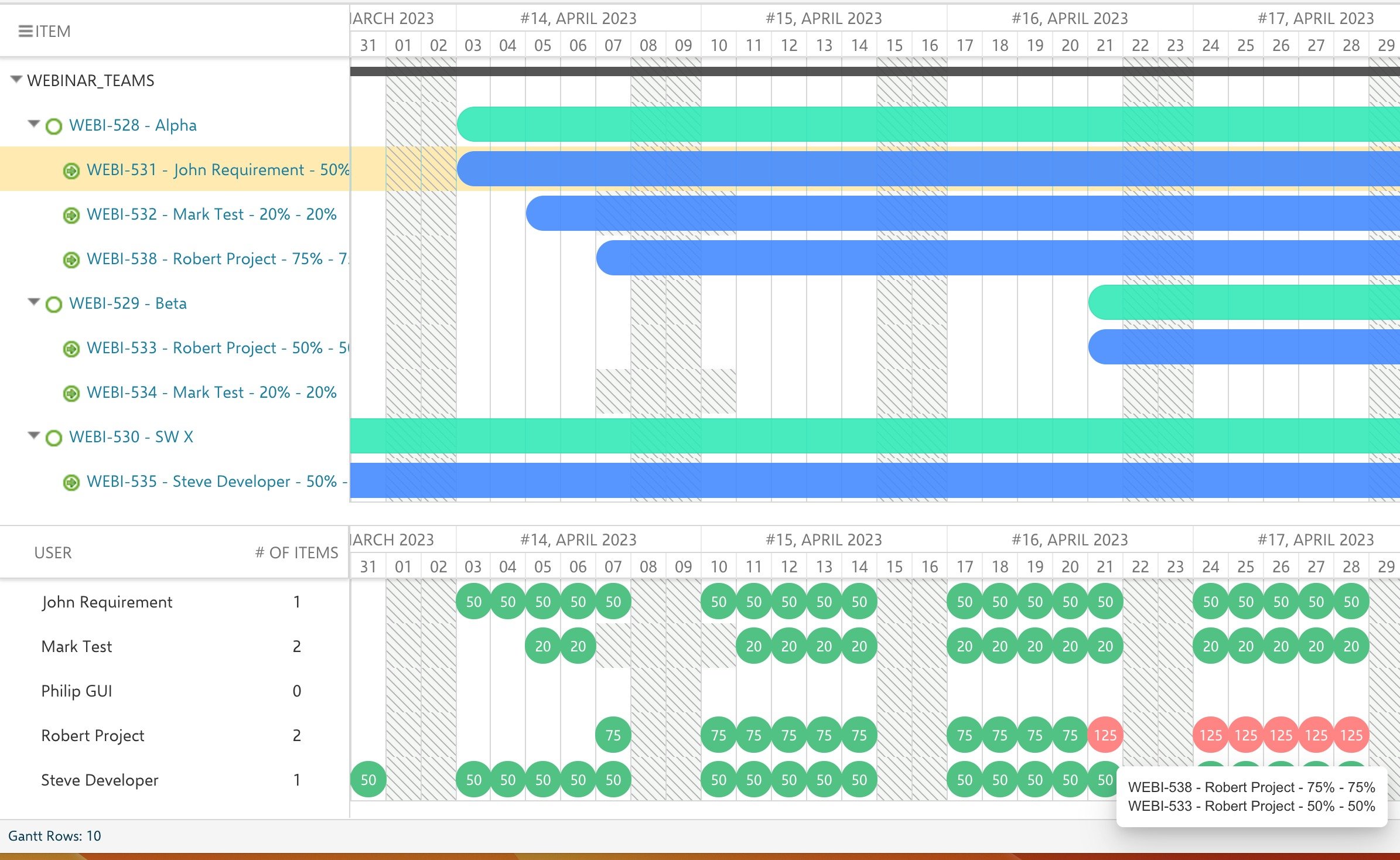
 For example, if John has an 8-hour working day and a 50% team assignment, his effective capacity for that team is 4 hours per day. If capacity modifiers further reduce this, the final effective hours will be even lower.
## Allocation Percentage and Overallocation
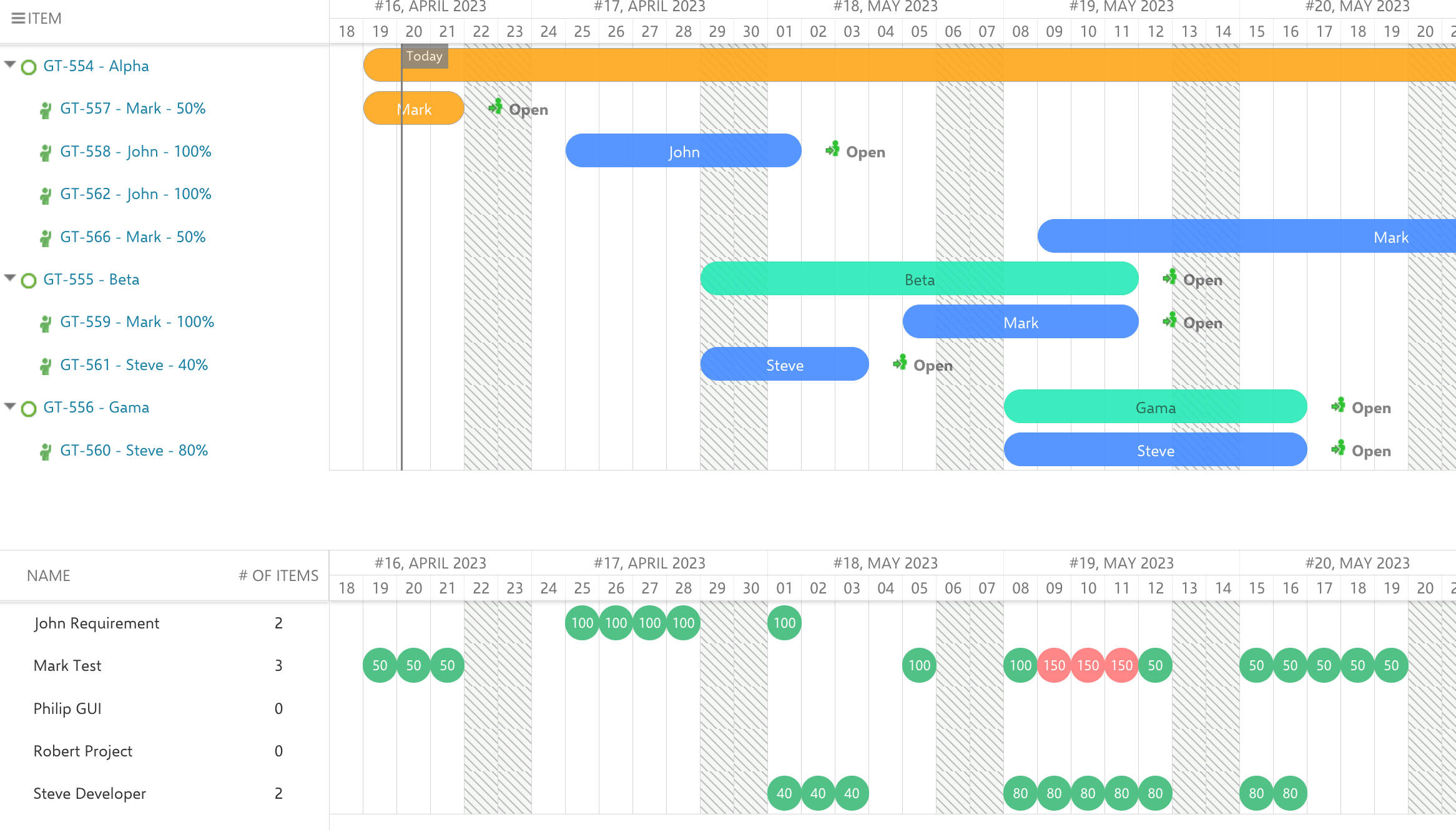
The allocation percentage on each Team Assignment drives the resource view display. The resource view shows allocation markers for each user per time period, where **100% represents a full working day**. When a user's total allocation across all teams exceeds 100% on any given day, the resource view flags this as overallocation with a red marker.
Consider a scenario where Mark is assigned to two teams:
* **Team Alpha**: 60% from May 1 to May 15
* **Team Beta**: 80% from May 9 to May 20
Between May 9 and May 15, Mark's total allocation is 140% -- clearly overallocated. The Gantt resource view surfaces this conflict immediately, allowing project managers to adjust either the allocation percentages or the time periods.
For example, if John has an 8-hour working day and a 50% team assignment, his effective capacity for that team is 4 hours per day. If capacity modifiers further reduce this, the final effective hours will be even lower.
## Allocation Percentage and Overallocation
The allocation percentage on each Team Assignment drives the resource view display. The resource view shows allocation markers for each user per time period, where **100% represents a full working day**. When a user's total allocation across all teams exceeds 100% on any given day, the resource view flags this as overallocation with a red marker.
Consider a scenario where Mark is assigned to two teams:
* **Team Alpha**: 60% from May 1 to May 15
* **Team Beta**: 80% from May 9 to May 20
Between May 9 and May 15, Mark's total allocation is 140% -- clearly overallocated. The Gantt resource view surfaces this conflict immediately, allowing project managers to adjust either the allocation percentages or the time periods.
 ## Cross-Project Team Management
Teams often span multiple Polarion projects. Gantt supports this through an **external team management project** -- a single dedicated project that holds all Team and Team Assignment work items. Other projects reference this central project to pull team data into their Gantt charts.
The configuration property `nextedy.gantt.teamManagementProjectId` points to the project where team work items reside. If this property is not set, Gantt looks for teams in the current project. For organizations with teams spanning multiple projects, centralizing team definitions provides a single source of truth for capacity planning.
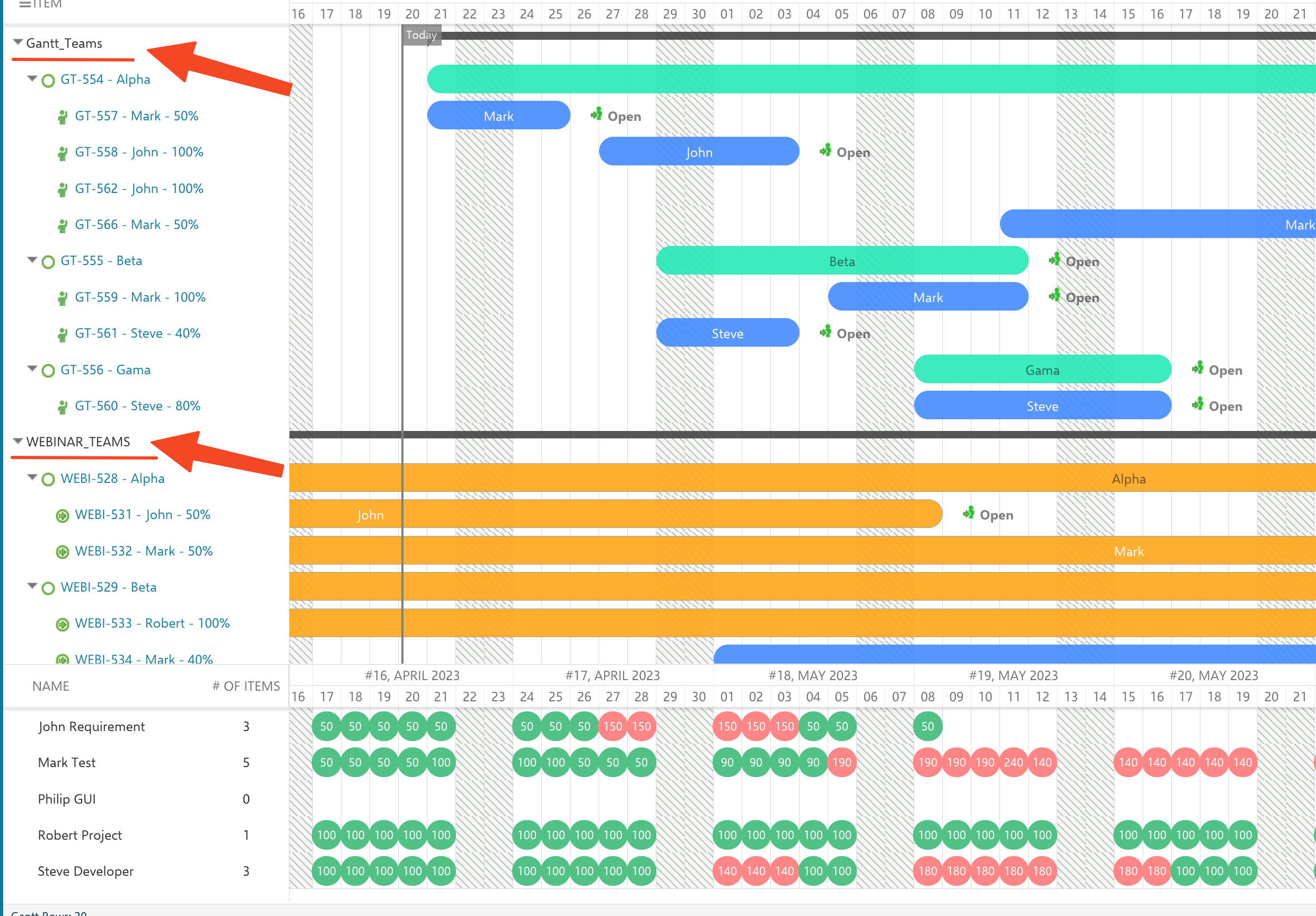
Showing teams from several projects on one cross-project Gantt -- here `Gantt_Teams` and `WEBINAR_TEAMS` together -- makes overallocations across the whole organization visible in a single resource view:
## Cross-Project Team Management
Teams often span multiple Polarion projects. Gantt supports this through an **external team management project** -- a single dedicated project that holds all Team and Team Assignment work items. Other projects reference this central project to pull team data into their Gantt charts.
The configuration property `nextedy.gantt.teamManagementProjectId` points to the project where team work items reside. If this property is not set, Gantt looks for teams in the current project. For organizations with teams spanning multiple projects, centralizing team definitions provides a single source of truth for capacity planning.
Showing teams from several projects on one cross-project Gantt -- here `Gantt_Teams` and `WEBINAR_TEAMS` together -- makes overallocations across the whole organization visible in a single resource view:
 ## Capacity Modifiers
Teams can define **capacity modifiers** that account for time spent on unplanned work. Two modifier fields are available:
* **Capacity Modifier A** (`nextedy.gantt.capacityModifierAField`) -- Represents the percentage of time consumed by unplanned work (meetings, emails, support). Applied to all tasks regardless of when they are scheduled.
* **Capacity Modifier B** (`nextedy.gantt.capacityModifierBField`) -- Represents uncertainty in future planning. Applied only to tasks scheduled beyond a configurable day limit (`nextedy.gantt.capacityModifierBFieldDayLimit`).
The effective capacity formula is: `effectiveCapacity = base * (1 - (modA + modB) / 100)`. This provides a realistic view of available capacity that accounts for the inevitable overhead of day-to-day work.
To learn more about capacity modifiers, see [Capacity Modifiers and Team Capacity](/gantt/concepts/capacity-modifiers).
## Configurable Work Item Type IDs
Starting with version 25.5.0, the work item type IDs used for teams and assignments are configurable via context properties:
* `nextedy.gantt.teamWorkItemType` -- defaults to `team`
* `nextedy.gantt.teamAssignmentWorkItemType` -- defaults to `teamAssignment`
This allows organizations that use different naming conventions to integrate with the team assignment system without renaming their existing work item types.
## Capacity Modifiers
Teams can define **capacity modifiers** that account for time spent on unplanned work. Two modifier fields are available:
* **Capacity Modifier A** (`nextedy.gantt.capacityModifierAField`) -- Represents the percentage of time consumed by unplanned work (meetings, emails, support). Applied to all tasks regardless of when they are scheduled.
* **Capacity Modifier B** (`nextedy.gantt.capacityModifierBField`) -- Represents uncertainty in future planning. Applied only to tasks scheduled beyond a configurable day limit (`nextedy.gantt.capacityModifierBFieldDayLimit`).
The effective capacity formula is: `effectiveCapacity = base * (1 - (modA + modB) / 100)`. This provides a realistic view of available capacity that accounts for the inevitable overhead of day-to-day work.
To learn more about capacity modifiers, see [Capacity Modifiers and Team Capacity](/gantt/concepts/capacity-modifiers).
## Configurable Work Item Type IDs
Starting with version 25.5.0, the work item type IDs used for teams and assignments are configurable via context properties:
* `nextedy.gantt.teamWorkItemType` -- defaults to `team`
* `nextedy.gantt.teamAssignmentWorkItemType` -- defaults to `teamAssignment`
This allows organizations that use different naming conventions to integrate with the team assignment system without renaming their existing work item types.