> ## Documentation Index
> Fetch the complete documentation index at: https://learn.nextedy.com/llms.txt
> Use this file to discover all available pages before exploring further.
# Auto-Scheduling and Dependency Propagation
> Nextedy GANTT supports automatic scheduling, a constraint-based mode where task dates are recalculated based on dependency links whenever a predecessor changes.
export const LastReviewed = ({date}) => {
if (!date) return null;
const formatted = new Date(`${date}T00:00:00Z`).toLocaleDateString("en-US", {
year: "numeric",
month: "long",
day: "numeric",
timeZone: "UTC"
});
return
Last reviewed on {formatted}
;
};
## The Core Idea
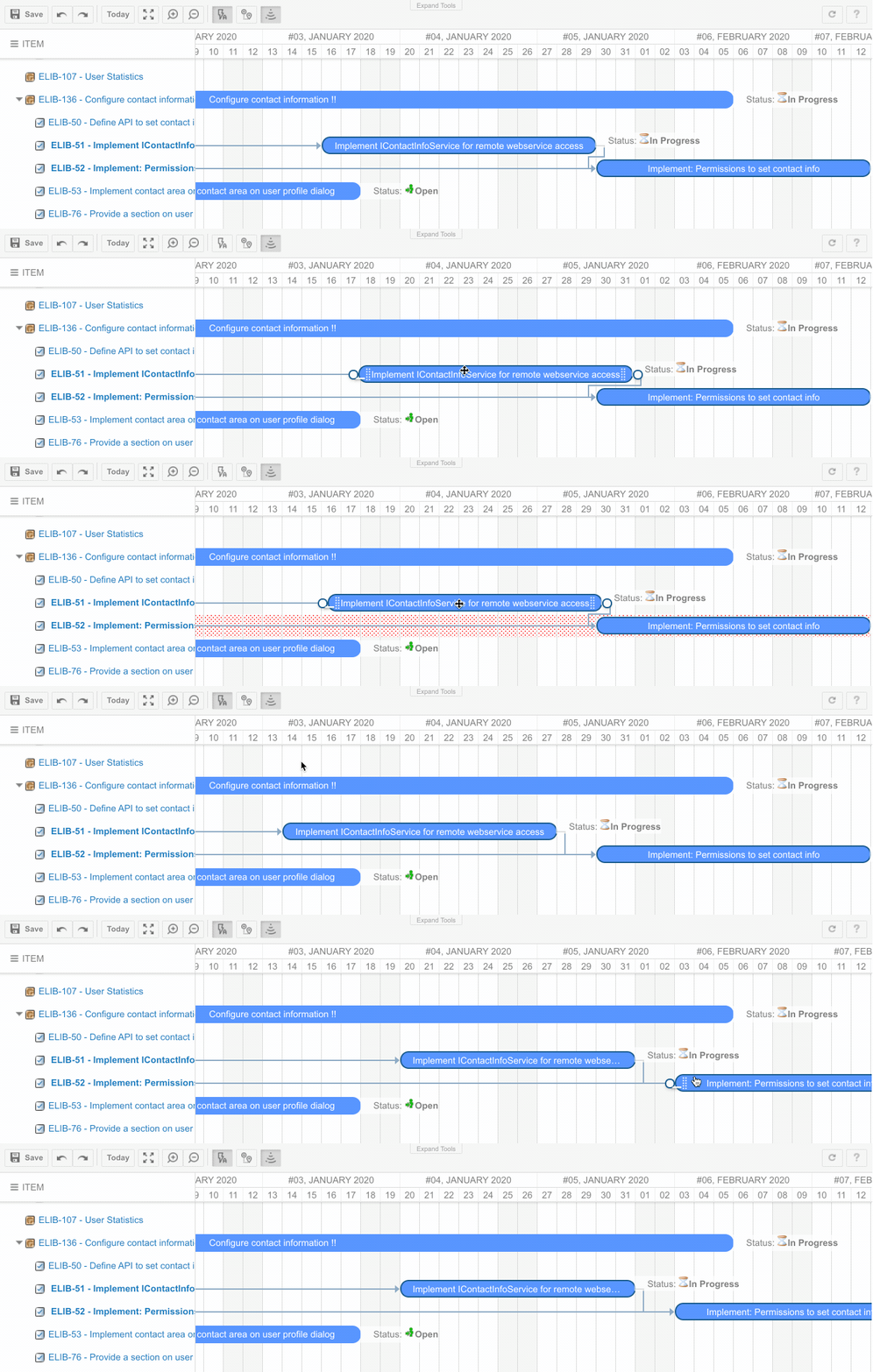
Imagine a project with three tasks connected in sequence: Design, Build, and Test. If Design slips by two days, Build must also start two days later, which pushes Test by the same amount. Without auto-scheduling, you would need to manually adjust each task. With auto-scheduling enabled, moving Design automatically shifts Build and Test to maintain the dependency constraints.
Auto-scheduling updates the start date of a successor task according to the end date of its predecessor each time a change occurs. This allows you to maintain the project schedule by specifying relationships between tasks with no need to set dates manually.
 When Design is moved to Jan 3 - Jan 7, auto-scheduling adjusts:
* Build shifts to Jan 8 - Jan 14
* Test shifts to Jan 15 - Jan 19
When Design is moved to Jan 3 - Jan 7, auto-scheduling adjusts:
* Build shifts to Jan 8 - Jan 14
* Test shifts to Jan 15 - Jan 19
 ## How It Works
Auto-scheduling is triggered only when you change a task or modify a dependency link. It does not continuously run in the background. When you drag a task bar, resize it, or edit dates in the lightbox, the Gantt evaluates all downstream dependencies and adjusts successor dates to satisfy the constraints.
The propagation follows dependency link types:
| Dependency type | Constraint |
| --------------------- | -------------------------------------------- |
| Finish-to-Start (FS) | Successor starts after predecessor finishes |
| Start-to-Start (SS) | Successor starts when predecessor starts |
| Finish-to-Finish (FF) | Successor finishes when predecessor finishes |
| Start-to-Finish (SF) | Successor finishes when predecessor starts |
The most common type is Finish-to-Start (FS), where the successor cannot begin until the predecessor is complete.
When auto-scheduling is disabled and a successor's start date is planned before the predecessor finishes, the Gantt highlights the conflict visually. This helps you spot scheduling violations even in manual scheduling mode.
## Enabling and Controlling Auto-Scheduling
Auto-scheduling is controlled at the server level via the administration property `nextedy.gantt.default.auto_scheduling`. When set to `true`, the Gantt opens with auto-scheduling enabled by default.
Users can toggle auto-scheduling on and off at runtime using the toolbar toggle button. This allows switching between automatic constraint enforcement and manual date editing within the same session.
## How It Works
Auto-scheduling is triggered only when you change a task or modify a dependency link. It does not continuously run in the background. When you drag a task bar, resize it, or edit dates in the lightbox, the Gantt evaluates all downstream dependencies and adjusts successor dates to satisfy the constraints.
The propagation follows dependency link types:
| Dependency type | Constraint |
| --------------------- | -------------------------------------------- |
| Finish-to-Start (FS) | Successor starts after predecessor finishes |
| Start-to-Start (SS) | Successor starts when predecessor starts |
| Finish-to-Finish (FF) | Successor finishes when predecessor finishes |
| Start-to-Finish (SF) | Successor finishes when predecessor starts |
The most common type is Finish-to-Start (FS), where the successor cannot begin until the predecessor is complete.
When auto-scheduling is disabled and a successor's start date is planned before the predecessor finishes, the Gantt highlights the conflict visually. This helps you spot scheduling violations even in manual scheduling mode.
## Enabling and Controlling Auto-Scheduling
Auto-scheduling is controlled at the server level via the administration property `nextedy.gantt.default.auto_scheduling`. When set to `true`, the Gantt opens with auto-scheduling enabled by default.
Users can toggle auto-scheduling on and off at runtime using the toolbar toggle button. This allows switching between automatic constraint enforcement and manual date editing within the same session.
 ### Per-Task Overrides
In complex projects, you may want auto-scheduling for most tasks but need certain tasks (such as milestones or fixed-date deliverables) to remain pinned. The Gantt supports per-task override flags:
* **`enforceAutoMode`** -- Forces auto-scheduling for a specific task, even if the global setting is off
* **`blockAutoMode`** -- Prevents auto-scheduling from moving a specific task, even if the global setting is on
These flags enable mixed scheduling strategies where top-level milestones remain fixed while lower-level tasks are automatically adjusted.
When combining auto-scheduling with parent-child hierarchies, the behavior can become complex. Moving a parent task propagates to children, which in turn may trigger dependency propagation on their successors. If you need to prevent auto-scheduling on top-level work items while allowing it on lower levels, consider using a combination of readonly mode for top-level items and per-task `blockAutoMode` flags.
## Interaction with Drag Children
The `dragChildren` configuration controls whether child tasks move together with their parent when the parent is dragged. When both `dragChildren` and auto-scheduling are enabled:
1. Dragging the parent moves all children by the same offset
2. Auto-scheduling then recalculates any successors of those children
This two-step behavior means that moving a parent task can cascade changes throughout the project schedule.
## Interaction with Working Calendars
When [working calendars](/gantt/concepts/working-calendars) are enabled, auto-scheduling respects non-working days. If a predecessor finishes on Friday and the successor has a Finish-to-Start dependency, the successor will start on Monday (skipping the weekend) rather than Saturday. This applies to all calendar exceptions including holidays and per-user off days.
## What Auto-Scheduling Does Not Do
Auto-scheduling operates on the client side during the current editing session. It does not:
* Run automatically when Polarion data changes outside the Gantt (e.g., another user modifies dates via the Polarion work item form)
* Detect concurrent editing conflicts -- the last save wins
* Automatically resolve resource overallocation
Auto-scheduling recalculates dates based on dependency constraints only. For resource capacity analysis, see [Resource Load Calculation Modes](/gantt/concepts/resource-load-modes).
## Related Topics
* [Critical Path Analysis](/gantt/concepts/critical-path) -- Identifying which tasks determine the project end date
* [Date Range Conflict Detection and Resolution](/gantt/concepts/date-conflict-detection) -- Parent-child date containment enforcement
* [Working Calendars and Scheduling](/gantt/concepts/working-calendars) -- How calendars affect scheduling calculations
### Per-Task Overrides
In complex projects, you may want auto-scheduling for most tasks but need certain tasks (such as milestones or fixed-date deliverables) to remain pinned. The Gantt supports per-task override flags:
* **`enforceAutoMode`** -- Forces auto-scheduling for a specific task, even if the global setting is off
* **`blockAutoMode`** -- Prevents auto-scheduling from moving a specific task, even if the global setting is on
These flags enable mixed scheduling strategies where top-level milestones remain fixed while lower-level tasks are automatically adjusted.
When combining auto-scheduling with parent-child hierarchies, the behavior can become complex. Moving a parent task propagates to children, which in turn may trigger dependency propagation on their successors. If you need to prevent auto-scheduling on top-level work items while allowing it on lower levels, consider using a combination of readonly mode for top-level items and per-task `blockAutoMode` flags.
## Interaction with Drag Children
The `dragChildren` configuration controls whether child tasks move together with their parent when the parent is dragged. When both `dragChildren` and auto-scheduling are enabled:
1. Dragging the parent moves all children by the same offset
2. Auto-scheduling then recalculates any successors of those children
This two-step behavior means that moving a parent task can cascade changes throughout the project schedule.
## Interaction with Working Calendars
When [working calendars](/gantt/concepts/working-calendars) are enabled, auto-scheduling respects non-working days. If a predecessor finishes on Friday and the successor has a Finish-to-Start dependency, the successor will start on Monday (skipping the weekend) rather than Saturday. This applies to all calendar exceptions including holidays and per-user off days.
## What Auto-Scheduling Does Not Do
Auto-scheduling operates on the client side during the current editing session. It does not:
* Run automatically when Polarion data changes outside the Gantt (e.g., another user modifies dates via the Polarion work item form)
* Detect concurrent editing conflicts -- the last save wins
* Automatically resolve resource overallocation
Auto-scheduling recalculates dates based on dependency constraints only. For resource capacity analysis, see [Resource Load Calculation Modes](/gantt/concepts/resource-load-modes).
## Related Topics
* [Critical Path Analysis](/gantt/concepts/critical-path) -- Identifying which tasks determine the project end date
* [Date Range Conflict Detection and Resolution](/gantt/concepts/date-conflict-detection) -- Parent-child date containment enforcement
* [Working Calendars and Scheduling](/gantt/concepts/working-calendars) -- How calendars affect scheduling calculations