> ## Documentation Index
> Fetch the complete documentation index at: https://learn.nextedy.com/llms.txt
> Use this file to discover all available pages before exploring further.
# Import Checklist Content
> Paste a full checklist definition into a template work item in one step, instead of adding items one by one through the UI.
export const LastReviewed = ({date}) => {
if (!date) return null;
const formatted = new Date(`${date}T00:00:00Z`).toLocaleDateString("en-US", {
year: "numeric",
month: "long",
day: "numeric",
timeZone: "UTC"
});
return
Last reviewed on {formatted}
;
};
## Import checklist text into a template work item
1. Open the work item that acts as your checklist template.
2. Run the **Text Edit** action on the checklist custom field.
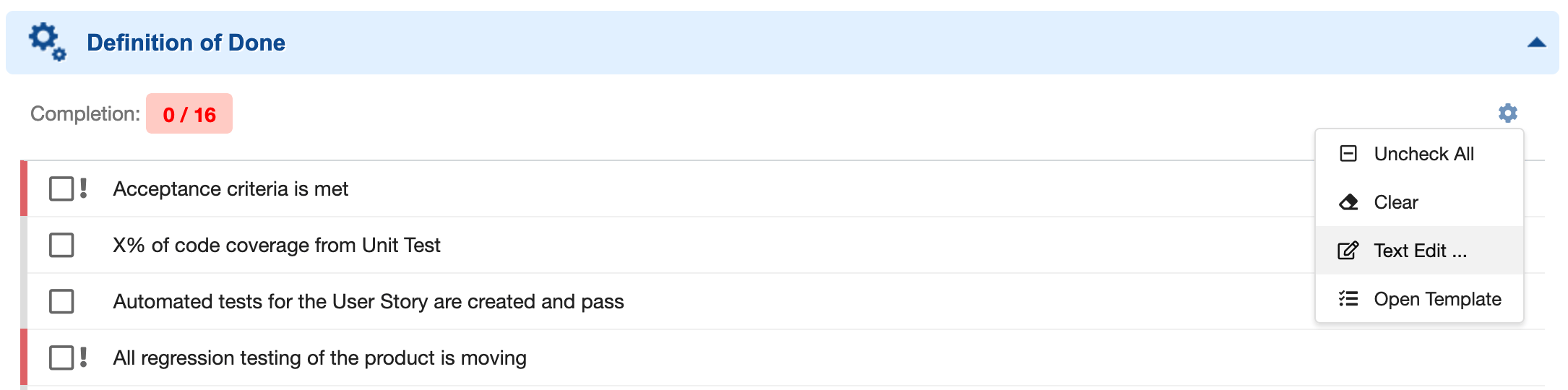 3. In the text editor that opens, paste the checklist definition. Each line you paste is parsed as one checklist item.
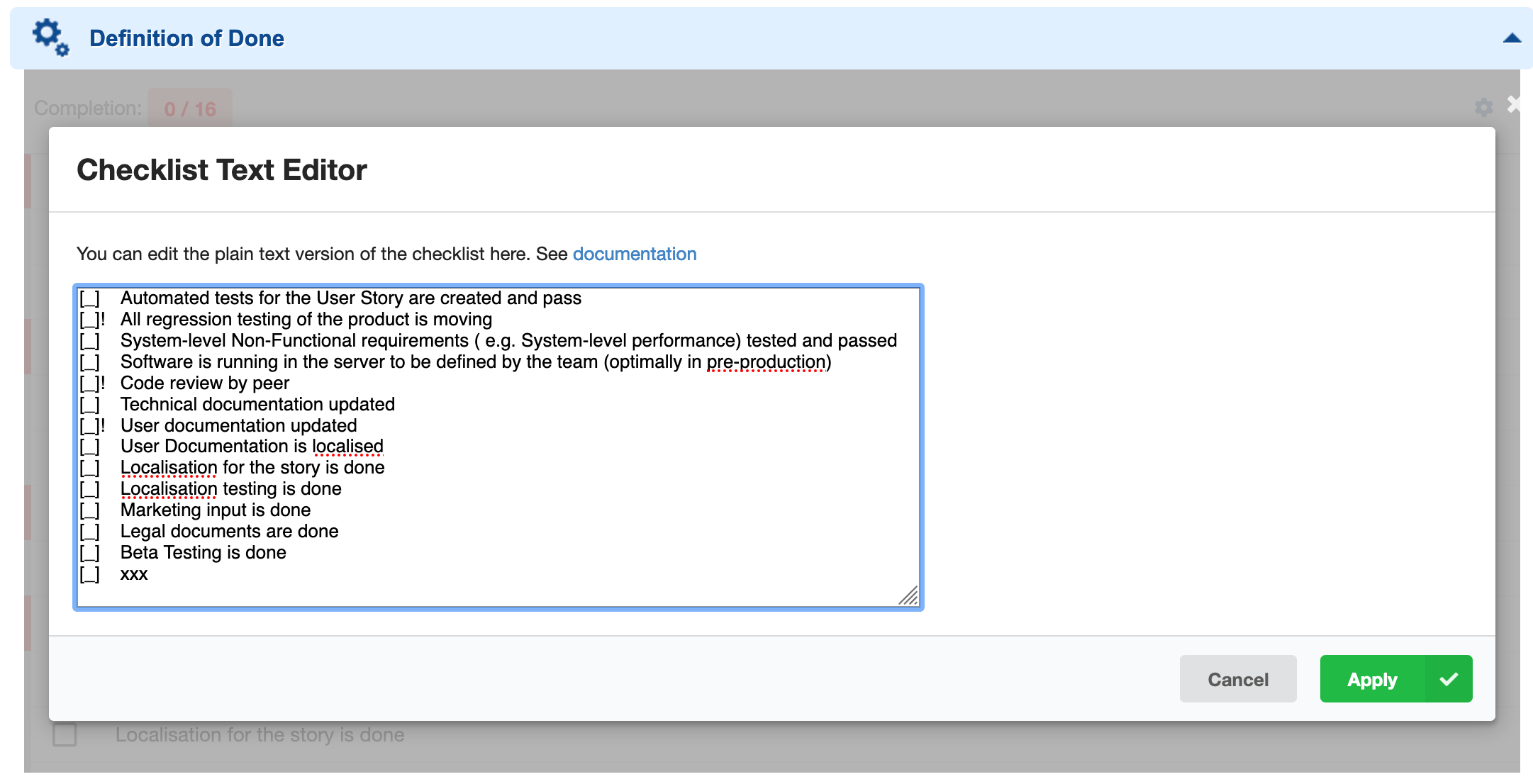 4. Save the work item.
**Verify in application**
The gathered context confirms that each pasted line becomes a new checklist item, but does not document the full line syntax (result/text separators, mandatory markers, notes, or descriptions) for this specific import flow. Check [Create a Checklist Template](/checklist/guides/templates/create-a-template) and your in-app help for the exact per-line formatting before pasting a large checklist. The gathered context confirms that each pasted line becomes a new checklist item, but does not document the full line syntax (result/text separators, mandatory markers, notes, or descriptions) for this specific import flow. Check [Create a Checklist Template](/checklist/guides/templates/create-a-template) and your in-app help for the exact per-line formatting before pasting a large checklist.
4. Save the work item.
**Verify in application**
The gathered context confirms that each pasted line becomes a new checklist item, but does not document the full line syntax (result/text separators, mandatory markers, notes, or descriptions) for this specific import flow. Check [Create a Checklist Template](/checklist/guides/templates/create-a-template) and your in-app help for the exact per-line formatting before pasting a large checklist. The gathered context confirms that each pasted line becomes a new checklist item, but does not document the full line syntax (result/text separators, mandatory markers, notes, or descriptions) for this specific import flow. Check [Create a Checklist Template](/checklist/guides/templates/create-a-template) and your in-app help for the exact per-line formatting before pasting a large checklist.
 ## Reuse the imported content as a shared template
Once your template work item holds the imported checklist, point other work items or documents at it using a configuration property, so the same imported content is reused everywhere instead of copy-pasted again:
```text theme={null}
nextedy.checklist.requirement.chkApproved.workItemTemplateId=WI-124
```
For a document-level checklist template:
```text theme={null}
nextedy.checklist.documentSpecification.documentReadyChecklist.documentTemplateId=Specification/Product Spec Template
```
**Reuse a single import across every work item type that needs it**
A support ticket clarified that a checklist template is **not** automatically shared across work item types — each type must have its own `workItemTemplateId` property explicitly pointing at the template work item, even when they should use the same imported content. After importing the checklist once into a template work item, add a `nextedy.checklist._TYPEID_._FIELDID_.workItemTemplateId` property for **every** type that needs it (for example, both `epic` and `userstory`), all pointing at the same template ID.
**Polarion built-in templates can duplicate imported items**
If you create the template work item using Polarion's own built-in work item templates feature (rather than just importing text into a plain work item), be aware of a known Polarion bug: copying data from a template to a new item silently converts the field from Text to Richtext, which can duplicate checklist items. The workaround:
1. Open the workflow configuration for the work item type.
2. Select the **init** action.
3. Add the function `ChecklistResetToTemplate`.
4. Add a parameter named `checklist` with the value set to the ID of your checklist custom field.
This resets the checklist immediately after item creation, which also corrects the field type. This is a Polarion platform issue, not a Nextedy Checklist defect, and Nextedy has reported it to Siemens.
## Import into a cross-project template
If the template work item receiving the imported text lives in another project, reference it using the `PROJECTID:WORKITEMID` syntax after importing:
```text theme={null}
nextedy.checklist.requirement.chkApproved.workItemTemplateId=myOtherProject:WI-124
```
See [Shared and Cross-Project Templates](/checklist/guides/templates/shared-and-document-templates) for the full cross-project pattern, including a documented limitation for cross-project document templates.
## Verification
You should now see the pasted lines rendered as individual checklist items on the template work item, in the same order they were pasted. Any work item or document configured with a `workItemTemplateId` / `documentTemplateId` pointing at this template picks up the imported items the next time the template is applied.
## See also
* [Create a Checklist Template](/checklist/guides/templates/create-a-template)
* [Multiple Templates per Type and Reset on Type Change](/checklist/guides/templates/multiple-templates-per-type)
* [Shared and Cross-Project Templates](/checklist/guides/templates/shared-and-document-templates)
* [Configure Gate Enforcement (DoD / DoR) and Freeze on Status](/checklist/guides/workflow-gates-and-freeze)
**KB Articles**
* How to create checklist template?
* How to import a checklist?
* How to reset Checklist to the Template on WI type change
**Support Tickets**
* [#6955](https://support.nextedy.com/helpdesk/tickets/6955)
* [#6331](https://support.nextedy.com/helpdesk/tickets/6331)
* [#6344](https://support.nextedy.com/helpdesk/tickets/6344)
**Source Code**
* `proc-checklist-src/com.nextedy.polarion.checklist/src/com/nextedy/polarion/checklist/internal/ChecklistAdminService.java`
* `proc-checklist-src/com.nextedy.polarion.checklist/src/com/nextedy/polarion/checklist/internal/ChecklistSetupService.java`
* `proc-checklist-src/com.nextedy.polarion.checklist/src/com/nextedy/polarion/checklist/ChecklistProduct.java`
* `proc-checklist-src/com.nextedy.polarion.checklist/src/com/nextedy/polarion/checklist/internal/ChecklistService.java`
* `proc-checklist-src/com.nextedy.polarion.checklist/src/com/nextedy/polarion/checklist/wf/ChecklistResetToTemplate.java`
## Reuse the imported content as a shared template
Once your template work item holds the imported checklist, point other work items or documents at it using a configuration property, so the same imported content is reused everywhere instead of copy-pasted again:
```text theme={null}
nextedy.checklist.requirement.chkApproved.workItemTemplateId=WI-124
```
For a document-level checklist template:
```text theme={null}
nextedy.checklist.documentSpecification.documentReadyChecklist.documentTemplateId=Specification/Product Spec Template
```
**Reuse a single import across every work item type that needs it**
A support ticket clarified that a checklist template is **not** automatically shared across work item types — each type must have its own `workItemTemplateId` property explicitly pointing at the template work item, even when they should use the same imported content. After importing the checklist once into a template work item, add a `nextedy.checklist._TYPEID_._FIELDID_.workItemTemplateId` property for **every** type that needs it (for example, both `epic` and `userstory`), all pointing at the same template ID.
**Polarion built-in templates can duplicate imported items**
If you create the template work item using Polarion's own built-in work item templates feature (rather than just importing text into a plain work item), be aware of a known Polarion bug: copying data from a template to a new item silently converts the field from Text to Richtext, which can duplicate checklist items. The workaround:
1. Open the workflow configuration for the work item type.
2. Select the **init** action.
3. Add the function `ChecklistResetToTemplate`.
4. Add a parameter named `checklist` with the value set to the ID of your checklist custom field.
This resets the checklist immediately after item creation, which also corrects the field type. This is a Polarion platform issue, not a Nextedy Checklist defect, and Nextedy has reported it to Siemens.
## Import into a cross-project template
If the template work item receiving the imported text lives in another project, reference it using the `PROJECTID:WORKITEMID` syntax after importing:
```text theme={null}
nextedy.checklist.requirement.chkApproved.workItemTemplateId=myOtherProject:WI-124
```
See [Shared and Cross-Project Templates](/checklist/guides/templates/shared-and-document-templates) for the full cross-project pattern, including a documented limitation for cross-project document templates.
## Verification
You should now see the pasted lines rendered as individual checklist items on the template work item, in the same order they were pasted. Any work item or document configured with a `workItemTemplateId` / `documentTemplateId` pointing at this template picks up the imported items the next time the template is applied.
## See also
* [Create a Checklist Template](/checklist/guides/templates/create-a-template)
* [Multiple Templates per Type and Reset on Type Change](/checklist/guides/templates/multiple-templates-per-type)
* [Shared and Cross-Project Templates](/checklist/guides/templates/shared-and-document-templates)
* [Configure Gate Enforcement (DoD / DoR) and Freeze on Status](/checklist/guides/workflow-gates-and-freeze)
**KB Articles**
* How to create checklist template?
* How to import a checklist?
* How to reset Checklist to the Template on WI type change
**Support Tickets**
* [#6955](https://support.nextedy.com/helpdesk/tickets/6955)
* [#6331](https://support.nextedy.com/helpdesk/tickets/6331)
* [#6344](https://support.nextedy.com/helpdesk/tickets/6344)
**Source Code**
* `proc-checklist-src/com.nextedy.polarion.checklist/src/com/nextedy/polarion/checklist/internal/ChecklistAdminService.java`
* `proc-checklist-src/com.nextedy.polarion.checklist/src/com/nextedy/polarion/checklist/internal/ChecklistSetupService.java`
* `proc-checklist-src/com.nextedy.polarion.checklist/src/com/nextedy/polarion/checklist/ChecklistProduct.java`
* `proc-checklist-src/com.nextedy.polarion.checklist/src/com/nextedy/polarion/checklist/internal/ChecklistService.java`
* `proc-checklist-src/com.nextedy.polarion.checklist/src/com/nextedy/polarion/checklist/wf/ChecklistResetToTemplate.java`