> ## Documentation Index
> Fetch the complete documentation index at: https://learn.nextedy.com/llms.txt
> Use this file to discover all available pages before exploring further.
# Multiple Templates per Type
> Configure different checklist templates for each work item type so that the same checklist field displays type-appropriate items.
export const LastReviewed = ({date}) => {
if (!date) return null;
const formatted = new Date(`${date}T00:00:00Z`).toLocaleDateString("en-US", {
year: "numeric",
month: "long",
day: "numeric",
timeZone: "UTC"
});
return
Last reviewed on {formatted}
;
};
## Prerequisites
Before you begin, ensure you have:
* At least two work item types that share the same checklist custom field ID
* A dedicated template work item created for each type (see [Creating and Managing Templates](/checklist/guides/templates))
* Access to **Polarion Administration > Configuration Properties**
## How Type-Specific Templates Work
When you assign a single checklist field (for example, `testChecklist`) to multiple work item types, each type can reference its own template work item. Checklist resolves which template to use based on the type-specific configuration property.
 Create one work item per type to serve as the template source. Populate each with the checklist items appropriate for that type.
For example:
* `CHEC-287` -- template for user stories with items like "Acceptance criteria defined", "Story points estimated"
* `CHEC-288` -- template for requirements with items like "Traceability links verified", "Test cases linked"
Any change you make to the checklist on a template work item affects every work item that references it. Create dedicated template work items that are not used for regular work.
Open **Polarion Administration > Configuration Properties** and add a `workItemTemplateId` property for each type. The configuration property follows this pattern:
```
nextedy.checklist._TYPEID._FIELDID.workItemTemplateId
```
Replace `_TYPEID` with the work item type ID and `_FIELDID` with the checklist custom field ID.
**Example -- two types sharing `testChecklist`:**
```properties theme={null}
nextedy.checklist.userstory.testChecklist.workItemTemplateId=CHEC-287
nextedy.checklist.requirement.testChecklist.workItemTemplateId=CHEC-288
```
Both properties use the same checklist field ID (`testChecklist`) but point to different template work items depending on the type.
You can extend this pattern to any number of work item types. Each type gets its own property line:
```properties theme={null}
nextedy.checklist.userstory.testChecklist.workItemTemplateId=CHEC-287
nextedy.checklist.requirement.testChecklist.workItemTemplateId=CHEC-288
nextedy.checklist.task.testChecklist.workItemTemplateId=CHEC-290
nextedy.checklist.defect.testChecklist.workItemTemplateId=CHEC-291
```
You can reference template work items from other projects using the `projectId:workItemId` format. For example: `nextedy.checklist.userstory.testChecklist.workItemTemplateId=SharedProject:CHEC-100`.
If you want a default template for types that do not have a type-specific property, set a field-level property without the type qualifier:
```properties theme={null}
nextedy.checklist.testChecklist.workItemTemplateId=CHEC-300
```
The resolution order is:
| Precedence | Property Pattern | Example |
| ------------ | ------------------------------------------------------- | -------------------------------------------------------------- |
| 1 (highest) | `nextedy.checklist._TYPEID._FIELDID.workItemTemplateId` | `nextedy.checklist.userstory.testChecklist.workItemTemplateId` |
| 2 (fallback) | `nextedy.checklist._FIELDID.workItemTemplateId` | `nextedy.checklist.testChecklist.workItemTemplateId` |
When a user changes the type of a work item (for example, from user story to requirement), the checklist may still contain items from the old template. To automatically reset the checklist on type change, add the monitoring configuration property:
```properties theme={null}
nextedy.checklist.checklistsIdsForTypeChanges=testChecklist
```
Specify a comma-separated list of checklist field IDs that should be monitored. When the work item type changes, any checklist listed here is reset to match the new type's template.
Create one work item per type to serve as the template source. Populate each with the checklist items appropriate for that type.
For example:
* `CHEC-287` -- template for user stories with items like "Acceptance criteria defined", "Story points estimated"
* `CHEC-288` -- template for requirements with items like "Traceability links verified", "Test cases linked"
Any change you make to the checklist on a template work item affects every work item that references it. Create dedicated template work items that are not used for regular work.
Open **Polarion Administration > Configuration Properties** and add a `workItemTemplateId` property for each type. The configuration property follows this pattern:
```
nextedy.checklist._TYPEID._FIELDID.workItemTemplateId
```
Replace `_TYPEID` with the work item type ID and `_FIELDID` with the checklist custom field ID.
**Example -- two types sharing `testChecklist`:**
```properties theme={null}
nextedy.checklist.userstory.testChecklist.workItemTemplateId=CHEC-287
nextedy.checklist.requirement.testChecklist.workItemTemplateId=CHEC-288
```
Both properties use the same checklist field ID (`testChecklist`) but point to different template work items depending on the type.
You can extend this pattern to any number of work item types. Each type gets its own property line:
```properties theme={null}
nextedy.checklist.userstory.testChecklist.workItemTemplateId=CHEC-287
nextedy.checklist.requirement.testChecklist.workItemTemplateId=CHEC-288
nextedy.checklist.task.testChecklist.workItemTemplateId=CHEC-290
nextedy.checklist.defect.testChecklist.workItemTemplateId=CHEC-291
```
You can reference template work items from other projects using the `projectId:workItemId` format. For example: `nextedy.checklist.userstory.testChecklist.workItemTemplateId=SharedProject:CHEC-100`.
If you want a default template for types that do not have a type-specific property, set a field-level property without the type qualifier:
```properties theme={null}
nextedy.checklist.testChecklist.workItemTemplateId=CHEC-300
```
The resolution order is:
| Precedence | Property Pattern | Example |
| ------------ | ------------------------------------------------------- | -------------------------------------------------------------- |
| 1 (highest) | `nextedy.checklist._TYPEID._FIELDID.workItemTemplateId` | `nextedy.checklist.userstory.testChecklist.workItemTemplateId` |
| 2 (fallback) | `nextedy.checklist._FIELDID.workItemTemplateId` | `nextedy.checklist.testChecklist.workItemTemplateId` |
When a user changes the type of a work item (for example, from user story to requirement), the checklist may still contain items from the old template. To automatically reset the checklist on type change, add the monitoring configuration property:
```properties theme={null}
nextedy.checklist.checklistsIdsForTypeChanges=testChecklist
```
Specify a comma-separated list of checklist field IDs that should be monitored. When the work item type changes, any checklist listed here is reset to match the new type's template.
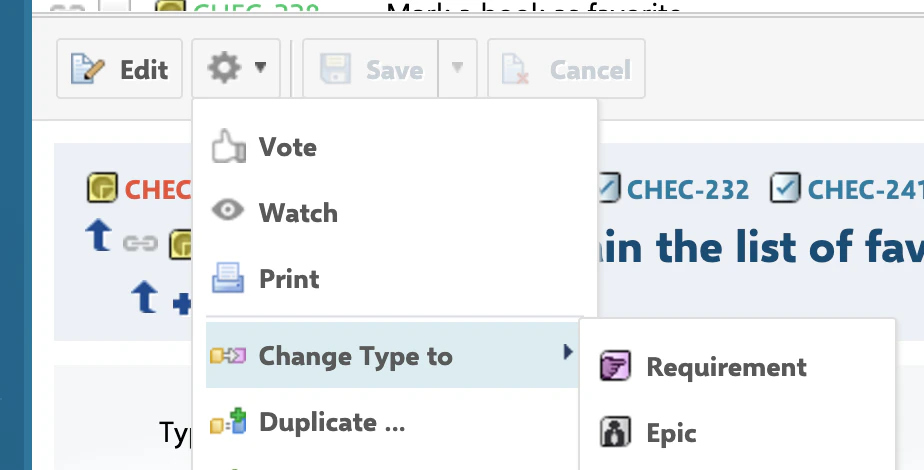 For complete details on this feature, see [Reset on Work Item Type Change](/checklist/guides/type-change-reset).
When the checklist resets on type change, all manually added items and result states are replaced by the new type's template. Ensure users save their progress before changing a work item's type.
## Dynamic Template Selection
For advanced scenarios where the template must vary beyond just the work item type, use the `workItemTemplateHolder` configuration property. This property specifies a custom field on the work item that holds the template ID dynamically:
```properties theme={null}
nextedy.checklist._TYPEID._FIELDID.workItemTemplateHolder=myTemplateField
```
When `workItemTemplateHolder` is configured, its value takes priority over the static `workItemTemplateId` property. This lets you assign different templates to individual work items within the same type.
## Document Templates
For document (LiveDoc) checklists, the same pattern applies using `documentTemplateId` instead:
```properties theme={null}
nextedy.checklist._TYPEID._FIELDID.documentTemplateId=SpaceName/DocumentName
```
Use `documentTemplateHolder` for dynamic document template selection:
```properties theme={null}
nextedy.checklist._TYPEID._FIELDID.documentTemplateHolder=myDocTemplateField
```
If you reuse the same document templates across multiple projects, set the `documentTemplateId` at the global scope in Polarion's global configuration properties. This avoids configuring each project separately.
## Verification
After configuring multiple templates:
1. Open a work item of the first type (for example, a user story)
2. You should now see the checklist populated with items from the type-specific template (for example, `CHEC-287`)
3. Open a work item of the second type (for example, a requirement)
4. You should now see a different set of checklist items matching that type's template (for example, `CHEC-288`)
5. If you configured type change reset, change a work item from one type to another and verify the checklist resets to the correct template
## See Also
* [Creating and Managing Templates](/checklist/guides/templates) -- template creation fundamentals
* [Reset on Work Item Type Change](/checklist/guides/type-change-reset) -- automatic reset on type change
* [Workflow Gates and Validation](/checklist/guides/workflow-gates) -- enforce checklist completion before transitions
* [Freezing Checklists by Status](/checklist/guides/freeze-by-status) -- stop template merging at specific statuses
For complete details on this feature, see [Reset on Work Item Type Change](/checklist/guides/type-change-reset).
When the checklist resets on type change, all manually added items and result states are replaced by the new type's template. Ensure users save their progress before changing a work item's type.
## Dynamic Template Selection
For advanced scenarios where the template must vary beyond just the work item type, use the `workItemTemplateHolder` configuration property. This property specifies a custom field on the work item that holds the template ID dynamically:
```properties theme={null}
nextedy.checklist._TYPEID._FIELDID.workItemTemplateHolder=myTemplateField
```
When `workItemTemplateHolder` is configured, its value takes priority over the static `workItemTemplateId` property. This lets you assign different templates to individual work items within the same type.
## Document Templates
For document (LiveDoc) checklists, the same pattern applies using `documentTemplateId` instead:
```properties theme={null}
nextedy.checklist._TYPEID._FIELDID.documentTemplateId=SpaceName/DocumentName
```
Use `documentTemplateHolder` for dynamic document template selection:
```properties theme={null}
nextedy.checklist._TYPEID._FIELDID.documentTemplateHolder=myDocTemplateField
```
If you reuse the same document templates across multiple projects, set the `documentTemplateId` at the global scope in Polarion's global configuration properties. This avoids configuring each project separately.
## Verification
After configuring multiple templates:
1. Open a work item of the first type (for example, a user story)
2. You should now see the checklist populated with items from the type-specific template (for example, `CHEC-287`)
3. Open a work item of the second type (for example, a requirement)
4. You should now see a different set of checklist items matching that type's template (for example, `CHEC-288`)
5. If you configured type change reset, change a work item from one type to another and verify the checklist resets to the correct template
## See Also
* [Creating and Managing Templates](/checklist/guides/templates) -- template creation fundamentals
* [Reset on Work Item Type Change](/checklist/guides/type-change-reset) -- automatic reset on type change
* [Workflow Gates and Validation](/checklist/guides/workflow-gates) -- enforce checklist completion before transitions
* [Freezing Checklists by Status](/checklist/guides/freeze-by-status) -- stop template merging at specific statuses