> ## Documentation Index
> Fetch the complete documentation index at: https://learn.nextedy.com/llms.txt
> Use this file to discover all available pages before exploring further.
# Assigning Notes to Items
> Add detailed comments and context to individual checklist items using the notes feature.
export const LastReviewed = ({date}) => {
if (!date) return null;
const formatted = new Date(`${date}T00:00:00Z`).toLocaleDateString("en-US", {
year: "numeric",
month: "long",
day: "numeric",
timeZone: "UTC"
});
return
Last reviewed on {formatted}
;
};
## Prerequisites
* A checklist with at least one item already configured on your work item
* The checklist must be in an editable state (not read-only or frozen)
## Adding a Note to a Checklist Item
1. Open the work item containing the checklist you want to annotate.
2. Locate the checklist item that needs additional context.
3. Click the **Reply** icon next to the checklist item label.
4. Type your note text in the field that appears below the item.
5. Save the work item to persist the note.
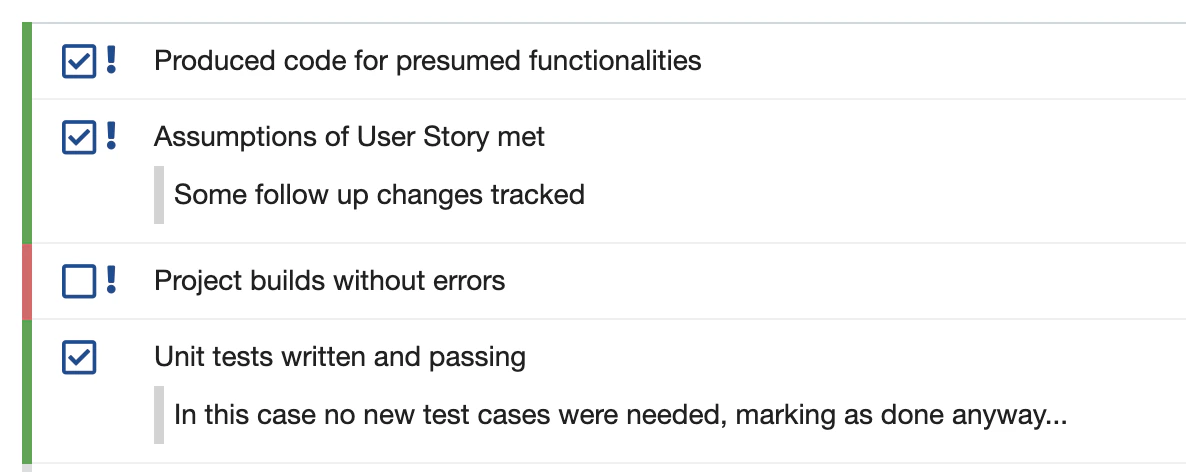
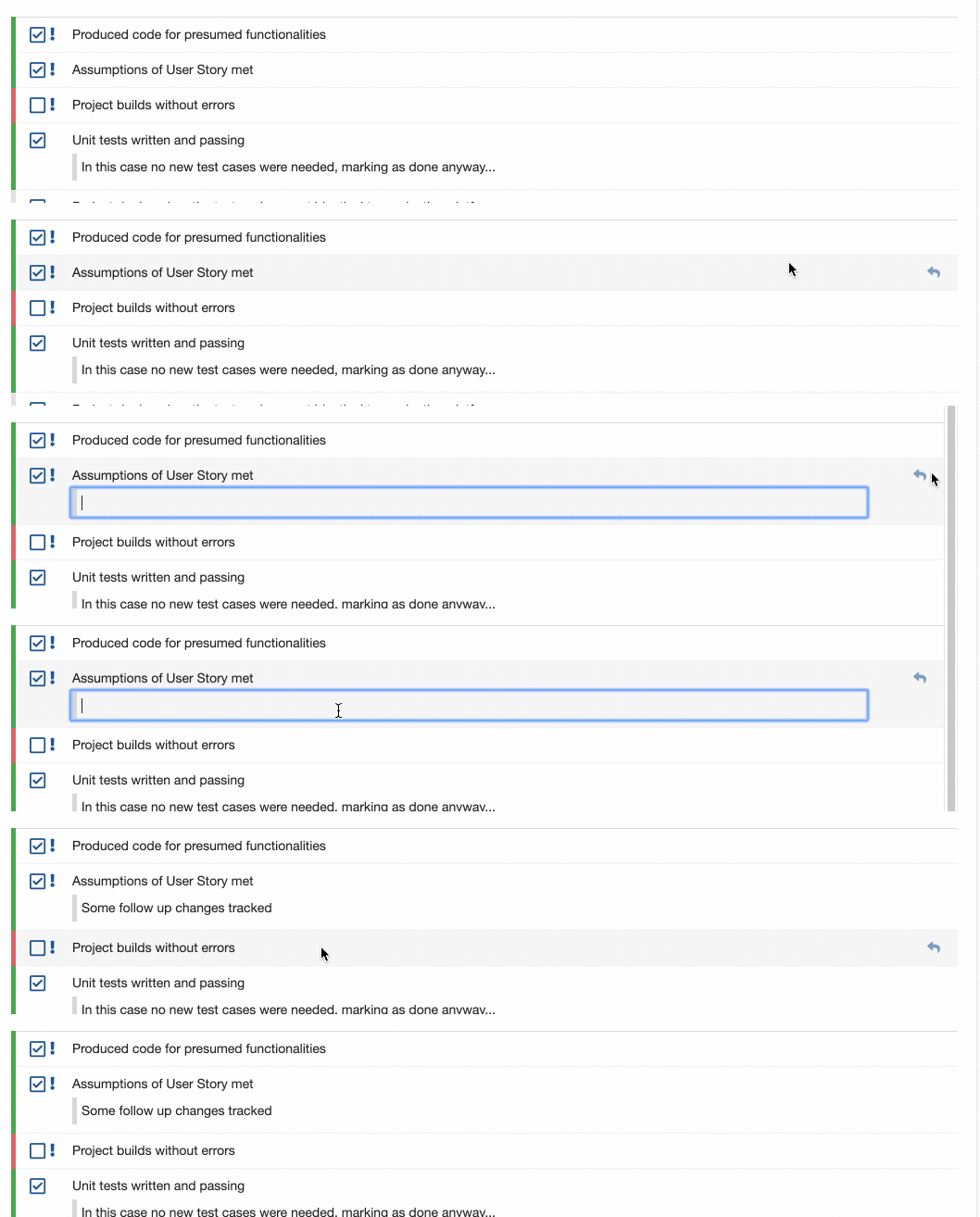 Item notes were introduced in Checklist version 1.7.0. Ensure your installation is up to date if you do not see the Reply icon.
## Understanding the Item Structure
Each checklist item has a fixed structure. Understanding these fields helps you use notes effectively.
| Field | Purpose | Editable by User |
| -------------- | ----------------------------------------------------------- | --------------------- |
| `label` | Primary display text for the checklist item | Via template only |
| `description` | Extended guidance about what the item requires | Via template only |
| `note` | User-provided comment or context for this specific instance | Yes, via Reply icon |
| `mandatory` | Whether the item must be checked for workflow gates | Via template only |
| `result state` | Current state: OK, NOK, N/A, Pending, or Empty | Yes, via checklist UI |
Item notes were introduced in Checklist version 1.7.0. Ensure your installation is up to date if you do not see the Reply icon.
## Understanding the Item Structure
Each checklist item has a fixed structure. Understanding these fields helps you use notes effectively.
| Field | Purpose | Editable by User |
| -------------- | ----------------------------------------------------------- | --------------------- |
| `label` | Primary display text for the checklist item | Via template only |
| `description` | Extended guidance about what the item requires | Via template only |
| `note` | User-provided comment or context for this specific instance | Yes, via Reply icon |
| `mandatory` | Whether the item must be checked for workflow gates | Via template only |
| `result state` | Current state: OK, NOK, N/A, Pending, or Empty | Yes, via checklist UI |
 The `note` field is the only user-editable text field on a checklist item instance. The `label` and `description` come from the template and cannot be changed on individual work items.
## When to Use Notes
Notes are useful in these scenarios:
* **Audit trail** -- Record who performed a check and when, or reference related work items.
* **Exception documentation** -- Explain why an item was marked N/A or NOK with justification.
* **Review findings** -- Attach brief findings or observations next to the relevant checklist item.
* **Handoff context** -- Provide additional information for the next person in the workflow.
Each checklist item supports exactly one note field. You cannot add multiple comment areas, combo boxes, or per-comment checkboxes to a single item. If you need separate note areas, consider splitting the checklist item into multiple items in your template, using content separators between entries.
## Notes and Read-Only Mode
Notes follow the same editability rules as the rest of the checklist:
* If the checklist custom field is marked as **read-only** (via work item permissions or the Administration **Read Only Fields** page), notes cannot be added or modified.
* If the checklist is **frozen by status** using `nextedy.checklist._TYPEID._FIELDID._STATUS.mergeTemplate=false`, existing notes remain visible but new notes cannot be added.
* If the work item form extension is not properly configured, the checklist may display in read-only mode even when the field is editable. See [Troubleshooting](/checklist/guides/troubleshooting) for resolution steps.
When template merging adds new items to a checklist, existing items retain their notes. Notes are stored per-item and are not affected by template updates.
## Notes in PDF Export
When a document or work item is exported to PDF, checklist items render as a static HTML table. Notes are included in the PDF output alongside each checklist item, providing a complete record.
The exact rendering of notes in PDF exports may vary depending on your Checklist version and Polarion PDF configuration. Verify the output format in your environment.
## Accessing Notes Programmatically
You can read and write notes through the Checklist API in Velocity templates and workflow scripts. Each checklist item exposes a `note` property:
```velocity theme={null}
#set( $cList = $checklistService.parse( $workItem, "dod"))
#foreach($item in $cList.getItems())
$item.label - Note: $!item.note
#end
```
The `$!item.note` syntax (with the `!` prefix) safely handles items that have no note set, rendering an empty string instead of the literal variable name.
## Verification
You should now see:
* A Reply icon next to each checklist item when the checklist is editable
* After clicking the Reply icon and entering text, the note appears below the item label
* The note persists after saving and reopening the work item
* Notes appear in PDF exports alongside their parent checklist items
## See Also
* [Creating and Managing Templates](/checklist/guides/templates) -- Define labels and descriptions for checklist items
* [Custom Icons](/checklist/guides/custom-icons) -- Customize the visual appearance of checklist items
* [Read-Only Mode](/checklist/guides/readonly-mode) -- Control when checklists become non-editable
* [Freezing Checklists by Status](/checklist/guides/freeze-by-status) -- Freeze checklist content at specific workflow statuses
The `note` field is the only user-editable text field on a checklist item instance. The `label` and `description` come from the template and cannot be changed on individual work items.
## When to Use Notes
Notes are useful in these scenarios:
* **Audit trail** -- Record who performed a check and when, or reference related work items.
* **Exception documentation** -- Explain why an item was marked N/A or NOK with justification.
* **Review findings** -- Attach brief findings or observations next to the relevant checklist item.
* **Handoff context** -- Provide additional information for the next person in the workflow.
Each checklist item supports exactly one note field. You cannot add multiple comment areas, combo boxes, or per-comment checkboxes to a single item. If you need separate note areas, consider splitting the checklist item into multiple items in your template, using content separators between entries.
## Notes and Read-Only Mode
Notes follow the same editability rules as the rest of the checklist:
* If the checklist custom field is marked as **read-only** (via work item permissions or the Administration **Read Only Fields** page), notes cannot be added or modified.
* If the checklist is **frozen by status** using `nextedy.checklist._TYPEID._FIELDID._STATUS.mergeTemplate=false`, existing notes remain visible but new notes cannot be added.
* If the work item form extension is not properly configured, the checklist may display in read-only mode even when the field is editable. See [Troubleshooting](/checklist/guides/troubleshooting) for resolution steps.
When template merging adds new items to a checklist, existing items retain their notes. Notes are stored per-item and are not affected by template updates.
## Notes in PDF Export
When a document or work item is exported to PDF, checklist items render as a static HTML table. Notes are included in the PDF output alongside each checklist item, providing a complete record.
The exact rendering of notes in PDF exports may vary depending on your Checklist version and Polarion PDF configuration. Verify the output format in your environment.
## Accessing Notes Programmatically
You can read and write notes through the Checklist API in Velocity templates and workflow scripts. Each checklist item exposes a `note` property:
```velocity theme={null}
#set( $cList = $checklistService.parse( $workItem, "dod"))
#foreach($item in $cList.getItems())
$item.label - Note: $!item.note
#end
```
The `$!item.note` syntax (with the `!` prefix) safely handles items that have no note set, rendering an empty string instead of the literal variable name.
## Verification
You should now see:
* A Reply icon next to each checklist item when the checklist is editable
* After clicking the Reply icon and entering text, the note appears below the item label
* The note persists after saving and reopening the work item
* Notes appear in PDF exports alongside their parent checklist items
## See Also
* [Creating and Managing Templates](/checklist/guides/templates) -- Define labels and descriptions for checklist items
* [Custom Icons](/checklist/guides/custom-icons) -- Customize the visual appearance of checklist items
* [Read-Only Mode](/checklist/guides/readonly-mode) -- Control when checklists become non-editable
* [Freezing Checklists by Status](/checklist/guides/freeze-by-status) -- Freeze checklist content at specific workflow statuses